
1. Introduction
This manual provides comprehensive instructions for the setup, operation, maintenance, and troubleshooting of your Sharp EL-2630PIII Standard Function Printing Calculator. Please read this manual thoroughly before using the calculator to ensure correct operation and to maximize its functionality.

Figure 1: Sharp EL-2630PIII Printing Calculator. This image shows the calculator from a slightly elevated front view, displaying its 12-digit fluorescent screen, full keypad, and the paper roll with printed calculations emerging from the top.
2. Setup
Before operating your calculator, follow these steps to prepare it for use.
2.1 Unpacking and Power Connection
- Carefully remove the calculator and all accessories from the packaging. The box should contain the calculator, power cord/AC adapter, two-color ink roller, paper roll, and this instruction manual.
- Connect the AC adapter to the calculator's power input and then plug it into a standard 110V AC power outlet. Important: This calculator is designed for 110V AC power. Do not connect to 220V outlets without a suitable voltage converter, as this may damage the unit.
2.2 Paper Roll Installation
- Ensure the calculator is turned off.
- Lift the printer cover.
- Place a standard paper roll (57mm to 58mm wide, 80mm diameter maximum) onto the paper roll holder.
- Feed the leading edge of the paper into the printer slot until it catches and begins to feed automatically.
- Close the printer cover.

Figure 2: Side view of the Sharp EL-2630PIII calculator, illustrating the paper roll holder and the paper feeding into the printer mechanism.
2.3 Ink Roller Installation
- Ensure the calculator is turned off.
- Open the printer cover.
- Remove the old ink roller if present.
- Insert the new two-color ink roller, ensuring it is seated correctly.
- Close the printer cover.
2.4 Battery Installation (for Clock/Calendar Backup)
- The calculator requires 1 CR2 battery for the clock/calendar function backup.
- Locate the battery compartment on the underside of the calculator.
- Open the compartment, insert the CR2 battery with the correct polarity, and close the cover.
2.5 Initial Settings
Adjust the following switches located on the calculator's top panel to your preferred settings:
- Decimal Selector (F-6-3-2-1-0): Sets the number of decimal places for calculations. 'F' is for floating decimal.
- Rounding Selector: Controls how results are rounded (e.g., round up, round down, cut off).
- Constant/Add Mode (K/A): 'K' activates constant calculation, 'A' activates add mode for automatic decimal placement (e.g., for currency).
- Print/Item Count Mode Selector: Toggles between printing results and displaying an item count.
3. Operating Instructions
This section details the various functions and operations of your Sharp EL-2630PIII calculator.
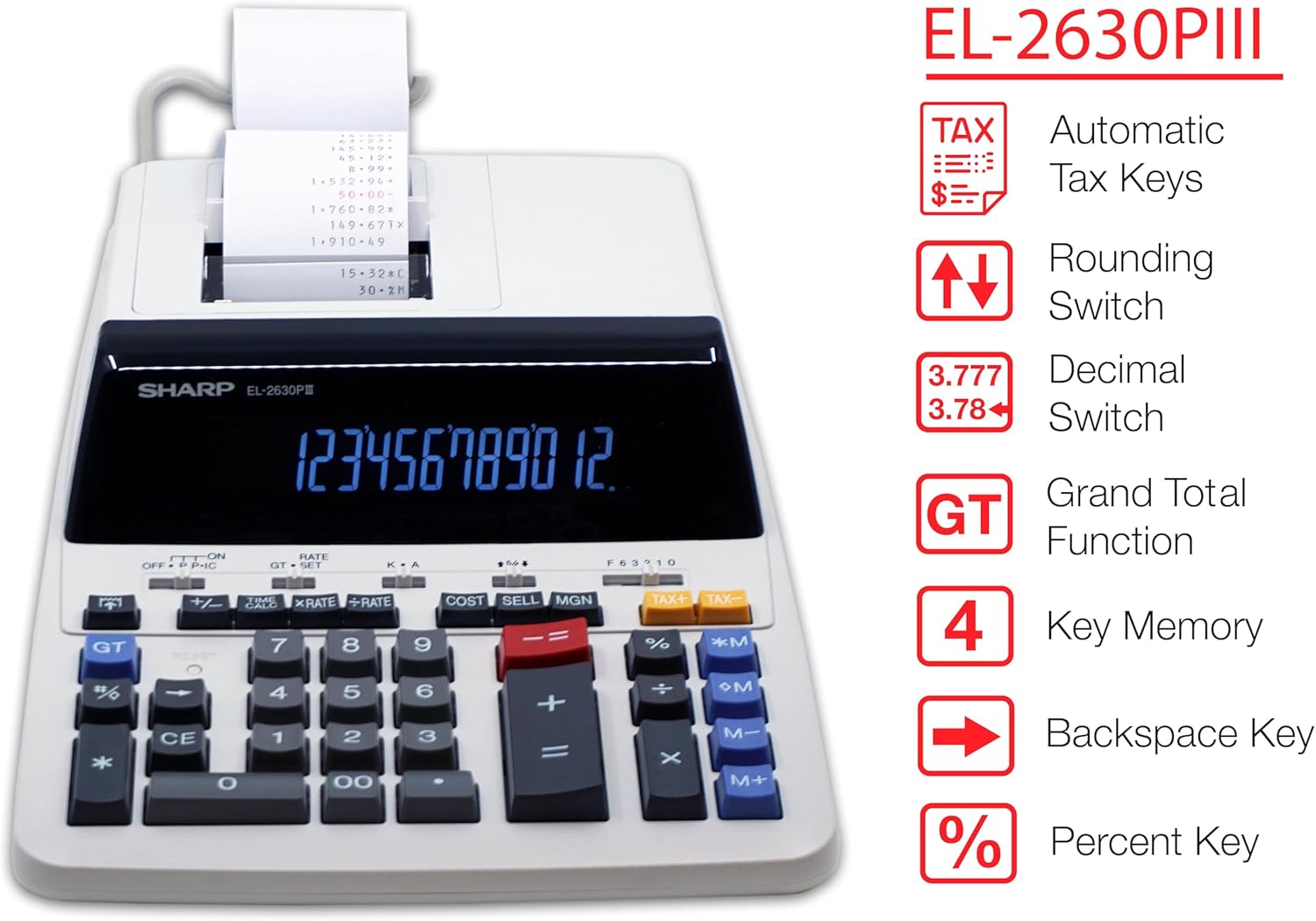
Figure 3: Overview of Sharp EL-2630PIII key features, including automatic tax keys, rounding switch, decimal switch, grand total function, 4-key memory, backspace key, and percent key.
3.1 Basic Calculations
- Addition (+): Enter the first number, press '+', enter the second number, press '+'.
- Subtraction (-): Enter the first number, press '-', enter the second number, press '-'.
- Multiplication (x): Enter the first number, press 'x', enter the second number, press '='.
- Division (÷): Enter the first number, press '÷', enter the second number, press '='.
- Total (=): Press '=' to display the final result of a calculation.
3.2 Memory Functions
The calculator features a 4-key independent memory system.
- M+: Adds the displayed value to the memory.
- M-: Subtracts the displayed value from the memory.
- RM (Recall Memory): Recalls the value stored in memory to the display.
- CM (Clear Memory): Clears the memory content.
3.3 Special Functions
- GT (Grand Total): Accumulates the results of all calculations performed since the last GT clear. Pressing GT once displays the grand total; pressing it twice clears it.
- CE (Clear Entry): Clears the last entered number or calculation entry without affecting previous calculations or memory.
- C (Clear All): Clears all entries and calculations, except for memory.
- +/- (Change Sign): Changes the sign of the displayed number from positive to negative or vice versa.
- % (Percent): Used for percentage calculations.
- 00 (Double Zero): Enters two zeros simultaneously, speeding up entry of large numbers.
- TAX+ / TAX- (Tax Keys): Allows for automatic addition or subtraction of a pre-set tax rate. The tax rate can be set using the RATE/SET switch.
- COST / SELL / MGN (Cost/Sell/Margin): Used for profit margin calculations. Enter two of the three values (Cost, Selling Price, Margin) to calculate the third.
- Backspace Key: Deletes the last digit entered.
- Time/Date Function: The calculator can display and print the current date and time. Refer to the specific key combination for this function, typically involving a dedicated TIME/CALC button.

Figure 4: A close-up view of the Sharp EL-2630PIII's fluorescent display showing a calculated value and the surrounding function keys, including COST, SELL, MGN, TAX+, and TAX-.
4. Maintenance
Proper maintenance ensures the longevity and optimal performance of your calculator.
4.1 Cleaning
- Wipe the calculator's exterior with a soft, dry cloth.
- For stubborn dirt, slightly dampen the cloth with water and a mild detergent, then wipe dry immediately.
- Do not use abrasive cleaners, solvents, or spray directly onto the calculator.
4.2 Replacing Paper Roll
When the paper roll runs low or the print becomes faint, replace it by following the steps in Section 2.2.
4.3 Replacing Ink Roller
If the print quality deteriorates (e.g., faded or incomplete characters), the ink roller may need replacement. Follow the steps in Section 2.3.
4.4 Battery Replacement
The CR2 battery for clock/calendar backup typically lasts for an extended period. If the date and time settings are lost frequently, replace the battery as described in Section 2.4.
5. Troubleshooting
This section addresses common issues you might encounter with your calculator.
| Problem | Possible Cause | Solution |
|---|---|---|
| Calculator does not power on. | Power cord not properly connected; power outlet malfunction. | Ensure AC adapter is securely plugged into the calculator and a working 110V outlet. Check the power switch position. |
| Display is blank or dim. | Power issue; display brightness setting (if applicable). | Verify power connection. If the issue persists, contact support. |
| Printer does not print or print is faint. | No paper; paper jammed; ink roller needs replacement. | Install a new paper roll (Section 2.2). Replace the ink roller (Section 2.3). Clear any paper jams. |
| "Error" message on display. | Calculation overflow; invalid operation. | Press 'C' or 'CE' to clear the error. Review your calculation steps. |
| Date/Time settings are lost. | CR2 backup battery is depleted. | Replace the CR2 battery (Section 2.4). |
6. Specifications
- Model: EL-2630PIII
- Display: 12-digit, extra-large fluorescent display with 3-digit punctuation
- Printer: 2-color (black/red) ribbon printer, approximately 4.8 lines per second
- Paper Roll: Accepts 57mm (2-1/4") to 58mm (2-9/32") wide x 80mm (3-5/32") diameter maximum
- Power Source: AC Supply (110V)
- Backup Battery: 1 x CR2 (for clock/calendar function)
- Dimensions (W x D x H): 8-31/32" x 13-5/32" x 2-25/32" (approx. 22.8 cm x 33.3 cm x 7.0 cm)
- Weight: Approximately 2 pounds (0.91 kg)
- Functions: Basic arithmetic, 4-key memory, Grand Total, Add Mode, Constant, Double Zero, Mark-up/Profit Margin, Item Counter, Rounding, Decimal Selector (F-6-3-2-1-0), Change Sign, Percent, Tax+, Tax-, Backspace, Calendar/Clock.
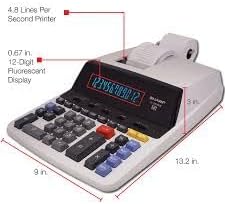
Figure 5: The Sharp EL-2630PIII calculator with its approximate dimensions (width, depth, height) indicated, providing a visual reference for its physical size.
7. Warranty and Support
For warranty information, please refer to the documentation included with your purchase or visit the official Sharp website. For technical support or service inquiries, please contact Sharp customer service.
Online Resources: Visit the Sharp Store on Amazon


