
1. Introduction
Welcome to the SoundMaster Radio DJ Console. This professional audio mixing system is designed for broadcasting, live events, and studio applications, offering intuitive controls and high-fidelity sound processing. This manual provides essential information for setting up, operating, maintaining, and troubleshooting your new console to ensure optimal performance and longevity.
2. Safety Information
Please read all safety instructions carefully before operating the device.
- Power Source: Connect the console only to the specified power supply. Ensure the voltage matches the requirements listed on the device.
- Ventilation: Do not block ventilation openings. Ensure adequate airflow around the unit to prevent overheating.
- Moisture: Keep the console away from water, rain, and excessive humidity. Do not operate with wet hands.
- Cleaning: Disconnect power before cleaning. Use a dry, soft cloth. Do not use liquid cleaners or aerosols.
- Servicing: Do not attempt to service the unit yourself. Refer all servicing to qualified service personnel.
- Placement: Place the console on a stable, level surface. Avoid placing it near heat sources or in direct sunlight.
3. Setup
Follow these steps to set up your Radio DJ Console:
- Unpacking: Carefully remove the console and all accessories from the packaging. Retain packaging for future transport or storage.
- Placement: Position the console on a sturdy desk or rack, ensuring easy access to all controls and connections.
- Power Connection: Connect the provided power adapter to the DC IN port on the rear panel of the console, then plug it into a suitable power outlet.
- Audio Input Connections:
- Connect microphones to the XLR inputs.
- Connect CD players, turntables, or other line-level devices to the RCA or 1/4" TRS inputs.
- For digital audio sources, use the USB or S/PDIF inputs if available on your model.
- Audio Output Connections:
- Connect the MAIN OUT (XLR or TRS) to your amplifier or powered speakers.
- Connect headphones to the HEADPHONE output for monitoring.
- Use the REC OUT for connecting to a recording device.
- Initial Power On: Before powering on, ensure all volume faders are at their minimum position. Press the POWER button. The power indicator light should illuminate.
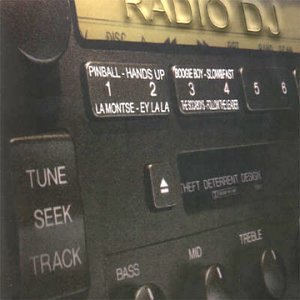
Figure 3.1: Front panel of the Radio DJ Console, showing input selection buttons, faders, EQ knobs, and the main display area. Labels like "TUNE", "SEEK", "TRACK", "BASS", "MID", "TREBLE" are visible, indicating control over audio parameters and track navigation. The display area shows track information and a "THEFT DETERRENT DESIGN" label.
4. Operating Instructions
4.1 Basic Operation
- Power On/Off: Use the POWER button located on the front panel.
- Input Selection: Use the input selector buttons (e.g., CD, Line, Mic, USB) for each channel to choose your audio source.
- Volume Control: Adjust individual channel faders to control the volume of each input. The MASTER fader controls the overall output volume.
- Headphone Monitoring: Use the CUE buttons for each channel to send its audio to the headphones for pre-listening without affecting the main output. Adjust headphone volume with the dedicated knob.
4.2 Audio Mixing and Effects
- Equalization (EQ): Each channel features BASS, MID, and TREBLE knobs to adjust the frequency response of the audio source. Turn clockwise to boost, counter-clockwise to cut.
- Crossfader: Use the crossfader to smoothly transition between two selected channels (typically Channel 1 and Channel 2).
- Effects: If your model includes built-in effects, refer to the dedicated effects section in the full manual for detailed operation. Common effects include Reverb, Delay, and Flanger.
4.3 Track Navigation (for integrated players)
- TUNE/SEEK: For radio tuner functions, use the TUNE knob or SEEK buttons to find radio stations.
- TRACK: For integrated CD/USB players, use the TRACK buttons to navigate between tracks.
5. Maintenance
Proper maintenance ensures the longevity and optimal performance of your console.
- Cleaning: Regularly wipe the console's surface with a soft, dry, lint-free cloth. For stubborn dirt, slightly dampen the cloth with water. Avoid abrasive cleaners or solvents.
- Dust Removal: Use a soft brush or compressed air to remove dust from faders, knobs, and ventilation grilles.
- Cable Management: Ensure cables are neatly organized and not under strain to prevent damage to connectors.
- Storage: If storing the console for an extended period, disconnect all cables, clean the unit, and store it in its original packaging or a protective case in a cool, dry place.
6. Troubleshooting
This section addresses common issues you might encounter.
| Problem | Possible Cause | Solution |
|---|---|---|
| No power | Power cable disconnected; Power outlet faulty; Console fuse blown. | Check power cable connection; Try a different outlet; Contact service for fuse replacement. |
| No sound output | Master volume too low; Input source not selected; Output cables disconnected/faulty; Amplifier/speakers off. | Increase master volume; Select correct input; Check all audio cables; Ensure amplifier/speakers are on and working. |
| Distorted audio | Input gain too high; Output volume too high; Faulty cable/speaker. | Reduce input gain; Lower master volume; Check/replace cables and speakers. |
| Fader/knob crackling | Dust or dirt inside component. | Use compressed air to clean; If persistent, contact service. |
7. Specifications
- Model: B000051TFX
- Inputs: 2 x XLR (Mic), 4 x RCA (Line/Phono), 1 x USB Type-B
- Outputs: 2 x XLR (Main Out), 2 x RCA (Rec Out), 1 x 1/4" TRS (Headphone)
- Frequency Response: 20Hz - 20kHz (+/- 1dB)
- Signal-to-Noise Ratio: >90dB
- Total Harmonic Distortion (THD): <0.01%
- Power Supply: AC 100-240V, 50/60Hz
- Dimensions (W x D x H): 482mm x 260mm x 100mm (approx.)
- Weight: 4.5 kg (approx.)
- Date First Available: February 11, 2007
8. Warranty and Support
Warranty: The SoundMaster Radio DJ Console (Model: B000051TFX) comes with a 1-year limited warranty from the date of purchase, covering defects in materials and workmanship under normal use. This warranty does not cover damage caused by misuse, accident, unauthorized modification, or external causes.
Technical Support: For technical assistance, troubleshooting beyond this manual, or warranty claims, please visit our official website or contact our customer support team. Please have your model number and purchase date ready when contacting support.
Online Resources: For the latest drivers, firmware updates, and additional resources, please visit www.soundmasteraudio.com/support (example link).


