
1. Introduction
This manual provides detailed instructions for the proper use and care of your RCA CC6393 VHS-C AutoShot Camcorder. Please read this manual thoroughly before operating the device to ensure optimal performance and longevity. The RCA CC6393 is designed for recording video onto VHS-C tapes and capturing still images, offering a compact and user-friendly experience.
2. Product Overview and Features
The RCA CC6393 VHS-C AutoShot Camcorder combines ease of use with versatile recording capabilities. Key features include:
- VHS-C Format: Records onto compact VHS-C tapes, which can be played back in any standard VHS VCR using the included cassette adapter.
- Compact and Lightweight Design: Weighing approximately 1.9 pounds, it is highly portable for travel and everyday use.
- 3-inch LCD ColorView Screen: A rotatable (270 degrees) color monitor allows for easy framing and playback.
- AutoShot Feature: Automatically adjusts focus and exposure to available light for simplified recording.
- Steady Pix Image Stabilization: Minimizes camera shake, particularly useful when zooming or recording while moving.
- Digital Still Camera Capability: Capture still images and transfer them to a PC using the included cable and software (compatible with Windows 95/98).
- Zoom: Features 16x optical zoom and 400x digital zoom for capturing distant subjects.
- Creative Recording Modes: Includes fade-in/out, wide-format 16:9 mode, animation mode, and time-lapse recording.

Image 2.1: Front view of the RCA CC6393 camcorder with its LCD screen open, displaying an image.
3. Package Contents
Verify that all the following items are included in your package:
- RCA CC6393 VHS-C AutoShot Camcorder
- Rechargeable Battery
- AC Adapter and Charger
- Shoulder Strap
- VHS-C Cassette Adapter
- Cassette Adapter Battery
- Clock Cell
- Software CD-ROM (for still image transfer)
- PC Connection Cable (USB)
- User Manual (this document)

Image 3.1: Included accessories for the RCA CC6393 camcorder, featuring the VHS-C cassette adapter, AC adapter/charger, software CD, and shoulder strap.
4. Setup
4.1 Charging the Battery
- Connect the AC adapter to the camcorder's DC input jack.
- Plug the AC adapter into a standard electrical outlet.
- Allow the battery to charge fully before first use. The charging indicator light will typically show the charging status.
4.2 Inserting the Battery
- Open the battery compartment cover on the camcorder.
- Insert the charged battery pack, ensuring it clicks into place securely.
- Close the battery compartment cover.
4.3 Inserting a VHS-C Tape
- Open the tape compartment cover.
- Insert a VHS-C tape with the window facing outwards, ensuring it is correctly oriented.
- Gently close the tape compartment cover until it latches.

Image 4.1: Right side view of the RCA CC6393 camcorder, highlighting the tape compartment and various control buttons.
5. Operating Instructions
5.1 Basic Recording
- Power on the camcorder.
- Open the LCD ColorView screen or use the viewfinder to frame your shot.
- The AutoShot feature will automatically adjust focus and exposure.
- Press the Record button to start recording. Press it again to stop.
5.2 Using the LCD Monitor
The 3-inch LCD monitor can rotate 270 degrees, allowing for flexible viewing angles during recording and playback. Adjust it to your preferred position for comfortable operation.
5.3 Zoom Function
Use the zoom controls (typically a rocker switch) to zoom in (telephoto) or zoom out (wide-angle) on your subject. The Steady Pix feature helps stabilize images during zooming.
5.4 Special Recording Modes
- Fade-in/Fade-out: Adds professional transitions to your recordings. Consult the on-screen menu or dedicated buttons for activation.
- Wide-format 16:9 Mode: Records video in a widescreen aspect ratio.
- Animation Mode: Creates the illusion of movement by recording a series of slightly different poses.
- Time-lapse Recording: Programs the camcorder to record at preset time intervals, ideal for observing subtle changes over time (e.g., plant growth, cloud formations).
- Five-second Recording: An option for quick scene transitions.
5.5 Playback
To play back your recordings:
- Switch the camcorder to playback mode.
- Use the playback controls (Play, Stop, Pause, Fast Forward, Rewind) to navigate your tape.
- Playback options include visual search, stop-action pause, time counter, tracking, and time base corrector.
5.6 Digital Still Camera Function
The camcorder can capture still images. To transfer these images to a PC:
- Connect the camcorder to your PC using the provided PC connection cable (USB).
- Install the included software CD-ROM on your Windows 95 or 98 operating system.
- Follow the software instructions to transfer and manage your still images.
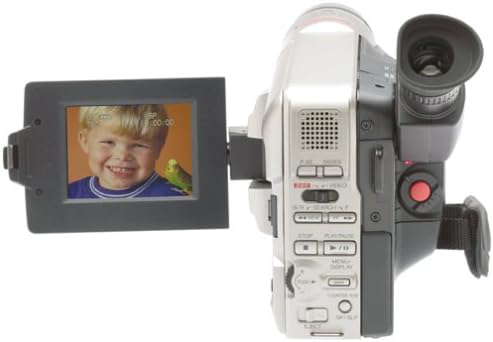
Image 5.1: Rear view of the RCA CC6393 camcorder, displaying the control panel and battery compartment.
6. Maintenance
6.1 Cleaning the Camcorder
- Use a soft, dry cloth to clean the exterior of the camcorder.
- For the lens, use a specialized lens cleaning cloth and solution. Avoid touching the lens with your fingers.
- Do not use harsh chemicals or abrasive cleaners.
6.2 Battery Care
- Store the battery in a cool, dry place when not in use.
- Avoid fully discharging the battery frequently to prolong its lifespan.
- If the camcorder will not be used for an extended period, remove the battery.
7. Troubleshooting
If you encounter issues with your camcorder, refer to the following common problems and solutions:
- No Power: Ensure the battery is charged and correctly inserted, or connect the AC adapter.
- Cannot Record: Check if a tape is inserted correctly and if the tape's write-protect tab is not engaged. Ensure sufficient battery power.
- Poor Picture Quality: Clean the camcorder lens. Ensure adequate lighting for your recording environment. If playing back, ensure the tape heads are clean (professional cleaning may be required).
- Still Images Not Transferring: Verify the PC connection cable is securely connected to both the camcorder and the computer. Ensure the software is correctly installed and compatible with your operating system (Windows 95/98).
- LCD Screen Not Displaying: Check if the screen is properly opened and rotated. Ensure the camcorder is powered on.
For persistent issues, please contact RCA customer support.
8. Specifications
| Feature | Specification |
|---|---|
| Model Number | 1001B3 |
| Recording Format | VHS-C |
| LCD Screen Size | 3 Inches (ColorView) |
| Optical Zoom | 16x |
| Digital Zoom | 400x |
| Image Stabilization | Steady Pix |
| Still Camera Capability | Yes |
| Connectivity | USB (for PC connection) |
| Weight | Approx. 1.9 pounds (camcorder only) |
| Power Source | Rechargeable Battery, AC Adapter |
9. Warranty and Support
For warranty information and customer support, please refer to the warranty card included with your product or visit the official RCA website. Keep your purchase receipt as proof of purchase for any warranty claims.
For technical assistance or service inquiries, please contact RCA customer service through their official channels.


