
1. Introduction and Overview
The Brother CTS-410-ES is a versatile 4-line executive phone system designed for efficient communication in office or home environments. It can function as a stand-alone unit or integrate into a larger system. Key features include a built-in caller ID, a 99-number call log, and a desktop data port for convenient access to line 4. This manual provides detailed instructions for setup, operation, maintenance, and troubleshooting to ensure optimal performance of your device.
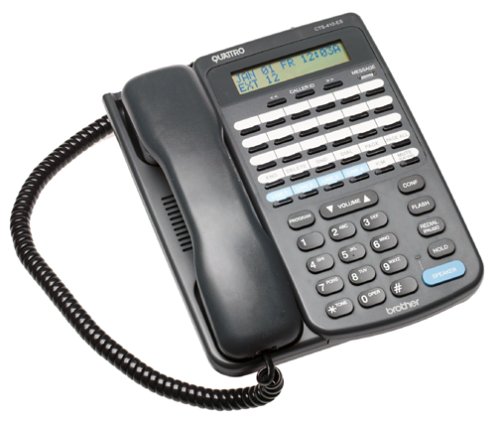
Front view of the Brother CTS-410-ES 4-line executive phone system, showing the keypad, display, and line buttons.
2. Safety Information
Please read and follow these safety precautions to prevent damage to the unit and ensure your safety:
- Do not expose the unit to water or moisture.
- Avoid placing the unit near heat sources or direct sunlight.
- Use only the power adapter supplied with the unit.
- Do not attempt to open or repair the unit yourself. Refer all servicing to qualified personnel.
- Keep the unit away from strong electromagnetic fields.
3. Package Contents
Verify that your package contains the following items:
- Brother CTS-410-ES 4-Line Executive Phone System Unit
- AC Power Adapter
- Telephone Line Cords (typically 4)
- Noise-Canceling Headset
- User Manual (this document)
4. Setup
Follow these steps to set up your Brother CTS-410-ES phone system:
- Connect Power: Plug the AC power adapter into the power jack on the back of the phone unit, then plug the adapter into a standard electrical outlet.
- Connect Telephone Lines: Connect each telephone line cord from your wall jacks to the corresponding line jacks (Line 1, Line 2, Line 3, Line 4) on the back of the phone unit.
- Connect Headset: If using the included noise-canceling headset, plug it into the dedicated headset jack on the side or front of the phone unit.
- Initial Power On: The unit should power on automatically. The display will illuminate, and you may hear a brief self-test sequence.
5. Operating Instructions
This section details the various functions and operations of your phone system.
5.1 Basic Call Functions
- Making a Call: Lift the handset or press the SPEAKER button. Select an available line button (Line 1-4). Dial the desired number.
- Answering a Call: When the phone rings, lift the handset or press the SPEAKER button. The corresponding line button will flash.
- Ending a Call: Place the handset back in the cradle or press the SPEAKER button again if using the speakerphone.
- Hold: During a call, press the HOLD button to place the call on hold. Press the flashing line button to resume the call.
5.2 Caller ID and Call Log
- Caller ID: When a call comes in, the caller's name and number will appear on the display (if available from your service provider).
- Call Log: The system stores up to 99 incoming calls. Use the navigation buttons (e.g., UP/DOWN arrows) to scroll through the call log.
- Dialing from Call Log: Select an entry from the call log and press the DIAL or SPEAKER button to call back.
5.3 Speakerphone and Headset
- Speakerphone: Press the SPEAKER button to activate hands-free communication. Adjust volume using the volume controls.
- Headset Operation: With the headset connected, press the HEADSET button (if available) or simply lift the handset to activate the headset for calls.
5.4 Intercom and Paging
- Intercom: If multiple CTS-410-ES units are connected, use the INTERCOM function to communicate between units. Refer to your system's specific intercom setup.
- Paging: Use the PAGING function to broadcast an announcement to other connected units.
5.5 Message Waiting Light and Data Port
- Message Waiting Light: A dedicated light will illuminate to indicate new messages (requires compatible voicemail service from your provider).
- Desktop Data Port: The data port provides quick access to Line 4, allowing you to connect a modem or other data device.
6. Maintenance
Proper maintenance ensures the longevity and performance of your phone system.
- Cleaning: Wipe the unit with a soft, dry cloth. Do not use liquid or aerosol cleaners.
- Storage: If storing the unit for an extended period, disconnect it from power and telephone lines. Store in a cool, dry place.
- Cord Management: Ensure all cords are free from kinks or damage. Replace damaged cords immediately.
7. Troubleshooting
If you encounter issues with your phone system, try these common solutions:
| Problem | Possible Solution |
|---|---|
| No dial tone | Check all telephone line connections. Ensure the power adapter is securely plugged in. Test with a different phone line if possible. |
| Caller ID not displaying | Verify that Caller ID service is activated with your telephone service provider. Ensure the phone is connected to a compatible line. |
| Speakerphone audio is low or distorted | Adjust the speaker volume. Ensure the microphone is not obstructed. Move closer to the unit. |
| Message waiting light not working | Confirm that you have voicemail service with your provider and that it is properly configured. |
8. Specifications
Technical specifications for the Brother CTS-410-ES phone system:
| Feature | Detail |
|---|---|
| Brand | Brother |
| Model Number | CTS-410-ES |
| Telephone Type | Corded |
| Number of Lines | 4 |
| Power Source | Corded Electric |
| Dialer Type | Single Keypad |
| Item Dimensions (L x W x H) | 17.8 x 22.9 x 10.8 cm |
| Answering System Type | Digital |
| Conference Call Capability | 4 way |
| Multiline Operation | Yes |
| Caller Identification | Yes |
| Recording Capacity | 20 Minutes (for answering system, if applicable) |
| Expandable | Yes, with other optional CTS410ES units |
| Call Log Memory | 99 numbers |
| Headset Jack | Yes |
| Desktop Data Port | Yes (for Line 4) |
9. Warranty and Support
This Brother CTS-410-ES product comes with a 90-day limited warranty. For warranty claims or technical assistance, please contact Brother customer support. Keep your purchase receipt as proof of purchase.
For further support, visit the official Brother support website or consult your local dealer.
