
1. Introduction
This manual provides essential information for installing, operating, and troubleshooting Star Wars Jedi Knight: Dark Forces II and its expansion, Mysteries of the Sith. These titles are classic first-person shooter and third-person action games set in the Star Wars universe, developed by LucasArts. Players assume the role of Kyle Katarn, a former Jedi Knight, as he navigates a galaxy far, far away, wielding a lightsaber and Force powers.
Familiarize yourself with the contents of this manual to ensure an optimal gaming experience.
2. System Requirements
Before installation, verify that your computer meets the minimum system requirements:
- Operating System: Windows 95/98 (or compatible modern OS with compatibility layers)
- Processor: Pentium 90 MHz or faster (Pentium 166 MHz recommended)
- Memory: 16 MB RAM (32 MB RAM recommended)
- Hard Drive Space: 150 MB uncompressed for Dark Forces II, additional 50 MB for Mysteries of the Sith
- Graphics: PCI Graphics Card with 1 MB VRAM (2 MB VRAM recommended)
- Sound: 100% DirectX compatible sound card
- CD-ROM Drive: Quad-speed (4x) or faster
- Input: Keyboard and Mouse
- DirectX: DirectX 5.0 or higher (included on disc)
Note: Performance may vary on systems exceeding minimum requirements due to modern operating system compatibility challenges.
3. Installation
Follow these steps to install Star Wars Jedi Knight: Dark Forces II and Mysteries of the Sith on your computer:
- Insert Disc: Insert the Jedi Knight: Dark Forces II game disc into your CD-ROM drive.
- AutoPlay: If AutoPlay is enabled, the installation program should start automatically. If not, navigate to your CD-ROM drive in "My Computer" and run "SETUP.EXE".
- Follow On-Screen Prompts: The installer will guide you through the process. Select your preferred installation directory and components.
- Install DirectX: The installer may prompt you to install or update DirectX. It is recommended to proceed with this step if prompted.
- Complete Installation: Once Dark Forces II is installed, repeat the process for the Mysteries of the Sith expansion disc, if applicable.
- Restart Computer: A system restart may be required to finalize the installation.

Image: A typical installation screen for the game, showing options to install or exit.
4. Getting Started
After successful installation, you can launch the game from the Start Menu program group created during installation, or by running the game's executable file directly from its installation directory.
4.1 Main Menu
Upon launching, you will be presented with the main menu. Options typically include:
- New Game: Start a new single-player campaign.
- Load Game: Continue a previously saved game.
- Multiplayer: Access multiplayer modes (LAN or online, if supported and configured).
- Options: Adjust game settings such as graphics, sound, controls, and difficulty.
- Quit: Exit the game.
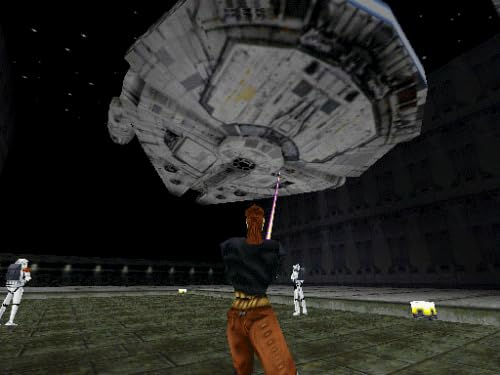
Image: Kyle Katarn interacting with a ship's console, a common scene in the game's narrative.
5. Gameplay Basics
5.1 Controls
The default controls are standard for a first-person shooter. These can be customized in the Options menu.
| Action | Default Key |
|---|---|
| Move Forward | W / Up Arrow |
| Move Backward | S / Down Arrow |
| Strafe Left | A / Left Arrow |
| Strafe Right | D / Right Arrow |
| Jump | Spacebar |
| Crouch | C |
| Fire Weapon / Lightsaber Attack | Left Mouse Button |
| Use Force Power | Right Mouse Button |
| Select Weapon | Number Keys (1-9) / Mouse Wheel |
| Use Item | E |
5.2 Lightsaber Combat and Force Powers
As a Jedi, Kyle Katarn gains access to a lightsaber and various Force powers. The lightsaber is a powerful melee weapon capable of deflecting blaster bolts. Force powers consume Force energy, which regenerates over time. Strategic use of both is crucial for success.
- Lightsaber: Activate with a dedicated key (usually '1' or '2'). Different attack modes may be available.
- Force Powers: Select and activate Force powers from a dedicated menu or hotkeys. Powers include Force Push, Force Pull, Force Speed, Force Jump, and more.
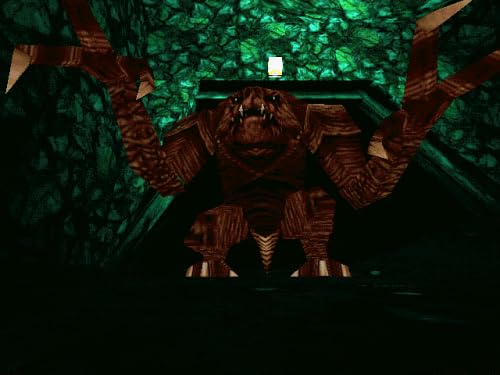
Image: Kyle Katarn engaged in lightsaber combat within a cavernous environment.
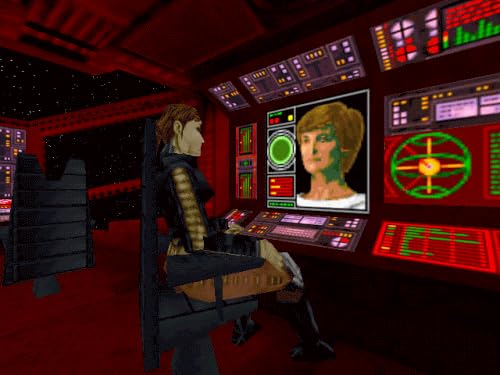
Image: A formidable alien creature encountered in the game's dark, atmospheric levels.

Image: Kyle Katarn exploring an interior location, lightsaber drawn.

Image: Imperial forces, including Stormtroopers and TIE Fighters, within a large underground facility.

Image: Kyle Katarn battling Stormtroopers with his lightsaber, with the Millennium Falcon visible in the background.

Image: An aerial view of a large, imposing structure, possibly an Imperial facility, with targeting overlays.

Image: Kyle Katarn engaged in a lightsaber duel with a dark Jedi on a precarious platform above a fiery abyss.
6. Multiplayer
Star Wars Jedi Knight: Dark Forces II features multiplayer modes, allowing players to compete against each other over a local area network (LAN) or the internet. The game supports various modes, including Deathmatch and Capture the Flag.
6.1 Setting Up a Multiplayer Game
- From the main menu, select "Multiplayer".
- Choose "New Game" to host a server or "Join Game" to connect to an existing server.
- Configure game settings such as map, player limit, and game type.
- Ensure all players are on the same network or have the correct IP address for online play.
7. Troubleshooting
This section addresses common issues you might encounter.
7.1 Game Does Not Launch
- Check System Requirements: Ensure your computer meets the minimum specifications.
- DirectX: Verify that DirectX 5.0 or higher is installed and functioning correctly.
- Compatibility Mode: On modern operating systems (Windows XP and later), try running the game executable in compatibility mode for Windows 95 or 98. Right-click the executable, select "Properties", then "Compatibility".
- Administrator Privileges: Run the game as an administrator.
- Reinstall: If issues persist, try uninstalling and reinstalling the game.
7.2 Graphics or Sound Issues
- Update Drivers: Ensure your graphics and sound card drivers are up to date.
- In-Game Settings: Adjust graphics and sound settings within the game's Options menu. Try lower resolutions or disable advanced features.
- DirectX Diagnostics: Use the DirectX Diagnostic Tool (dxdiag.exe) to check for any reported issues with your display or sound devices.
7.3 Multiplayer Connection Problems
- Firewall: Ensure your firewall is not blocking the game's connection. Add an exception for the game executable.
- Network Configuration: Verify network settings for LAN play. For internet play, ensure correct IP addresses and port forwarding (if necessary) are configured.
- Game Version: All players must be running the same version of the game and expansion.
8. Maintenance
While software generally requires less physical maintenance than hardware, a few practices can help ensure continued smooth operation:
- Keep Discs Clean: If using physical media, keep game discs clean and free of scratches to prevent read errors.
- Regular Backups: Periodically back up your game save files. These are typically located in the game's installation directory or a "My Documents" subfolder.
- System Updates: Keep your operating system and drivers updated to maintain compatibility and performance.
- Disk Defragmentation: Regularly defragment your hard drive (if using an HDD) to optimize game loading times. This is not necessary for Solid State Drives (SSDs).
9. Product Specifications
| Feature | Detail |
|---|---|
| Product Title | Star Wars Jedi Knight: Dark Forces II (includes Mysteries of the Sith) |
| Brand | LucasArts |
| Model Number | 95241 |
| ASIN | B00000K50S |
| Release Date (Amazon.fr) | 3 juillet 2012 (July 3, 2012) |
| Package Dimensions | 24,64 x 20,32 x 4,06 cm; 410 grammes (9.7 x 8 x 1.6 inches; 0.9 lbs) |
| Production Status | Discontinued by manufacturer |
10. Support
For technical assistance or further inquiries regarding Star Wars Jedi Knight: Dark Forces II or Mysteries of the Sith, please refer to the following resources:
- Official LucasArts Archives: While direct support for older titles may be limited, historical information and community forums can often be found through fan sites or digital distribution platforms that offer the game.
- Digital Distribution Platforms: If you purchased the game digitally (e.g., GOG.com, Steam), their support channels may offer assistance with compatibility issues on modern systems.
- Community Forums: Active fan communities often provide valuable troubleshooting tips, patches, and compatibility guides for classic PC games.
Note: As this product is discontinued, direct manufacturer support may no longer be available.
11. Legal and Copyright Information
Star Wars Jedi Knight: Dark Forces II and Mysteries of the Sith are © 1997-1998 LucasArts Entertainment Company LLC. All rights reserved. Star Wars and related properties are trademarks of Lucasfilm Ltd. and/or its affiliates in the U.S. and other countries. LucasArts and the LucasArts logo are registered trademarks of LucasArts Entertainment Company LLC.
Unauthorized reproduction, distribution, or transmission of this software or any portion thereof is strictly prohibited.
