
1. Introduction
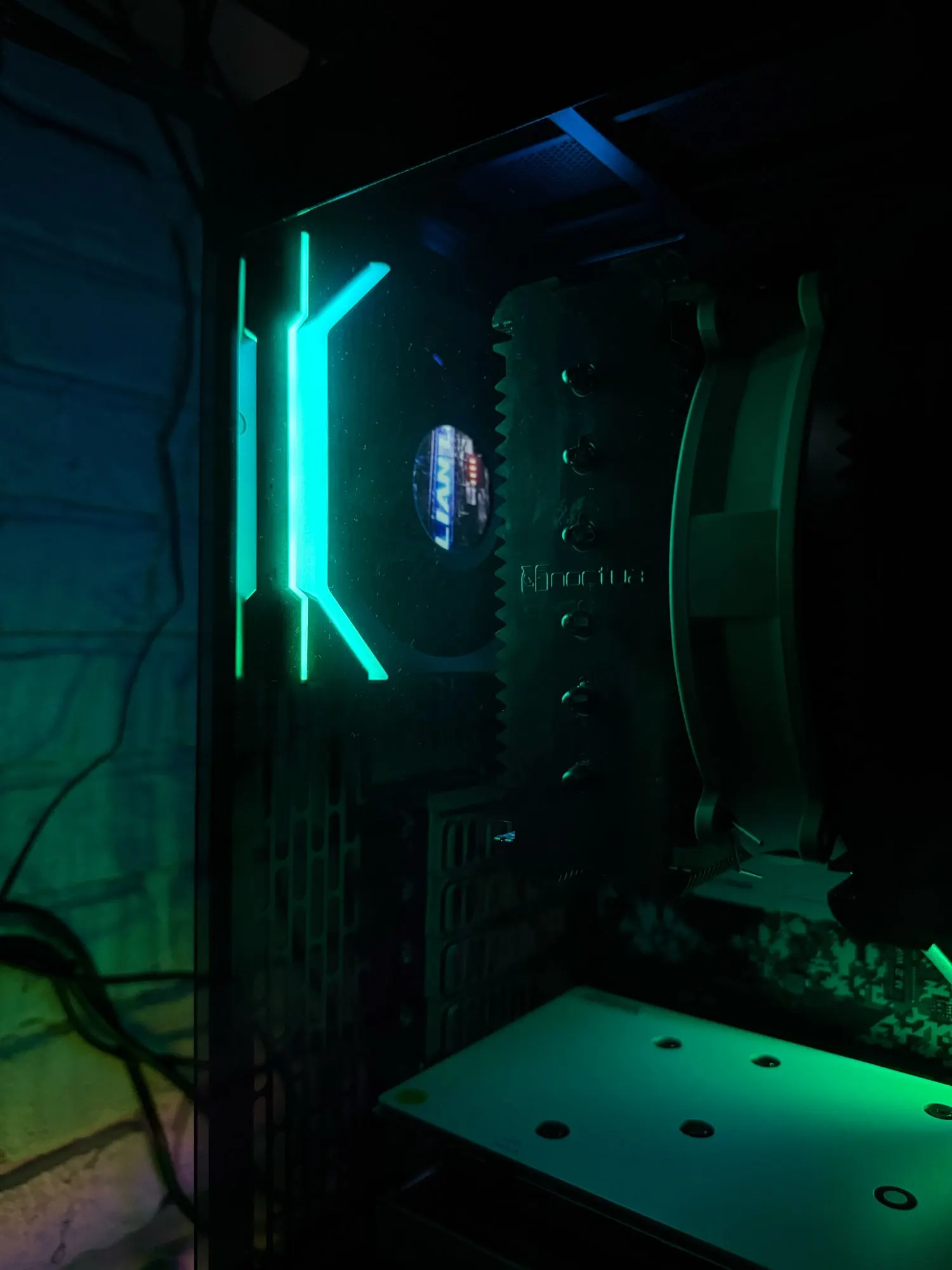
Thank you for purchasing the Lian-Li UNI FAN SL Wireless LCD 120. This fan combines advanced cooling performance with customizable RGB lighting and an integrated LCD display, offering a unique aesthetic and functional upgrade to your PC build. This manual provides detailed instructions for installation, operation, and maintenance to ensure optimal performance and longevity of your product.
Note: This is a single pack fan and does NOT include a controller. A separate L-Wireless Controller (models RF-T-B/RF-T-W) is required for full RGB lighting and LCD display control.

Official product video showcasing the features and installation of the Lian-Li UNI FAN SL Wireless LCD 120, including wireless RGB control, modular design, and LCD display.
2. Package Contents
Please verify that all items are present in your package:
- 1 x UNI FAN SL Wireless LCD 120 Fan
- 4 x Screws
- 1 x User Manual (this document)
3. Installation
3.1. Fan to Fan Connection
Each group (channel) can daisy-chain a maximum of:
- 4 x UNI FAN SL Wireless (LED Fan)
- 3 x UNI FAN SL Wireless LCD (LCD Fan)
- 4 x UNI FAN SL Wireless and LCD mix (up to 2 LCDs)
To connect fans:
- Align the connectors of the fans.
- Push to secure the connection.
- To release, press the release tab and pull apart.
3.2. Removing the Fan Interlocking Key
If the radiator outlet interferes with the fan interlocking key, you can remove it. This allows for greater flexibility in mounting.
- Locate the interlocking key on the fan.
- Gently pry or slide the key out of its slot.
3.3. Usage of Rubber Pads
Secure the fan to the radiator and cover with the rubber pads to enhance the overall aesthetics and reduce vibration. The rubber pads help improve the overall appearance and stability.
3.4. L-Wireless Receiver Installation (Requires separate L-Wireless Controller)
The L-Wireless Receiver connects to your motherboard and communicates wirelessly with the fans for lighting and speed control. Ensure correct cable orientation and secure installation.
Important: The sockets for the power module are different in size, so please be mindful of the direction when installing to avoid damage.
3.4.1. Switch Cable Orientation on L-Wireless Receiver
- To change orientation, release the cable from the receiver.
- Switch the orientation as needed.
- Secure the cable back into the receiver.
3.4.2. Connecting the L-Wireless Controller to Motherboard
The L-Wireless Controller (RF-T-B/RF-T-W) supports 10 channels of devices. It sends signals to everything connected.
Method 1: Direct Motherboard Connection
- Connect the controller to a Motherboard USB 2.0 header.
- Connect the controller to a PWM fan header for power.
Method 2: Using a Hub (if applicable)
- Connect the controller to a Motherboard USB 2.0 header.
- Connect the controller to a PWM fan header for power.
3.5. Cable Organization
Measure the length needed for cables and organize them neatly. Use cable ties or other management solutions to keep the interior of your PC clean and improve airflow.
4. Operating Instructions
The UNI FAN SL Wireless LCD 120 offers advanced control over cooling and aesthetics when paired with the L-Wireless Controller and Lian-Li's L-Connect software.
4.1. Wireless Control
The L-Wireless Controller utilizes a 2.4 GHz wireless signal for lighting and speed control, eliminating the need for extensive RGB signal and control cables. Only power cables are required for the fans themselves.

4.2. RGB Lighting
Each fan features 2 RGB light zones, offering vibrant and customizable illumination. Use the L-Connect software to synchronize lighting effects across multiple fans and other compatible components.

4.3. LCD Display
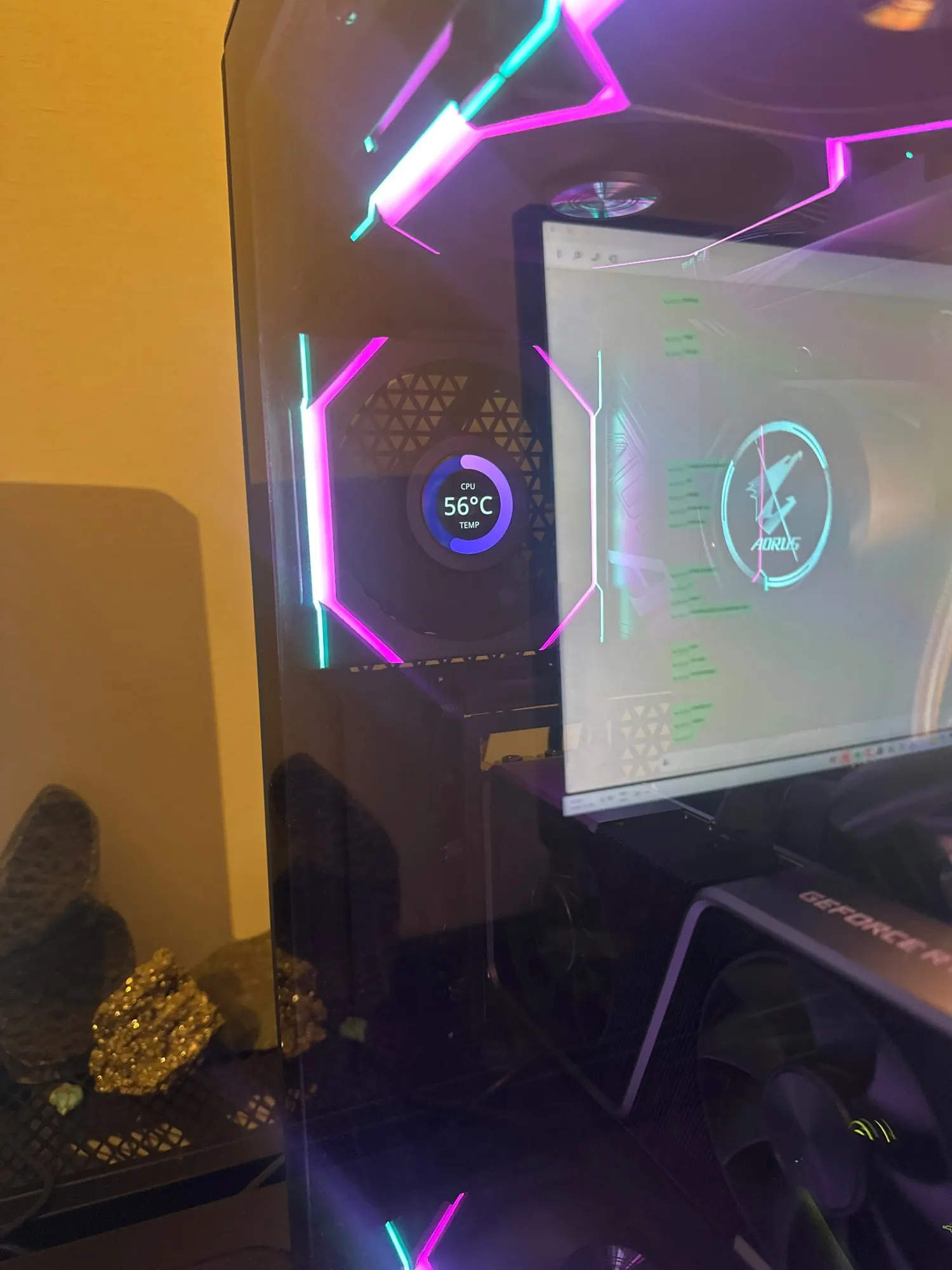
The integrated LCD display can show various system information, such as CPU temperature, fan RPM, or custom images/animations. Configuration is done through the L-Connect software.
5. Specifications
| Feature | Specification |
|---|---|
| Brand Name | LIAN LI |
| Model Number | SL Wireless LCD 120 |
| Fan Size | 120 MM |
| Voltage | 12V |
| Blade Quantity | 7 |
| Used For | Case |
| Package | Yes |
| High-concerned Chemical | None |
6. Maintenance
Regular maintenance helps ensure the longevity and optimal performance of your fan.
- Cleaning: Periodically clean the fan blades and frame to remove dust buildup. Use a soft brush or compressed air. Ensure the fan is powered off before cleaning.
- Inspection: Check for any loose connections or damaged cables.
- Software Updates: Keep the L-Connect software updated to the latest version to benefit from performance improvements and new features.
7. Troubleshooting
If you encounter issues with your UNI FAN SL Wireless LCD 120, refer to the following common solutions:
- Fan not spinning/No RGB/No LCD display:
- Ensure the fan is properly connected to other fans in the daisy chain and the L-Wireless Controller.
- Verify that the L-Wireless Controller is correctly installed and connected to the motherboard's USB 2.0 and PWM headers.
- Check power connections to the controller and fans.
- Confirm that the L-Connect software is installed and running.
- Remember, this single pack does NOT include a controller. A separate L-Wireless Controller is essential for full functionality.
- LCD display not changing/customizing:
- Ensure you have an L-Wireless Controller connected. The LCD cannot be changed without it.
- Verify that the L-Connect software is properly configured and communicating with the controller and fans.
- Check for software updates for L-Connect.
- RGB lighting issues:
- Confirm connections to the L-Wireless Controller.
- Adjust settings within the L-Connect software.
8. User Tips
- Controller is Key: For full functionality, including LCD customization and RGB control, a separate L-Wireless Controller is essential. Users have noted that without it, the LCD display will not function as intended.
- Easy Connectivity: The fans are designed for easy daisy-chaining and connect without problems to the L-Connect system.
- Software Download: Scan the QR code on the physical manual or visit the Lian-Li website to download the L-Connect software for full control over your fans.
9. Warranty and Support
LIAN LI products typically come with a manufacturer's warranty. Please refer to the official LIAN LI website or your purchase documentation for specific warranty terms and conditions, including duration and claim procedures.
For technical support, driver downloads, or further assistance, please visit the official LIAN LI website. You may also find a more detailed user manual in PDF format at the following link: Lian-Li UNI FAN SL Wireless LCD 120 User Manual (PDF).
10. Important Safety Information
- Always disconnect power to your PC before installing or removing any components.
- Handle components with care to avoid damage.
- Ensure proper ventilation in your PC case to prevent overheating.
- Do not attempt to disassemble or modify the fan, as this may void your warranty and cause damage.
- Keep out of reach of children.