1. Introduction
The R69Q Smart TV Box is a high-performance streaming media player designed to transform your television into a smart entertainment hub. Running on the latest Android 14 operating system, it offers a user-friendly interface, powerful Allwinner H313 Quad Core processor, and support for 4K UHD video playback at 60fps with HDR10+. With dual-band Wi-Fi (2.4G/5G), Bluetooth 5.4, and integrated Google Assistant, the R69Q provides seamless access to a wide range of streaming services, games, and applications.

Figure 1: R69Q Smart TV Box and its key features.
2. Safety Information
- Do not expose the device to rain, moisture, or extreme temperatures.
- Avoid placing the device near heat sources or in direct sunlight.
- Use only the provided power adapter to prevent damage.
- Keep the device away from children and pets.
- Do not attempt to open or repair the device yourself. Refer to qualified service personnel.
- Ensure proper ventilation around the device to prevent overheating.
3. Package Contents
Please check the package for the following items:
- R69Q Smart TV Box (x1)
- HDMI Cable (x1)
- Remote Control (x1)
- User Manual (x1)
- Power Plug (x1)
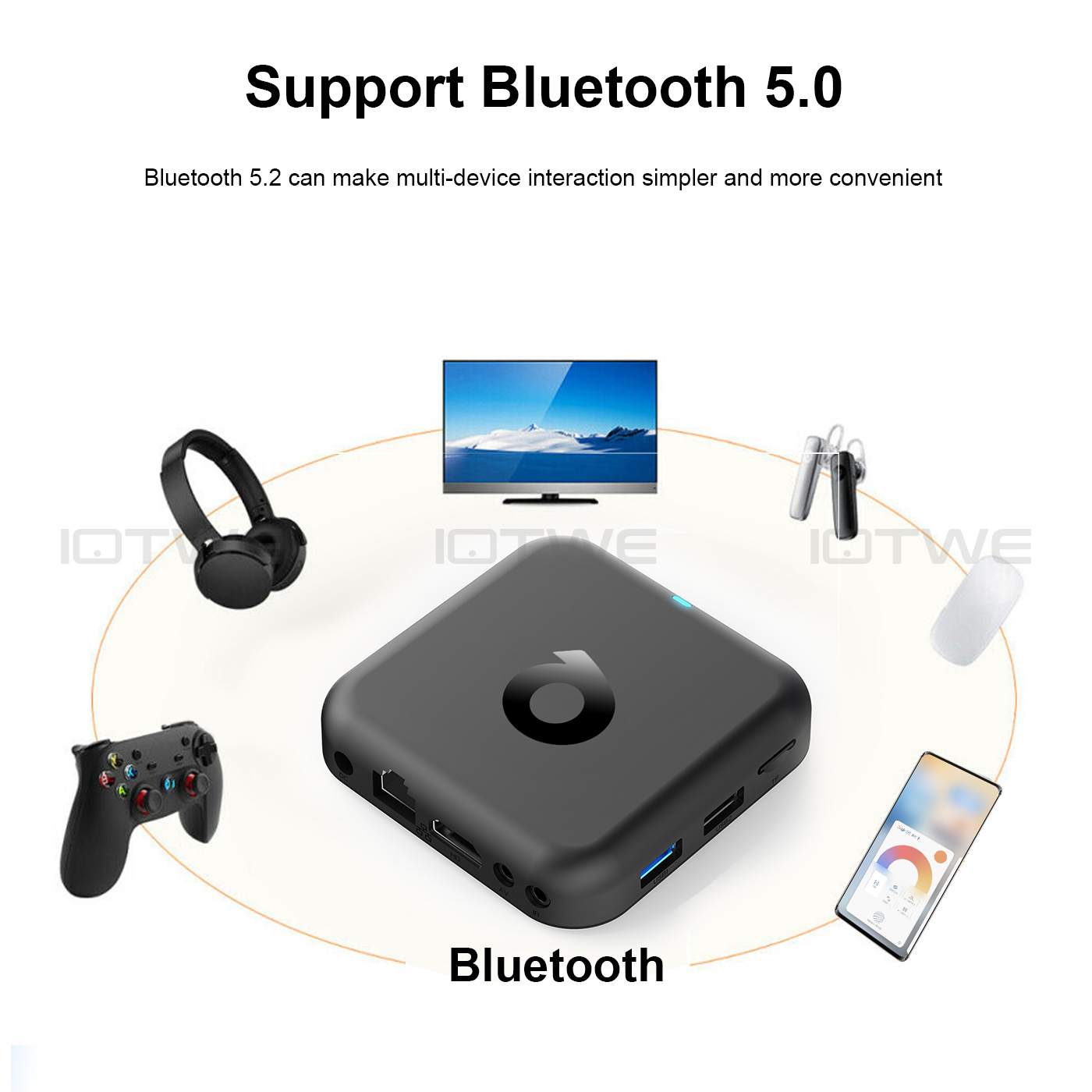
Figure 2: Included items in the R69Q Smart TV Box package.
4. Setup Guide
4.1 Connecting the TV Box
- Connect to TV: Plug one end of the HDMI cable into the HDMI port on the R69Q TV Box and the other end into an available HDMI input on your television.
- Connect Power: Connect the power adapter to the DC port on the TV Box and then plug the adapter into a wall outlet.
- Network Connection (Optional):
- Wired: For a stable connection, connect an Ethernet cable from your router to the RJ45 Ethernet port on the TV Box.
- Wireless: The device supports 2.4G and 5G Wi-Fi. You will configure this during initial setup or via settings.
- Other Connections (Optional):
- USB Devices: Connect USB storage devices, keyboards, or mice to the USB ports.
- AV Output: If your TV does not have an HDMI port, use an AV cable (not included) to connect to the AV port.
- IR Extender: If using an IR extender, connect it to the IR port.

Figure 3: Connection ports on the R69Q Smart TV Box.
4.2 Initial Boot-up and Configuration
- Turn on your TV and select the correct HDMI input source.
- The R69Q TV Box will power on automatically when connected to power.
- Follow the on-screen instructions to complete the initial setup, which typically includes:
- Language selection.
- Connecting to a Wi-Fi network (if not using Ethernet).
- Signing in with your Google account.
- Setting up Google Assistant.
5. Operating Instructions
5.1 Remote Control Functions
The R69Q Smart TV Box comes with a smart voice remote control. Familiarize yourself with its buttons for easy navigation.

Figure 4: Smart Voice Remote Control.
- Power Button: Turns the device on/off or puts it into standby mode.
- Navigation Pad (OK button): Use the directional arrows to navigate menus and the OK button to select.
- Back Button: Returns to the previous screen.
- Home Button: Returns to the main home screen.
- Volume Buttons: Adjusts the volume.
- Google Assistant Button: Activates the voice assistant for voice commands.
- Dedicated App Buttons: Quick access to popular streaming services like YouTube, Netflix, and Prime Video.
5.2 Using Google Assistant
Press the Google Assistant button on your remote and speak into the microphone to search for content, get recommendations, control smart home devices, and more. The voice remote supports multiple languages including English, German, Dutch, French, Portuguese, Spanish, Danish, Finnish, Italian, Hebrew, Japanese, Korean, Malay, Russian, Arabic, Swedish, Thai, and Turkish.

Figure 5: Smart Voice Remote Control in action with Google Assistant.
5.3 Streaming and Media Playback
The R69Q supports 4K@60fps video decoding with H.265 and HDR10+ technology, providing a lifelike viewing experience. You can access various supported internet services:
- Prime Video
- Netflix
- Hulu Plus
- Browser
- Vudu
- Google TV
- Hulu
- YouTube
- Pandora
- Skype
- Explore 3D
- Other streaming services and apps available via Google Play Store.

Figure 6: Enhanced viewing with 4K HDR10+ technology.

Figure 7: Multi-functional application scenarios.
5.4 Wireless Connectivity
The R69Q features dual-band Wi-Fi (2.4G & 5G) for faster and more stable signal transmission, supporting 802.11 b/g/n standards. It also includes Bluetooth 5.4 for connecting various peripherals.
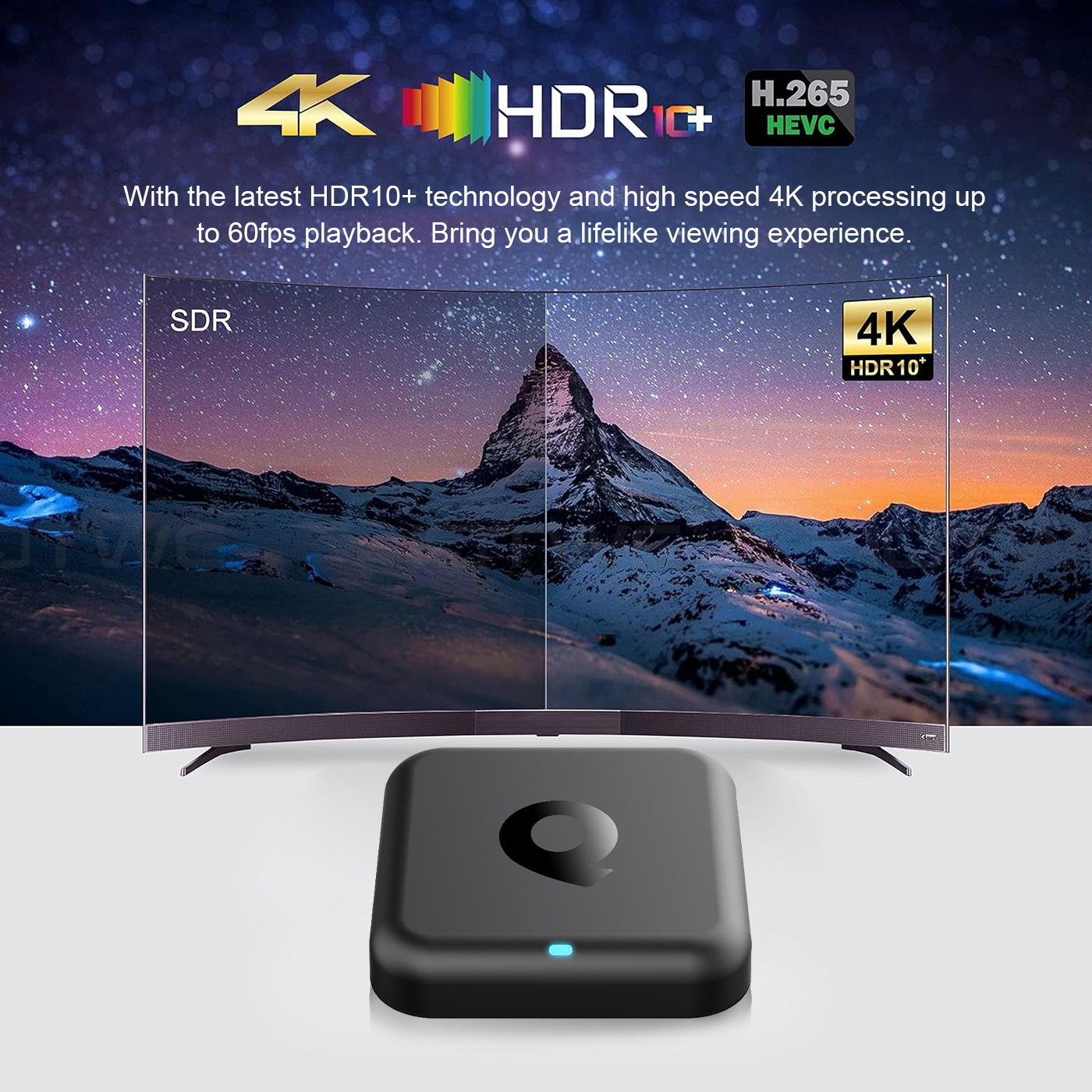
Figure 8: Dual-band Wi-Fi 2.4G & 5G support.
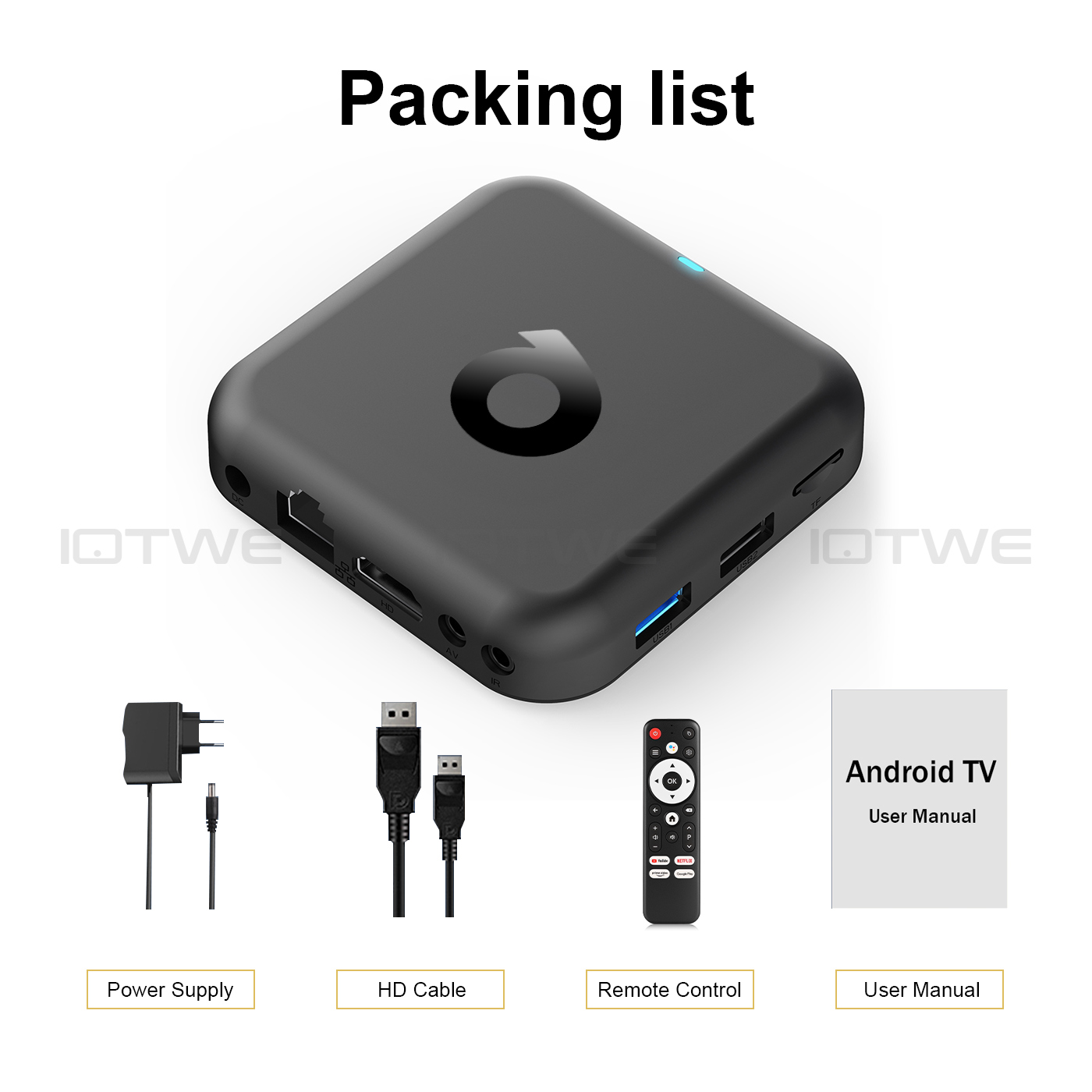
Figure 9: Bluetooth 5.0 connectivity for multiple devices.
5.5 Multi-screen Interaction
The R69Q supports Airplay, DLNA, and Miracast, allowing you to share content from your mobile phones, tablets, and other devices directly to your TV screen.
6. Maintenance
- Cleaning: Use a soft, dry cloth to clean the device. Do not use liquid cleaners or aerosols.
- Software Updates: Periodically check for system updates in the device settings to ensure optimal performance and access to the latest features.
- Storage: When not in use for extended periods, store the device in a cool, dry place.
7. Troubleshooting
Common Issues and Solutions:
- No Power:
- Ensure the power adapter is securely connected to the TV Box and a working power outlet. Try a different outlet.
- No Signal on TV:
- Verify the HDMI cable is properly connected to both the TV Box and the TV. Make sure your TV is set to the correct HDMI input source.
- Wi-Fi Connection Issues:
- Check if your router is working correctly. Ensure the Wi-Fi password is entered correctly. Try restarting both the TV Box and your router. Move the TV Box closer to the router if possible.
- Remote Control Not Responding:
- Check the batteries in the remote control and replace them if necessary. Ensure there are no obstructions between the remote and the TV Box. For voice commands, ensure you are speaking clearly into the remote's microphone.
- Apps Crashing or Freezing:
- Try closing and reopening the app. Clear the app's cache and data in the Android settings. If the issue persists, uninstall and reinstall the app. Ensure the TV Box has enough free storage.
8. Specifications
| Feature | Specification |
|---|---|
| Operating System | Android 14.0 |
| CPU | Allwinner H313 Quad Core |
| GPU | G31 OpenGL3.2 |
| Memory (RAM) | 2GB DDR3 |
| Internal Storage (Flash) | 32GB eMMC |
| Wi-Fi | 802.11 b/g/n, 2.4G + 5G Dual-band Wi-Fi |
| Bluetooth | BT5.0 |
| Ethernet | RJ45 100M |
| Video Output | HDMI 2.0A, 4K*2K UHD Output |
| Video Decoding | 4K@60fps, H.265, HDR10+ |
| Supported Internet Services | Prime Video, Netflix, Hulu Plus, Browser, Vudu, Google TV, Hulu, YouTube, Pandora, Skype, Explore 3D, and others |
| Multi-screen Interaction | Airplay, DLNA, Miracast |
| Power Source | AC |
| Language Support | English, French, German, Spanish, Italian, Dutch, Portuguese, Hebrew, etc. (Voice remote supports many national languages) |
9. User Tips
- Optimize Performance: Regularly clear the cache of frequently used apps to maintain smooth performance. You can do this in Android Settings > Apps > [Select App] > Clear Cache.
- Stay Updated: Ensure your R69Q TV Box's software is up-to-date by checking for system updates in the settings menu. This can improve stability and introduce new features.
- Voice Search Efficiency: When using Google Assistant, speak clearly and directly into the remote's microphone for best results.
10. Warranty and Support
For warranty information and technical support, please refer to the seller or manufacturer's official channels. Keep your purchase receipt as proof of purchase. If you encounter issues not covered in this manual, please contact customer service for assistance.


