1. Introduction
The FOSCAM BP4 is a 2K (4MP) wireless outdoor security camera designed for home surveillance. It features a built-in rechargeable battery and is powered by a high-efficiency solar panel, offering a truly wire-free installation. With advanced features like color night vision, PIR human detection, and sound and light alarms, the BP4 provides reliable and intelligent monitoring for your property. This manual will guide you through the setup, operation, and maintenance of your FOSCAM BP4 camera.
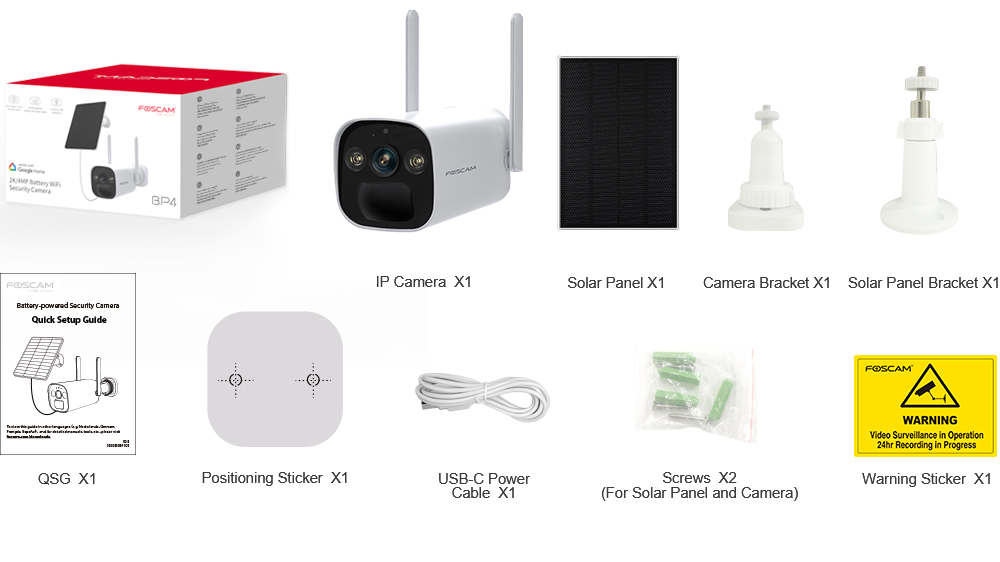
2. Package Contents
Please check the package carefully to ensure all items are present and in good condition. If anything is missing or damaged, please contact FOSCAM support.
- IP Camera (BP4) x1
- Solar Panel x1
- Camera Bracket x1
- Solar Panel Bracket x1
- Quick Setup Guide (QSG) x1
- Positioning Sticker x1
- USB-C Power Cable x1
- Screws x2 (for Solar Panel and Camera)
- Warning Sticker x1
3. Key Features
- 2K (4MP) Quad HD Video: Captures clear and detailed footage with a resolution of 2560 x 1440 pixels at 20 frames per second.
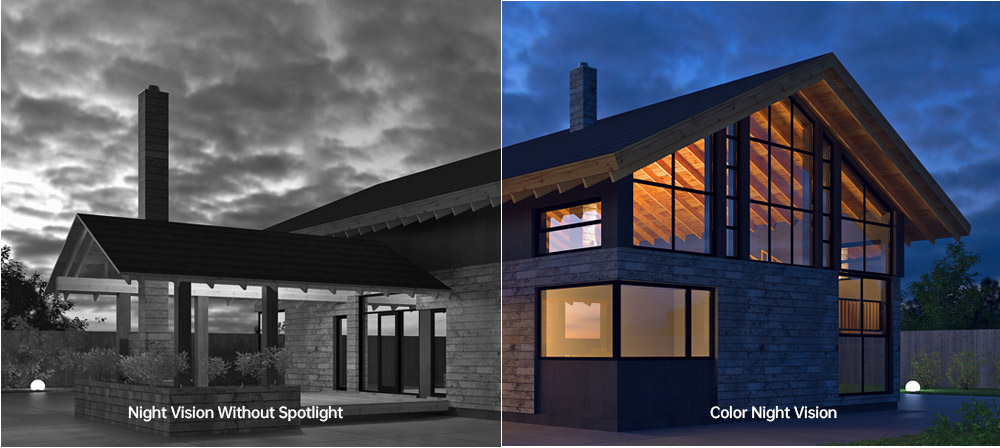
- Color Night Vision: Equipped with 2pcs Spotlight IR LED, providing a night vision range up to 10m (33ft) and supporting full-color images even in low-light conditions.
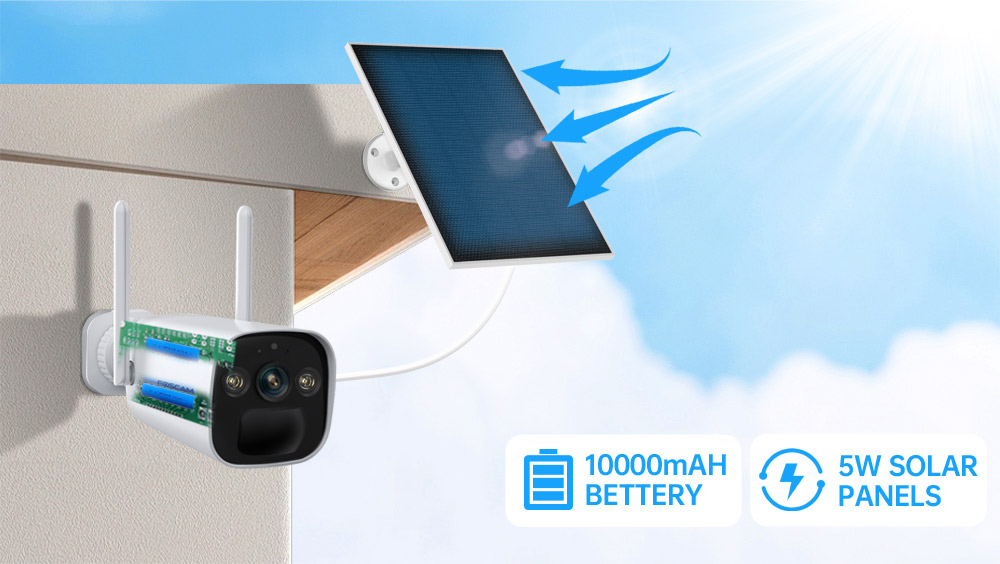
- Rechargeable Battery & Solar Panel: Features a 10000mAh rechargeable battery (4pcs 18650 battery included) and a 5W high-efficiency solar panel for continuous power, ensuring truly wire-free operation.
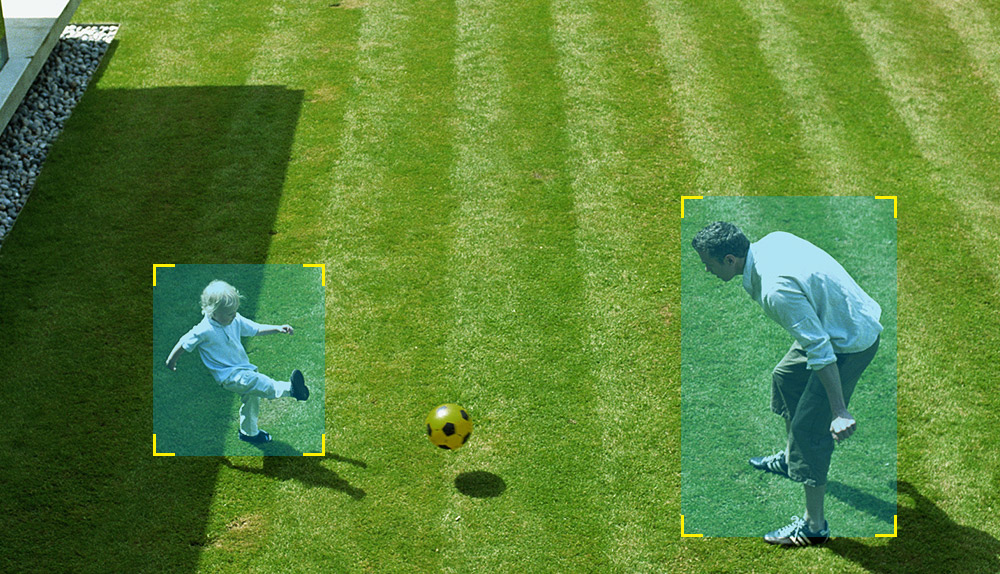
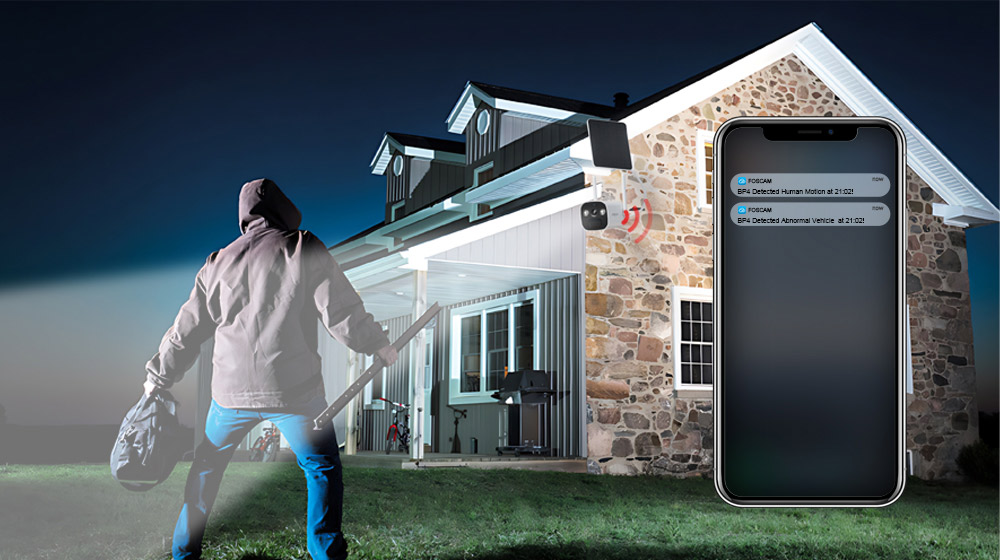
- PIR Human Detection: Advanced Passive Infrared (PIR) sensor distinguishes human movement from other objects, reducing false alarms and sending accurate alerts.
- Sound and Light Alarm: Triggers a spotlight and a siren (up to 110dB) upon detection of an intruder, acting as a deterrent. Can also be manually activated.
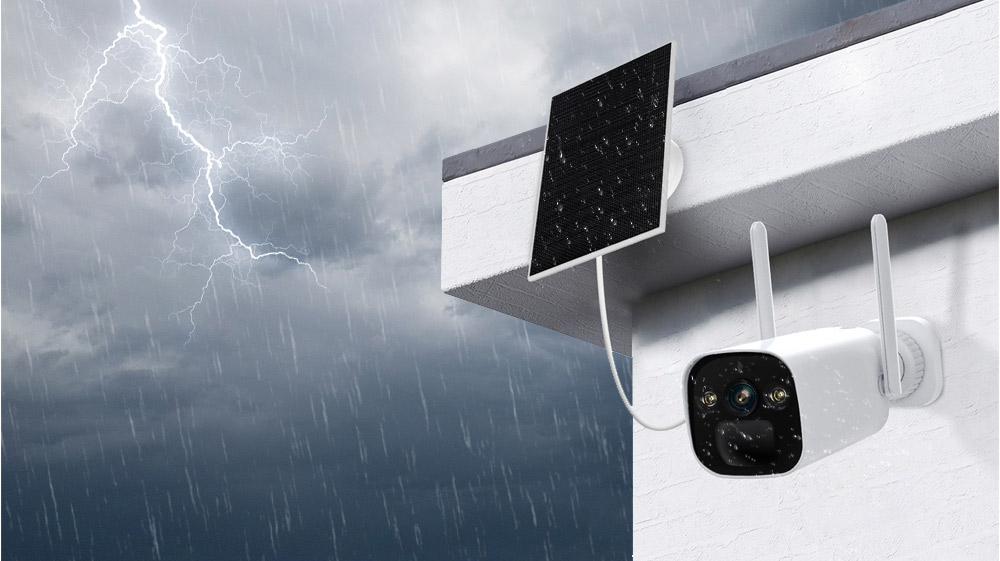
- IP66 Rated Weatherproof: Designed to withstand harsh outdoor weather conditions, operating reliably in temperatures from -20°C to 60°C (-4°F to 140°F).
- Two-Way Audio: Built-in microphone and speaker allow for real-time communication with visitors or intruders.
- Smart Home Integration: Supports integration with Alexa and Google Home for convenient voice control and smart home automation.
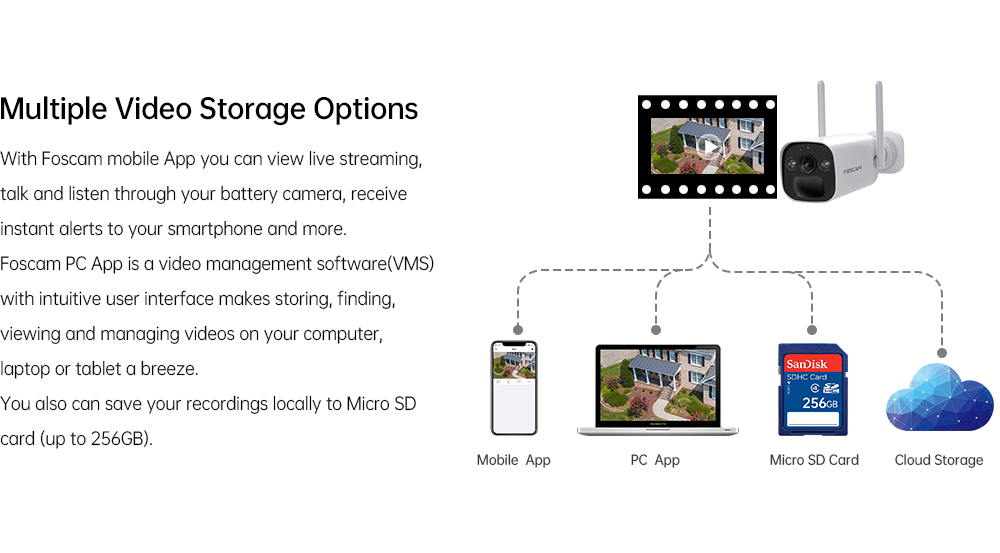
- Multiple Storage Options: Supports local storage via Micro SD Card (up to 256GB) and Foscam cloud storage for flexible video recording and backup.
- H.264 Video Compression: Efficient video compression technology to save storage space and bandwidth.
- P2P Feature: Enables easy remote access to your camera feed from anywhere.
- Mobile App & VMS Compatibility: Compatible with the free Foscam iOS and Android APP, as well as Foscam Video Management Software (VMS) for Windows and macOS.

4. Setup Guide
4.1 Physical Installation
- Choose a Location: Select an outdoor location that provides the desired viewing angle and receives ample direct sunlight for the solar panel. Ensure the camera is within range of your 2.4GHz Wi-Fi network.
- Mount the Camera Bracket: Use the positioning sticker to mark drill holes. Drill holes and insert wall plugs if necessary. Secure the camera bracket to the wall using the provided screws.
- Mount the Solar Panel Bracket: Similarly, choose a location for the solar panel that maximizes sun exposure. Mount the solar panel bracket using the provided screws.
- Attach Camera and Solar Panel: Attach the FOSCAM BP4 camera to the camera bracket and the solar panel to its bracket. Adjust their angles for optimal coverage and sun exposure.
- Connect Solar Panel: Connect the USB-C cable from the solar panel to the USB-C port on the camera.
4.2 App Installation and Initial Setup
- Download Foscam App: Search for 'Foscam' in the App Store (iOS) or Google Play Store (Android) and download the official Foscam app.
- Create Account: Open the app and register for a new Foscam account if you don't have one.
- Add Camera: Tap the '+' icon in the app to add a new device. Follow the on-screen instructions to scan the QR code on your camera or manually enter its details.
- Connect to Wi-Fi: The app will guide you through connecting the camera to your 2.4GHz Wi-Fi network. Ensure your phone is connected to the same 2.4GHz network during this process.
- Configure Settings: Once connected, you can name your camera, set a password, and configure initial settings like time zone and recording preferences.
5. Operating Instructions
5.1 Live View
Open the Foscam app and select your BP4 camera from the device list. You will see the live video feed. From here, you can:
- Take Snapshots: Capture still images from the live feed.
- Record Manually: Start and stop video recording manually.
- Use Two-Way Audio: Tap the microphone icon to speak through the camera's speaker, and listen through your phone.
- Digital Zoom: Pinch to zoom in on the live video feed.
5.2 Recording and Playback
The FOSCAM BP4 supports event-triggered recording (motion/human detection) and continuous recording (with cloud subscription or local storage). Recorded footage can be accessed via the app or Foscam VMS.
- Access Recordings: In the app, navigate to the camera's settings or playback section to view stored videos.
- Filter Events: Use filters to quickly find recordings based on date, time, or event type (e.g., human detection).
5.3 Alarm Settings
Configure the camera's detection and alarm features for optimal security.
- PIR Human Detection: Enable or disable human detection. Adjust sensitivity levels and detection zones to minimize false alarms.
- Sound and Light Alarm: Set the camera to automatically trigger its spotlight and siren when an intruder is detected. You can also manually activate these alarms from the app.
- Notifications: Ensure push notifications are enabled in the Foscam app and your phone's settings to receive instant alerts.
6. Maintenance
- Battery Charging: The solar panel will continuously charge the internal battery. If the camera is in a shaded area or during prolonged cloudy weather, you may need to manually charge the battery using the USB-C power cable and a DC 5V/2A USB power adapter (not included).
- Cleaning: Periodically clean the camera lens and solar panel surface with a soft, damp cloth to ensure optimal performance. Avoid abrasive cleaners.
- Firmware Updates: FOSCAM regularly releases firmware updates to improve performance and add new features. Check the Foscam app for available updates and follow the instructions to install them.
- Micro SD Card Management: If using a Micro SD card, ensure it is formatted correctly (FAT32 recommended for cards over 32GB, check app for specific instructions). Regularly review and back up important footage, and consider setting up automatic overwriting for continuous recording.
7. Troubleshooting
7.1 Camera Not Connecting to Wi-Fi
- Ensure your Wi-Fi network is 2.4GHz. The BP4 does not support 5GHz Wi-Fi.
- Check that the camera is within range of your Wi-Fi router.
- Verify the Wi-Fi password entered in the app is correct.
- Restart your router and the camera, then try connecting again.
7.2 Poor Video Quality
- Check your Wi-Fi signal strength. A weak signal can affect video quality.
- Ensure the camera lens is clean and free from obstructions.
- Adjust the camera's position to avoid direct glare or strong backlighting.
7.3 Battery Not Charging / Draining Quickly
- Ensure the solar panel is receiving direct sunlight for several hours a day. Clear any obstructions.
- Check the connection between the solar panel and the camera.
- Extreme cold temperatures can affect battery performance.
- Frequent live view access or excessive motion detections can drain the battery faster. Adjust detection sensitivity and recording schedules.
7.4 False Alarms
- Adjust the PIR detection sensitivity in the app.
- Define specific detection zones to exclude areas with frequent non-human movement (e.g., trees swaying, passing cars).
- Ensure the camera is not pointing directly at heat sources or reflective surfaces that could trigger the PIR sensor.
8. Specifications

| Category | Item | Specification |
|---|---|---|
| Spotlight | Color temperature | 6500K |
| Image Sensor | Sensor Type | High Definition Color CMOS Sensor |
| Display Resolution | 4.0 Megapixels (2560*1440) | |
| Min. Illumination | 0 Lux (With IR Illuminator) | |
| Lens | Lens Type | f:3.3mm; F2.0 |
| Angle of view | Diagonal: 104°, Horizontal: 89°, Vertical: 48° | |
| Video | Image Compression | H.264 |
| Resolution | 2K (2560*1440) 20fps, VGA (640 x 360) | |
| Stream | Dual stream | |
| Flip image | Flip and mirror | |
| Digital Zoom | 20× digital zoom | |
| Infrared mode | Automatic / Color Night / Night Vision | |
| Night visibility | With 2pcs Spotlight and IR LED, Night Vision Range up to 10m (33ft) | |
| Audio | Input/Output | Full Duplex two-way audio |
| Siren | Supports maximum 110dB alarm siren | |
| Network | Wireless Standard | IEEE802.11b/g/n |
| Wireless Security | WPA, WPA2 | |
| Remote Access | P2P | |
| Network Protocol | IP, TCP, UDP | |
| System Requirements | Operating System | Microsoft Windows (Foscam VMS), Mac OS (Foscam VMS), Android (Foscam app), iOS (Foscam app) |
| Other Features | PIR Detecting Distance | Adjustable up to 8m (26.2ft) |
| PIR Detecting Angle | 110° horizontal | |
| Smart Alarm | PIR Detection/Human Detection | |
| Storage | Support max 256G Micro SD card, Foscam cloud storage | |
| Privacy Block | Yes | |
| Intelligent Assistant | Supports Alexa, Google Home | |
| Power | Battery | 10000mAh rechargeable battery (battery life varies based on settings, usage & temperature) |
| Solar | 5W Solar Panel | |
| DC Power | DC 5V/2A USB power adapter (Not included) | |
| Physical | Dimension (LxWxH) | 67mm*67mm*203mm |
| Net Weight | 690g | |
| Environment | Waterproof | IP66 |
| Operating Temperature | -20°C ~ 60°C (-4°F ~ 140°F) | |
| Operating Humidity | 10% ~ 80% non-condensing | |
| Storage Temperature | -20°C ~ 60°C (-4°F ~ 140°F) | |
| Storage Humidity | 0% ~ 90% non-condensing | |
| Battery Charging Temperature | 0°C ~ 45°C (32°F ~ 113°F) | |
| Certification | Certifications | FCC, CE, RoHS, WEEE, IP66 |
9. User Tips
- Optimal Solar Panel Placement: For best battery performance, ensure the solar panel is installed in a location that receives at least 4-6 hours of direct sunlight daily. Avoid shaded areas.
- Wi-Fi Signal Strength: Before final installation, use your smartphone to check the Wi-Fi signal strength at the camera's intended location to ensure a stable connection.
- Customize Detection Zones: To reduce unwanted notifications, utilize the Foscam app to draw specific detection zones, focusing on critical areas and excluding public pathways or moving foliage.
- Regular App Checks: Periodically check the Foscam app for battery status, recording history, and any available firmware updates to keep your camera running smoothly.
10. Warranty and Support
FOSCAM products come with a standard manufacturer's warranty. For detailed warranty information, technical support, or service inquiries, please visit the official FOSCAM website or contact their customer service directly. Keep your purchase receipt as proof of purchase for warranty claims.


