Introduction
Thank you for choosing the TZT GIEC BDP-G5300 UHD 4K 3D Blu-ray Player. This player is designed to deliver a superior audio-visual experience with support for true 4K image decoding, 3D Blu-ray playback, HDR10, Dolby Vision, and advanced audio technologies like Dolby Audio and DTS. It also offers versatile media playback from external storage devices.

1. Setup Guide
1.1 Unpacking and Inspection
Carefully remove all components from the packaging. Ensure the following items are present:
- GIEC BDP-G5300 Blu-ray Player
- Remote Control
- HDMI Cable
- Power Cable
- Instruction Manual (this document)
1.2 Connecting the Player
Before connecting, ensure all devices are powered off.
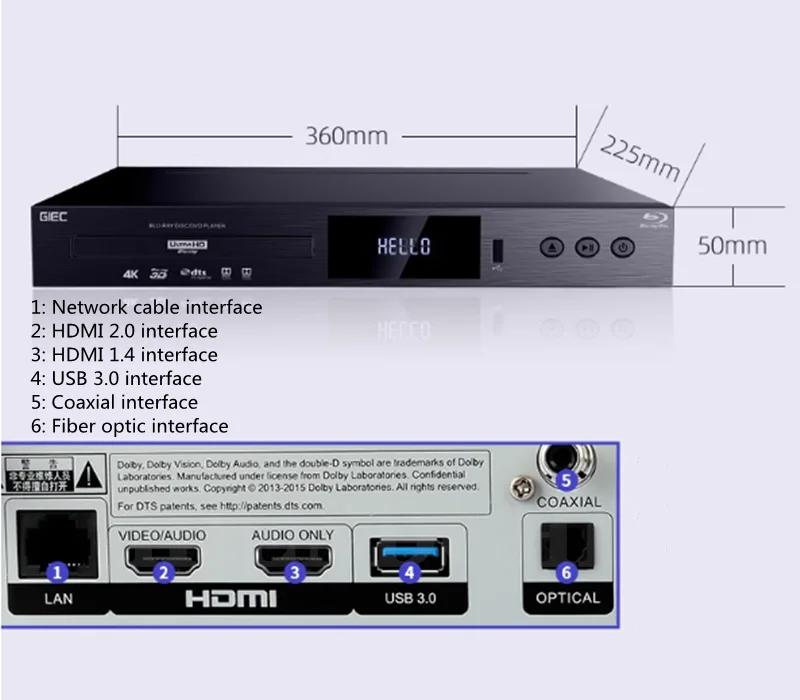
- Power Connection: Connect the power cable to the player's power input and then to a suitable power outlet. The player supports standard voltage (e.g., 220V for EU regions, please verify local power compatibility).
- Video/Audio Connection (HDMI):
- Connect one end of the HDMI cable to the HDMI 2.0 (Video/Audio) output port (labeled '2' in the diagram) on the player.
- Connect the other end to an HDMI input on your TV or AV receiver.
- For audio-visual separation, you can use the HDMI 1.4 (Audio Only) output port (labeled '3' in the diagram) to connect to an audio receiver, while using the HDMI 2.0 for video to your display.
- Network Connection (Optional): Connect an Ethernet cable to the LAN port (labeled '1' in the diagram) on the player for internet access and BD-LIVE features.
- Digital Audio Output (Optional):
- Coaxial: Connect a coaxial cable to the Coaxial output port (labeled '5' in the diagram) and to a compatible audio receiver.
- Optical: Connect an optical fiber cable to the Optical output port (labeled '6' in the diagram) and to a compatible audio receiver.
- USB Storage (Optional): Connect external USB storage devices to the USB 3.0 port (labeled '4' in the diagram) for local media playback.
1.3 Initial Power On
After all connections are made, power on your TV/AV receiver, then power on the Blu-ray player. Select the correct HDMI input on your TV/AV receiver to see the player's interface.
2. Operating Instructions
2.1 User Interface (UI)
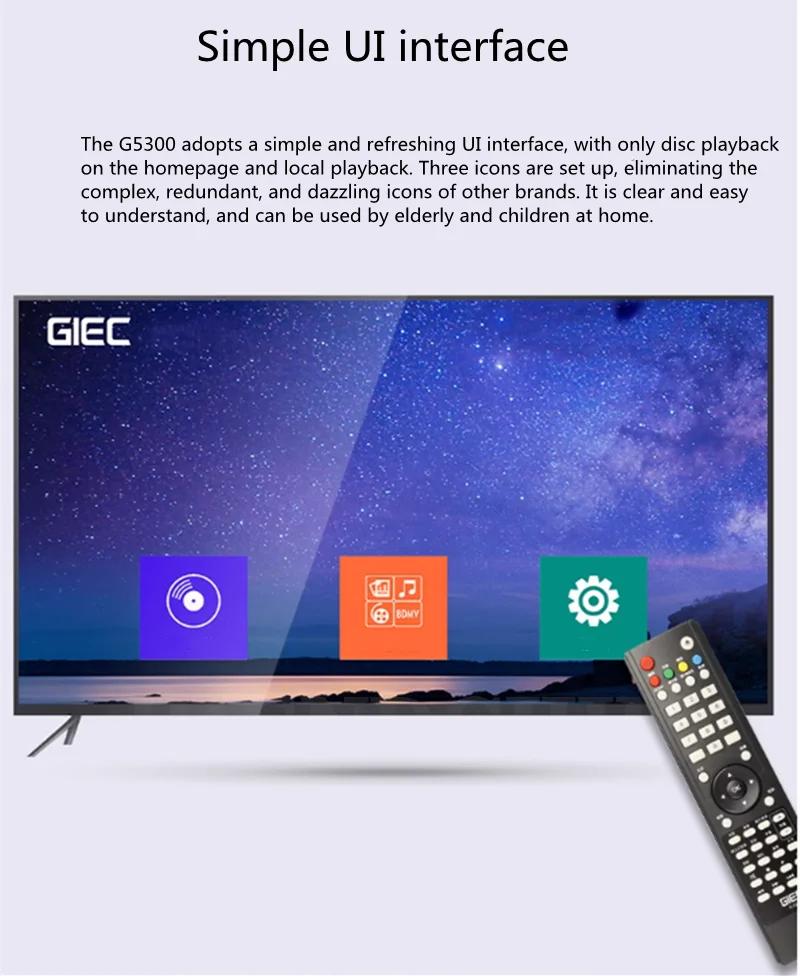
The G5300 features a simple and intuitive user interface. The homepage typically displays icons for disc playback and local media playback, making navigation straightforward.

2.2 Disc Playback
Insert a compatible disc (Blu-ray, DVD, CD) into the disc tray. The player will automatically detect the disc and begin playback or display the disc menu. The G5300 supports 4K UHD Blu-ray discs, 3D Blu-ray discs, DVDs (regions 1/2/3/4/5/6), and CDs.
2.3 Local Media Playback (USB/Hard Disk)
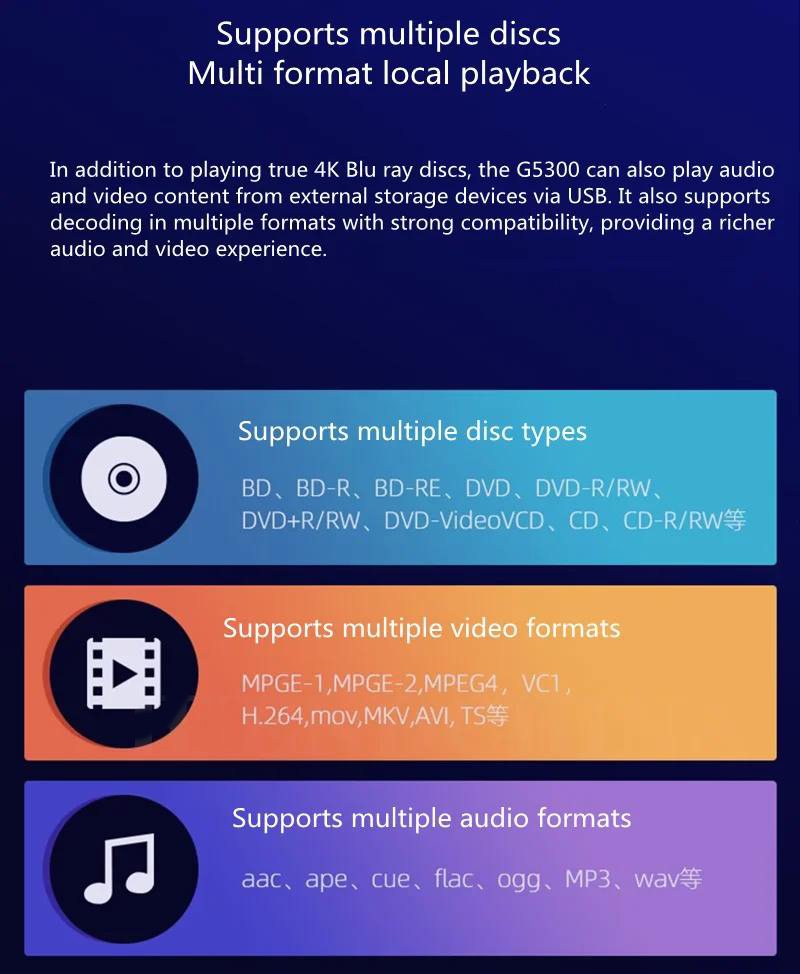
Connect a USB flash drive or an external hard disk (up to 8TB for Standard Version, up to 16TB for Upgraded Version) to the USB 3.0 port. Navigate to the 'Local Playback' option on the UI to browse and play your media files. The player supports a wide range of video and audio formats.
2.4 Advanced Video Features
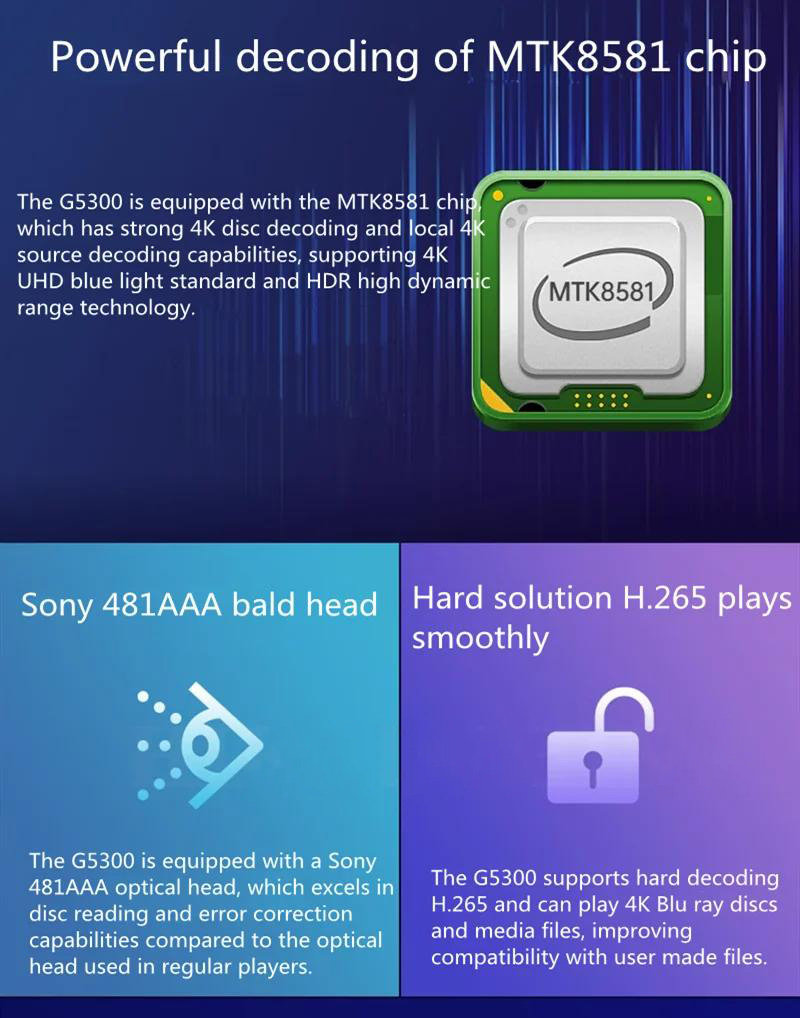
- 4K UHD Playback: Enjoy true 4K image quality with the MTK8581 high-frequency chip.
- HDR10 Support: Experience improved brightness, contrast, and color accuracy with HDR10 signals.
- Dolby Vision Support: Benefit from frame-by-frame HDR adjustment for enhanced image quality and dynamic range.
- BT.2020 Color Space: Enjoy purer, more natural, and vivid colors with a wider color gamut.
- 3D Blu-ray Playback: The player supports intelligent 3D image decoding for a smooth and immersive 3D experience.

2.5 Audio Features
- Dolby Audio Decoding: Enjoy immersive sound with Dolby Audio, providing a natural and realistic listening experience.
- DTS Decoding: Experience pure sound effects as if you were in an immersive environment with DTS decoding.

2.6 Network Features (Upgraded Version)
The Upgraded Version supports NFS/NAS sharing for network disk playback, allowing you to stream media from your network-attached storage. The Gigabit Ethernet port enables BD-LIVE functionality, providing access to online content related to Blu-ray discs.
3. Maintenance
3.1 Cleaning the Player
- Use a soft, dry cloth to clean the exterior of the player.
- Do not use liquid cleaners or aerosol sprays, as they may damage the finish or internal components.
- For the disc tray, use a specialized disc cleaning kit if necessary.
3.2 Disc Handling
- Always handle discs by their edges to avoid fingerprints and scratches.
- Store discs in their cases when not in use.
- Clean dirty discs with a soft, lint-free cloth, wiping from the center outwards.
3.3 Firmware Updates
Periodically check the manufacturer's website for firmware updates. Updates can improve performance, add new features, or resolve issues. Follow the instructions provided with the firmware update carefully.
4. Troubleshooting
| Problem | Possible Cause | Solution |
|---|---|---|
| Player does not power on | Power cable not connected securely; Power outlet not active | Ensure power cable is firmly connected. Test the power outlet with another device. |
| No video output | HDMI cable loose or faulty; Incorrect input selected on TV/receiver | Check HDMI cable connections. Select the correct HDMI input on your TV/receiver. Try a different HDMI cable. |
| No audio output | Audio cables loose or faulty; Incorrect audio settings on player/receiver | Check HDMI or digital audio cable connections. Verify audio output settings on the player and input settings on your receiver. |
| Disc cannot be read | Disc is dirty, scratched, or incompatible; Disc tray malfunction | Clean the disc. Try a different disc. Ensure the disc type is supported. |
| USB device not recognized | USB device not formatted correctly; Device draws too much power | Ensure USB device is formatted to a compatible file system (e.g., FAT32, NTFS). Try a different USB device or use a powered USB hub if needed. |
| Network connection issues | Ethernet cable loose; Router/modem issues | Check Ethernet cable connection. Restart your router/modem. Verify network settings on the player. |
5. Specifications
| Feature | Description |
|---|---|
| Model Number | GIEC BDP-G5300 |
| Brand Name | TZT |
| Dimensions (L x W x H) | 360mm x 225mm x 50mm (14.2" x 8.9" x 2") |
| Compatible Equipment Style | Amplifier, Professional Audio Equipment |
| Origin | Mainland China |
| Certification | None specified |
| Chipset | MTK8581 high-frequency chip |
| Optical Head | Sony 481AAA bald head |
| Video Decoding | True 4K, H.265, 4x 1080P 4K |
| HDR Support | HDR10, Dolby Vision |
| Color Space | BT.2020 |
| 3D Support | 3D Blu-ray disc playback with intelligent 3D image decoding |
| Audio Decoding | Dolby Audio, DTS 2.0+Digital Out |
| USB Interface | USB 3.0 (high-speed file reading up to 5.0Gbps) |
| Network Interface | Gigabit Ethernet port (for BD-LIVE, NFS/NAS sharing on Upgraded Version) |
| Supported Disc Types | BD, BD-R, BD-RE, DVD, DVD-R/RW, DVD+R/RW, DVD-VideoVCD, CD, CD-R/RW |
| Supported Video Formats | MPEG-1, MPEG-2, MPEG-4, VC1, H.264, MOV, MKV, AVI, TS |
| Supported Audio Formats | AAC, APE, CUE, FLAC, OGG, MP3, WAV, DSD, DSF, DFF |
5.1 Version Comparison
| Function | BDP-G5300 Standard Version | BDP-G5300 Upgraded Version |
|---|---|---|
| DVD Region Code | 1/2/3/4/5/6 | 1/2/3/4/5/6 |
| Blu-ray Region Code | A/B/C | A/B/C |
| Mute Watermark | No restrictions | No restrictions |
| Interfaces | 2xHDMI-compatible/1xCoaxial/1xOptical/2xUSB/1x1000Mbps network port | 2xHDMI-compatible/1xCoaxial/1xOptical/2xUSB/1x1000Mbps network port |
| USB Playback | Supports 4K HD video and lossless music formats | Supports 4K HD video and lossless music formats |
| Supported Hard Disk | 8T | 16T |
| Original Disc ISO Menu Navigation | Not supported | Supported/supports 3D |
| External Subtitles | Not supported | Supported |
| Extra Effects Subtitles | Not supported | Supported |
| Lossless Music CUE | Not supported | Supported |
| NFS/NAS Sharing | Not supported | Supported/original disk playback |
6. Warranty and Support
For warranty information and technical support, please refer to the documentation provided at the time of purchase or contact your retailer. Keep your proof of purchase for any warranty claims.
7. User Tips
- Power Compatibility: The player is designed for specific power voltages (e.g., 220V). If you are in a region with a different standard (e.g., 110V), ensure you use an appropriate voltage converter to prevent damage.
- Hard Disk Not Included: Please note that an external hard disk for local media storage is not included with the player and must be purchased separately.
- Simple Navigation: The player's user interface is designed for ease of use, making it accessible for all users, including those less familiar with complex electronics.
- Optimal Performance: For the best audio-visual experience, ensure you use high-quality HDMI cables and connect to a 4K HDR/Dolby Vision compatible display and an audio receiver that supports Dolby Audio and DTS.


