Introduction
The BOBLOV A8 WIFI Mini Body Camera is a versatile and compact recording device designed for various security and monitoring applications. Featuring HD 1080P video recording, 12MP photos, and invisible night vision, it offers reliable performance in diverse environments. Its 180-degree rotating lens and super-wider 120-degree angle provide flexible coverage, while built-in WiFi allows for remote control and monitoring via your smartphone. The camera also includes features like loop recording, motion detection, and strong magnetic adsorption for easy placement.

Package Contents
Please check the package carefully to ensure all items are present:
- 1 x BOBLOV A8 Mini Body Camera
- 1 x English User Manual
- 1 x USB Data Cable

Product Overview
Familiarize yourself with the camera's components and controls:

- Power/Photo Button: Used to power the device on/off and take photos.
- Rec/Video Button: Used to start and stop video recording.
- Lamp OFF/ON Switch: Controls the infrared night vision lights.
- Reset Button: Used to reset the device in case of malfunction.
- Micro SD Slot: For inserting the memory card.
- USB Connector: Micro USB / Mini USB port for charging and data transfer.
- Back Clip: For attaching the camera to clothing or other surfaces.
- Magnetic Base: Allows for easy attachment to metallic surfaces.
- Rotating Lens: The camera head can rotate 180 degrees for flexible viewing angles.
Specifications
| Feature | Detail |
|---|---|
| Model Number | A8 |
| High Definition Support | 1080P (Full-HD) |
| Video Resolution | 1080P/720P |
| Video Code | H.264 |
| Video Format | MKV, MP4 |
| Frame Rate | 16FPS |
| Sensor Technology | CMOS |
| Memory Card Type | MicroSD / TF (8GB to 128GB, FAT32) |
| Built-in Memory Size | Non |
| Battery Capacity | 3.7V/1800MA lithium battery |
| Recording Time (WIFI Off) | Up to 7 hours |
| Recording Time (WIFI On) | Approximately 5 hours |
| Night Vision Distance | 5 meters (invisible & silent IR) |
| Motion Detection Distance | Straight line 5 meters |
| Lens Rotation | 180 degrees |
| Wide Angle | 120 degrees |
| Dimensions (MM) | 93 x 36 x 15 |
| Weight | 60g |
| USB Connector | Micro USB, Mini USB |
| Working Temperature | -5 to 40 Celsius |
| Compatibility | Android/iOS |
| Playback Software | QQPlayer/Kmplayer/VLCmedia |
Setup
1. Charging the Camera
Before first use, fully charge the camera. Connect the provided USB data cable to the camera's USB port and to a power source (e.g., computer USB port, USB wall adapter). The camera can record while charging.

2. Inserting the Memory Card
The camera does not have built-in memory and requires a MicroSD/TF card (8GB to 128GB, formatted to FAT32). Carefully insert the memory card into the Micro SD slot until it clicks into place.
3. Synchronizing System Time
To ensure accurate timestamps on your recordings, synchronize the camera's system time. This is typically done through the companion mobile application after connecting via WiFi.
4. Mobile App Connection (WIFI)
Download the dedicated mobile application (refer to the English manual for app name/QR code). Power on the camera and enable its WiFi. On your smartphone, connect to the camera's WiFi network. Once connected, you can use the app for remote control, live view, and settings adjustments.

Operating Instructions
Power On/Off
Press and hold the Power/Photo button for a few seconds to turn the camera on or off.
Video Recording
With the camera powered on, press the Rec/Video button once to start recording. Press it again to stop recording. Videos are saved to the Micro SD card.
Taking Photos
With the camera powered on, short press the Power/Photo button to take a still photo. Photos are saved to the Micro SD card.
Night Vision
To activate or deactivate night vision, use the Lamp OFF/ON switch. The camera features 4pcs 940 red infrared lights for invisible and silent recording up to 5 meters in dark conditions.

Loop Recording
The camera supports loop recording, which means when the memory card is full, the oldest files will be overwritten by new recordings. This ensures continuous operation without manual deletion.
Motion Detection
Enable motion detection through the mobile app. When motion is detected within a 5-meter range, the camera will automatically start recording, conserving battery life and storage space.
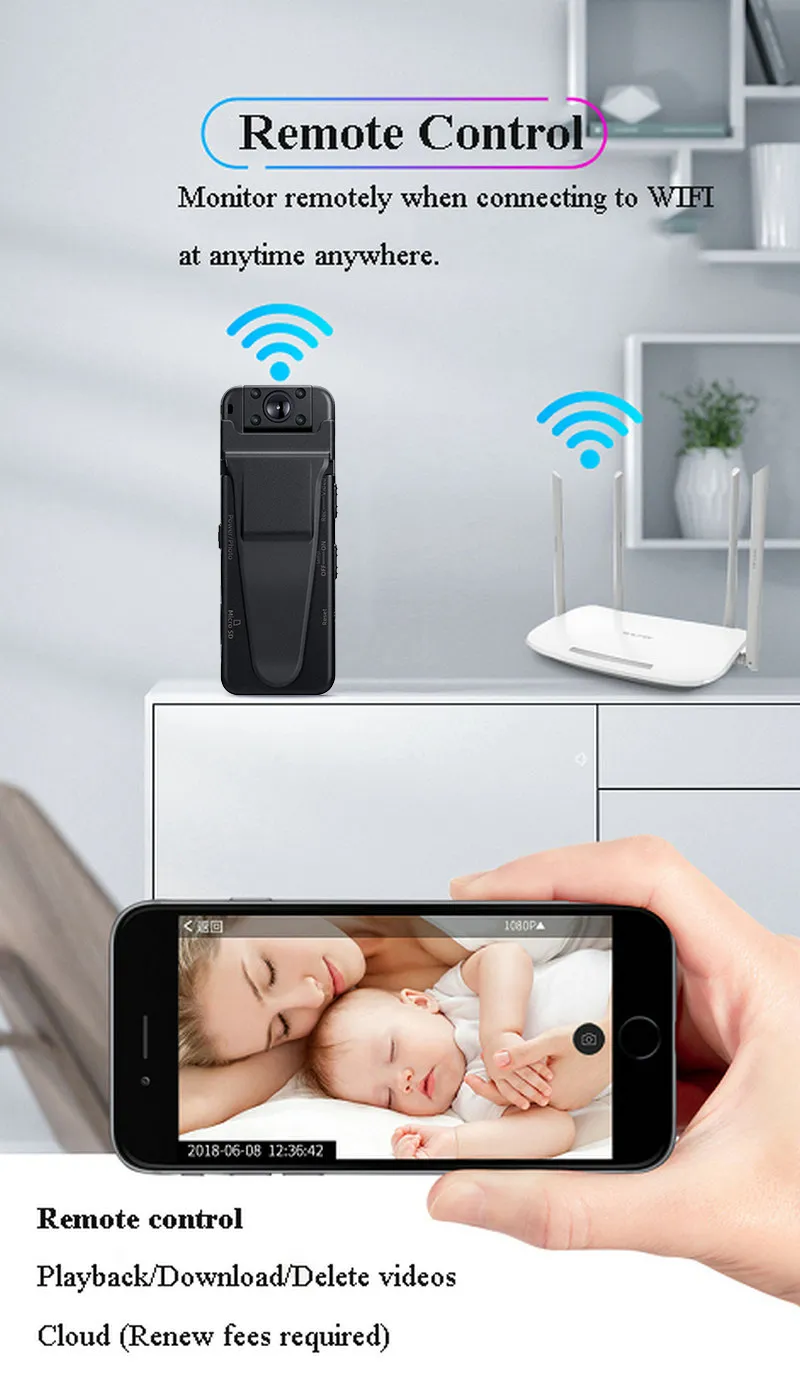
Remote Control and Monitoring
Using the mobile app connected via WiFi, you can:
- View live video feed.
- Start/stop recording.
- Take photos.
- Adjust video resolutions.
- Playback, download, or delete recorded videos.
- Receive mobile phone alarms or SMS alerts.
Cloud Storage
The camera supports cloud storage functionality. You can upload video files to the cloud for remote access and backup. This feature allows you to check recorded videos even if the camera is offline or the memory card is damaged. Please note that cloud storage services may require a subscription.

Lens Rotation
The camera's lens can be manually rotated 180 degrees, allowing you to adjust the viewing angle without repositioning the entire device.
Maintenance
- Cleaning: Use a soft, dry cloth to clean the camera body and lens. Avoid using harsh chemicals or abrasive materials.
- Storage: Store the camera in a cool, dry place away from direct sunlight and extreme temperatures when not in use.
- Battery Care: To prolong battery life, avoid fully discharging the battery frequently. Charge the camera regularly, even if not in active use.
- Firmware Updates: Check the manufacturer's website or mobile app periodically for any available firmware updates to ensure optimal performance and new features.
Troubleshooting
- Camera not turning on: Ensure the battery is charged. Connect to a power source and try again.
- Cannot record: Check if a Micro SD card is inserted and if it has sufficient free space. Ensure the card is formatted to FAT32.
- WiFi connection issues: Make sure the camera's WiFi is enabled. Try restarting both the camera and your smartphone's WiFi. Ensure you are within range of the camera's WiFi signal.
- Poor video quality: Ensure the lens is clean. Check the video resolution settings in the mobile app.
- Camera unresponsive: Use a thin object (like a paperclip) to press the Reset button. This will restart the camera without deleting data.
- Short battery life: Ensure WiFi is turned off when not needed, as it consumes more power. Reduce recording resolution if possible.
User Tips
- Format SD Card Regularly: To maintain optimal performance and prevent data corruption, it's recommended to format your Micro SD card periodically, especially after transferring important files.
- Test Before Critical Use: Always perform a short test recording before using the camera for important events to ensure it's functioning correctly and the settings are as desired.
- Optimal WiFi Signal: For stable remote control and live viewing, ensure your smartphone is close to the camera and has a strong WiFi signal.
- Password Protection: Utilize the camera's password protection feature to secure your recordings and settings from unauthorized access.
Warranty & Support
For warranty information, technical support, or service inquiries, please refer to the contact details provided with your purchase documentation or visit the official BOBLOV website. Keep your proof of purchase for warranty claims.


