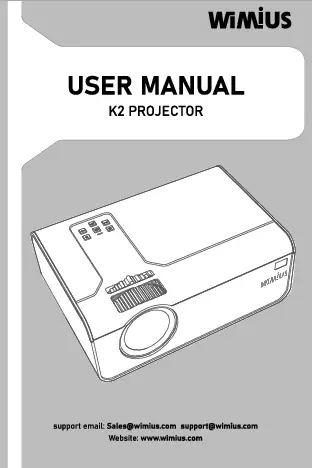
1. Product Overview
The WIMIUS K2 Mini Projector is a portable WiFi-enabled projector designed for home entertainment. It offers a bright and clear image with support for Full HD 1080P input, native 720P resolution, and versatile connectivity options.
Video: WIMIUS K2 Portable WiFi Projector overview, demonstrating screen mirroring, zoom functionality, and compact design.
Package Contents
Upon unpacking, please ensure all items are present:
- Projector K2 (x1)
- User Manual (x1)
- Power Cord (x1)
- Remote Control (x1)
- 3-in-1 AV Cable (x1)
- HDMI Cable (x1)
- Lens Cleaning Cloth (x1)
- Lens Cover (x1)

Figure 1: Included Accessories
2. Setup Guide
2.1 Physical Placement
Position the projector on a stable, flat surface. Ensure adequate ventilation around the device. The optimal projection distance for the best image quality is 3 meters (approximately 9.8 feet).
- Projection Distance: 1-7 meters (3.28-22.96 feet)
- Projected Dimension: 30-200 inches

Figure 2: Flexible Projection Size and Distance
2.2 Power Connection
- Connect the provided power cord to the projector's AC input port.
- Plug the other end of the power cord into a suitable AC power outlet.
- The projector will enter standby mode.
2.3 Initial Adjustments
- Focus: Rotate the focus ring on the projector lens until the image appears sharp and clear.
- Keystone Correction: Use the manual keystone correction feature to adjust the image shape if it appears trapezoidal. The projector also supports electronic keystone correction.
3. Operating Instructions
3.1 Powering On/Off
- Press the power button on the projector or the remote control to turn the unit on.
- Press the power button again to turn the unit off.
3.2 Input Source Selection
The WIMIUS K2 projector offers multiple input options:

Figure 3: Multiple Connecting Options
Use the 'Source' button on the remote control or the projector's control panel to cycle through input sources (HDMI, USB, AV, VGA).
3.3 Wireless Screen Mirroring (WiFi)
The projector supports wireless screen mirroring for iOS and Android devices.

Figure 4: Wireless Screen Mirroring

Figure 5: Wireless and Wired Mirroring Options
For iOS Devices:
- Select 'WiFi Display' on the projector.
- Enable the Wi-Fi function on your iOS device.
- Search for the projector's WiFi network (e.g., 'WIMIUS-XXXX') and connect your device to it.
- Activate 'Screen Mirroring' or 'AirPlay' on your iOS device and select the projector.
For Android Devices:
- Select 'WiFi Display' on the projector.
- Press the 'OK' button on the remote for more than 2 seconds to switch to the Android display interface.
- Enable 'Multi-screen' or 'Miracast' function on your Android device and select the projector.
iOS Devices Wired Connection:
Use an original Lightning cable to connect your iPhone/iPad directly to the projector's USB port for wired mirroring.
3.4 Zoom Function
The projector features a zoom function that allows you to adjust the image size from 100% down to 75% without moving the projector. This can be controlled via the remote control.
3.5 Audio Output
The K2 projector has dual built-in 5W speakers with Hi-Fi Stereo SRS Sound for an immersive audio experience.

Figure 6: Integrated Audio System
For external audio, connect speakers or headphones via the 3.5mm audio output port.
3.6 Using with TV Stick
To stream content from apps like Netflix, Hulu, or Disney+, it is recommended to connect a TV stick (e.g., Amazon Fire Stick) to the projector's HDMI port. Due to HDCP copyright protection, these apps cannot be mirrored directly from a smartphone.

Figure 7: Streaming with a TV Stick
4. Maintenance
4.1 Lens Cleaning
Regularly clean the projector lens using the provided lens cleaning cloth. Avoid using abrasive materials or harsh chemicals that could damage the lens coating.
4.2 General Care
- Keep the projector in a clean, dust-free environment.
- Ensure proper ventilation to prevent overheating. The projector is equipped with an advanced cooling system to minimize fan noise and maintain optimal operating temperature.
- When not in use, cover the lens with the lens cover to protect it from dust and scratches.
- Store the projector in a cool, dry place.
5. Troubleshooting
5.1 Common Issues and Solutions
- No Image/Blurry Image:
- Check power connection and ensure the projector is turned on.
- Adjust the focus ring on the lens.
- Adjust keystone correction if the image is trapezoidal.
- Ensure the correct input source is selected.
- No Sound:
- Check the volume settings on the projector and the connected device.
- Ensure external speakers (if used) are properly connected and powered.
- Wireless Connection Issues:
- The smoothness of the wireless connection can be affected by your network environment. A bandwidth of 100Mbit or more is recommended.
- Ensure your device is connected to the projector's WiFi network.
- Restart both the projector and your mobile device.
- Cannot Play Netflix/Hulu/Disney+ from Smartphone:
- Due to HDCP copyright protection, these streaming services cannot be mirrored directly from a smartphone.
- To watch these apps, connect a TV stick (e.g., Amazon Fire Stick) or a PC to the projector via HDMI.
- Image is Dim:
- The projector is primarily designed for home entertainment in darker environments. It is not suitable for use in bright rooms.
- Ensure the projection surface is white and smooth for optimal brightness.
6. Specifications
| Feature | Specification |
|---|---|
| Brand Name | WIMIUS |
| Model | K2 |
| Type | Digital Projector, Home Theater Projector |
| Projection Technology | LCD |
| Optical Resolution | 1280x720dpi (Native 720P, supports 1080P input) |
| Brightness | 5500 Lumens (300 ANSI ±50%) |
| Contrast Ratio | 7000:1 |
| Light Source | LED (80,000 hours lamp life) |
| Projected Dimension | 30-200 inches |
| Projection Distance | 1-7M |
| Screen Scale | 4:3/16:9 |
| Zoom | x 2.4 (100% to 75% digital zoom) |
| Keystone Correction | Manual Correction, Electronic Correction |
| Input/Output | HDMI, USB, AV, VGA, 3.5mm Audio |
| Wireless Connectivity | WiFi, Bluetooth-compatible |
| Built-in Speaker | Yes (Dual 5W with Hi-Fi Stereo SRS Sound) |
| Power (W) | 56W |
| Power Source | AC |
| Weight | 2.0kg |
| Dimensions | 8.26 x 5.7 x 3.14 inches (approx.) |
| Certification | CE, FCC |

Figure 8: Image Quality and Lamp Life
7. Warranty and Support
WIMIUS provides professional lifelong technical support for the K2 Mini Projector. If you encounter any issues or have questions regarding your projector, please contact WIMIUS customer support for assistance. You will receive a quick solution as soon as possible.
8. User Tips
- Optimal Viewing: For the best experience, use the projector in a dark room. It is designed for home entertainment and not recommended for environments with significant ambient light.
- Streaming Content: When streaming copyrighted content from services like Netflix, Hulu, or Disney+, always use a TV stick or connect a PC to the projector via HDMI to bypass HDCP restrictions.
- Network Stability: Ensure a stable and high-bandwidth (100Mbit or more) WiFi connection for smooth wireless screen mirroring.
- Eye Protection: The K2 projector utilizes diffuse reflection imaging, which is designed to be gentler on the eyes compared to direct light sources.
- Versatile Use: The compact size and multiple connectivity options make the K2 suitable for various scenarios, including home movie nights, gaming, and outdoor viewing (at night).

Figure 9: Usage Scenarios