1. Introduction
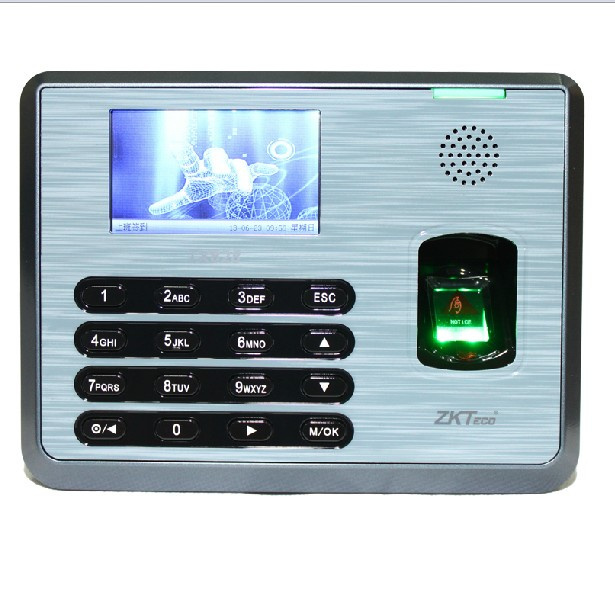
The ZKTeco TX628 is an advanced biometric fingerprint time attendance terminal designed for efficient employee management. It features a color TFT screen with a user-friendly GUI interface, offering quick and accurate user recognition. This manual provides essential information for setting up, operating, maintaining, and troubleshooting your TX628 device.

2. Setup
2.1 Unpacking and Inspection
Carefully unpack the TX628 device and verify that all components are present and undamaged. Retain the packaging for future transport or storage.
2.2 Device Overview


2.3 Power Connection
- Connect the provided DC 5V 2A power adapter to the power input port on the back of the device.
- Plug the power adapter into a standard electrical outlet.
- The device will power on automatically.
2.4 Network and Data Transfer
The TX628 supports multiple communication methods:
- TCP/IP: For network connectivity and real-time data transfer to a server. Connect an Ethernet cable to the device's LAN port and to your network router/switch.
- RS232/485: For serial communication with other devices or systems.
- USB Client: For direct connection to a computer.
- USB Disk Interface: For manual data transfer using a USB flash drive. This is useful when network connectivity is not available.

3. Operating Instructions
3.1 User Interface
The TX628 features a 3-inch color TFT screen with a graphical user interface (GUI). Navigate through menus using the keypad and the M/OK button.

3.2 User Registration
To register a new user:
- Access the 'User Mgt' menu from the main screen.
- Select 'New User' and enter the user ID.
- Register the user's fingerprint by placing their finger on the ZK Optical Sensor. Follow the on-screen prompts to capture multiple scans for accuracy.
- Optionally, register a PIN for verification.
- Save the user information.
3.3 Time Attendance
Users can clock in/out using their registered fingerprint or PIN. The device offers 1-touch a-second user recognition for quick processing.
- Fingerprint Verification: Place a registered finger on the optical sensor. The device will provide audio-visual indications for acceptance or rejection.
- PIN Verification: Enter the registered PIN using the keypad and press M/OK.
3.4 Scheduled Bell
The TX628 includes a built-in bell scheduling function to remind users to clock in or out at specific times.
3.5 Data Management
- Real-time Data Export: Attendance records can be exported in real-time to third-party hosted or non-hosted applications via TCP/IP.
- USB Data Transfer: Use the USB disk interface to manually download attendance data to a USB flash drive. Navigate to 'Data Mgt' -> 'USB Manager' to perform this operation.
4. Maintenance
4.1 Cleaning the Device
- Regularly clean the ZK Optical Sensor with a soft, dry, lint-free cloth to ensure optimal performance.
- Wipe the device's exterior with a slightly damp cloth. Avoid using harsh chemicals or abrasive materials.
4.2 Data Backup
It is recommended to regularly back up attendance data to prevent loss. Utilize the USB data transfer function or ensure your network connection is stable for real-time data synchronization.
4.3 Environmental Conditions
Ensure the device operates within the specified environmental ranges:
- Operating Temperature: 0 °C to 45 °C (32 °F to 113 °F)
- Operating Humidity: 20% to 80% (non-condensing)
5. Troubleshooting
5.1 Fingerprint Not Recognized
- Ensure the finger is clean and dry.
- Place the finger flat on the optical sensor, covering the entire surface.
- Try re-registering the fingerprint if the issue persists.
- Check the audio-visual indications for specific error messages.
5.2 Network Connectivity Issues
- Verify the Ethernet cable connection.
- Check network settings (IP address, gateway) in the device's communication menu.
- Ensure the network router/switch is functioning correctly.
5.3 Data Transfer Problems
- For USB transfer, ensure the USB flash drive is formatted correctly and has sufficient space.
- For network transfer, verify network connectivity and server configuration.
5.4 Device Not Powering On
- Check the power adapter connection to both the device and the electrical outlet.
- Ensure the power outlet is functional.
6. Specifications
| Feature | Specification |
|---|---|
| Model Number | TX628 |
| Origin | Mainland China |
| Smart Home Platform | None |
| Fingerprint Capacity | 3000 (1:N) |
| ID Card Capacity | 10,000 (optional) |
| Record Capacity | 100,000 |
| Display | 3-inch Color TFT Screen |
| Communication | TCP/IP, RS232/485, USB Client |
| Power Supply | DC 5V 2A |
| Operating Humidity | 20%-80% |
| Operating Temperature | 0 °C - 45 °C |
| Verification Speed | ≤1 second |
| Sensor | ZK Optical Sensor |
6.1 Dimensions

7. Warranty and Support
For technical support, warranty claims, or further assistance, please contact your vendor or the manufacturer directly. An SDK (Software Development Kit) is available for OEM customers and software developers who wish to integrate the TX628 with custom applications.
8. User Tips
- Clean Fingers: Always ensure fingers are clean and dry before attempting a fingerprint scan for optimal recognition accuracy.
- Consistent Placement: Try to place your finger on the sensor in a consistent manner each time for better recognition.
- Regular Data Export: Perform regular data backups or ensure continuous network synchronization to prevent loss of attendance records.
- Administrator Access: Keep administrator passwords secure and limit access to critical settings to authorized personnel only.


