1. Isingeniso
This manual provides essential information for the safe and efficient operation of your HP DesignJet Z6 44-inch Large Format Plotter Printer. Please read this manual thoroughly before using the printer to ensure proper setup, usage, and maintenance. Retain this manual for future reference.
The HP DesignJet Z6 is a professional-grade large-format printer designed for high-quality output of CAD drawings, GIS maps, posters, banners, and photographic prints. It features a 6-color pigment ink system and supports various media types up to 44 inches wide.

Isithombe 1.1: Ngaphambili view of the HP DesignJet Z6 44-inch Large Format Plotter Printer, showcasing its robust design and integrated media basket.
2. Ulwazi Lokuphepha
Njalo qaphela izinyathelo zokuphepha ezilandelayo ukuze uvimbele ukulimala noma umonakalo kuphrinta:
- Ensure the printer is placed on a stable, level surface capable of supporting its weight.
- Connect the printer to a grounded power outlet. Do not use extension cords or adapters that are not rated for the printer's power requirements.
- Gcina izandla nezingubo ezixegayo kude nezingxenye ezihambayo ngesikhathi sokusebenza.
- Do not attempt to open or service internal components unless specifically instructed by this manual or authorized service personnel.
- Sebenzisa amakhatriji nemidiya ye-inki ye-HP yangempela kuphela ukuqinisekisa ukusebenza kahle nokuvimbela umonakalo.
- Keep the printer away from water or excessive humidity.
- Unplug the printer from the power outlet before cleaning or performing any maintenance.
3. Setha
3.1 Ukuqaqa nokubeka
Carefully remove the printer from its packaging. Retain all packaging materials for potential future transport. Place the printer in its intended location, ensuring adequate space around it for ventilation and access for media loading and maintenance.
3.2 Ukuxhuma Amandla
Connect the power cord to the printer's power inlet and then to a grounded electrical outlet. Do not power on the printer until all initial setup steps are complete.
3.3 Initial Ink Cartridge Installation
- Vula umnyango wokungena kwikhathriji ye-inki.
- Unpack each ink cartridge.
- Faka ikhatriji ngayinye endaweni yayo enemibala ehambisanayo kuze kube yilapho ingena endaweni yayo.
- Vala umnyango wokungena wekhathriji ye-inki.
3.4 Media Loading (Rolls)
The DesignJet Z6 supports dual rolls for continuous printing. Follow these steps to load a media roll:
- Ensure the media basket is in the open position.
- Vula isembozo somqulu.
- Insert the media roll onto the spindle, ensuring the media feeds from the top.
- Slide the spindle with the media roll into the designated roll slot (Roll 1 or Roll 2).
- Feed the leading edge of the media into the printer until it is detected.
- Vala ikhava yomqulu.
- The printer will automatically align and trim the media.

Image 3.1: A user loading a media roll onto the spindle, preparing it for insertion into the printer.

Image 3.2: A user adjusting the media roll after insertion, ensuring proper alignment within the printer's roll feeder.
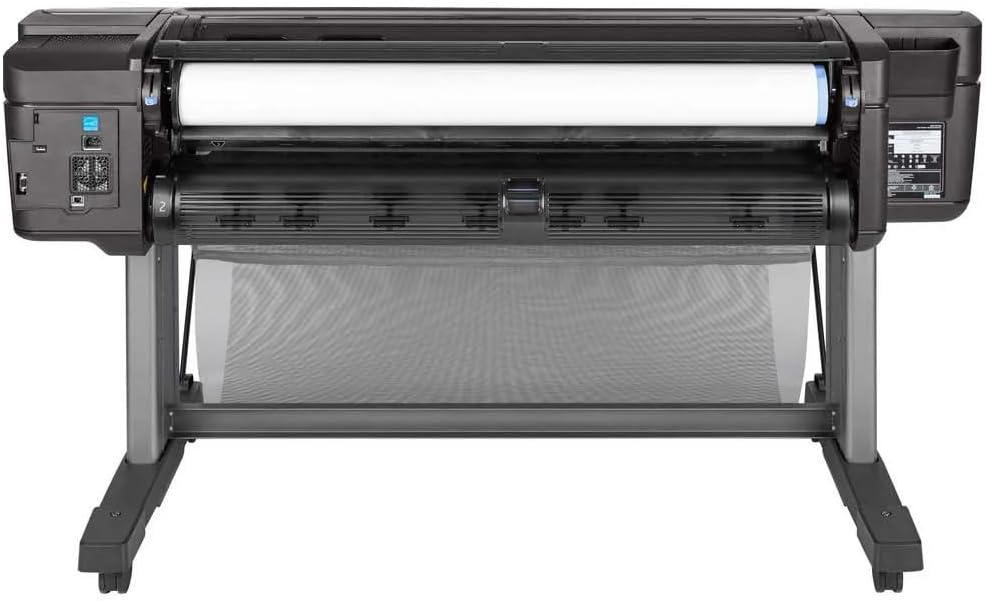
Isithombe 3.3: Phezulu phezulu view of the printer's media loading bay, illustrating the dual roll capacity and feed mechanism.
3.5 Ukuxhumeka kwenethiwekhi ne-USB
The printer supports Gigabit Ethernet and USB connectivity. Connect the appropriate cable to the printer and your network or computer. For network setup, follow the on-screen prompts on the printer's control panel to configure network settings (IP address, etc.).
3.6 Ukufakwa komshayeli
Install the latest printer drivers from the official HP webisiza (www.hp.com/support/designjetZ6) on your computer. Follow the on-screen instructions provided by the installer.
4. Ukusebenzisa Iphrinta
4.1 Iphaneli yokulawula iphelileview
The printer features an intuitive touchscreen control panel. Use it to navigate menus, check printer status, manage print jobs, and configure settings.
4.2 Ukuphrinta Idokhumenti
- Qinisekisa ukuthi iphrinta ivuliwe futhi ixhunywe kukhompyutha noma kunethiwekhi yakho.
- Vula idokhumenti ofisa ukuyiphrinta kukhompuyutha yakho.
- Khetha File > Phrinta (noma umyalo olinganayo kuhlelo lwakho lokusebenza).
- Choose the HP DesignJet Z6 printer from the list of available printers.
- Adjust print settings such as paper size, media type, print quality, and color options in the printer driver properties.
- Chofoza Phrinta.
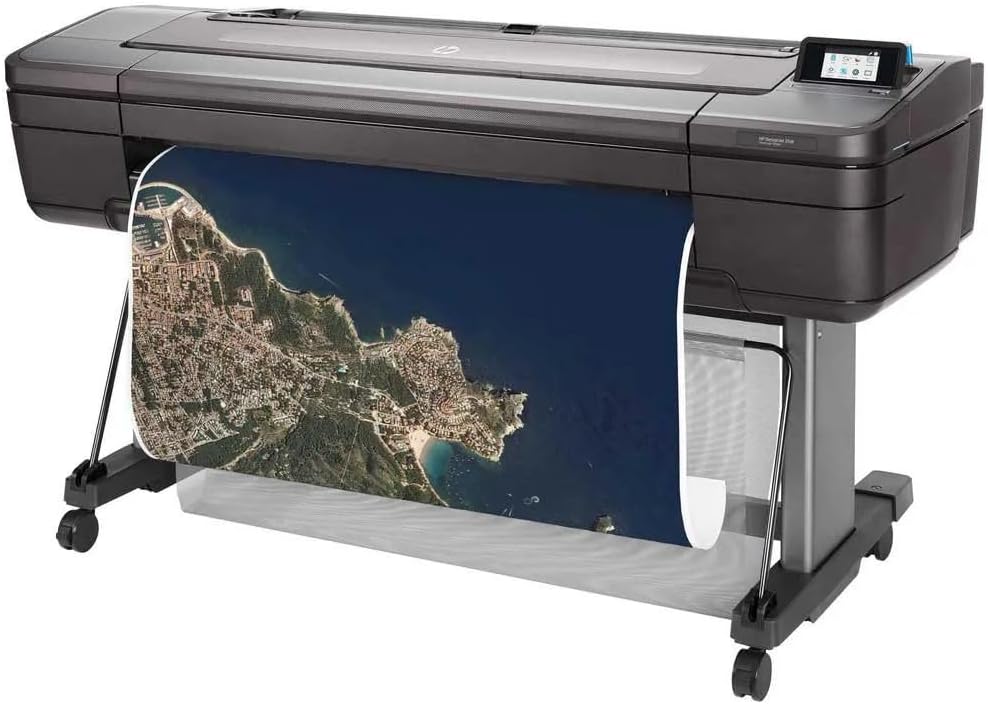
Image 4.1: The HP DesignJet Z6 printer in operation, producing a detailed large-format map print.

Image 4.2: The printer with its media output basket extended, ready to collect finished prints.
4.3 Media Handling
The printer automatically detects the loaded media type and size. Ensure the correct media profile is selected in the print driver for optimal results. The dual-roll system allows for automatic switching between rolls when one runs out or a different media type is required.
5. Isondlo
Regular maintenance ensures consistent print quality and extends the life of your printer.
5.1 Ukushintsha Ikhatriji Kayinki
When an ink cartridge is low or empty, the printer's control panel will display a notification. To replace:
- Vula umnyango wokungena kwikhathriji ye-inki.
- Cindezela ikhatriji engenalutho ukuze uyikhulule, bese uyikhipha.
- Unpack a new genuine HP ink cartridge.
- Insert the new cartridge into the correct slot until it clicks.
- Vala umnyango wokungena.
5.2 Ukugcinwa Kwekhanda Lokuphrinta
The printer performs automatic printhead maintenance. If print quality issues arise (e.g., streaks, missing lines), you can initiate a printhead cleaning or alignment cycle from the control panel's maintenance menu.
5.3 Izinqubo Zokuhlanza
- Ingaphandle: Sula ingaphandle ngethafa elithambile, damp, indwangu engenalutho. Ungasebenzisi izinto zokuhlanza abrasive noma izincibilikisi.
- Media Path: Periodically inspect the media path for dust or debris. Refer to the printer's control panel or online support for specific instructions on cleaning the media path if necessary.
5.4 Ukuvuselelwa kweFirmware
Regularly check for and install firmware updates from the HP website. Firmware updates can improve performance, add features, and resolve issues.
6. Ukuxazulula izinkinga
Lesi sigaba sikhuluma ngezinkinga ezivamile ongase uhlangane nazo. Ukuze uthole ukuxazulula izinkinga okuningiliziwe, bheka usekelo lwe-HP webindawo.
6.1 Izinkinga Zekhwalithi Yokuphrinta
- Streaks or Faded Colors: Check ink levels. Perform a printhead cleaning cycle from the control panel. Ensure the correct media type is selected in the print driver.
- Imibala Engalungile: Verify color settings in the print driver. Ensure you are using genuine HP ink cartridges.
- Grainy Prints: Select a higher print quality setting in the print driver. Use appropriate media for high-resolution printing.
6.2 Izinkinga Zokuxhuma
- Iphrinta ayitholwanga: Check all cable connections (USB or Ethernet). Restart the printer and your computer/network device. Verify network settings on the printer's control panel.
- Print Jobs Not Sending: Ensure printer drivers are correctly installed and updated. Check the print queue for stalled jobs.
6.3 Media Handling Errors
- Ama-Paper Jam: Follow the on-screen instructions on the control panel to clear any jammed media. Always pull jammed media in the direction of the paper path to avoid damage.
- Media Not Loading: Ensure the roll is correctly seated on the spindle and inserted into the printer. Check that the leading edge is fed properly.
7. Imininingwane
| Isici | Ukucaciswa |
|---|---|
| Igama Lemodeli | HP DesignJet Z6 |
| Inombolo Yemodeli Yento | T8W16A#B1K |
| Ubuchwepheshe bokuphrinta | Inkjet (6-color pigment ink) |
| Ubukhulu bokulungiswa kokuphrinta | 2400 x 1200 i-dpi elungiselelwe |
| Ubukhulu Bosayizi Wemidiya | 44 amayintshi |
| Ukuxhumana | I-Gigabit Ethernet, i-USB |
| Imibala kayinki | Cyan, Magenta, Yellow, Black (plus additional colors for 6-color system) |
| I-Hard Drive | 500GB self-encrypting |
| Izinhlobo Zemidiya Ezisekelwayo | Glossy photo paper, plain paper, various large-format technical documents |
| Ubukhulu bomkhiqizo | 71 x 39.3 x 27.4 amayintshi (1803 x 998 x 695 mm) |
| Izici ezikhethekile | Energy Star certified, PostScript 3, native PDF support, dual-roll support |
8. Iwaranti & Ukusekela
8.1 Ulwazi Lwewaranti
This product is a Certified Amazon Renewed Product and comes with the Amazon Renewed Guarantee. For specific warranty terms and conditions, please refer to the documentation provided with your purchase or visit the Amazon Renewed program details page.
For new products, HP typically offers a limited warranty. Please refer to the official HP website or your product documentation for the most current warranty information.
8.2 Ukwesekwa Kwezobuchwepheshe
For technical assistance, driver downloads, and additional troubleshooting resources, please visit the official HP support webindawo:
- HP DesignJet Z6 Support Page
- You may also find helpful information on the Amazon Renewed support pages for renewed products.
When contacting support, have your printer's model number (Z6) and serial number ready. The serial number is typically located on a label on the back or side of the printer.