1. Isingeniso
Thank you for choosing the LG 34 Inch UltraWide WQHD Curved Monitor. This manual provides essential information for the safe and efficient use of your new monitor. Please read it thoroughly before operating the device and keep it for future reference.
Okuqukethwe Kwephakheji
- LG 34 Inch UltraWide Curved Monitor
- I-Monitor Stand (Isisekelo nentamo)
- Ikhebula Lamandla
- Ikhebula le-HDMI
- Ikhebula le-DisplayPort
- Ikhebula le-USB-C
- Incwadi Yomsebenzisi Nekhadi Lesiqinisekiso
2. Izici Eziyinhloko
- 34-inch WQHD UltraWide Curved Display: Expansive 21:9 screen (3440 x 1440) for enhanced productivity and immersive viewing.
- HDR Display with 99% sRGB: Delivers vibrant, natural colors and distinct image layers, supporting HDR brightness performance.
- Izinga Lokuvuselela Eliphezulu le-120Hz: Ensures fluid scrolling and dynamic content for a comfortable visual experience.
- 5ms (GTG) Response Time: Provides quick pixel response for smooth motion.
- LG Switch for Multitasking & Eye Care: Enables quick split-screen functionality, customizable layouts, and Reader Mode to reduce eye strain.
- Isitendi Esilungisekayo: Supports height, tilt, and swivel adjustments for optimal viewama-engeli.
- Izipikha ezakhelwe ngaphakathi: Integrated audio for convenience.
- Izinketho Zokuxhumana Eziningi: Includes DisplayPort and HDMI inputs.
3. Setha
3.1 Ukuhlanganisa Isitendi
Carefully remove the monitor and stand components from the packaging. Follow the instructions below to attach the stand to the monitor.
- Beka i-monitor ibheke phansi endaweni ethambile, ehlanzekile ukuvimbela imihuzuko.
- Namathisela intamo yokuma ephanelini elingemuva lemonitha. Qinisekisa ukuthi ichofoza ngokuvikelekile endaweni.
- Attach the stand base to the bottom of the stand neck. Tighten the screw(s) firmly to secure the base.
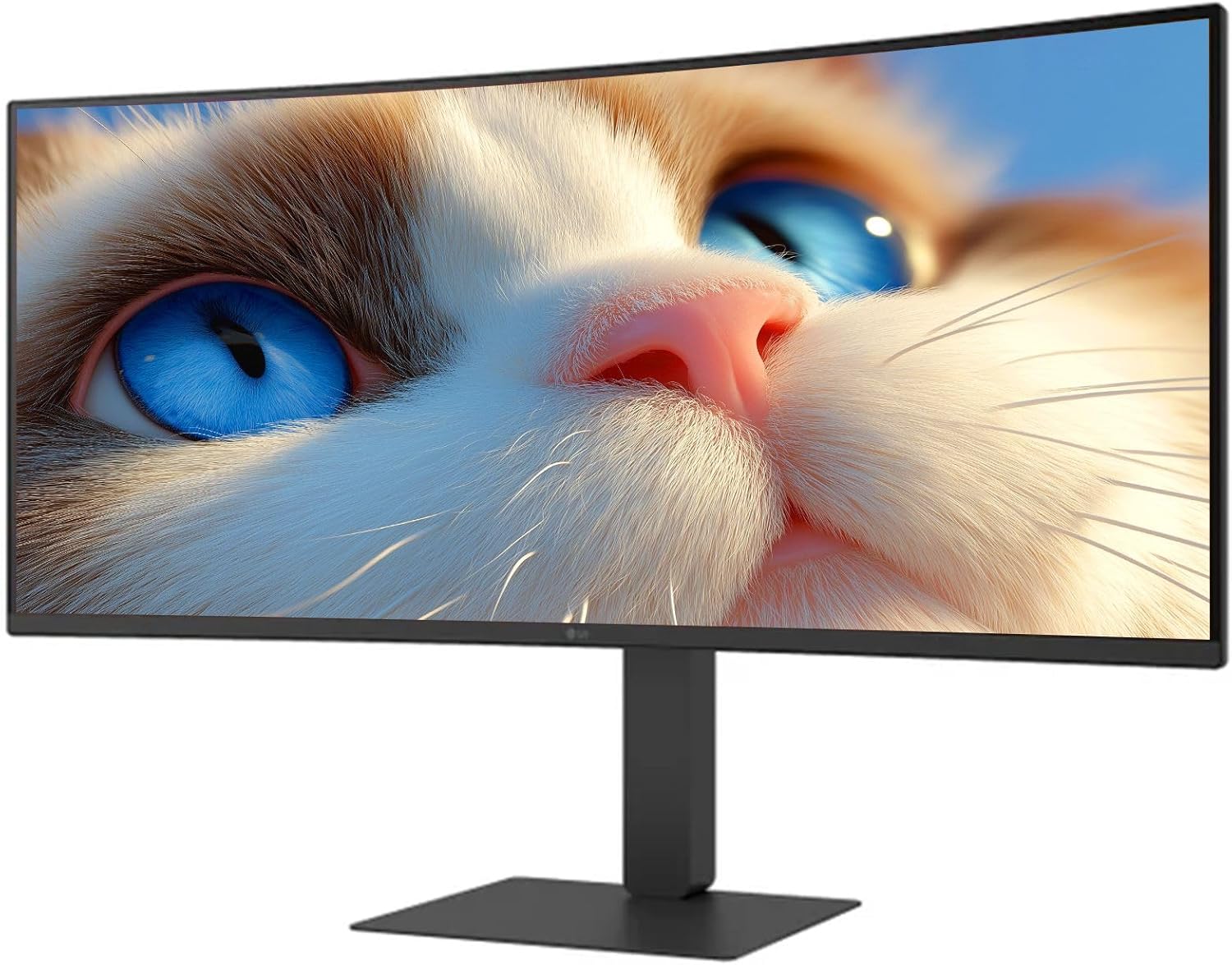
Umfanekiso 1: Ngaphambili view of the LG 34 Inch UltraWide Curved Monitor with stand.

Umfanekiso 2: Uhlangothi view of the LG 34 Inch UltraWide Curved Monitor with stand.
3.2 Ukuxhuma i-Monitor
Xhuma imonitha kukhompyutha yakho noma amanye amadivaysi usebenzisa izintambo ezifanele.
- Xhuma ikhebula lamandla kokokufaka kwamandla okuqapha bese uxhume endaweni yamandla.
- For video input, connect either an HDMI cable or a DisplayPort cable from your computer's graphics card to the corresponding port on the monitor.
- If your computer supports USB-C, you can use the provided USB-C cable for video, audio, and data transfer.

Umfanekiso 3: Ngemuva view of the monitor showing available ports for connectivity.
4. Ukusebenzisa i-Monitor
4.1 Vula/Vala amandla
Press the power button, usually located on the bottom center of the monitor, to turn the monitor on or off. The power indicator light will illuminate when the monitor is on.
4.2 Imenyu yokubonisa okusesikrinini (OSD).
The OSD menu allows you to adjust various monitor settings. Use the joystick button (typically located on the bottom center) to navigate the menu.
- Imodi Yesithombe: Select from various preset modes (e.g., Custom, Reader, HDR Effect) or customize settings like brightness, contrast, and sharpness.
- Okokufaka: Manually select the input source (HDMI, DisplayPort, USB-C).
- Okujwayelekile: Access settings for language, OSD transparency, and power-saving options.
4.3 Ukulungisa Isitendi
The monitor stand offers ergonomic adjustments for your comfort:
- Ukulungiswa kobude: Cindezela noma udonse kancane isikrini phezulu noma phansi kuze kufike ekuphakameni okufisayo.
- Ukulungiswa Kwe-Tilt: Hold both sides of the monitor and tilt it forwards or backwards.
- Ukulungiswa Kwe-Swivel: Jikelezisa isikrini kwesobunxele noma kwesokudla esisekelweni saso.
5. Isondlo
5.1 Ukuhlanza Imonitha
Ukuqinisekisa ukuthi isikrini sakho sihlala isikhathi eside futhi sisebenza kahle, landela lezi ziqondiso zokuhlanza:
- Ngaso sonke isikhathi khipha imonitha endaweni kagesi ngaphambi kokuhlanza.
- Sebenzisa indwangu ethambile, engenalinti kancane dampifakwe ngamanzi noma isicoci sesikrini esikhethekile.
- Ungafafazi isicoci ngqo esikrinini.
- Gwema ukusebenzisa izihlanzi ezihudulayo, izinyibilikisi, noma imikhiqizo esekelwe ku-ammonia.
6. Ukuxazulula izinkinga
Uma uhlangabezana nezinkinga ngemonitha yakho, bheka izixazululo ezilandelayo ezivamile:
- Awekho Amandla: Qinisekisa ukuthi ikhebula likagesi lixhunywe ngokuphephile kokubili kusikrini kanye ne-outlet kagesi. Hlola ukuthi i-outlet kagesi iyasebenza yini.
- Ayikho Isiginali: Verify that the video cable (HDMI, DisplayPort, or USB-C) is correctly connected to both the monitor and your computer. Ensure the correct input source is selected in the OSD menu.
- Isikrini Esicwayizayo: Check the video cable connection. Try adjusting the refresh rate in your computer's display settings.
- Ukuhlanekezelwa kwesithombe: Reset the monitor to factory settings via the OSD menu. Ensure your computer's display resolution matches the monitor's native resolution (3440 x 1440).
- Awukho Umsindo Ovela Kuzipikha Ezakhelwe Ngaphakathi: Check the volume settings on both the monitor and your computer. Ensure the audio output is correctly routed to the monitor.
If the problem persists after trying these steps, please contact LG customer support.
7. Imininingwane
| Isici | Ukucaciswa |
|---|---|
| Ibhrendi | LG |
| Inombolo Yemodeli | 195174134092 |
| Usayizi Wesikrini | 34 amayintshi |
| Ukulungiswa Okukhulu | I-WQHD (3440 x 1440) |
| Isilinganiso Sokuvuselela | 120Hz |
| Isikhathi sokuphendula | Ama-5ms (GTG) |
| I-Aspect ratio | 21:9 |
| Umbala we-Gamut | I-sRGB 99% |
| Ukusekelwa kwe-HDR | I-HDR10 |
| Viewing engela | 178 degrees (R/L), 178 degrees (U/D) |
| Bonisa Izixhumi | 1 x HDMI, 1 x DisplayPort |
| Eye Relief Features | Low blue light, Flicker-free, Anti-glare, Reader Mode |
| Izipikha ezakhelwe ngaphakathi | Yebo |
| Ubukhulu bomkhiqizo (enesitendi) | 8.7"D x 32.1"W x 19.2"H |
| Isisindo Somkhiqizo (enesitendi) | 16.8 Amakhilogremu |
8. Iwaranti kanye Nokusekela
Your LG 34 Inch UltraWide Curved Monitor comes with a standard manufacturer's warranty. Please refer to the warranty card included in your package for detailed terms and conditions.
Ukuze uthole ukwesekwa kobuchwepheshe, isevisi, noma eminye imibuzo, sicela uvakashele i-LG esemthethweni website or contact their customer service hotline. Keep your purchase receipt and product serial number (located on the back of the monitor) handy when contacting support.