1. Umkhiqizo Uphelileview
The HP OfficeJet Pro 9125e is a versatile All-in-One printer designed for office and hybrid workspace environments. This certified refurbished unit offers print, scan, copy, and fax functionalities, along with advanced features like a color touchscreen and HP Wolf Pro Security. It is engineered for professional-quality color documents and efficient operation.
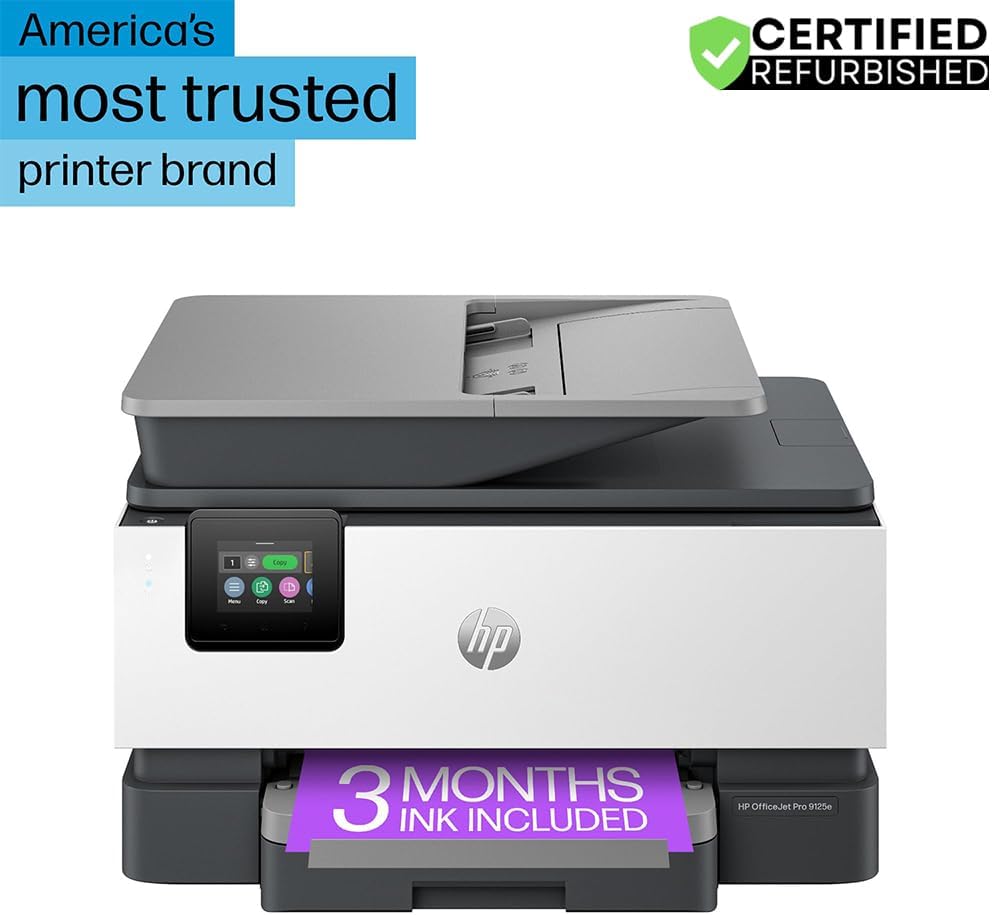
Umfanekiso 1: Ngaphambili view of the HP OfficeJet Pro 9125e All-in-One Printer.
Izici Eziyinhloko:
- Ukusebenza kwe-All-in-One: Print, copy, scan, and fax capabilities.
- Ukuphrinta Okushesha Kakhulu: Up to 22 pages per minute (ppm) for black and 18 ppm for color.
- Ukuxhumana okungenantambo: Reliable dual-band Wi-Fi with automatic connection issue resolution.
- Uhlelo lokusebenza lwe-HP Smart: Ivumela ukuphrinta, ukuskena, ukukopisha, kanye nokuthumela ngefeksi ngqo kusuka ku-smartphone.
- Ukuphepha kwe-HP Wolf Pro: Integrated security tools to protect data and networks.
- Isikrini sokuthinta sombala esingu-2.7-intshi: Intuitive user interface for easy navigation.
- Okuphakelayo Kwedokhumenti Okuzenzakalelayo (ADF): Ukuze kuskenwe futhi kukopishwe amakhasi amaningi ngendlela ephumelelayo.
- Ukuphrinta kwe-Duplex: Automatic two-sided printing.
- Idizayini Eqhubekayo: Constructed with over 40% recycled plastic.

Umdwebo 2: Ngaphezuluview of the HP OfficeJet Pro 9125e's primary functions and features.
2. Sethaphu Imiyalelo
2.1 Ukuqaqa kanye Nokuqukethwe
Carefully unpack the printer and ensure all components are present. The package should contain the following:
- Iphrinta ye-HP OfficeJet Pro 9125e Yonke-ku-Inye
- Ikhatriji Yoyinki Omnyama Yokusetha i-HP 936
- Ikhatriji ye-inki ye-HP 936 Setup Cyan
- Ikhatriji ye-inki ye-HP 936 Setup Magenta
- Ikhatriji Yoyinki Ephuzi Yokusetha ye-HP 936
- Intambo Yamandla
- I-Regulatory Flyer
- I-Ink Caution Flyer
- Isethaphu Iphosta
- I-Reference Guide

Figure 3: Included items in the HP OfficeJet Pro 9125e package.
2.2 Ukusethwa Kwephrinta Yokuqala
- Ukuxhuma kwamandla: Xhuma intambo kagesi kuphrinta bese uxhuma ku-othomathikhi yodonga.
- Vula: Cindezela inkinobho yamandla ukuze uvule iphrinta.
- Ukufakwa Kwekhatriji Kayinki: Follow the on-screen instructions on the 2.7-inch touchscreen to install the HP 936 setup ink cartridges. Ensure each cartridge clicks into place.
- Iphepha liyalayisha: Load plain paper into the 250-sheet input tray. Adjust the paper guides to fit the paper size.
- Ulimi kanye nesifunda: Select your preferred language and region on the touchscreen.
- Uxhumano Lwenethiwekhi: Connect the printer to your wireless network using the touchscreen. The dual-band Wi-Fi will help ensure a stable connection.
- HP Smart App Installation: Download the HP Smart App on your smartphone or computer for guided setup and advanced features.
- HP+ Activation (Optional): If you wish to enroll in the Instant Ink delivery service and extend your warranty, activate HP+ during the setup process. This may include 3 months of Instant Ink.
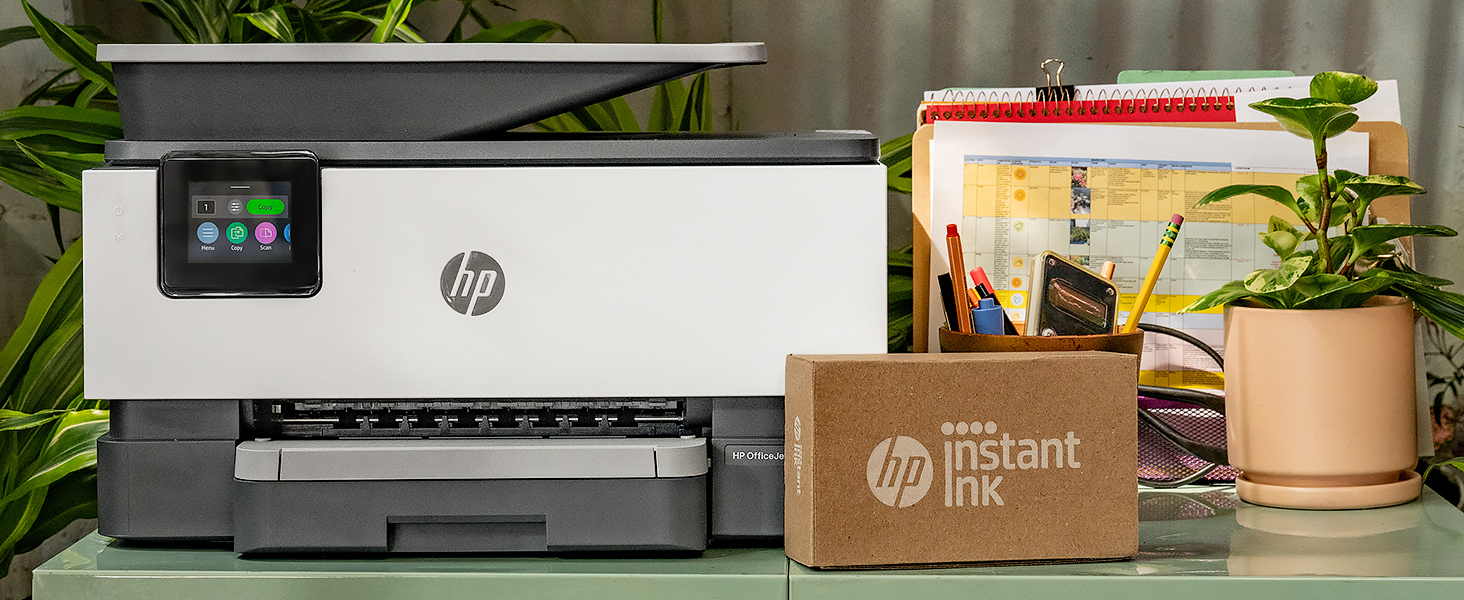
Figure 4: Printer ready for setup, showing the Instant Ink box.
3. Iziqondiso Zokusebenza
3.1 Ukuphrinta Imibhalo
The HP OfficeJet Pro 9125e supports printing from various devices, including computers and smartphones.
- Kusuka kukhompyutha: Ensure the printer drivers are installed. Select "Print" from your application, choose the HP OfficeJet Pro 9125e, and adjust settings as needed (e.g., color, black and white, duplex printing).
- Kusuka Kudivayisi Ephathwayo (i-HP Smart App): Open the HP Smart App, select "Print Documents" or "Print Photos," choose the file, and send it to the printer.
- Izivinini zokuphrinta: Up to 22 ppm for black and 18 ppm for color.
- Ukuphrinta kwe-Duplex: The printer supports automatic two-sided printing. This option can be selected in your print settings.
3.2 Ukuskena Imibhalo
Documents can be scanned using the flatbed scanner or the Automatic Document Feeder (ADF).
- Ukusebenzisa i-Flatbed: Place a single document face down on the scanner glass. Close the lid. Select "Scan" on the printer's touchscreen or through the HP Smart App.
- Ukusebenzisa i-ADF: Load multiple pages face up into the ADF. The ADF supports dual-pass 2-sided scanning. Select "Scan" on the printer's touchscreen or through the HP Smart App and choose the ADF option.
- Izindawo Zokuskena: Scanned documents can be sent to a computer, email, or cloud services via the HP Smart App.
3.3 Ukukopisha Imibhalo
The printer allows for quick and efficient copying.
- Qalisa Ikhophi: Press the "Copy" icon on the printer's touchscreen.
- Idokhumenti Yendawo: Place the document on the flatbed scanner or in the ADF.
- Lungisa Izilungiselelo: Select the number of copies (up to 99), color or black and white, and other options like resizing or quality.
- Start Copy: Press the "Start Copy" button on the touchscreen.
3.4 Ukuthumela Imibhalo Ngefeksi
The HP OfficeJet Pro 9125e includes fax functionality.
- Layisha Idokhumenti: Place the document on the flatbed scanner or in the ADF.
- Enter Number: Press the "Fax" icon on the touchscreen and enter the recipient's fax number.
- Send Fax: Confirm settings and send the fax.
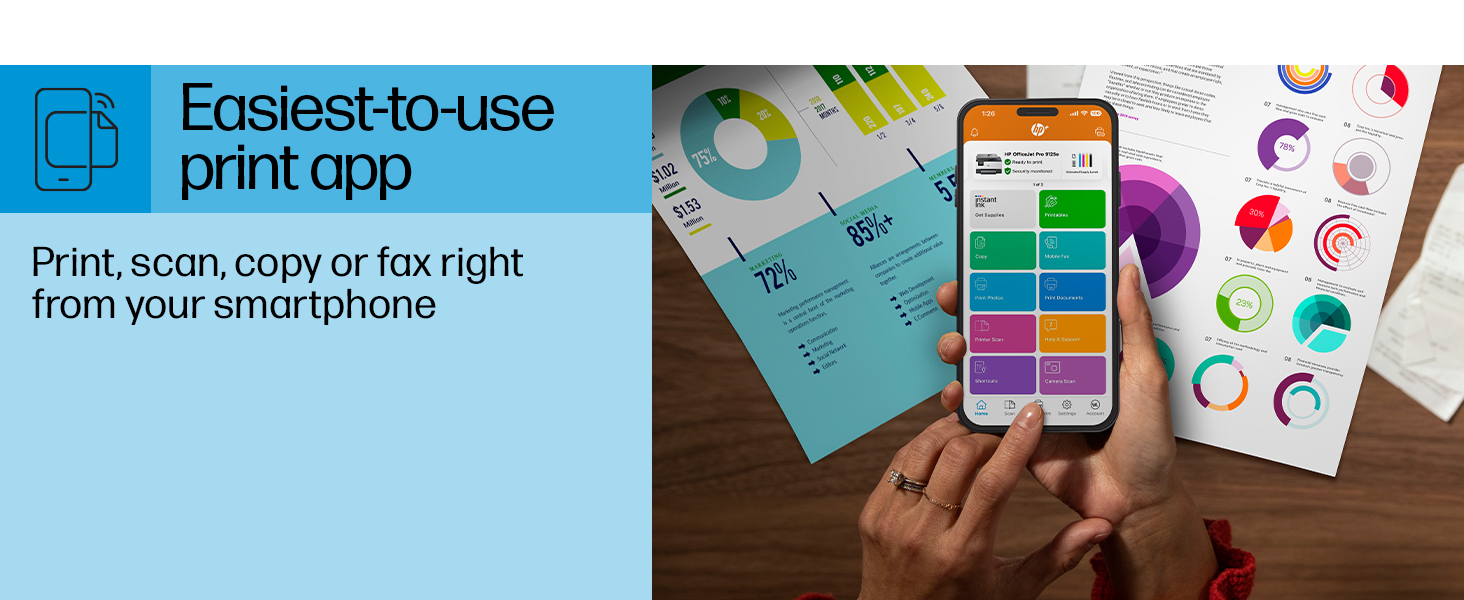
Figure 5: The HP Smart App allows control of print, scan, copy, and fax functions from a smartphone.
4. Isondlo
4.1 Ukushintsha Ikhatriji Kayinki
The printer uses HP 936 series ink cartridges (Black, Cyan, Magenta, Yellow). The touchscreen will indicate when ink levels are low or when a cartridge needs replacement.
- Vula umnyango wokungena kwikhathriji ye-inki.
- Cindezela ithebhu kukhatriji endala ukuze uyikhulule, bese uyikhipha.
- Unpack the new HP 936 cartridge, being careful not to touch the electrical contacts or ink nozzles.
- Faka ikhatriji entsha endaweni yayo ehambisanayo kuze kube yilapho icindezela endaweni yayo.
- Vala umnyango wokungena wekhathriji ye-inki.
4.2 Ukuphathwa Kwephepha
- Ithreyi Yokufaka: The printer features a 250-sheet input tray. Ensure paper is loaded correctly and paper guides are adjusted to prevent jams.
- Ithreyi Lokukhiphayo: The output tray has a capacity of 60 sheets.
- Imidiya Esekelwe: The printer supports various paper types and sizes, including plain paper, photo paper, and envelopes. Supported sizes range from 3 x 5 inches to 8.5 x 14 inches.
- Envelope Stopper: Utilize the built-in envelope stopper to prevent jams when printing envelopes.
4.3 Ukuhlanza
Ukuhlanza njalo kusiza ukugcina ikhwalithi yokuphrinta kanye nobude besikhathi sephrinta.
- Ingaphandle: Sula ingaphandle lephrinta ngesithambile, damp, indwangu engenalutho.
- Ingilazi yeskena: Hlanza ingilazi yesikena ngendwangu ethambile kanye nesihlanzi sengilazi esingagugi.
- Ama-ADF Roller: Bheka ukwesekwa kwe-HP website or the HP Smart App for instructions on cleaning ADF rollers if paper feed issues occur.
5. Ukuxazulula izinkinga
This section provides solutions to common printer issues. For more detailed troubleshooting, refer to the HP support website or the HP Smart App.
5.1 Izinkinga zokuxhuma
- Iphrinta ayixhunyiwe ku-inthanethi: Ensure the printer is powered on and connected to the correct Wi-Fi network. Restarting both the printer and your router can often resolve temporary network glitches.
- Ukunqanyulwa kwe-Wi-Fi: The printer's dual-band Wi-Fi is designed to automatically resolve connection issues. If problems persist, try reconnecting through the printer's touchscreen or the HP Smart App.
- USB/Ethernet Connection: If using a wired connection, ensure cables are securely plugged into both the printer and the computer/router.
5.2 Izinkinga Zekhwalithi Yokuphrinta
- Ukuphrinta okufiphele noma oku-Streaky: Check ink levels and replace any low or empty cartridges. Perform a printhead cleaning cycle through the printer's maintenance menu.
- Imibala Engalungile: Ensure you are using genuine HP ink cartridges. Run a printhead alignment from the printer's maintenance menu.
- Ama-Paper Jam: Follow the on-screen instructions to clear any jammed paper. Ensure paper is loaded correctly and not overfilled in the input tray.
5.3 Scanning/Copying Issues
- Blank Scans/Copies: Ensure the document is placed correctly on the scanner glass or in the ADF.
- Lines on Scans/Copies: Clean the scanner glass and the ADF rollers.
6. Imininingwane Yezobuchwepheshe
| Isici | Ukucaciswa |
|---|---|
| Igama Lemodeli | I-HP OfficeJet Pro 9125e |
| Imisebenzi | Phrinta, Kopisha, Skena, Ifeksi |
| Ubuchwepheshe bokuphrinta | Inkjet (Four-color inkjet cartridges) |
| Isivinini Esiphezulu Sokuphrinta (Esimnyama) | 22 ppm |
| Isivinini Sokuphrinta Esiphezulu (Umbala) | 18 ppm |
| Ukulungiswa Okuphezulu Kokuphrinta (Okumnyama) | 1200 x 1200 dpi |
| I-Max Print Resolution (Umbala) | Kufika ku-4800 x 1200 i-dpi elungiselelwe |
| Ukuphrinta kwe-Duplex | Okuzenzakalelayo |
| Uhlobo Lweskena | Easy slide-off glass, dual pass 2-sided ADF |
| Max Copy Resolution | 600 x 600 dpi (Okumnyama nombala) |
| Max Copies per Run | 99 |
| Ukuxhumana | Ethernet, USB, Wi-Fi (Dual-band) |
| Indlela Yokulawula | Uhlelo lokusebenza, Isikrini Sokuthinta |
| Usayizi wesikrini esithintwayo | 2.7 amayintshi |
| Umthamo Weshidi Lokufaka | 250 amashidi |
| Umthamo Weshidi Lokukhiphayo | 60 amashidi |
| Amasayizi Wezindaba Asekelwayo | 3 x 5 inches to 8.5 x 14 inches |
| Amandla Okugcina Inkumbulo | 512 MB |
| Ubukhulu bomkhiqizo (D x W x H) | 13.48" x 17.3" x 10.94" |
| Isisindo sento | 20.5 amakhilogremu |
| Ukusetshenziswa kwamandla | 5.06 Watts |

Figure 6: Physical dimensions of the HP OfficeJet Pro 9125e.
7. Iwaranti kanye Nokusekela
7.1 Ulwazi Lwewaranti
- Certified Refurbished Warranty: This unit comes with a 90-day manufacturer warranty, ensuring reliable, like-new performance.
- Extended Protection Pack: The product bundle includes a 2-year CPS Enhanced Protection Pack.
- HP+ Offer Warranty: A one-year limited hardware warranty is provided, with an option to extend to two years upon acceptance of the HP+ Offer during setup.
For specific terms and conditions regarding your warranty, please refer to the documentation included with your product or visit the official HP support webindawo.
7.2 Ukwesekwa Kwamakhasimende
For further assistance, technical support, or to access detailed user guides and drivers, please visit the official HP support webindawo:
You can also utilize the HP Smart App for troubleshooting and accessing support resources directly from your mobile device.