1. Isingeniso
This manual provides essential information for the proper setup, operation, and maintenance of your FUNYET 2-in-1 Laptop Tablet. Please read this manual thoroughly before using the device to ensure optimal performance and longevity. Keep this manual for future reference.
2. Umkhiqizo Uphelileview
2.1 Okuqukethwe Kwephakheji
- FUNYET 2-in-1 Laptop Tablet
- Ikhibhodi ekhiphekayo
- Isixhumi Amandla se-AC
- Incwadi Yomsebenzisi (le dokhumenti)
2.2 Ukwakheka Kwedivayisi kanye Nezimbobo
Familiarize yourself with the various ports and buttons on your device.

Isithombe: Side view of the FUNYET 2-in-1 Laptop Tablet illustrating the location of the power button, volume control, two Type-C ports, and Micro HDMI port.
- Inkinobho yamandla: Press and hold to power on/off or sleep/wake the device.
- Ukulawula ivolumu: Ilungisa ivolumu yesistimu.
- Type-C (Full-featured): Supports data transfer, video output, and power delivery.
- Type-C (Charging and Data Transfer): Primarily for charging the device and data transfer.
- I-Micro HDMI: Connects to external displays.
2.3 Izici ezibalulekile
- Iphrosesa: Intel 12th Gen Celeron N100 (up to 3.4 GHz, 4 cores, 4 threads).
- Inkumbulo: 16GB DDR5 RAM for efficient multitasking.
- Isitoreji: 512GB SSD for fast boot times and ample storage.
- Bonisa: 14-inch 1920 x 1200 IPS Touchscreen.
- Ukuxhumana: Wi-Fi 6 (802.11ax) and Bluetooth 5.2.
- Amakhamera: 2MP Front Camera and 5MP Rear Camera.
- Ikhibhodi: Detachable, backlit keyboard.
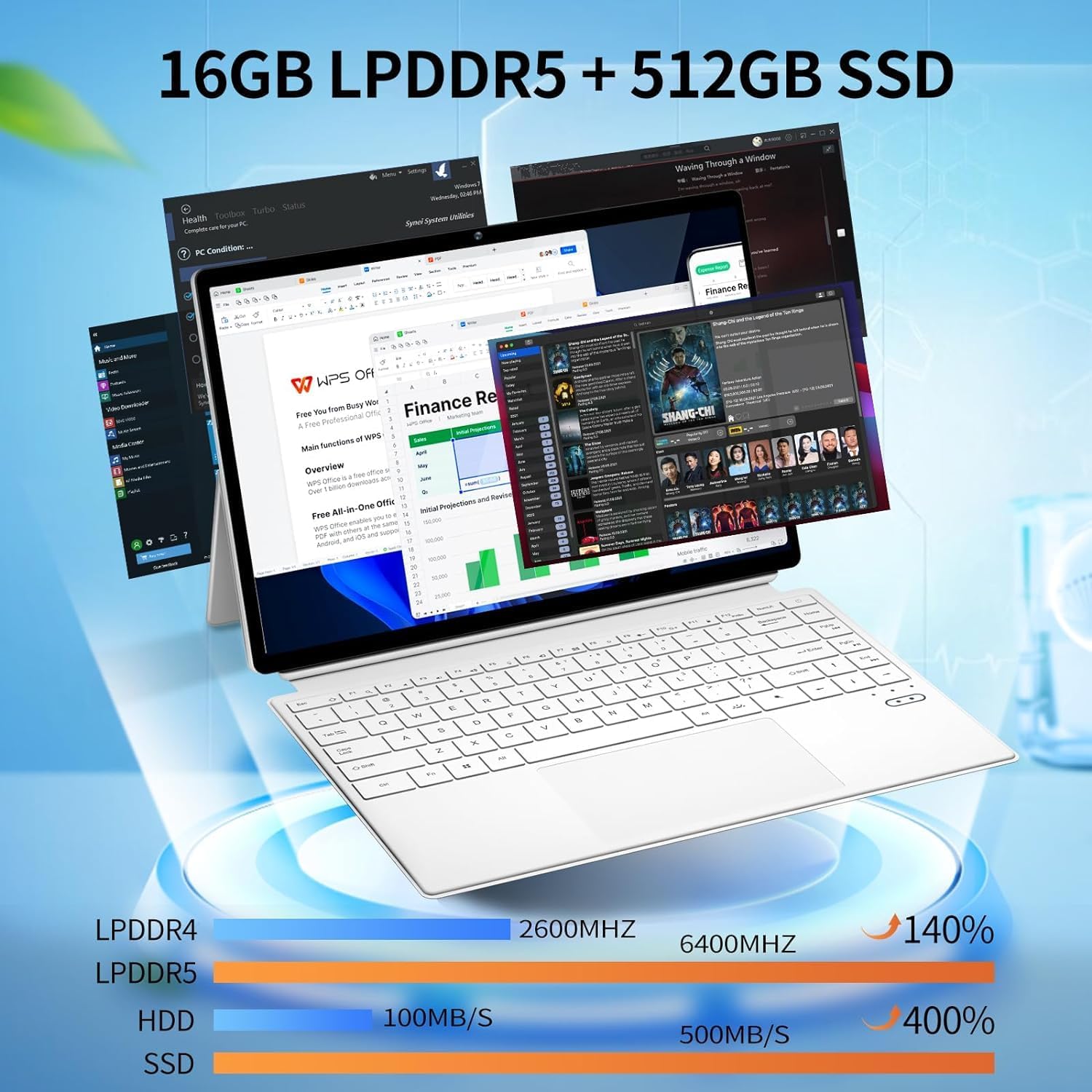
Isithombe: The device displaying multiple open applications, illustrating its multitasking capabilities with 16GB LPDDR5 RAM and 512GB SSD.
3. Setha
3.1 Ukushaja Kwasekuqaleni
Before first use, connect the AC power adapter to the device's charging Type-C port and a power outlet. Charge the device until the battery is full. The battery indicator will show charging status.
3.2 Attaching and Detaching the Keyboard
The keyboard connects magnetically to the tablet. Align the magnetic connectors on the tablet and keyboard until they snap into place. To detach, gently pull the tablet away from the keyboard.
3.3 Adjusting the Kickstand
The integrated kickstand allows for various viewing angles. Extend the kickstand from the back of the tablet and adjust it to your desired position. Ensure the kickstand is fully extended and stable to prevent the device from tipping.

Isithombe: Visual guide demonstrating the correct method for deploying the device's kickstand for stable use, alongside examples of incorrect positioning.
3.4 Ukuqalisa Kokuqala Nokusethwa KweWindows
Press and hold the Power Button until the screen turns on. Follow the on-screen instructions to complete the Windows 11 Pro setup, including language selection, network connection, and user account creation.
4. Iziqondiso Zokusebenza
4.1 Vula/Vala kanye nemodi yokulala
- Vula: Press and hold the Power Button for a few seconds.
- Cisha ugesi: From Windows, go to Start > Power > Shut down. Alternatively, press and hold the Power Button, then select 'Shut down' from the options.
- Imodi Yokulala: Briefly press the Power Button to enter or exit sleep mode.
4.2 Ukusebenzisa isikrini esithintwayo
The 14-inch display supports multi-touch gestures. Use your fingers to navigate, tap, swipe, pinch-to-zoom, and interact with applications.
4.3 Ukusebenzisa ikhibhodi nephedi yokuthinta
When the keyboard is attached, it functions as a standard laptop keyboard. The integrated touchpad supports multi-touch gestures for navigation. The keyboard features backlighting for use in low-light conditions.

Isithombe: Ukuvala view of the detachable backlit keyboard, showing the key layout and touchpad.
4.4 Ukuxhumanisa amaPheripheral
- Amadivayisi e-USB-C: Connect compatible USB-C devices to the Type-C ports for data transfer or external display output (if full-featured).
- Isibonisi sangaphandle: Use the Micro HDMI port to connect to an external monitor or TV. An appropriate adapter may be required.
4.5 Ukuxhumana okungenantambo
- I-Wi-Fi: Access network settings in Windows to connect to available Wi-Fi 6 networks.
- I-Bluetooth: Pair Bluetooth devices such as headphones, mice, or keyboards through Windows Bluetooth settings.

Isithombe: The device in use, highlighting its wireless capabilities (Wi-Fi 6, Bluetooth 5.2) and integrated cameras (2MP front, 5MP rear).
4.6 Ukusetshenziswa kwekhamera
The device includes a 2MP front camera and a 5MP rear camera. Use the built-in Camera application in Windows to take photos, record videos, or participate in video calls.
5. Isondlo
5.1 Ukuhlanza
Use a soft, lint-free cloth to clean the screen and exterior surfaces. For stubborn marks, dampen the cloth slightly with water or a screen-safe cleaner. Avoid harsh chemicals or abrasive materials.
5.2 Ukunakekelwa Kwebhethri
Ukwandisa impilo yebhethri:
- Gwema amazinga okushisa aphezulu.
- Ungalikhiphi ibhethri ngokugcwele.
- If storing the device for an extended period, charge it to about 50-70%.

Isithombe: An illustration of the 38Wh battery capacity and estimated usage times: 10 hours for daily use, 6-8 hours for video playback (Wi-Fi off), and 4 hours for video playback (Wi-Fi on).
5.3 Ukuvuselelwa Kwesoftware
Regularly check for and install Windows updates to ensure system stability, security, and access to the latest features. Go to Start > Settings > Windows Update.
5.4 Ukuphathwa Kwesitoreji
Ngezikhathi ezithile review and manage your storage space. Delete unnecessary files, khipha izinhlelo zokusebenza ezingasetshenziswanga, bese ucabangela isitoreji samafu sezinto ezinkulu files ukugcina ukusebenza kahle.
6. Ukuxazulula izinkinga
- Idivayisi ayivuli: Ensure the device is charged. Connect the AC adapter and try again. If unresponsive, press and hold the power button for 15-20 seconds to perform a hard reset.
- Ikhibhodi ayiphenduli: Ensure the keyboard is securely attached. Check if the keyboard's power is on (if it has a separate power switch or indicator). Re-attach the keyboard.
- Izinkinga zokuxhumeka kwe-Wi-Fi: Check if Wi-Fi is enabled in Windows settings. Restart your router and the device. Ensure you are within range of a Wi-Fi network.
- Ukusebenza kancane: Close unnecessary applications. Check for background processes consuming resources. Ensure sufficient free storage space. Run a system scan for malware.
- Screen not rotating: Ensure auto-rotation is enabled in Windows settings (Action Center).
7. Imininingwane
| Isici | Ukucaciswa |
|---|---|
| Igama Lemodeli | FUNYET-2-IN-1-LAPTOP-TABLET-1 |
| Iphrosesa | Intel Celeron N100 (12th Gen) |
| RAM | 16 GB DDR5 |
| Isitoreji | 512 GB SSD |
| Usayizi Wesikrini | 14 amayintshi |
| Ukulungiswa Kwesikrini | 1920 x 1200 amaphikseli |
| Isistimu esebenzayo | Windows 11 Pro |
| Uhlobo Olungenantambo | 802.11ax (Wi-Fi 6) |
| I-Bluetooth | I-Bluetooth 5.2 |
| Ikhamera yangaphambili | 2 MP |
| Ikhamera yangemuva | 5 MP |
| Isisindo sento | 5.37 amakhilogremu |
| Ubukhulu bomkhiqizo | 12.5 x 8.4 x 0.4 amayintshi |
| Umbala | Emhlophe |
8. Iwaranti kanye Nokusekela
FUNYET offers a 30-day free exchange kanye a Unyaka ongu-1 ukulungiswa kwamahhala service for all its products. For any questions or assistance regarding your FUNYET 2-in-1 Laptop Tablet, please contact FUNYET support. We aim to respond within 24 hours.
For support, please visit the official FUNYET store or contact customer service through your purchase platform.


