1. Ifihan
The Havit MS966SE is a high-performance tri-mode gaming mouse designed for versatility, precision, and comfort. It features a PixArt PMW3325 optical sensor, offering exceptional tracking accuracy and adjustable DPI settings up to 10,000. With its tri-mode connectivity, you can seamlessly switch between 2.4GHz wireless, Bluetooth 5.3, and USB-C wired modes to suit your gaming or work environment. The lightweight and ergonomic design ensures comfortable use during extended sessions, complemented by dynamic RGB lighting for a personalized aesthetic.

Figure 1: Havit MS966SE Gaming Mouse with USB-C cable.
2. Eto
2.1 Ṣiṣii silẹ
Carefully remove the mouse and all accessories from the packaging. Ensure all components are present:
- Asin ere Havit MS966SE
- USB-C si okun USB-A
- 2.4GHz USB olugba
- Afowoyi Olumulo (iwe-ipamọ yii)
2.2 Nsopọ Asin
The MS966SE offers three connectivity options:
2.2.1 2.4GHz Alailowaya Ipo
- Insert the 2.4GHz USB receiver into an available USB-A port on your computer.
- Locate the mode switch on the bottom of the mouse and slide it to the 2.4G ipo.
- Asin naa yoo sopọ mọ kọmputa rẹ laifọwọyi.
2.2.2 Bluetooth 5.3 Ipo
- Locate the mode switch on the bottom of the mouse and slide it to the BT ipo.
- On your computer or mobile device, open Bluetooth settings and search for new devices.
- Select "Havit MS966SE" from the list of available devices to pair.
2.2.3 Ipo Asopọ USB-C
- Connect one end of the provided USB-C cable to the mouse and the other end to an available USB-A port on your computer.
- Asin yoo yipada laifọwọyi si ipo ti firanṣẹ ati bẹrẹ gbigba agbara.
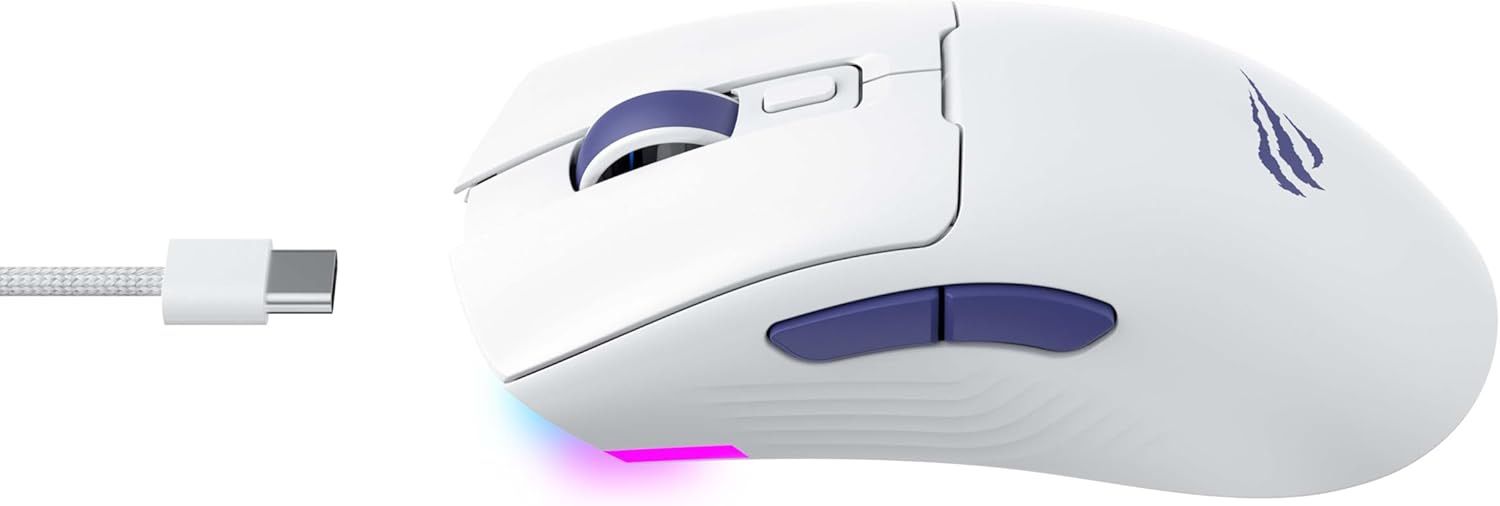
olusin 2: Apa view of the mouse, highlighting the USB-C port.
2.3 Gbigba agbara si Asin
To charge the mouse, connect it to your computer using the USB-C cable. The mouse can be used in wired mode while charging. An indicator light on the mouse will show the charging status (refer to the manufacturer's website or product packaging for specific light behaviors).
3. Awọn ilana Iṣiṣẹ
3.1 bọtini Awọn iṣẹ
The Havit MS966SE features several programmable buttons for enhanced control:
- Bọtini Tẹ osi: Standard jc iṣẹ tẹ.
- Ọtun Tẹ Bọtini: Standard secondary tẹ iṣẹ.
- Yi lọ Kẹkẹ: Scrolls up/down, and acts as a middle click button.
- Bọtini Yiyi DPI: Located behind the scroll wheel, this button cycles through preset DPI sensitivity levels.
- Awọn bọtini ẹgbẹ (Siwaju/Sẹhin): Nigbagbogbo a lo fun lilọ kiri ni web browsers or can be programmed for in-game actions.

Figure 3: Side buttons and ergonomic design.
3.2 DPI Atunṣe
The PixArt PMW3325 sensor allows for adjustable DPI settings up to 10,000. Press the DPI cycle button (located behind the scroll wheel) to switch between different sensitivity levels. Each press will cycle to the next preset DPI, allowing you to quickly adapt to various tasks or game scenarios.
3.3 Connectivity Mode Switching
To switch between 2.4GHz wireless, Bluetooth, and wired modes, use the physical switch located on the bottom of the mouse. Ensure the correct mode is selected based on your connection preference.
3.4 RGB Imọlẹ
The mouse features dynamic RGB lighting. Specific controls for RGB lighting effects, colors, and brightness may be available through dedicated software provided by Havit. Please visit the official Havit website for software downloads and further customization options.
4. Itọju
4.1 Ninu
- Ge asopọ awọn Asin lati kọmputa rẹ ṣaaju ki o to nu.
- Lo asọ rirọ, gbẹ, asọ ti ko ni lint lati nu dada ti Asin naa.
- Fun idoti alagidi, die-die dampen awọn asọ pẹlu omi tabi kan ìwọnba ninu ojutu. Yẹra fun awọn kẹmika lile.
- Lo swab owu tabi afẹfẹ fisinuirindigbindigbin lati nu ni ayika awọn bọtini ati kẹkẹ yi lọ.
- Ma ṣe fi asin naa bọ inu omi tabi omi eyikeyi.
4.2 Ibi ipamọ
When not in use for extended periods, store the mouse in a cool, dry place away from direct sunlight and extreme temperatures. If storing for a long time, ensure the mouse is fully charged to maintain battery health.
5. Laasigbotitusita
5.1 Asin Ko fesi
- Ṣayẹwo Agbara: Rii daju pe asin wa ni titan ati pe o ni idiyele batiri to.
- Ṣayẹwo Asopọmọra:
- Ipo Firanṣẹ: Rii daju pe okun USB-C ti sopọ ni aabo si mejeeji Asin ati kọnputa naa. Gbiyanju ibudo USB ti o yatọ.
- Alailowaya 2.4GHz: Ensure the USB receiver is properly inserted and the mouse is set to 2.4G mode. Try a different USB port for the receiver.
- Ipo Bluetooth: Ensure Bluetooth is enabled on your device and the mouse is paired. Try unpairing and re-pairing the mouse.
- Tun bẹrẹ: Tun kọmputa rẹ ati Asin rẹ bẹrẹ.
5.2 DPI Kò Yípadà
- Ensure you are pressing the correct DPI cycle button.
- If using custom software, check the DPI settings within the software.
5.3 Lag or Disconnections in Wireless Mode
- Ìjánu: Move the mouse closer to the receiver/device. Avoid obstacles between the mouse and receiver.
- Ipele Batiri: Low battery can affect wireless performance. Charge the mouse.
- Ibudo USB: Try connecting the 2.4GHz receiver to a different USB port, preferably a USB 2.0 port if available, as some USB 3.0 ports can cause interference.
6. Awọn pato
| Brand | Havit |
| Awoṣe | MS966SE |
| Asopọmọra Technology | Tri-Mode: 2.4GHz Wireless, Bluetooth 5.3, USB-C Wired |
| Ọna ẹrọ | Optical (PixArt PMW3325) |
| Awọn ipele DPI | Titi di 10,000 DPI adijositabulu |
| Pataki Awọn ẹya ara ẹrọ | Ergonomic Design, Dynamic RGB Lighting |
| Ibamu Awọn ọna ṣiṣe | Windows, MacOS, Lainos |
| Awọn ẹrọ ibaramu | Notebook, Personal Computer, Tablet, Smartphone |
| Asin iwuwo | O fẹrẹ to giramu 68 |
| Batiri Iru | Litiumu-dẹlẹ |
7. Atilẹyin ọja ati Support
7.1 atilẹyin ọja Alaye
This Havit MS966SE Gaming Mouse comes with a 1 Odun olupese atilẹyin ọja. Jọwọ ṣe idaduro ẹri rira rẹ fun awọn iṣeduro atilẹyin ọja. Atilẹyin ọja ni wiwa awọn abawọn ninu awọn ohun elo ati iṣẹ-ṣiṣe labẹ lilo deede.
7.2 Onibara Support
For technical assistance, troubleshooting beyond this manual, or warranty inquiries, please contact Havit customer service directly. You can find the most up-to-date contact information and support resources on the official Havit webAaye (www.havit.com).


