1. Ọja Ipariview
The JOMAA 78 Keys Dual Mode Wireless Trackball Keyboard offers versatile connectivity and ergonomic design for enhanced productivity across multiple devices. Featuring both 2.4GHz wireless and Bluetooth 5.0, it allows seamless switching between up to three connected devices. The integrated 19mm optical trackball provides precise cursor control, eliminating the need for a separate mouse and saving valuable desk space. Its compact, lightweight, and energy-efficient design makes it ideal for various computing environments.

Image 1: JOMAA 78 Keys Dual Mode Wireless Trackball Keyboard
This image displays the sleek, silver-colored JOMAA 78 Keys Dual Mode Wireless Trackball Keyboard, highlighting its compact layout and integrated trackball. The image also shows icons indicating system-wide compatibility (Windows, Mac, iOS, Android), multi-device association (three devices), and dual wireless connectivity (Bluetooth/2.4G).
2. Package Awọn akoonu
- JOMAA 78 Keys Dual Mode Wireless Trackball Keyboard
- 2.4GHz USB Receiver (stored inside the keyboard's battery compartment)
- Okun Ngba agbara USB
- Quick Bẹrẹ Itọsọna
- 2 x AA Batteries (included, pre-installed in some models)
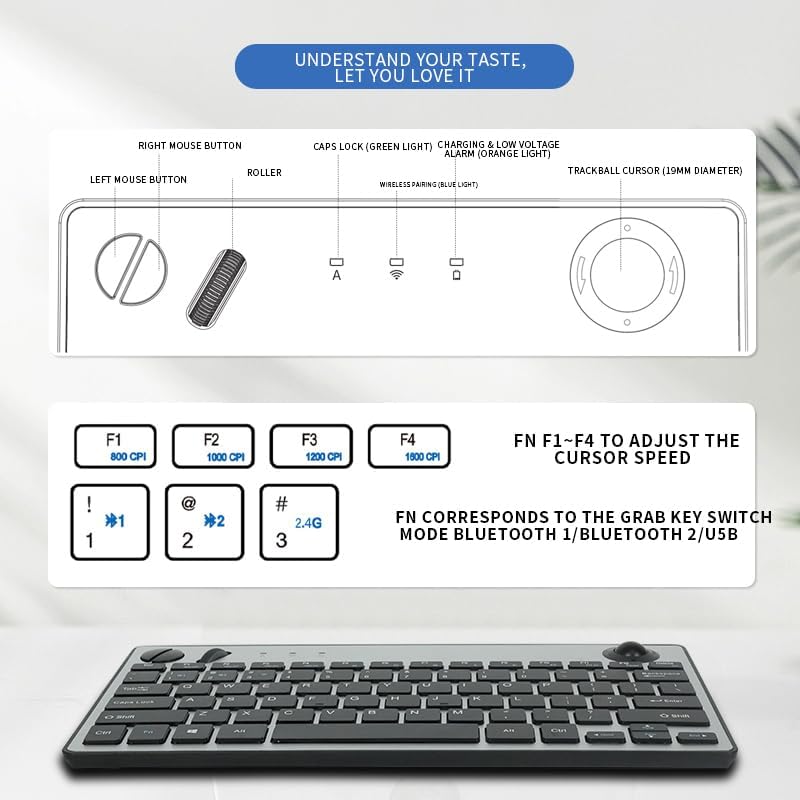
Image 2: JOMAA Keyboard Package Contents Diagram
This diagram illustrates the various components of the JOMAA keyboard, including the keyboard itself, the left and right mouse buttons, the roller, Caps Lock indicator, charging and low voltage alarm lights, and the 19mm trackball. It also details the DPI adjustment keys (F1-F4) and the function keys for switching between Bluetooth 1, Bluetooth 2, and USB modes.
3. Awọn ẹya Ọja
- Dual-Mode Wireless Connectivity: Supports stable 2.4GHz wireless (nano receiver included) and advanced Bluetooth 5.0 connection.
- Pipọpọ Ẹrọ-ọpọlọpọ: Easily pair with and switch between up to 3 devices (PC, tablet, phone) simultaneously.
- Ibamu gbooro: Broadly compatible with Windows, macOS, iOS, and Android operating systems.
- Integrated Trackball Design: Features a built-in 19mm precision optical trackball for accurate and smooth cursor control, eliminating the need for a separate mouse.
- Lilo-agbara: Low power consumption (≤10mA working current) for long-lasting battery life with 2 AA batteries.
- Apẹrẹ to gbe: Compact 78-key layout and lightweight (403g) for travel or clutter-free workspaces.
- Plug-and-Play: No drivers needed for 2.4G connection; quick Bluetooth pairing.
- Ergonomics Ọrẹ olumulo: Thoughtful key layout and thumb-operated trackball designed to reduce arm movement and wrist strain.

Image 3: JOMAA Keyboard Multi-Device Compatibility
This image illustrates the keyboard's ability to connect to multiple devices, including a smartphone, tablet, and desktop computer, via Bluetooth (BT1, BT2) and a 2.4G USB receiver, allowing for seamless switching between them.
4. Awọn ilana iṣeto
4.1. Fifi sori batiri
- Wa yara batiri ni apa isalẹ ti keyboard.
- Ifaworanhan ṣii ideri batiri.
- Fi awọn batiri AA 2 sii, ni idaniloju polarity ti o pe (+/-).
- Pa ideri batiri naa ni aabo.
4.2. 2.4GHz Asopọ Alailowaya
- Locate the 2.4GHz USB receiver, usually stored in the keyboard's battery compartment.
- Pulọọgi olugba USB sinu ibudo USB ti o wa lori kọnputa tabi ẹrọ rẹ.
- Slide the power switch on the keyboard to the 'ON' position.
- Press the 'FN' key + '3' key (labeled 2.4G) to select 2.4G mode. The indicator light will illuminate.
- Your device should automatically detect and connect to the keyboard.
4.3. Sisopọ Bluetooth
Kọ́bọ́ọ̀dù náà ń ṣe àtìlẹ́yìn fún àwọn ikanni Bluetooth méjì (BT1 àti BT2).
- Slide the power switch on the keyboard to the 'ON' position.
- Press and hold the 'FN' key + '1' key (for BT1) or 'FN' key + '2' key (for BT2) for 3-5 seconds until the corresponding Bluetooth indicator light starts blinking rapidly. This indicates the keyboard is in pairing mode.
- Lórí ẹ̀rọ rẹ (kọmputa, tábìlì, fóònù alágbèéká), lọ sí àwọn ètò Bluetooth.
- Wa fun new devices and select "JOMAA Keyboard" (or similar name) from the list.
- Follow any on-screen prompts to complete the pairing process. The indicator light on the keyboard will stop blinking and remain solid once connected.
- To pair another device, repeat steps 2-5 using the other available Bluetooth channel.
Video 1: JOMAA Keyboard Unboxing and Setup
This video demonstrates the unboxing of the JOMAA keyboard, showing its sleek design and how to install the batteries and connect via the 2.4GHz USB receiver. It highlights the ease of setup and the keyboard's sturdy construction.
5. Awọn ilana Iṣiṣẹ
5.1. Yipada Laarin Awọn ẹrọ
Once paired, you can switch between connected devices by pressing the 'FN' key along with the corresponding channel key:
- FN + 1: Yipada si Ẹrọ Bluetooth 1
- FN + 2: Yipada si Ẹrọ Bluetooth 2
- FN + 3: Switch to 2.4GHz USB Receiver Device
5.2. Trackball Usage
The integrated 19mm optical trackball is located on the right side of the keyboard. Use your thumb to control the cursor movement. The left and right mouse click buttons are positioned conveniently next to the trackball.

Image 4: JOMAA Keyboard Trackball and X-Structure
This image highlights the smooth trackball for accurate and precise cursor positioning. It also features a diagram illustrating the X-Structure of the keys, which provides a steady and great rebound feeling for comfortable typing.
5.3. Adjusting Trackball DPI (Cursor Speed)
You can adjust the trackball's DPI (dots per inch) to change cursor sensitivity:
- FN + F1: 800 CPI
- FN + F2: 1000 CPI
- FN + F3: 1200 CPI
- FN + F4: 1600 CPI
5.4. Media and Function Keys
The F1-F12 keys have secondary media functions. To activate these, press the 'FN' key simultaneously with the desired F-key.
- FN + F5: Ti tẹlẹ Track
- FN + F6: Ṣiṣẹ / Sinmi
- FN + F7: Next Track
- FN + F8: Pa ẹnu mọ́
- FN + F9: Iwọn didun isalẹ
- FN + F10: Iwọn didun soke
6. Alaye Batiri ati Gbigba agbara
The keyboard operates on 2 AA batteries. For optimal performance and battery life, use high-quality alkaline batteries. The low power consumption design ensures extended usage.
- Kekere Voltage Itaniji: An orange indicator light will illuminate when the battery level is low, signaling that batteries need replacement.
- Gbigba agbara: If your model supports rechargeable batteries, use the provided USB charging cable to connect the keyboard to a power source. The charging indicator light will show charging status.
7. Itọju
- Ninu: Use a soft, dry cloth to clean the keyboard surface. For stubborn dirt, slightly dampen awọn asọ pẹlu omi tabi kan ìwọnba ninu ojutu. Yago fun ọrinrin pupọ.
- Fifọ Bọọlu afẹsẹgba: Periodically remove the trackball (if removable) and clean its housing and the ball itself to ensure smooth operation.
- Ibi ipamọ: When not in use for extended periods, turn off the keyboard to conserve battery life. Store in a cool, dry place.
8. Laasigbotitusita
8.1. Asopọmọra Oran
- Ko si Asopọmọra: Ensure the keyboard is powered on and the correct channel (BT1, BT2, or 2.4G) is selected.
- 2.4GHz: Verify the USB receiver is securely plugged into your device. Try a different USB port.
- Bluetooth: Ensure Bluetooth is enabled on your device and the keyboard is in pairing mode (blinking indicator). Remove previous pairings on your device and try re-pairing.
- Ìjánu: Gbé keyboard sún mọ́ ẹ̀rọ rẹ kí o sì jìnnà sí àwọn ẹ̀rọ alailowaya mìíràn tí ó lè fa ìdènà.
8.2. Keyboard Ko fesi
- Ṣayẹwo Batiri: Replace batteries if the low voltage indicator is on or if the keyboard is unresponsive.
- Yiyipo Agbara: Turn the keyboard off, wait a few seconds, then turn it back on.
- Tun-meji: If issues persist, try re-pairing the keyboard with your device.
8.3. Trackball Not Working
- Bọ́ọ̀lù Orin Mímọ́: Dust or debris can affect trackball performance. Clean the trackball and its housing as described in the Maintenance section.
- Eto DPI: Ensure the DPI setting is not too low (FN + F1). Adjust to a higher setting if needed.
9. Awọn pato
| Awoṣe | 78 Keys Dual Mode Wireless Trackball Keyboard |
| Asopọmọra Technology | Bluetooth 5.0, USB 2.4GHz |
| Nọmba ti Awọn bọtini | 78 |
| Trackball Size | 19mm Optical |
| Ibamu System isẹ | Windows, macOS, iOS, Android |
| Awọn ọna Voltage | 3V |
| Ṣiṣẹ Lọwọlọwọ | ≤10mA |
| Ijinna gbigbe | 7-10 meters (33 feet) |
| Orisun agbara | 2 x AA batiri |
| Iwọn Nkan | 1.14 pounds (403g without battery) |
| Awọn iwọn | 12.6 x 10.63 x 1.57 inches |

Image 5: JOMAA Keyboard Dimensions and Specifications
Aworan yii pese alaye kan view of the keyboard's dimensions (28.6cm length, 14.9cm width, 3.1cm height) and lists key specifications such as transmission distance (7-10m), number of keys (78), compatible OS (Windows 7/10/11, Mac 10.6-15.2), operating current (≤10mA), trackball size (19mm), weight (403g without battery), and operating voltage (3V).
10. Atilẹyin ọja ati Support
For warranty information, technical support, or customer service inquiries, please refer to the official JOMAA webaaye tabi kan si atilẹyin alabara wọn taara. Tọju iwe-ẹri rira rẹ fun awọn ẹtọ atilẹyin ọja.


