Ọja Pariview
The Goldtouch Elite Numeric Keypad is a compact, wired numeric keypad designed to enhance data entry efficiency for both PC and Mac users. It features industry-leading Cherry MX Red mechanical keys for a tactile and responsive typing experience. Its plug-and-play USB connectivity ensures easy setup and immediate use.

olusin 1: Top-isalẹ view of the Goldtouch Elite Numeric Keypad, showcasing apẹrẹ iwapọ rẹ ati ipilẹ bọtini.
Ṣeto
The Goldtouch Elite Numeric Keypad is designed for simple plug-and-play installation. No additional drivers are typically required for basic functionality on compatible operating systems.
Nsopọ bọtini foonu
- Locate the USB-A to USB-C cable included with your keypad.
- Connect the USB-C end of the cable to the USB-C port on the Goldtouch Elite Numeric Keypad.
- Connect the USB-A end of the cable to an available USB-A port on your computer (PC or Mac).
- For Mac users, ensure the switch on the side of the keypad is set to 'MAC'. For PC users, set it to 'PC'.
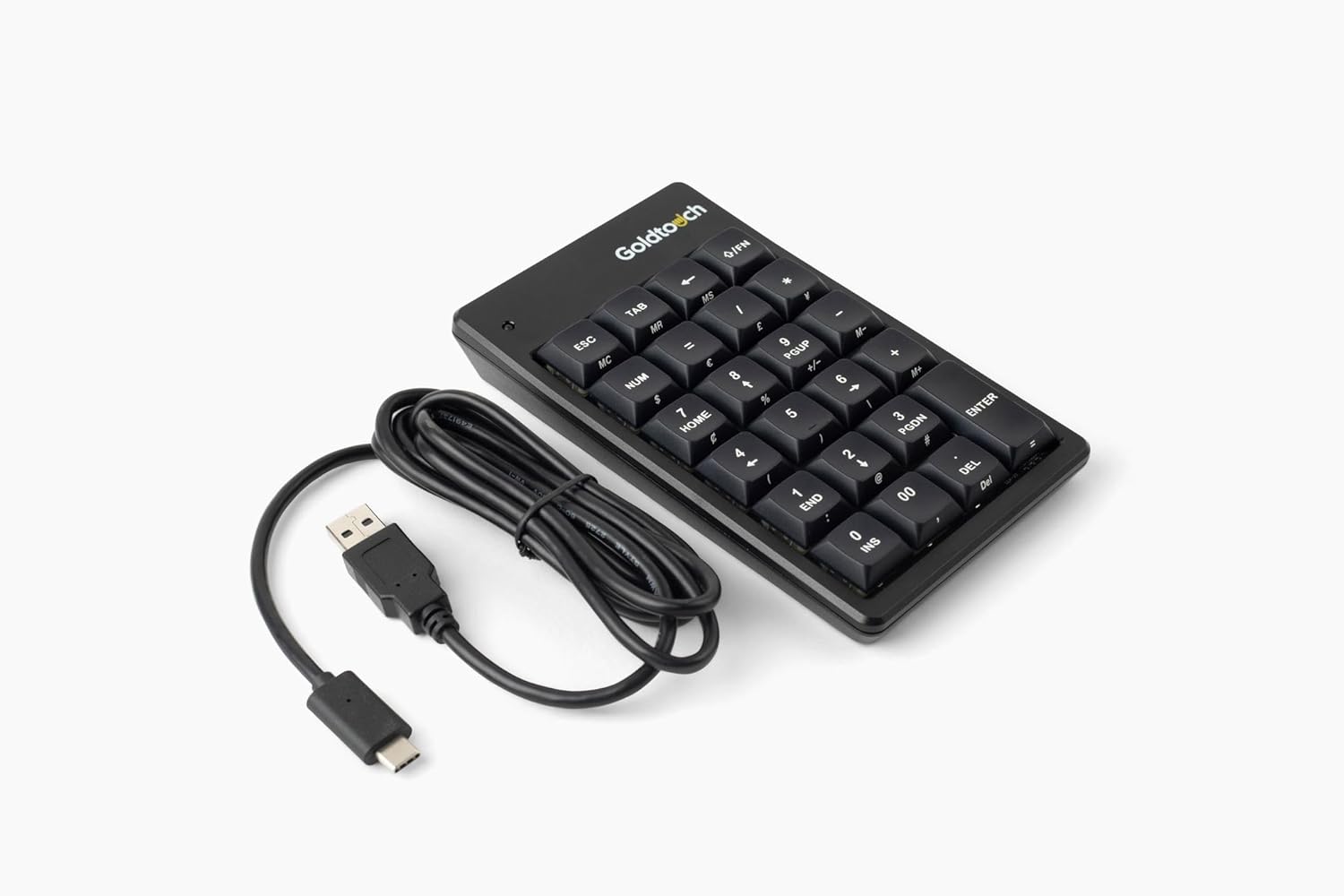
Figure 2: The Goldtouch Elite Numeric Keypad connected via its USB-A to USB-C cable.
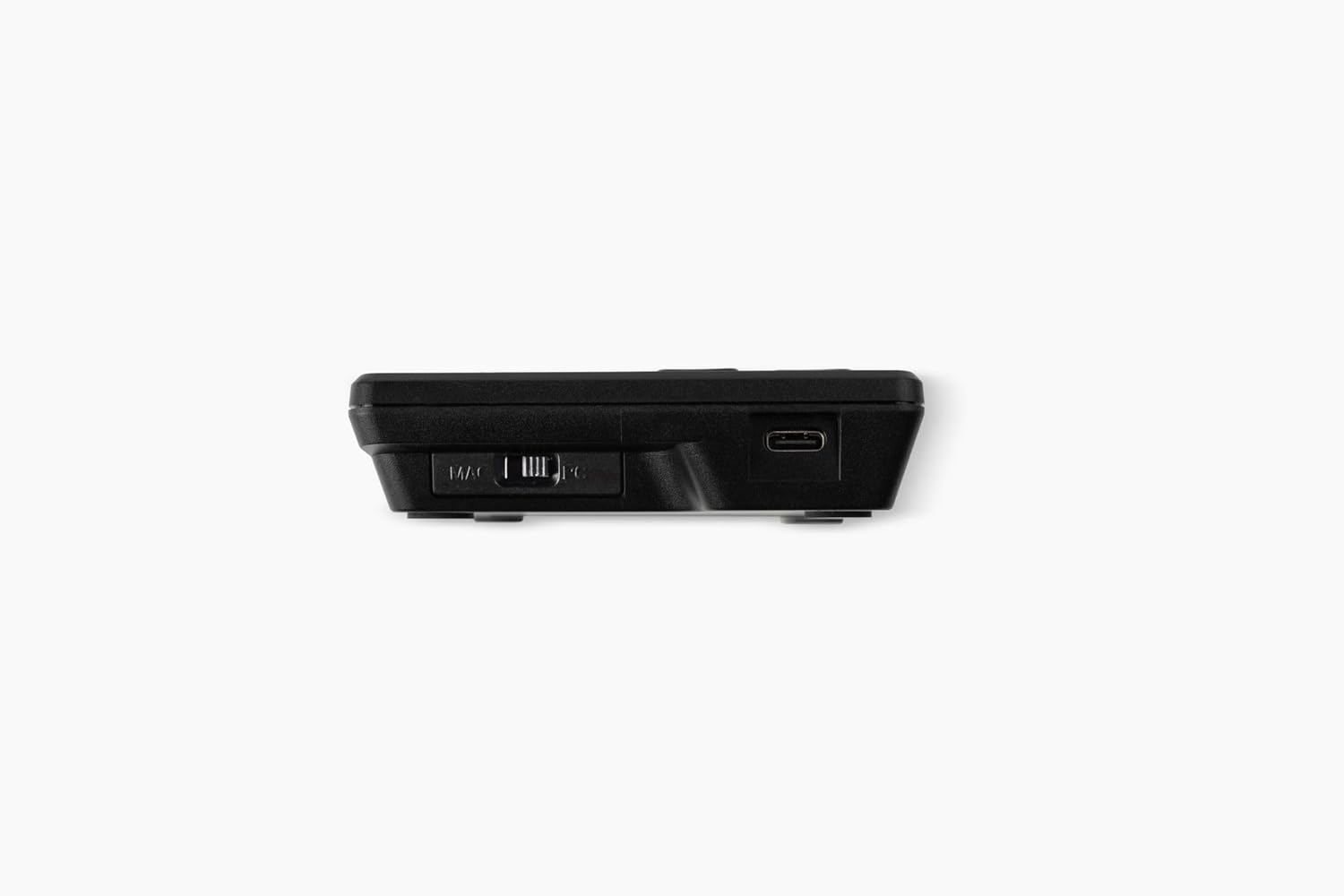
olusin 3: Apa view illustrating the Mac/PC compatibility switch and the USB-C port for connection.
Your operating system should automatically detect the keypad, and it will be ready for use.
Awọn ilana Iṣiṣẹ
The Goldtouch Elite Numeric Keypad functions as a standard numeric input device, compatible with most applications requiring numerical data entry.
Awọn iṣẹ Bọtini Ipilẹ
- Iṣagbewọle nọmba: Use the number keys (0-9) for numerical data entry.
- Awọn iṣẹ Iṣiro: Utilize the +, -, *, / keys for calculations.
- Tẹ bọtini sii: Functions as a standard Enter key for confirming input or moving to the next field.
- Titiipa Nọm: The 'NUM' key toggles the numeric lock function, enabling or disabling the numeric input. An indicator light on the keypad will show its status.
- Awọn bọtini pataki: Keys like 'ESC', 'TAB', 'DEL', 'INS', 'HOME', 'END', 'PGUP', 'PGDN' provide additional functionality commonly found on full-size keyboards.
PC ati Mac ibamu
The keypad includes a physical switch to optimize its functionality for either PC or Mac operating systems. Ensure this switch is set correctly for your system to ensure proper key mapping and performance.

Figure 4: The Goldtouch Elite Numeric Keypad positioned for use alongside an ergonomic keyboard, demonstrating its integration into a workspace.
Itoju
Proper maintenance will extend the lifespan of your Goldtouch Elite Numeric Keypad.
- Ninu: Lo asọ asọ, ti ko ni lint die-die dampened with water or a mild cleaning solution to wipe the surface of the keypad. Avoid harsh chemicals, abrasive cleaners, or excessive moisture.
- Yiyọ eruku kuro: Lo afẹfẹ fisinuirindigbindigbin lati yọ eruku ati idoti kuro laarin awọn bọtini.
- Ibi ipamọ: When not in use for extended periods, store the keypad in a clean, dry environment away from extreme temperatures.
- Itọju USB: Yago fun awọn atunse didasilẹ tabi kọnks ninu okun USB lati yago fun ibajẹ inu.
Laasigbotitusita
If you encounter issues with your Goldtouch Elite Numeric Keypad, refer to the following common troubleshooting steps:
| Isoro | Owun to le Fa | Ojutu |
|---|---|---|
| Kọ̀ǹpútà kò dá keyboard mọ̀. | Loose USB connection, incorrect Mac/PC switch setting, faulty USB port. |
|
| Keys are not responding or typing incorrect characters. | Num Lock is off, software conflict, debris under keys. |
|
| Keypad disconnects intermittently. | Loose cable, power management settings, faulty cable. |
|
Awọn pato
Detailed technical specifications for the Goldtouch Elite Numeric Keypad:
| Nọmba awoṣe | GTC-ELITE |
| Ọja Mefa | 5.75"L x 3.5"W x 1"H (14.6 cm x 8.9 cm x 2.5 cm) |
| Iwọn Nkan | 8 iwon (226.8 giramu) |
| Asopọmọra Technology | Wired USB-A (via USB-C port on keypad) |
| Iru bọtini | Cherry MX Red Mechanical Keys |
| Awọn ẹrọ ibaramu | Laptop, PC (Windows), Mac |
| Àwọ̀ | Dudu |
| Ohun elo | Ṣiṣu |
| Awọn irinše to wa | USB-A si okun USB-C |

Figure 5: Dimensional diagram of the Goldtouch Elite Numeric Keypad, including width, depth, height, weight, and cable length.
Atilẹyin ọja ati Support
Goldtouch products are designed for durability and performance. For information regarding product warranty, please refer to the warranty card included with your purchase or visit the official Goldtouch webojula.
For technical support, troubleshooting assistance beyond this manual, or to inquire about replacement parts, please contact Goldtouch customer service through their official support channels. Contact information can typically be found on the Goldtouch webaaye tabi lori apoti ọja.
Awọn orisun Ayelujara:


