Ọrọ Iṣaaju
The Logitech MK270 Wireless Keyboard and Mouse Combo provides a reliable and convenient wireless solution for your computing needs. This combo features a 2.4 GHz wireless connection, offering a range of up to 10 meters with minimal delays or dropouts. Designed for ease of use, it includes a full-size keyboard with media hotkeys and a compact, ambidextrous mouse. This manual provides instructions for setup, operation, maintenance, and troubleshooting to ensure optimal performance of your device.
Ohun ti o wa ninu Apoti
Ni ṣiṣi package, rii daju pe gbogbo awọn paati wa:
- Keyboard Alailowaya Logitech MK270
- Asin Alailowaya Logitech
- Olugba Nano USB
- Awọn batiri AAA 2 (fun keyboard)
- 1 AA batiri (fun Asin)


Awọn ilana iṣeto
- Fi Awọn batiri sii: Open the battery compartments on the underside of both the keyboard and the mouse. Insert the included AAA batteries into the keyboard and the AA battery into the mouse, ensuring correct polarity (+/-).
- So olugba USB pọ: Locate an available USB port on your computer. Plug the tiny Logitech Nano Receiver into the USB port. The system should automatically detect the receiver and install necessary drivers.
- Agbara Lori Awọn ẹrọ: Locate the ON/OFF switch on the top right of the keyboard and on the underside of the mouse. Slide both switches to the 'ON' position.
- Asopọmọra idanwo: Once powered on, the keyboard and mouse should be ready for use. Test by typing on the keyboard and moving the mouse cursor. If they do not respond, ensure the receiver is securely plugged in and the devices are powered on.
The Logitech MK270 is designed for plug-and-play simplicity and is compatible with Windows 10 or later, Windows 8, 7, Windows Vista, Windows XP, and Chrome OS. It is not Bluetooth compatible.
Awọn ilana Iṣiṣẹ
Keyboard Awọn ẹya ara ẹrọ
- Ìfilélẹ Ìtóbi Ni kikun: The keyboard features a standard full-size layout with deep-profile, quiet keys for comfortable typing.
- Eight Hot Keys: Access frequently used functions instantly with the dedicated hotkeys located above the function row. These include controls for movies, music, internet, email, volume adjustment, and play/pause.
- Tan/Pa Yipada: Conserve battery life by using the ON/OFF switch located on the top right of the keyboard when not in use.


Asin Awọn ẹya ara ẹrọ
- Apẹrẹ kekere ati Ambidextrous: The mouse is designed for comfortable control, suitable for both left and right-handed users.
- Itẹlọrọ didan: Provides responsive and accurate cursor control.
- 10m Wireless Range: Maintain a reliable connection up to 10 meters from your computer.
- Ibi ipamọ olugba: The USB Nano Receiver can be conveniently stored inside the mouse when not in use, making it ideal for portability.
- Tan/Pa Yipada: An ON/OFF switch on the underside of the mouse helps conserve battery power.


Itoju
Iṣakoso batiri
The Logitech MK270 combo is designed for extended battery life:
- Ìgbésí ayé Bátìrì Kọ́bọ́ọ̀dì: Up to 36 months (3 years) with typical use.
- Igbesi aye Batiri Asin: Up to 12 months with typical use.
Battery life may vary based on user and computing conditions. To maximize battery life, always use the ON/OFF switches on both the keyboard and mouse when not in use. The devices also feature an auto-sleep function to conserve power during periods of inactivity.

Ninu
To clean your devices, use a soft, damp cloth. Avoid using harsh chemicals or abrasive cleaners, as these can damage the surfaces. Ensure devices are powered off before cleaning.
Laasigbotitusita
- Kò sí ìdáhùn láti inú Kííbọọ̀dù/Àákù:
- Ensure both the keyboard and mouse are switched 'ON'.
- Check that the USB Nano Receiver is securely plugged into a working USB port on your computer.
- Replace the batteries in both the keyboard and mouse. Low batteries are a common cause of connectivity issues.
- Gbiyanju lati so olugba USB sinu ibudo USB ti o yatọ.
- Asopọ tabi Idinku Alailowaya:
- Move the keyboard and mouse closer to the USB receiver. The optimal range is up to 10 meters, but environmental factors (e.g., metal objects, other wireless devices) can reduce this.
- Avoid placing the receiver near other electrical devices that may cause interference (e.g., speakers, monitors, Wi-Fi routers).
- If using a USB hub, try connecting the receiver directly to a USB port on your computer.
- Hotkeys Not Working:
- Rii daju pe ẹrọ iṣẹ rẹ ti wa ni imudojuiwọn.
- While plug-and-play, some advanced functions or specific hotkey behaviors might benefit from Logitech's optional software, available on their official support webojula.
Awọn pato
| Brand | Logitech |
| Nọmba awoṣe | 920-004536 |
| Asopọmọra Technology | Alailowaya (Igbohunsafẹfẹ Redio 2.4 GHz) |
| Alailowaya Ibiti | Titi de awọn mita 10 (33 ẹsẹ) |
| Keyboard Batiri Life | Titi di oṣu 36 (ọdun meji) |
| Mouse batiri Life | Titi di oṣu mẹfa |
| Ibamu System isẹ | Windows 10, Windows 7, Windows 8, Windows Vista, Windows XP, Chrome OS |
| Awọn iwọn Keyboard (LxWxH) | 441 mm x 149 mm x 18 mm (isunmọ 17.36 x 5.87 x 0.71 inches) |
| Àdánù Keyboard | 481 g (isunmọ 1.06 lbs) |
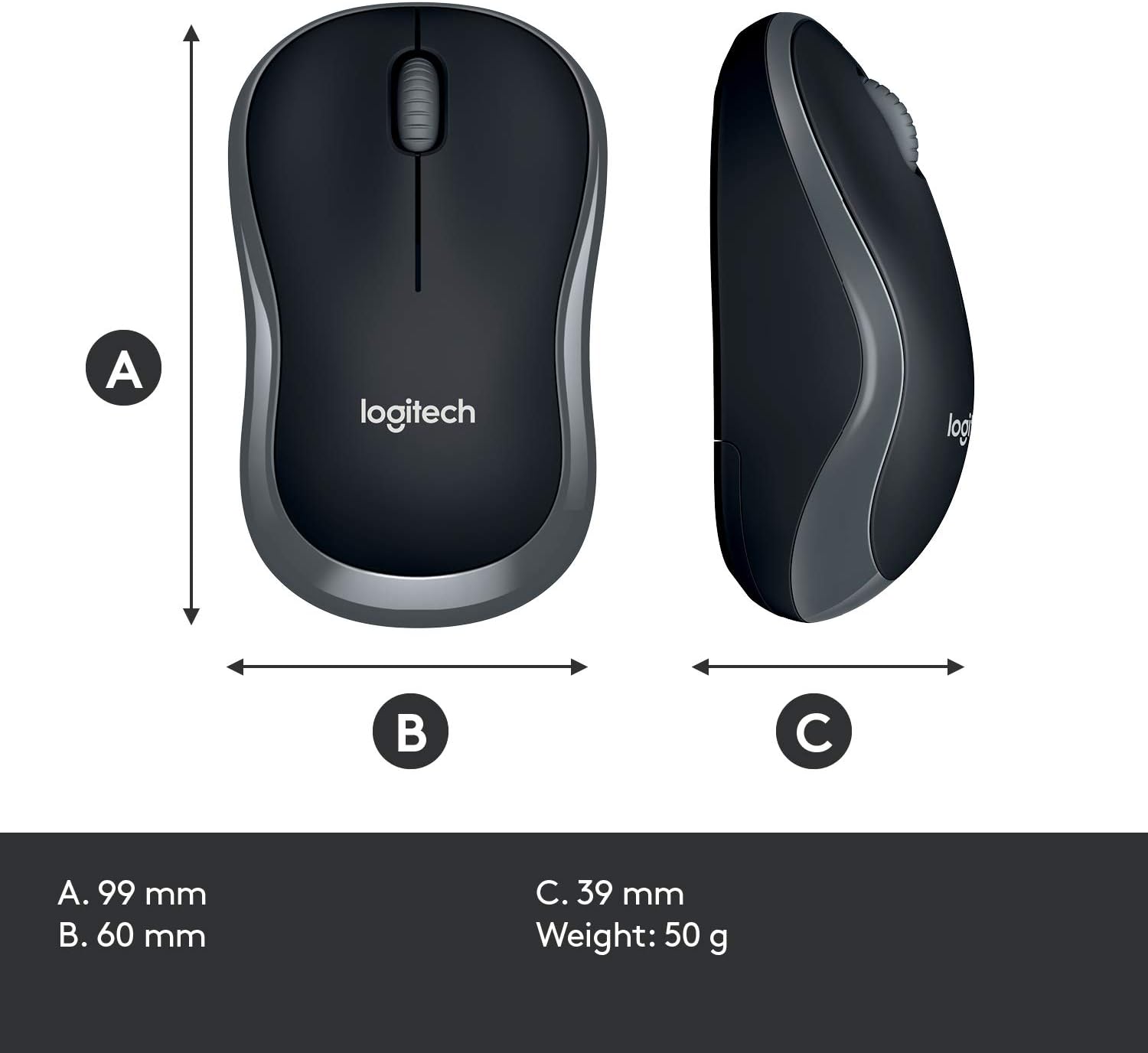
| Awọn iwọn Asin (LxWxH) | 99 mm x 60 mm x 39 mm (isunmọ 3.90 x 2.36 x 1.54 inches) |
| Asin iwuwo | 50 g (isunmọ 0.11 lbs) |
| Àwọ̀ | Dudu |

Atilẹyin ọja ati Support
Warranty information for the Logitech MK270 Wireless Keyboard and Mouse Combo is typically provided with your product packaging or can be found on the official Logitech webAaye ayelujara. Jọwọ tọka si awọn orisun wọnyi fun awọn ofin ati ipo atilẹyin ọja kan pato.
Fun iranlọwọ siwaju sii, atilẹyin imọ-ẹrọ, tabi lati ṣe igbasilẹ awọn awakọ tuntun ati sọfitiwia, jọwọ ṣabẹwo si atilẹyin Logitech osise webojula:


