1. Ifihan
Welcome to the user manual for your Logitech M705 Marathon Wireless Mouse. This document provides essential information for setting up, operating, and maintaining your device, ensuring optimal performance and longevity. The M705 mouse is designed for comfort and efficiency, featuring a long battery life and customizable controls for enhanced productivity.
2. Ọja Ipariview
Key Awọn ẹya ara ẹrọ
- Igbesi aye batiri ti o gbooro sii: Enjoy up to 3 years of battery life, reducing the need for frequent replacements.
- Apẹrẹ Ergonomic: Sculpted to fit the natural curve of your right hand, providing comfort during prolonged use.
- Yilọ-Yára: Navigate through long documents and web pages with a single spin of the scroll wheel, or switch to click-to-click scrolling for precision.
- Awọn bọtini eto: Five customizable buttons, including forward/back thumb buttons, allow for personalized shortcuts and enhanced control.
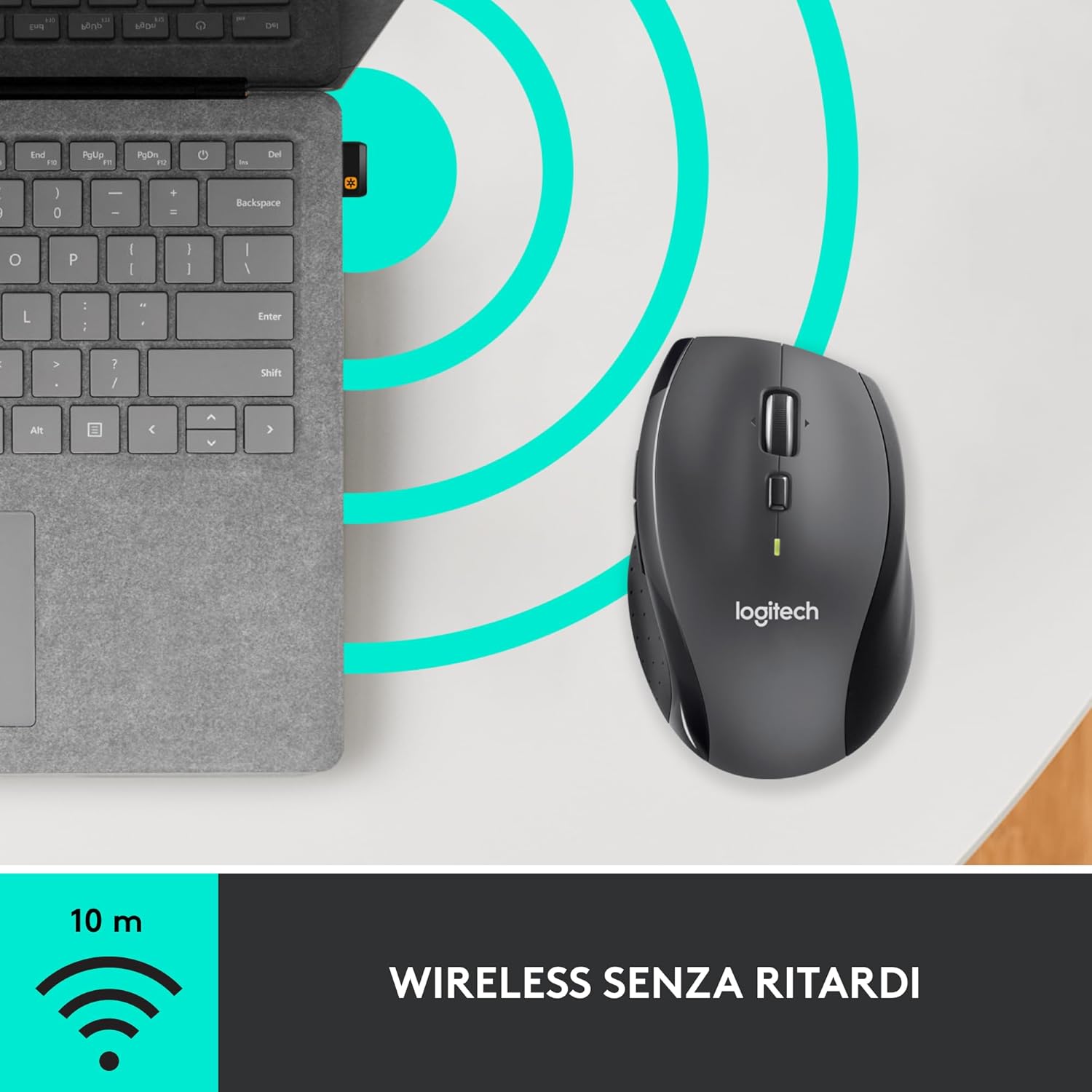
- Olugba Isokan: A small USB Unifying receiver connects up to six compatible Logitech devices, freeing up USB ports.
- Ibamu gbooro: Ni ibamu pẹlu Windows, macOS, Chrome OS, ati awọn ọna ṣiṣe Linux.
Package Awọn akoonu
The Logitech M705 Marathon Wireless Mouse package typically includes:
- Asin Alailowaya Logitech M705
- Logitech Isokan Olugba USB
- 2 AA Alkaline Batteries (may vary by region/packaging)

3. Awọn ilana iṣeto
3.1. Fifi awọn batiri
- Turn the mouse over and locate the battery compartment cover on the underside.
- Press the release button or slide the cover to open the compartment.
- Fi awọn batiri AA meji sii, ni idaniloju polarity ti o pe (+/-).
- Rọpo ideri iyẹwu batiri.

3.2. So olugba asopọ USB pọ
- Locate the small USB Unifying receiver. It may be stored inside the battery compartment of the mouse.
- Pulọọgi olugba USB sinu ibudo USB ti o wa lori kọnputa rẹ.
- Tan-an Asin nipa lilo Titan / Pa a yipada ti o wa ni apa isalẹ.
- Your computer should automatically detect the mouse. If not, visit the Logitech support website for driver installation.
4. Awọn ilana Iṣiṣẹ
4.1. Awọn iṣẹ Asin Ipilẹ
The M705 mouse features standard left and right-click buttons, a scroll wheel, and additional programmable buttons.

4.2. Yiyi-Yára Yiyi
The scroll wheel offers two modes:
- Ipo Yara-pupọ: Press the button directly below the scroll wheel to unlock it for smooth, rapid scrolling through long documents or web awọn oju-iwe.
- Tẹ-lati-tẹ Ipo: Press the button again to engage precise, stepped scrolling, ideal for navigating lists or image galleries.

4.3. Awọn bọtini eto
The M705 features five programmable buttons, including two thumb buttons and tilt-scroll functionality. These can be customized using the Logitech Options software.

5. isọdi
To unlock the full potential of your M705 mouse, download and install the Logitech Options software from the official Logitech webojula. Sọfitiwia yii gba ọ laaye lati:
- Assign custom functions to the five programmable buttons.
- Adjust tracking speed (DPI).
- Configure application-specific settings.
- Ṣayẹwo ipo batiri.

6. Itọju
6.1. Ninu
Lati nu asin rẹ mọ, lo asọ ti ko ni lint. Fun idoti alagidi, die-die dampen the cloth with water. Avoid using harsh chemicals or abrasive materials, as these can damage the mouse surface or internal components.
6.2. Batiri Rirọpo
When the battery indicator light on your mouse begins to flash or if performance degrades, it's time to replace the batteries. Follow the steps in Section 3.1 to replace the two AA batteries. Dispose of old batteries responsibly according to local regulations.
7. Laasigbotitusita
7.1. Asin Ko fesi
- Rii daju pe asin wa ni titan.
- Check the battery level and replace batteries if necessary.
- Verify the USB Unifying receiver is securely plugged into a working USB port.
- Gbiyanju pilọgi olugba sinu ibudo USB ti o yatọ tabi kọnputa ti o yatọ lati yasọtọ ọrọ naa.
- Ti o ba nlo ibudo USB, gbiyanju lati sopọ taara si kọnputa naa.
7.2. Aiṣedeede Kọsọ Movement
- Nu sensọ opitika ni isalẹ ti Asin naa.
- Ensure you are using the mouse on a suitable surface. Highly reflective or transparent surfaces may cause tracking issues. A mouse pad is recommended.
- Check for interference from other wireless devices. Move the mouse closer to the USB receiver.
7.3. Unifying Receiver Issues
If the mouse loses connection or you need to pair it with a new receiver, download the Logitech Unifying Software from the Logitech support website. This software guides you through the pairing process.
8. Awọn pato
| Ẹya ara ẹrọ | Ẹ̀kúnrẹ́rẹ́ |
|---|---|
| Brand | Logitech |
| Orukọ awoṣe | M705 |
| Nọmba awoṣe | 910-001949 |
| Asopọmọra Technology | Alailowaya (Olugba Iṣọkan USB 2.4 GHz) |
| Imọ-ẹrọ Iwari išipopada | Lesa |
| Ipinnu gbigbe | 1000 DPI (up to 3200 DPI maximum resolution) |
| Nọmba ti Awọn bọtini | 5 Awọn bọtini siseto |
| Orisun agbara | Battery (2 x AA Alkaline) |
| Apapọ batiri Life | Titi di ọdun 3 |
| Alailowaya Ibiti | Ti o to awọn mita 10 |
| Fọọmù ifosiwewe | Right-hand ergonomic |
| Awọn iwọn (L x W x H) | 20 x 13 x 12 cm (Product packaging dimensions) |
| Iwọn | 136 giramu |
| Ibamu Awọn ọna ṣiṣe | Windows 7, 8, 10; macOS 10.11 or later; Chrome OS; Linux |
9. Atilẹyin ọja ati Support
Fun alaye atilẹyin ọja alaye ati atilẹyin imọ-ẹrọ, jọwọ tọka si Logitech osise webojula tabi kan si Logitech onibara iṣẹ. Jeki ẹri rira rẹ fun awọn iṣeduro atilẹyin ọja.