הקדמה
Welcome to the user manual for your new DOYO Gaming Steering Wheel. This manual provides essential information for setting up, operating, maintaining, and troubleshooting your device. Please read this manual thoroughly before use to ensure optimal performance and longevity of your steering wheel.

בילד: פראָנט view of the DOYO Gaming Steering Wheel, showcasing its ergonomic design and central control panel.
פּעקל אינהאַלט
ביטע באַשטעטיקן אַז אַלע זאכן וואָס זענען ליסטעד אונטן זענען אַרייַנגערעכנט אין דיין פּעקל:
- DOYO Gaming Steering Wheel Unit
- וסב קאַנעקשאַן קאַבלע
- מאָונטינג קלamp (may be pre-attached)
- באַניצער מאַנואַל (דעם דאָקומענט)
Note: Actual package contents may vary slightly. Please check the product packaging for a complete list.
פּראָדוקט איבערview
שליסל פֿעיִקייטן
- וניווערסאַל קאַמפּאַטאַבילאַטי: Supports Nintendo Switch, PC, PS4, PS3, iOS, and Android devices.
- Wireless Bluetooth 5.0 Connection: Ensures a stable connection within an 8-meter radius.
- פּינטלעך קאָנטראָל: Features dual vibration motors and customizable control settings for enhanced realism.
- באַקוועם פּלאַן: Ergonomic 270-degree rotation for fatigue-free gaming during extended sessions.
קאָמפּאָנענט לעגיטימאַציע
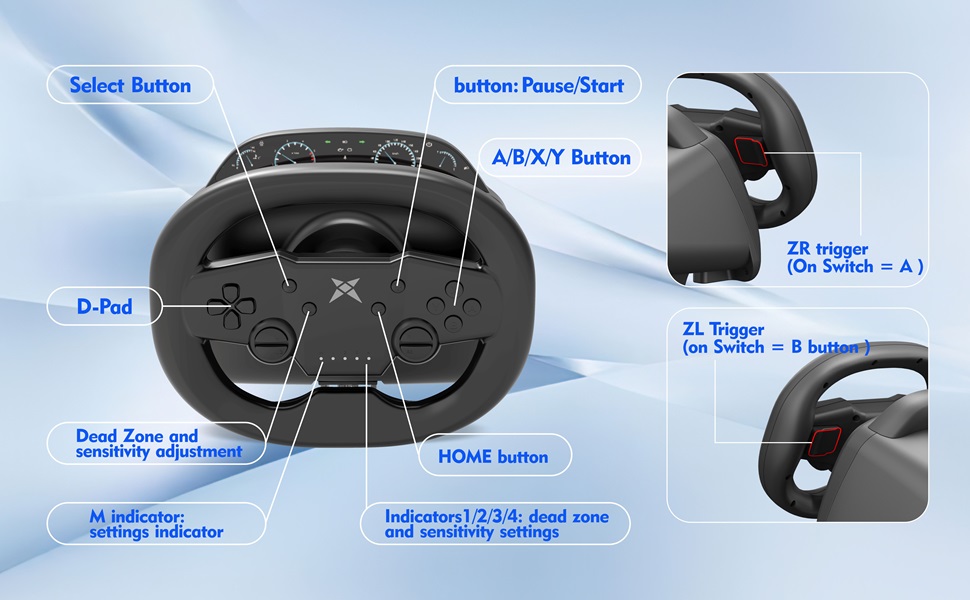
Image: Detailed diagram of the steering wheel's buttons and indicators, including D-Pad, A/B/X/Y buttons, Select, Pause/Start, HOME button, ZR/ZL triggers, Dead Zone and sensitivity adjustment indicators, and M indicator.
- ד-פּאַד: Directional input for navigation and control.
- A/B/X/Y קנעפּלעך: סטאַנדאַרט אַקציע קנעפּלעך פֿאַר אין-שפּיל קאַמאַנדז.
- אויסקלייַבן קנעפּל: Function button, typically for menu selections.
- פּויזע / אָנהייב קנעפּל: Used for pausing games or initiating actions.
- HOME קנעפּל: Returns to the system menu of the connected device.
- ZR/ZL Triggers: Linear damping triggers, often used for braking (ZL) and acceleration (ZR). On Nintendo Switch, ZR corresponds to the A button and ZL to the B button.
- Dead Zone and Sensitivity Adjustment Indicators (1/2/3/4): Display the current dead zone and sensitivity settings.
- M Indicator: Serves as a general settings indicator.

בילד: הינטערשטע view of the steering wheel, highlighting the ZL (left) and ZR (right) linear damping triggers, designed for precise braking and acceleration.
סעטאַפּ
מאַונטינג די סטירינג ראָד

Image: Illustration of the stable fixture clamp, demonstrating how to attach the steering wheel to a desk or table with thicknesses ranging from 3mm to 49mm.
- Place the steering wheel unit on a flat, stable surface.
- Adjust the mounting clamp screw to fit the thickness of your desk or table (compatible with 3mm to 49mm thickness).
- פאַרשטייַפן די קלamp securely to prevent movement during use.
Connecting to PC (Wired Mode)

Image: Diagram showing the steering wheel connected to a PC via USB, indicating support for X-INPUT and D-INPUT modes on Windows XP/7/8/8.1/10 systems.
- מאַכן זיכער אַז דיין פּיסי איז פּאַוערד אויף.
- Connect the USB cable from the steering wheel to an available USB port on your PC.
- The system should automatically detect and install the necessary drivers. The wheel supports both X-INPUT and D-INPUT modes.
- For optimal performance, ensure your operating system is Windows XP, 7, 8, 8.1, or 10.
Connecting to PS4/PS3 (Wired Mode)

Image: Illustration depicting the steering wheel connected via wired USB to a PlayStation 3 or PlayStation 4 console, alongside a PC and Nintendo Switch for compatibility overview.
- Ensure your PS4 or PS3 console is powered on.
- Connect the USB cable from the steering wheel to an available USB port on your console.
- The console should recognize the steering wheel as a controller.
Connecting to Nintendo Switch (Wireless Mode)

Image: The DOYO Gaming Steering Wheel positioned next to a Nintendo Switch console, demonstrating its compatibility for games like Mario Kart.
- On your Nintendo Switch, navigate to "Controllers" > "Change Grip/Order".
- Press and hold the HOME button on the steering wheel until the indicator lights flash rapidly, indicating pairing mode.
- The Switch should detect and pair with the steering wheel.
Connecting to iOS/Android Devices (Wireless Mode)

Image: The DOYO Gaming Steering Wheel set up with a mobile phone mounted on a stand, illustrating wireless Bluetooth connectivity for mobile gaming on Android and iOS platforms.
- געבן בלועטאָאָטה אויף דיין יאָס אָדער אַנדרויד מיטל.
- Press and hold the HOME button on the steering wheel until the indicator lights flash rapidly, indicating pairing mode.
- On your device, search for Bluetooth devices and select "DOYO Racing Wheel" (or similar name) to pair.
אַפּערייטינג ינסטראַקשאַנז
יקערדיק קאָנטראָלס
The steering wheel provides intuitive controls for racing games:
- סטירינג: Rotate the wheel left or right for directional control within its 270-degree range.
- אַקסעלעריישאַן: Use the right trigger (ZR) or the designated pedal (if included).
- ברייקינג: Use the left trigger (ZL) or the designated pedal (if included).
- קאַמף קנעפּלעך: A/B/X/Y buttons for various in-game actions.
- ד-פּאַד: For menu navigation or specific in-game controls.
- HOME קנעפּל: Returns to the system menu of the connected platform.
270-Degree Rotation and Dual Vibration Feedback

Image: Diagram illustrating the 270-degree rotation capability of the steering wheel, with 135 degrees of rotation to both the left and right, alongside an icon for dual vibration feedback.
The steering wheel offers a 270-degree rotation range (135 degrees left, 135 degrees right) for precise steering input, allowing for realistic control in racing simulations. Dual vibration motors provide immersive feedback, simulating road conditions, collisions, and other in-game effects to enhance your gaming experience.
Dead Zone and Sensitivity Adjustment
The steering wheel allows for adjustment of dead zone and sensitivity to suit individual preferences and game requirements. Refer to the product's specific button combination instructions (often involving the 'M' button and D-Pad) to cycle through sensitivity levels and dead zone settings. The indicator lights (1-4) will typically show the current setting, providing visual feedback on your adjustments.
וישאַלט
Proper maintenance ensures the longevity and optimal performance of your steering wheel:
- רייניקונג: Use a soft, dry cloth to gently wipe the surface of the steering wheel. Avoid using abrasive cleaners, solvents, or harsh chemicals, as these can damage the finish.
- סטאָרידזש: Store the steering wheel in a cool, dry place away from direct sunlight, extreme temperatures, and excessive humidity.
- קאַבלע זאָרגן: Avoid sharp bends or kinks in the USB connection cable. Always grasp the plug, not the cable, when disconnecting.
- Clamp זאָרגן: פּיריאַדיקלי קאָנטראָלירן די מאַונטינג קלamp for tightness and ensure it is free from debris that could affect its grip.
Do not attempt to disassemble the steering wheel unit, as this may void the warranty and cause irreparable damage.
טראָובלעשאָאָטינג
Steering Wheel Not Responding
- Ensure all cables are securely connected to both the steering wheel and the gaming platform.
- For wireless connections, verify that Bluetooth is enabled on your device and the wheel is paired correctly.
- Check the battery level if operating wirelessly and recharge if necessary.
- Try connecting to a different USB port or restarting your device/console.
No Vibration Feedback
- Verify that vibration feedback is enabled in the game settings and on your gaming platform.
- Ensure the steering wheel is properly connected and recognized by the system.
Controls Are Inaccurate or Drifting
- Recalibrate the steering wheel if your system or game supports a calibration function.
- Adjust the dead zone and sensitivity settings on the steering wheel or within the game's control options.
- Ensure the wheel is securely mounted and not moving during use.
Cannot Connect Wirelessly
- Ensure the steering wheel is in pairing mode (indicator lights flashing rapidly).
- Check that Bluetooth is enabled on your device and that the steering wheel is within the 8-meter wireless range.
- Remove any previous pairings for the steering wheel on your device and attempt to pair again.
- Ensure no other Bluetooth devices are causing interference in the immediate vicinity.
ספּעסאַפאַקיישאַנז
| שטריך | דעטאַל |
|---|---|
| מאָדעל נומער | KT820D-Pedal |
| סאָרט | DOYO |
| קאַמפּאַטאַבילאַטי | PS4, PC, Nintendo Switch, PS3, iOS, Android |
| קשר טיפּ | Wired (USB), Wireless (Bluetooth 5.0) |
| ראָוטיישאַן ווינקל | 270 דיגריז |
| וויבראַטיאָן באַמערקונגען | צווייענדיק ווייבריישאַן מאָטאָרס |
| פּראָדוקט דימענשאַנז | 9.06 X 9.06 X 9.06 אינטשעס |
| פּונקט וואָג | 3.25 פונט |
| פאַבריקאַנט | DOYO |
וואָראַנטי און שטיצן
DOYO products are designed for reliability and performance. For specific warranty information, please refer to the warranty card included with your product or visit the official DOYO website. If you encounter any issues or require technical assistance, please contact DOYO customer support through their official channels.
פֿאַר ווייטערדיקע הילף, קענט איר אויך באַזוכן די DOYO Store on Amazon אדער קאָנטאַקטירן דעם פארקויפער גלייך.


