1. פּראָדוקט איבערview
The DBPOWER Smart WiFi Bluetooth Projector (Model: E2) offers a native 1080P Full HD resolution with 300 ANSI lumens brightness and a 10,000:1 contrast ratio. It features a 6-layer high-refractive lens for enhanced clarity and reduced eye strain. This projector is designed for versatile home and outdoor use, providing a large display experience with integrated smart features.
שליסל פֿעיִקייטן:
- Native 1080P Resolution & 300 ANSI Brightness: Delivers stunning visuals with true Full HD and vibrant clarity.
- Built-in Smart Apps: Stream content directly from Netflix, YouTube, Prime Video, and more without an external TV stick.
- Fast Dual-Band 5G WiFi & Bluetooth 5.2: Ensures stable streaming and wireless audio connectivity with soundbars, headphones, or speakers.
- Large Display & Easy Setup: Projects a 40-200 inch screen with ±15° keystone correction, manual focus, and 50% digital zoom for effortless alignment.
- Dolby Audio: Integrated dual speakers with Dolby Audio support provide immersive sound.
- ברייט קאַמפּאַטאַבילאַטי: Features HDMI, USB, AV, and audio ports for connecting various devices like phones, laptops, and gaming consoles.
2. פּעקל אינהאַלט
Your DBPOWER Smart WiFi Bluetooth Projector package includes the following items:
- DBPOWER Smart WiFi Bluetooth Projector (Model: E2)
- ווייַט קאָנטראָל
- מאַכט שנור
- HDMI קאַבלע
- אב קאַבלע
- אָביעקטיוו קאַפּ
- Cleaning Kit (Q-tips)
- באַניצער מאַנואַל
- קעריינג קאַסע

Image 2.1: The DBPOWER Smart WiFi Bluetooth Projector with its included carrying case and a smartphone displaying Bluetooth and WiFi icons.
3. סעטאַפּ גייד
3.1 Physical Placement and Adjustments
Place the projector on a stable, flat surface. Ensure there is adequate ventilation around the device. The projector can be placed on a table, mounted on a tripod, or ceiling-mounted.
- אַדזשאַסטינג הייך: Use the adjustable screw on the bottom of the projector to fine-tune the projection height.
- Keystone Correction: Use the keystone adjustment ring/slider on the projector to correct trapezoidal distortion, ensuring a rectangular image. The projector supports ±15° keystone correction.
- מאַנואַל פאָקוס: דרייט דעם פאָקוס רינג אויף דער פּראָיעקטאָר לינז ביז די פּראָיעקטירטע בילד דערשיינט שאַרף און קלאָר.
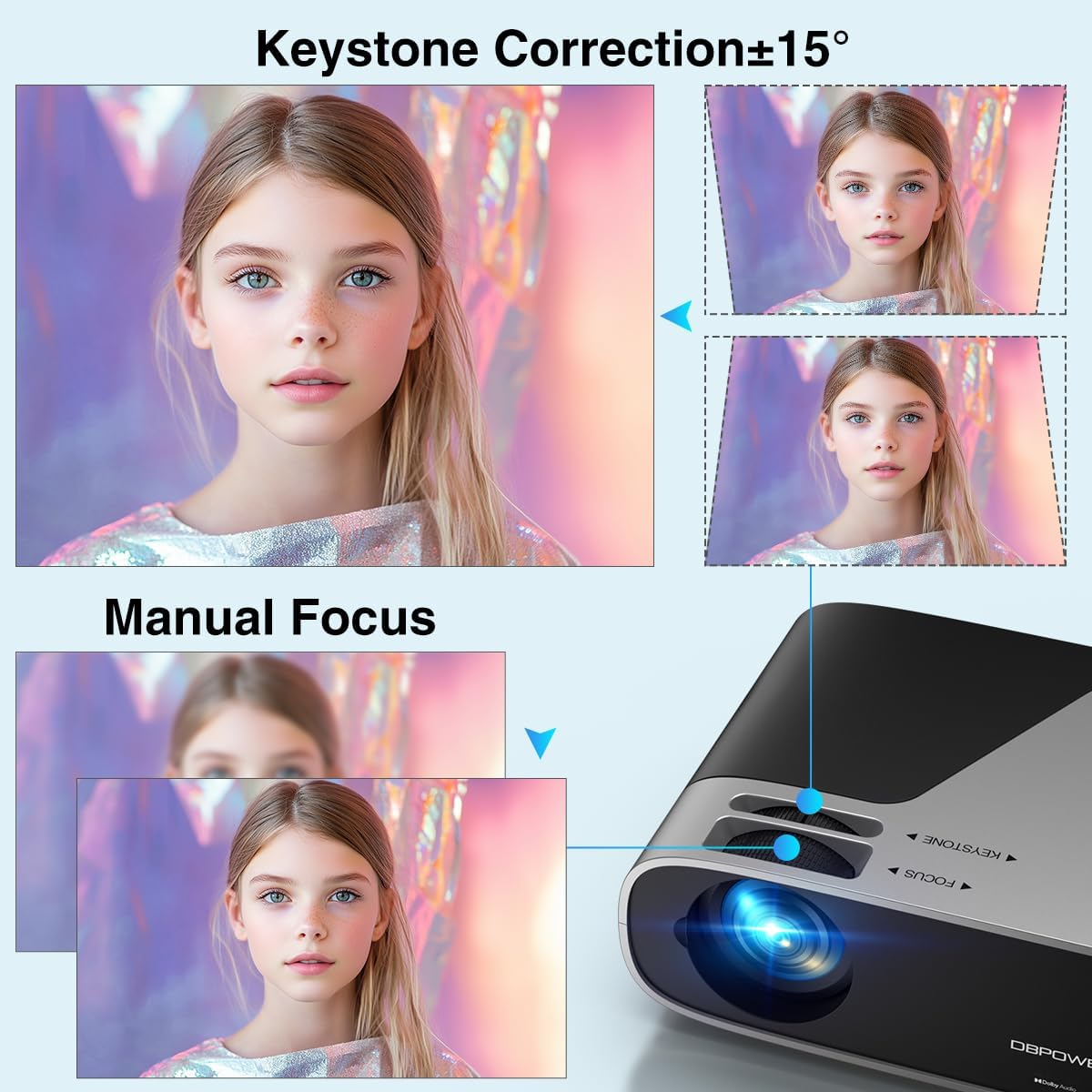
Image 3.1: Visual representation of keystone correction and manual focus adjustments on the projector.
3.2 אײַנצושאַלטן און ערשטע קאָנפיגוראַציע
- פֿאַרבינדט דעם עלעקטרישן שנור צום פּראָיעקטאָר און דערנאָך צו אַ עלעקטרישן ווענטיל.
- דרוק די מאַכט קנעפּל אויף די פּראַדזשעקטער אָדער די ווייַט קאָנטראָל צו קער אויף די מיטל.
- Follow the on-screen prompts to select your preferred language and connect to your Wi-Fi network (2.4G/5G Dual-Band supported).
3.3 קאַנעקטינג פונדרויסנדיק דעוויסעס
דער פּראָיעקטאָר אָפפערט קייפל קאָנעקטיוויטי אָפּציעס:
- הדמי: Connect devices like laptops, gaming consoles (PS5), or TV sticks using an HDMI cable.
- וסב: שטעק אריין USB דרייווס פאר מעדיע ווידערשפיל.
- פון: ניצט דעם AV פּאָרט פֿאַר עלטערע דעוויסעס.
- אַודיאָ אָוט: Connect external speakers or headphones via the 3.5mm audio jack or Bluetooth.

בילד 3.2: איבערview of the projector's input/output ports and various compatible devices.
3.4 בלועטוט קאָנעקטיוויטי
To connect Bluetooth audio devices:
- Ensure your Bluetooth device (e.g., soundbar, headphones) is in pairing mode.
- On the projector's home screen, navigate to the Bluetooth settings.
- אויסקלייבן אייער דעווייס פון דער ליסטע פון פאראן דעווייסעס צו פארבינדן.

Image 3.3: The projector demonstrating Bluetooth 5.2 connectivity with various audio devices.
4. אַפּערייטינג ינסטרוקטיאָנס
4.1 נאַוויגירן דעם באַניצער צובינד
Use the remote control or the physical buttons on top of the projector to navigate the user interface. The remote control provides direct access to apps like Netflix and YouTube.
4.2 Using Built-in Streaming Apps
The projector comes pre-licensed with popular streaming apps. Simply connect to Wi-Fi, log in to your accounts, and start streaming.

Image 4.1: The projector's smart interface showing various pre-installed streaming applications.
4.3 סקרין מירערינג
Mirror your smartphone or tablet screen wirelessly:
- יאָס דעוויסעס: Use the ScreenSharer function. Ensure your iOS device and projector are on the same Wi-Fi network.
- אַנדרויד דעוויסעס: Use the ScreenCast function. Ensure your Android device and projector are on the same Wi-Fi network.
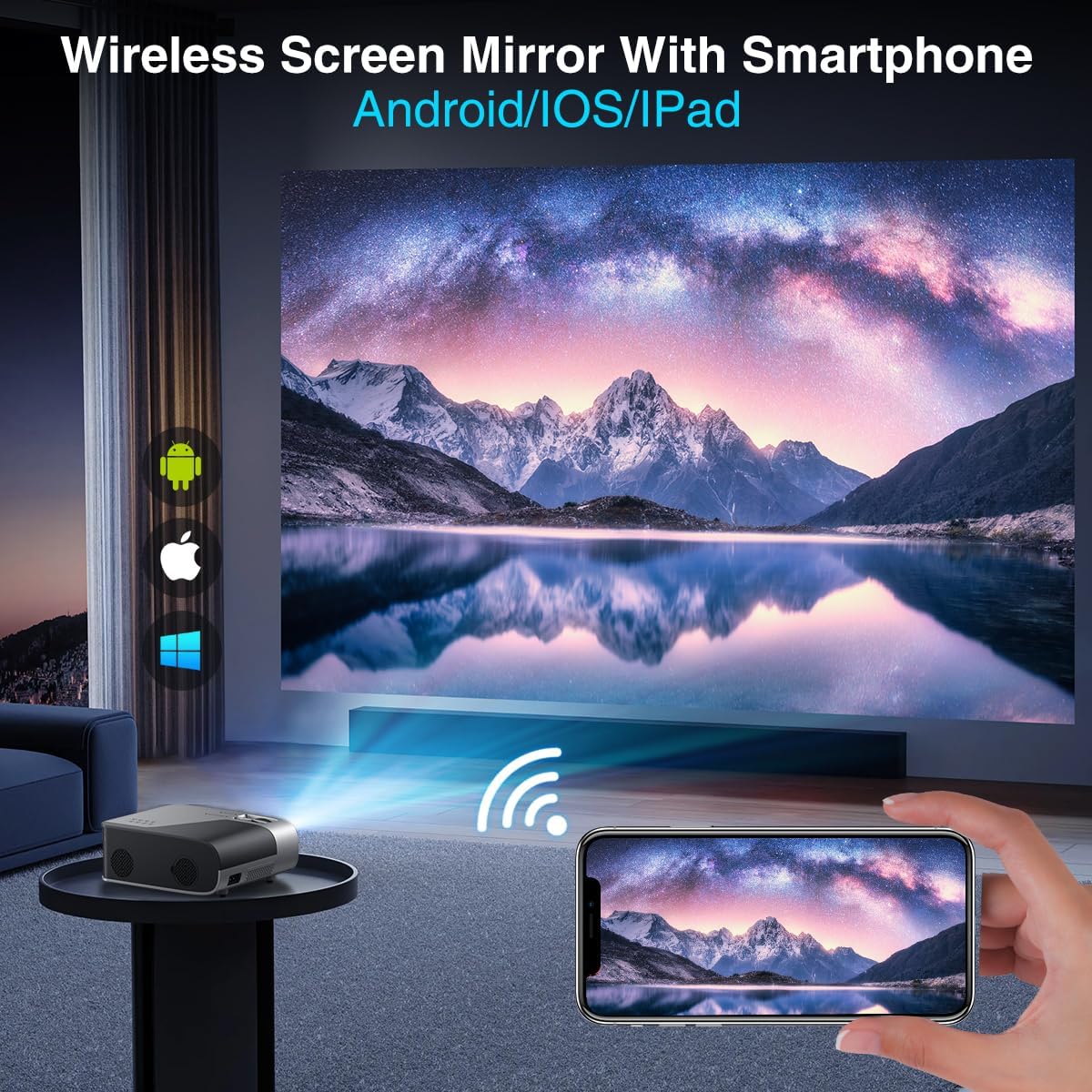
Image 4.2: A smartphone wirelessly mirroring its screen to the projector, compatible with Android and iOS devices.
4.4 פּראָיעקציע מאָדעס
The projector supports multiple installation methods and projection modes:
- פראָנט פּראָיעקציע: Standard setup where the projector is in front of the screen.
- הינטערשטע פּראָיעקציע: Projector is behind a translucent screen.
- Ceiling Mount (Front/Rear): Projector is mounted upside down from the ceiling. Adjust settings in the Projection Settings menu to flip the image.
4.5 פארגרעסער פֿונקציע
The projector features a 50% digital zoom function, allowing you to adjust the screen size without physically moving the projector. This can be accessed via the remote control or projector settings.

Image 4.3: Illustration of the projector's 50% digital zoom feature, showing various screen sizes from 60 to 200 inches.
4.6 באַניץ סינעריאָוז
The DBPOWER projector is suitable for various entertainment and presentation needs:
- Home Cinema: Enjoy movies and TV shows on a large screen.
- גיימינג: Connect gaming consoles for an immersive experience.
- דרויסנדיק פאַרווייַלונג: Perfect for backyard movie nights.
- פּרעזענטירונג: Can be used for displaying content from laptops or PCs.
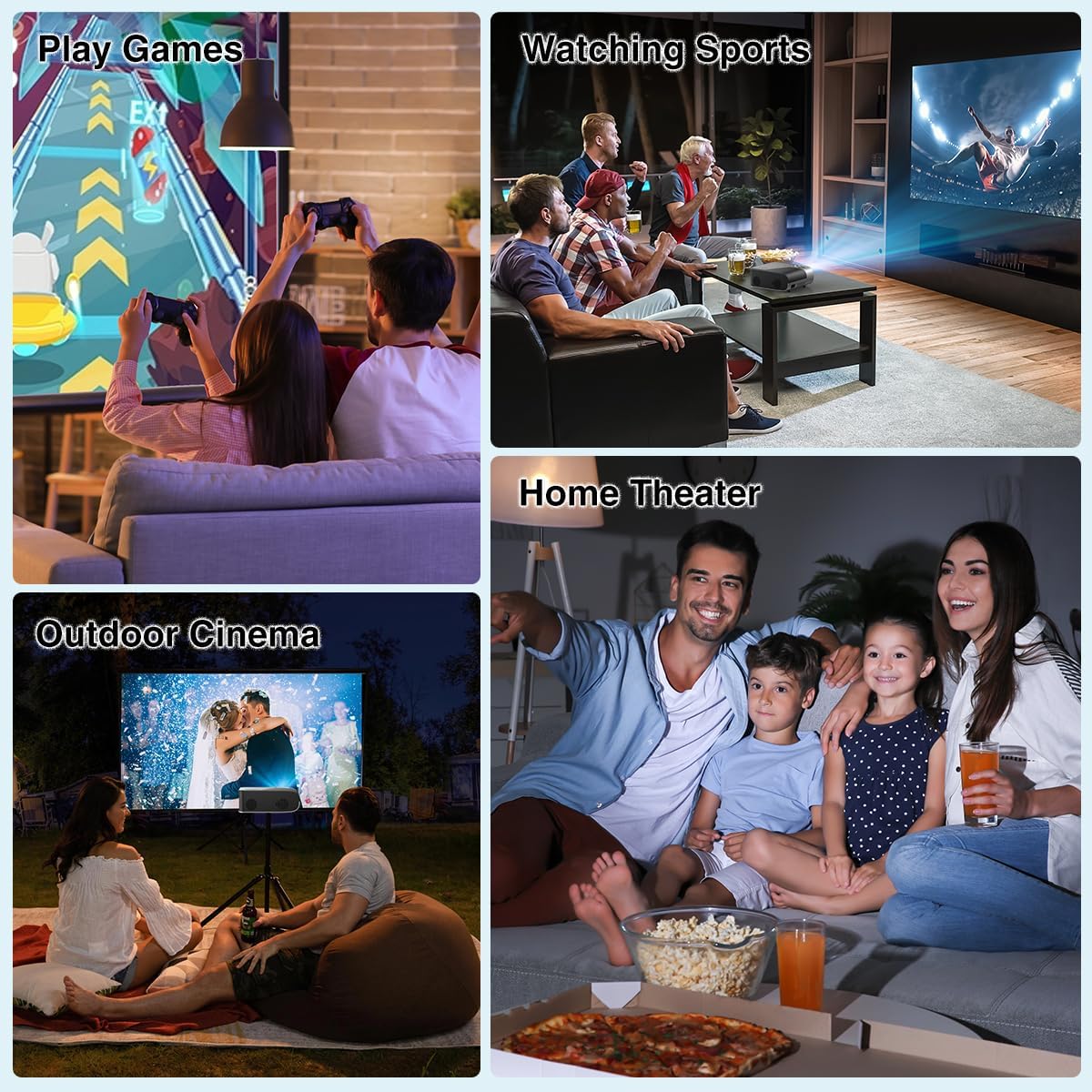
בילד 4.4: עקס.amples of the projector's use in different settings, such as gaming, sports viewing, home theater, and outdoor cinema.
5. וישאַלט
5.1 לינז רייניקונג
Regularly clean the projector lens to ensure optimal image clarity. Use a soft, lint-free cloth or the provided cleaning kit. Avoid abrasive materials or harsh chemicals.
5.2 שטויב פילטער רייניקונג
The projector has a removable dust filter to prevent dust buildup inside the device. Periodically remove and clean the filter to maintain proper airflow and prevent overheating. Refer to the detailed instructions in the included user manual for specific steps on removing and cleaning the filter.
6. טראָובלעשאָאָטינג
If you encounter issues with your projector, consider the following common solutions:
- בלערי בילד: Adjust the manual focus ring until the image is sharp. Ensure the projector is placed at an appropriate distance from the screen.
- טראַפּעזאָידאַל בילד: Use the keystone correction feature to adjust the image corners until it is rectangular.
- קיין סיגנאַל: Check all cable connections (HDMI, AV, USB). Ensure the correct input source is selected on the projector.
- Wi-Fi/בלוטוט קאנעקטיוויטי פראבלעמען: Ensure the projector is within range of your Wi-Fi router or Bluetooth device. Restart both the projector and the external device.
- Sound Sync Issues: If using external Bluetooth speakers, ensure a stable connection. Sometimes, restarting both devices can resolve minor sync issues.
- שוואַרצע פלעקן אויף דעם עקראַן: This may indicate dust on the lens or inside the projector. Refer to the maintenance section for cleaning instructions.
7. ספּעסאַפאַקיישאַנז
| שטריך | באַשרייַבונג |
|---|---|
| סאָרט | דבפּאָווער |
| ווייַז האַכלאָטע | 1920 x 1080 (געבוירענער 1080P) |
| ברייטנאַס | 300 אַנסי לומענס |
| קאַנטראַסט פאַרהעלטעניש | 10,000:1 |
| קאַנעקטיוויטי טעכנאָלאָגיע | HDMI, USB, AV, Bluetooth 5.2, 5G/2.4G Wi-Fi |
| ספּעציעלע פֿעיִקייטן | Built-In Speaker, Built-In Wi-Fi, Dolby Audio, ±15° Keystone Correction, 50% Digital Zoom |
| רעקאָממענדעד ניצט | היים סינעמאַ |
| פּונקט וואָג | 5.17 פונט |
| פּעקל דימענשאַנז | 13.07 X 9.92 X 4.76 אינטשעס |
| קאָליר | שוואַרץ |
8. וואָראַנטי און שטיצן
Specific warranty details and support contact information are typically provided in the product packaging or on the manufacturer's official website. Please refer to these resources for the most accurate and up-to-date information regarding your DBPOWER Smart WiFi Bluetooth Projector.
9. אפיציעלע פּראָדוקט ווידעאָ
ווידעא 9.1: א דעטאלירטע רעקארדview of the DBPOWER E2 Smart Projector, demonstrating its features, setup, and performance in various environments.


