1. Giới thiệu
This manual provides essential information for the safe and efficient operation of your HP DesignJet Z6 44-inch Large Format Plotter Printer. Please read this manual thoroughly before using the printer to ensure proper setup, usage, and maintenance. Retain this manual for future reference.
The HP DesignJet Z6 is a professional-grade large-format printer designed for high-quality output of CAD drawings, GIS maps, posters, banners, and photographic prints. It features a 6-color pigment ink system and supports various media types up to 44 inches wide.

Hình ảnh 1.1: Mặt trước view of the HP DesignJet Z6 44-inch Large Format Plotter Printer, showcasing its robust design and integrated media basket.
2. Thông tin an toàn
Luôn tuân thủ các biện pháp phòng ngừa an toàn sau đây để tránh thương tích hoặc hư hỏng máy in:
- Ensure the printer is placed on a stable, level surface capable of supporting its weight.
- Connect the printer to a grounded power outlet. Do not use extension cords or adapters that are not rated for the printer's power requirements.
- Tránh xa tay và quần áo rộng khỏi các bộ phận chuyển động trong khi vận hành.
- Do not attempt to open or service internal components unless specifically instructed by this manual or authorized service personnel.
- Chỉ sử dụng hộp mực và giấy in chính hãng của HP để đảm bảo hiệu suất tối ưu và tránh hư hỏng.
- Tránh để máy in tiếp xúc với nước hoặc độ ẩm quá cao.
- Unplug the printer from the power outlet before cleaning or performing any maintenance.
3. Thiết lập
3.1 Giải nén và đặt
Carefully remove the printer from its packaging. Retain all packaging materials for potential future transport. Place the printer in its intended location, ensuring adequate space around it for ventilation and access for media loading and maintenance.
3.2 kết nối nguồn
Connect the power cord to the printer's power inlet and then to a grounded electrical outlet. Do not power on the printer until all initial setup steps are complete.
3.3 Lắp đặt hộp mực ban đầu
- Mở cửa tiếp cận hộp mực.
- Mở từng hộp mực ra.
- Lắp từng hộp mực vào khe cắm tương ứng với màu sắc được mã hóa cho đến khi nghe thấy tiếng tách.
- Đóng cửa tiếp cận hộp mực.
3.4 Media Loading (Rolls)
The DesignJet Z6 supports dual rolls for continuous printing. Follow these steps to load a media roll:
- Ensure the media basket is in the open position.
- Mở nắp cuộn phim.
- Insert the media roll onto the spindle, ensuring the media feeds from the top.
- Slide the spindle with the media roll into the designated roll slot (Roll 1 or Roll 2).
- Feed the leading edge of the media into the printer until it is detected.
- Đóng nắp cuộn lại.
- The printer will automatically align and trim the media.

Image 3.1: A user loading a media roll onto the spindle, preparing it for insertion into the printer.

Image 3.2: A user adjusting the media roll after insertion, ensuring proper alignment within the printer's roll feeder.
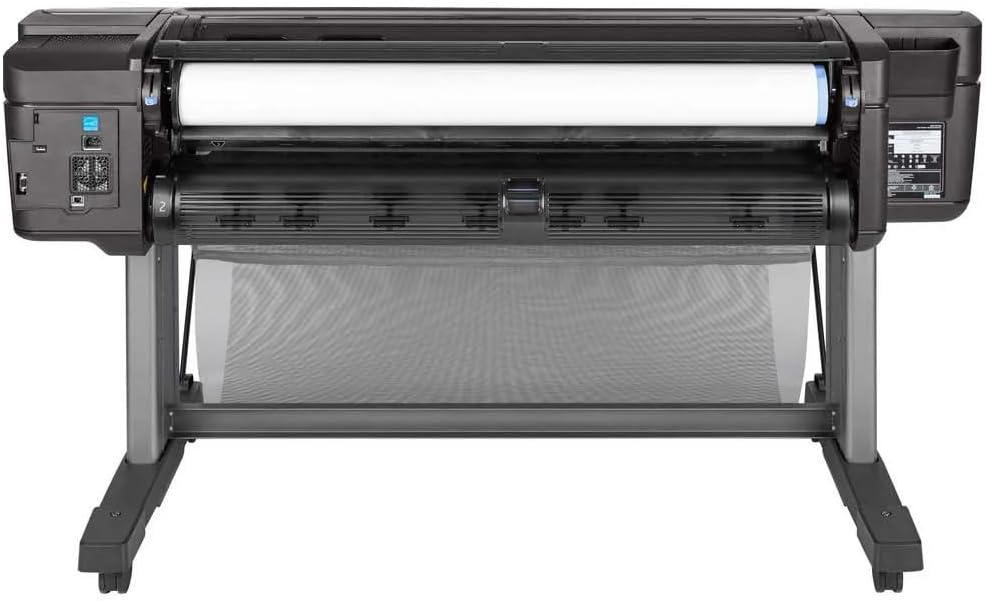
Hình ảnh 3.3: Từ trên xuống view of the printer's media loading bay, illustrating the dual roll capacity and feed mechanism.
3.5 Kết nối mạng và USB
The printer supports Gigabit Ethernet and USB connectivity. Connect the appropriate cable to the printer and your network or computer. For network setup, follow the on-screen prompts on the printer's control panel to configure network settings (IP address, etc.).
3.6 Cài đặt trình điều khiển
Install the latest printer drivers from the official HP webĐịa điểm (www.hp.com/support/designjetZ6) on your computer. Follow the on-screen instructions provided by the installer.
4. Vận hành máy in
4.1 Bảng điều khiển Overview
The printer features an intuitive touchscreen control panel. Use it to navigate menus, check printer status, manage print jobs, and configure settings.
4.2 In tài liệu
- Hãy đảm bảo máy in đã được bật nguồn và kết nối với máy tính hoặc mạng.
- Mở tài liệu bạn muốn in trên máy tính.
- Lựa chọn File > In (hoặc lệnh tương đương trong ứng dụng của bạn).
- Choose the HP DesignJet Z6 printer from the list of available printers.
- Adjust print settings such as paper size, media type, print quality, and color options in the printer driver properties.
- Nhấp chuột In.
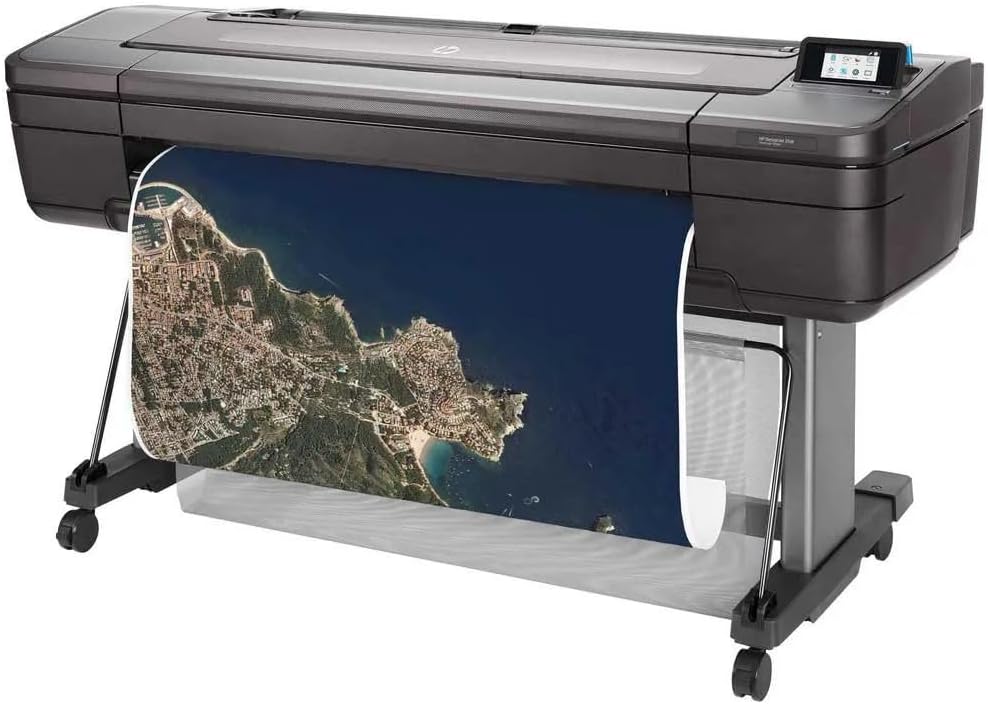
Image 4.1: The HP DesignJet Z6 printer in operation, producing a detailed large-format map print.

Image 4.2: The printer with its media output basket extended, ready to collect finished prints.
4.3 Media Handling
The printer automatically detects the loaded media type and size. Ensure the correct media profile is selected in the print driver for optimal results. The dual-roll system allows for automatic switching between rolls when one runs out or a different media type is required.
5. Bảo trì
Bảo trì thường xuyên đảm bảo chất lượng in ổn định và kéo dài tuổi thọ máy in của bạn.
5.1 Thay thế hộp mực
When an ink cartridge is low or empty, the printer's control panel will display a notification. To replace:
- Mở cửa tiếp cận hộp mực.
- Nhấn vào hộp mực rỗng để tháo ra, sau đó kéo nó ra ngoài.
- Unpack a new genuine HP ink cartridge.
- Lắp hộp mực mới vào đúng khe cắm cho đến khi nghe tiếng tách.
- Đóng cửa ra vào.
5.2 Bảo dưỡng đầu in
The printer performs automatic printhead maintenance. If print quality issues arise (e.g., streaks, missing lines), you can initiate a printhead cleaning or alignment cycle from the control panel's maintenance menu.
5.3 Quy trình làm sạch
- Bên ngoài: Lau các bề mặt bên ngoài bằng giẻ mềm, dampDùng khăn không xơ vải. Không sử dụng chất tẩy rửa có tính ăn mòn hoặc dung môi.
- Media Path: Periodically inspect the media path for dust or debris. Refer to the printer's control panel or online support for specific instructions on cleaning the media path if necessary.
5.4 cập nhật chương trình cơ sở
Regularly check for and install firmware updates from the HP website. Firmware updates can improve performance, add features, and resolve issues.
KHAI THÁC. Xử lý sự cố
Phần này đề cập đến các sự cố thường gặp mà bạn có thể gặp phải. Để được hỗ trợ khắc phục sự cố chi tiết hơn, vui lòng tham khảo bộ phận hỗ trợ của HP. webđịa điểm.
6.1 Các vấn đề về chất lượng in
- Streaks or Faded Colors: Check ink levels. Perform a printhead cleaning cycle from the control panel. Ensure the correct media type is selected in the print driver.
- Màu sắc không chính xác: Verify color settings in the print driver. Ensure you are using genuine HP ink cartridges.
- Grainy Prints: Select a higher print quality setting in the print driver. Use appropriate media for high-resolution printing.
6.2 Các vấn đề kết nối
- Không tìm thấy máy in: Check all cable connections (USB or Ethernet). Restart the printer and your computer/network device. Verify network settings on the printer's control panel.
- Print Jobs Not Sending: Ensure printer drivers are correctly installed and updated. Check the print queue for stalled jobs.
6.3 Media Handling Errors
- Kẹt giấy: Follow the on-screen instructions on the control panel to clear any jammed media. Always pull jammed media in the direction of the paper path to avoid damage.
- Media Not Loading: Ensure the roll is correctly seated on the spindle and inserted into the printer. Check that the leading edge is fed properly.
7. Thông số kỹ thuật
| Tính năng | Đặc điểm kỹ thuật |
|---|---|
| Tên mẫu | HP DesignJet Z6 |
| Số hiệu mẫu sản phẩm | T8W16A#B1K |
| Công nghệ in ấn | Inkjet (6-color pigment ink) |
| Độ phân giải in tối đa | 2400 x 1200 dpi được tối ưu hóa |
| Kích thước phương tiện tối đa | 44 inch |
| Kết nối | Gigabit Ethernet, USB |
| Màu mực | Cyan, Magenta, Yellow, Black (plus additional colors for 6-color system) |
| Ổ cứng | 500GB self-encrypting |
| Các loại phương tiện được hỗ trợ | Glossy photo paper, plain paper, various large-format technical documents |
| Kích thước sản phẩm | 71 x 39.3 x 27.4 inch (1803 x 998 x 695 mm) |
| Tính năng đặc biệt | Energy Star certified, PostScript 3, native PDF support, dual-roll support |
8. Bảo hành & Hỗ trợ
8.1 Thông tin bảo hành
This product is a Certified Amazon Renewed Product and comes with the Amazon Renewed Guarantee. For specific warranty terms and conditions, please refer to the documentation provided with your purchase or visit the Amazon Renewed program details page.
For new products, HP typically offers a limited warranty. Please refer to the official HP website or your product documentation for the most current warranty information.
8.2 Hỗ trợ kỹ thuật
For technical assistance, driver downloads, and additional troubleshooting resources, please visit the official HP support webđịa điểm:
- HP DesignJet Z6 Support Page
- You may also find helpful information on the Amazon Renewed support pages for renewed products.
When contacting support, have your printer's model number (Z6) and serial number ready. The serial number is typically located on a label on the back or side of the printer.