1. Giới thiệu
Thank you for choosing the LG 34 Inch UltraWide WQHD Curved Monitor. This manual provides essential information for the safe and efficient use of your new monitor. Please read it thoroughly before operating the device and keep it for future reference.
Nội dung gói
- LG 34 Inch UltraWide Curved Monitor
- Chân đế màn hình (Đế và Cổ)
- Cáp nguồn
- Cáp HDMI
- Cáp DisplayPort
- Cáp USB-C
- Hướng dẫn sử dụng & Thẻ bảo hành
2. Các tính năng chính
- 34-inch WQHD UltraWide Curved Display: Expansive 21:9 screen (3440 x 1440) for enhanced productivity and immersive viewđang.
- HDR Display with 99% sRGB: Delivers vibrant, natural colors and distinct image layers, supporting HDR brightness performance.
- Tốc độ làm mới cao 120Hz: Ensures fluid scrolling and dynamic content for a comfortable visual experience.
- Thời gian phản hồi 5ms (GTG): Provides quick pixel response for smooth motion.
- LG Switch for Multitasking & Eye Care: Enables quick split-screen functionality, customizable layouts, and Reader Mode to reduce eye strain.
- Chân đế có thể điều chỉnh: Supports height, tilt, and swivel adjustments for optimal viewgóc nghiêng.
- Loa tích hợp: Âm thanh tích hợp mang lại sự tiện lợi.
- Nhiều tùy chọn kết nối: Includes DisplayPort and HDMI inputs.
3. Thiết lập
3.1 Lắp ráp chân đế
Carefully remove the monitor and stand components from the packaging. Follow the instructions below to attach the stand to the monitor.
- Đặt màn hình úp xuống bề mặt mềm, sạch để tránh trầy xước.
- Gắn phần cổ của chân đế vào mặt sau của màn hình. Đảm bảo nó khớp chắc chắn vào vị trí.
- Attach the stand base to the bottom of the stand neck. Tighten the screw(s) firmly to secure the base.
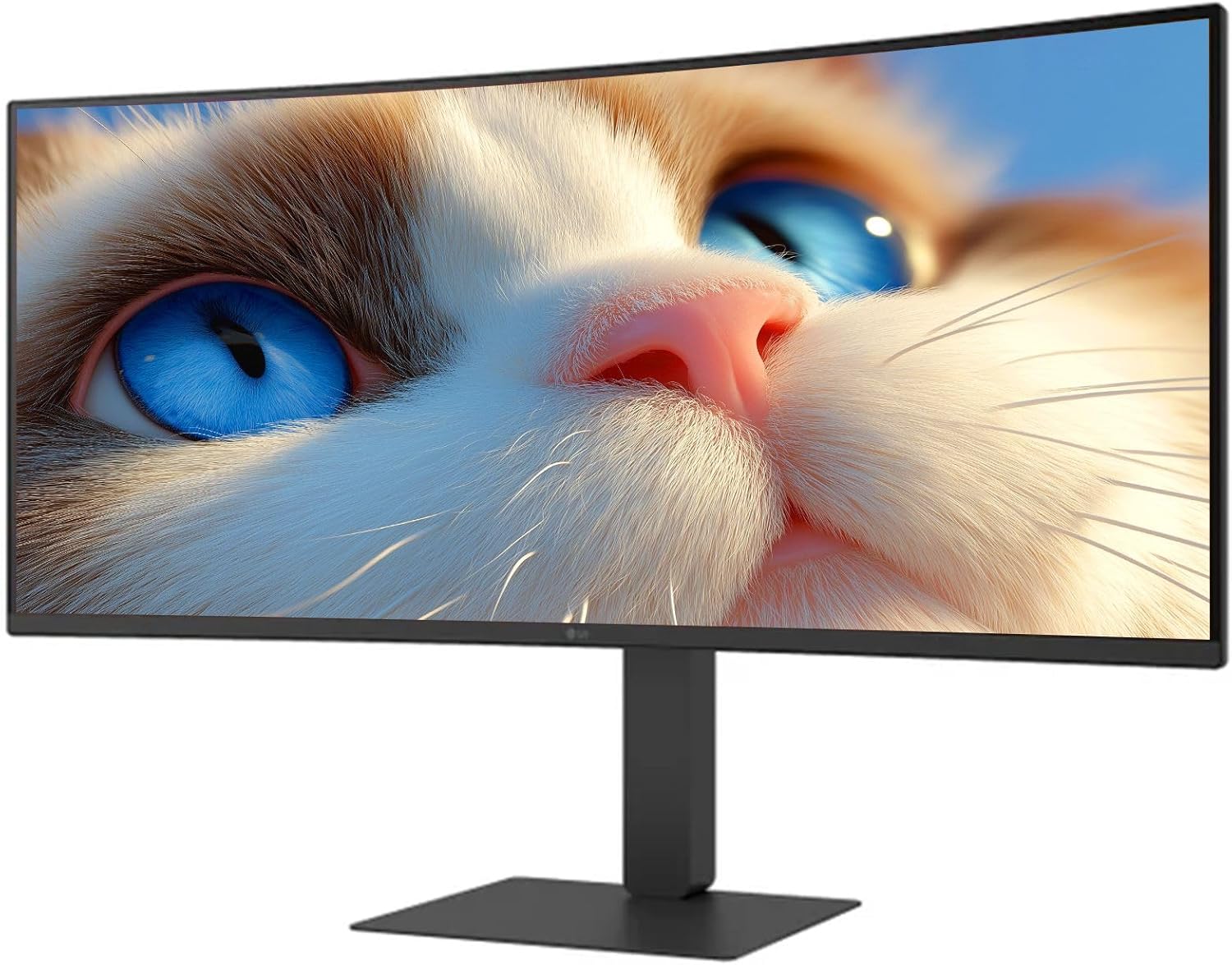
Hình 1: Mặt trước view of the LG 34 Inch UltraWide Curved Monitor with stand.

Hình 2: Mặt bên view of the LG 34 Inch UltraWide Curved Monitor with stand.
3.2 Kết nối màn hình
Kết nối màn hình với máy tính của bạn hoặc các thiết bị khác bằng cáp thích hợp.
- Kết nối cáp nguồn với đầu vào nguồn của màn hình và sau đó kết nối với ổ cắm điện.
- For video input, connect either an HDMI cable or a DisplayPort cable from your computer's graphics card to the corresponding port on the monitor.
- If your computer supports USB-C, you can use the provided USB-C cable for video, audio, and data transfer.

Hình 3: Phía sau view of the monitor showing available ports for connectivity.
4. Sử dụng màn hình
4.1 Bật/Tắt nguồn
Press the power button, usually located on the bottom center of the monitor, to turn the monitor on or off. The power indicator light will illuminate when the monitor is on.
4.2 Menu Hiển thị trên màn hình (OSD)
The OSD menu allows you to adjust various monitor settings. Use the joystick button (typically located on the bottom center) to navigate the menu.
- Chế độ hình ảnh: Select from various preset modes (e.g., Custom, Reader, HDR Effect) or customize settings like brightness, contrast, and sharpness.
- Đầu vào: Manually select the input source (HDMI, DisplayPort, USB-C).
- Tổng quan: Access settings for language, OSD transparency, and power-saving options.
4.3 Điều chỉnh chân đế
The monitor stand offers ergonomic adjustments for your comfort:
- Điều chỉnh chiều cao: Nhẹ nhàng đẩy hoặc kéo màn hình lên hoặc xuống đến độ cao mong muốn.
- Điều chỉnh độ nghiêng: Hold both sides of the monitor and tilt it forwards or backwards.
- Điều chỉnh xoay: Xoay màn hình sang trái hoặc phải trên đế của nó.
5. Bảo trì
5.1 Vệ sinh màn hình
Để đảm bảo tuổi thọ và hiệu suất tối ưu của màn hình, hãy làm theo các hướng dẫn vệ sinh sau:
- Luôn rút phích cắm màn hình ra khỏi ổ cắm điện trước khi vệ sinh.
- Sử dụng một miếng vải mềm, không xơ vải lau nhẹampđược làm sạch bằng nước hoặc chất tẩy rửa màn hình chuyên dụng.
- Không xịt chất tẩy rửa trực tiếp lên màn hình.
- Tránh sử dụng chất tẩy rửa có tính mài mòn, dung môi hoặc các sản phẩm có chứa amoniac.
KHAI THÁC. Xử lý sự cố
Nếu bạn gặp sự cố với màn hình, hãy tham khảo các giải pháp phổ biến sau:
- Không có điện: Đảm bảo cáp nguồn được kết nối chắc chắn với cả màn hình và ổ cắm điện. Kiểm tra xem ổ cắm điện có hoạt động không.
- Không có tín hiệu: Verify that the video cable (HDMI, DisplayPort, or USB-C) is correctly connected to both the monitor and your computer. Ensure the correct input source is selected in the OSD menu.
- Màn hình nhấp nháy: Check the video cable connection. Try adjusting the refresh rate in your computer's display settings.
- Biến dạng hình ảnh: Reset the monitor to factory settings via the OSD menu. Ensure your computer's display resolution matches the monitor's native resolution (3440 x 1440).
- Không có âm thanh phát ra từ loa tích hợp: Kiểm tra cài đặt âm lượng trên cả màn hình và máy tính của bạn. Đảm bảo đầu ra âm thanh được định tuyến chính xác đến màn hình.
If the problem persists after trying these steps, please contact LG customer support.
7. Thông số kỹ thuật
| Tính năng | Đặc điểm kỹ thuật |
|---|---|
| Thương hiệu | LG |
| Số hiệu mẫu | 195174134092 |
| Kích thước màn hình | 34 inch |
| Độ phân giải tối đa | WQHD (3440 x 1440) |
| Tốc độ làm mới | 120Hz |
| Thời gian phản hồi | 5ms (GTG) |
| Tỷ lệ khung hình | 21:9 |
| Gam màu | sRGB 99% |
| Hỗ trợ HDR | HDR10 |
| Viewgóc ing | 178 degrees (R/L), 178 degrees (U/D) |
| Đầu nối màn hình | 1x HDMI, 1x DisplayPort |
| Eye Relief Features | Low blue light, Flicker-free, Anti-glare, Reader Mode |
| Loa tích hợp | Đúng |
| Kích thước sản phẩm (có chân đế) | 8.7"D x 32.1"W x 19.2"H |
| Trọng lượng sản phẩm (có chân đế) | 16.8 Bảng Anh |
8. Bảo hành và Hỗ trợ
Your LG 34 Inch UltraWide Curved Monitor comes with a standard manufacturer's warranty. Please refer to the warranty card included in your package for detailed terms and conditions.
For technical support, service, or further inquiries, please visit the official LG website or contact their customer service hotline. Keep your purchase receipt and product serial number (located on the back of the monitor) handy when contacting support.