1. Giới thiệu
This manual provides essential information for the setup, operation, and maintenance of your HP Z2 G1i Workstation. Designed for technical and creative professionals, this workstation delivers high performance for demanding workloads. Please read this manual thoroughly before using your device.
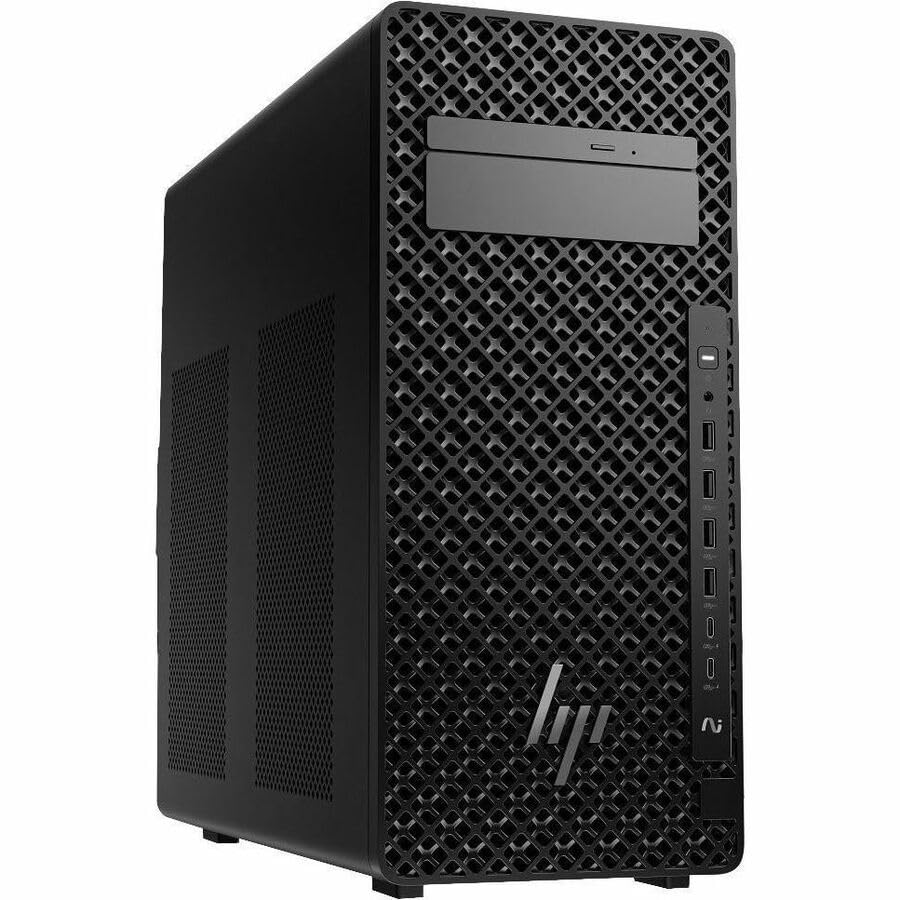
Figure 1.1: HP Z2 G1i Workstation in a professional setting, demonstrating its use for demanding tasks.
2. Có gì trong hộp
Xác minh rằng tất cả các thành phần đều có trong bao bì:
- Z2 Tower G1i Workstation Desktop PC Wolf Pro Security Edition
- HP 320K Wired Keyboard
- Chuột HP có dây 320M
3. Hướng dẫn thiết lập
3.1 Giải nén và đặt
Carefully remove the workstation and its accessories from the packaging. Place the workstation on a stable, flat surface with adequate ventilation to prevent overheating. Ensure no vents are obstructed.
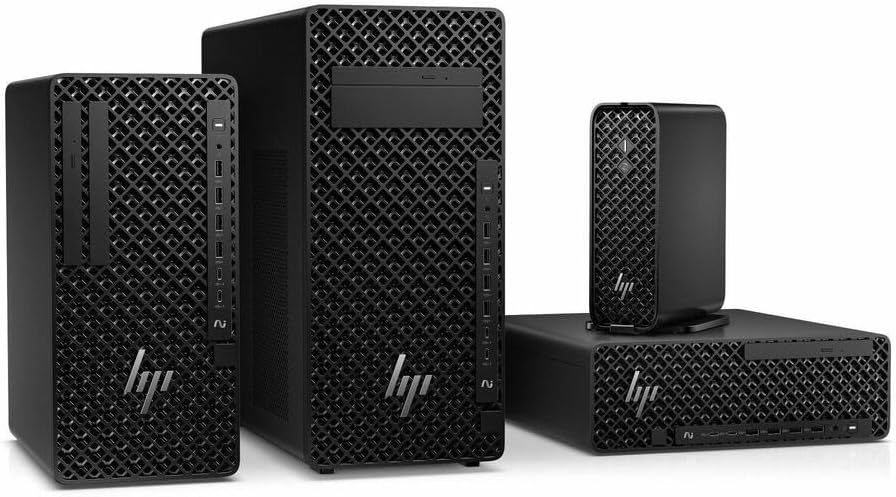
Hình 3.1: Mặt trước view of the HP Z2 G1i Workstation tower, showing its design and front panel ports.
3.2 Kết nối thiết bị ngoại vi
- Màn hình: Connect your monitor(s) to the appropriate video output ports (e.g., DisplayPort, HDMI) on the rear of the workstation.
- Bàn phím và chuột: Connect the supplied HP 320K Wired Keyboard and HP Wired 320M Mouse to the available USB ports.
- Mạng: Connect an Ethernet cable to the RJ-45 port for wired network access, or configure Wi-Fi after initial setup.
- Quyền lực: Kết nối dây nguồn với đầu vào nguồn của máy trạm, sau đó kết nối với ổ cắm điện có nối đất.

Hình 3.2: Phía sau view of the workstation, highlighting the various connectivity ports for peripherals and power.
3.3 Bật nguồn ban đầu
Press the power button on the front of the workstation. The system will boot into Windows 11 Pro. Follow the on-screen instructions to complete the initial operating system setup, including user account creation and network configuration.
4. Vận hành máy trạm
4.1 Hoạt động cơ bản
Your HP Z2 G1i Workstation comes pre-installed with Windows 11 Pro. Utilize the familiar Windows interface for launching applications, managing files, and accessing system settings. The Intel Core Ultra 5 processor and NVIDIA RTX A400 graphics card provide robust performance for demanding software.
4.2 Cài đặt phần mềm
Install necessary software applications for your professional tasks. Ensure that all software is compatible with Windows 11 Pro and meets the system requirements for optimal performance. Always download software from trusted sources.
4.3 Hiệu suất hệ thống
For optimal performance, regularly check for and install updates for Windows, drivers (especially graphics drivers), and your professional applications. Close unnecessary programs to free up system resources when running intensive tasks.
5. Bảo trì
5.1 Vệ sinh
To maintain proper airflow and prevent dust buildup, regularly clean the exterior of the workstation with a soft, dry cloth. Use compressed air to gently clear dust from vents and fan openings. Không được use liquid cleaners directly on the components.
5.2 Cập nhật phần mềm
Keep your operating system and all installed software up to date. This ensures security patches, performance improvements, and compatibility with new applications. Windows Update can be accessed via the Settings menu.
5.3 Sao lưu dữ liệu
Regularly back up your important data to an external drive or cloud storage. This protects against data loss due to hardware failure, software corruption, or other unforeseen events.
KHAI THÁC. Xử lý sự cố
This section addresses common issues you might encounter with your HP Z2 G1i Workstation.
6.1 Không có điện
- Đảm bảo dây nguồn được kết nối chắc chắn với cả máy trạm và ổ cắm điện đang hoạt động.
- Kiểm tra ổ cắm điện có hoạt động không bằng cách cắm thiết bị khác.
- Check the power supply unit (PSU) indicator light, if available.
6.2 Không hiển thị trên màn hình
- Confirm the monitor is powered on and its video cable is securely connected to the workstation.
- Try connecting the monitor to a different video port on the workstation, if available.
- Test the monitor with another computer or device to rule out monitor issues.
6.3 Hệ thống hoạt động chậm lại
- Đóng các ứng dụng không cần thiết đang chạy ẩn.
- Check Task Manager (Ctrl+Shift+Esc) for processes consuming high CPU, RAM, or disk resources.
- Hãy đảm bảo hệ điều hành và trình điều khiển của bạn được cập nhật lên phiên bản mới nhất.
- Chạy quét hệ thống để tìm phần mềm độc hại hoặc vi-rút.
Đối với các vấn đề phức tạp hơn, vui lòng liên hệ bộ phận hỗ trợ của HP. webtrang web hoặc liên hệ với dịch vụ khách hàng.
7. Thông số kỹ thuật
Detailed technical specifications for the HP Z2 G1i Workstation (Model: BN5J2UT#ABA).
| Tính năng | Đặc điểm kỹ thuật |
|---|---|
| Nhà sản xuất bộ xử lý | Trí tuệ |
| Loại bộ xử lý | Core Ultra 5 |
| Mô hình bộ xử lý | 235 |
| Lõi bộ xử lý | Tetradeca-core (14 Core) |
| Tốc độ xử lý | 4.4 GHz |
| ĐẬP | 16GB DDR5 |
| Ổ cứng | Ổ cứng thể rắn 512 GB |
| Bộ đồng xử lý đồ họa | NVIDIA RTX A400 |
| Kích thước RAM của card đồ họa | 4GB |
| Hệ điều hành | Windows 11 Pro |
| Trọng lượng sản phẩm | 15 pound |
| Kích thước sản phẩm (DxRxC) | 12 x 23.23 x 20 inch |
| Màu sắc | Đen |
| Được hỗ trợ bởi AI | Đúng |
8. Bảo hành và Hỗ trợ
8.1 Bảo hành sản phẩm
Your HP Z2 G1i Workstation is covered by a standard manufacturer's warranty. For specific terms and conditions, please refer to the warranty documentation included with your product or visit the official HP support webtrang web. Giữ lại bằng chứng mua hàng để yêu cầu bảo hành.
8.2 Hỗ trợ kỹ thuật
For technical assistance, driver downloads, and additional resources, please visit the official Hỗ trợ HP Webđịa điểm. You can also find contact information for customer service and support channels there.