Giới thiệu
The Linksys 5G AX1800 Mobile Hotspot is a portable device designed to provide high-speed 5G and WiFi 6 connectivity for multiple devices. With its ultra-thin design and long battery capacity, it allows you to stay connected on the go. This manual provides essential information for the proper setup, operation, maintenance, and troubleshooting of your mobile hotspot.
Các tính năng chính bao gồm:
- Portable 5G supersonic speed and bandwidth.
- WiFi 6 speeds up to 1.8 Gbps (AX1800).
- Supports connection for 15+ devices simultaneously.
- Ultra-thin and lightweight design for maximum convenience.
- Pin lâu dài để sử dụng lâu dài.
- Powered by leading-edge 5G technology by Qualcomm.
Hình 1: Mặt trước view of the Linksys 5G AX1800 Mobile Hotspot, showing LED indicators for battery, 5G/LTE, and Wi-Fi status.
Cài đặt
1. Lắp thẻ SIM
The Linksys 5G AX1800 Mobile Hotspot requires a Nano-SIM card for 5G/LTE connectivity. Ensure the device is powered off before inserting the SIM card.
- Tìm nắp đậy khe cắm SIM ở cạnh bên của thiết bị.
- Nhẹ nhàng mở nắp.
- Insert the Nano-SIM card into the slot with the gold contacts facing down and the notched corner aligned correctly.
- Đóng chặt nắp khe cắm thẻ SIM.

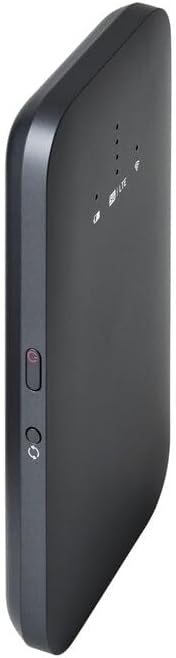
Hình 2: Mặt bên view of the mobile hotspot, highlighting the SIM card slot cover.
2. Sạc thiết bị
Before first use, fully charge the mobile hotspot. Use the provided charging cable and a compatible USB power adapter.
- Connect one end of the USB cable to the charging port on the device.
- Kết nối đầu còn lại với bộ chuyển đổi nguồn USB hoặc cổng USB của máy tính.
- The battery indicator LED will show charging status. Allow several hours for a full charge.

Hình 3: Dưới cùng view of the mobile hotspot, showing the USB-C charging port.
3. Bật/Tắt nguồn
To power on the device, press and hold the power button located on the side until the LED indicators light up. To power off, press and hold the power button again until the indicators turn off.

Hình 4: Mặt bên view of the mobile hotspot, indicating the location of the power button.
Hướng dẫn sử dụng
1. Kết nối thiết bị với Wi-Fi
Once powered on, the mobile hotspot will broadcast a Wi-Fi network. You can connect up to 15+ devices simultaneously.
- Trên thiết bị của bạn (điện thoại thông minh, máy tính xách tay, máy tính bảng), hãy mở cài đặt Wi-Fi.
- Tìm kiếm mạng Wi-Fi khả dụng.
- Select the network name (SSID) of your Linksys Mobile Hotspot. The default SSID and password are usually found on a sticker inside the device or on its packaging.
- Nhập mật khẩu Wi-Fi khi được nhắc.
- Your device should now be connected to the internet via the mobile hotspot.
2. Tìm hiểu về đèn LED chỉ thị
The LED indicators on the front of the device provide important status information:
- Chỉ báo pin: Hiển thị mức pin hiện tại và trạng thái sạc.
- 5G/LTE Indicator: Indicates the mobile network connection status (e.g., solid blue for 5G, solid green for LTE, blinking for searching).
- Chỉ báo Wi-Fi: Shows if the Wi-Fi network is active and broadcasting.
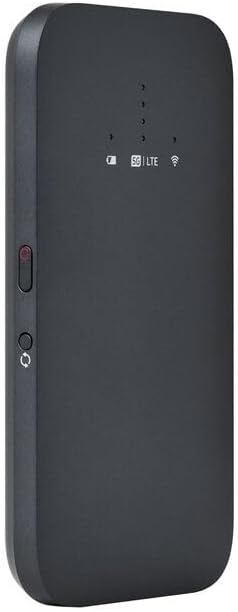
Hình 5: Mặt trước góc cạnh view of the mobile hotspot, clearly showing the LED indicators for battery, 5G/LTE, and Wi-Fi.
3. truy cập vào Web Giao diện quản lý
For advanced settings, such as changing the Wi-Fi name or password, managing connected devices, or checking data usage, you can access the device's web giao diện quản lý.
- Ensure your device is connected to the mobile hotspot's Wi-Fi network.
- Mở một web trình duyệt (ví dụ: Chrome, Firefox, Safari).
- Enter the default IP address for the hotspot (usually
192.168.1.1or192.168.0.1, refer to the device's documentation or sticker for the exact address) into the address bar and press Enter. - Log in using the default username and password (also found on the device sticker or documentation). It is highly recommended to change the default password for security.
BẢO TRÌ
1. Chăm sóc pin
- Tránh để thiết bị tiếp xúc với nhiệt độ quá cao.
- Không nên để thiết bị hết pin hoàn toàn trong thời gian dài.
- Chỉ sử dụng phụ kiện sạc chính hãng hoặc phụ kiện tương thích đã được chứng nhận.
2. Vệ sinh
Wipe the device with a soft, dry, lint-free cloth. Do not use liquid cleaners or aerosols directly on the device.
3. Cập nhật chương trình cơ sở
Kiểm tra định kỳ các bản cập nhật chương trình cơ sở thông qua web management interface. Keeping the firmware updated ensures optimal performance and security.
Xử lý sự cố
Không có kết nối Internet
- Đảm bảo thẻ SIM được lắp đúng cách và kích hoạt bằng gói dữ liệu.
- Check the 5G/LTE indicator on the device. If it's blinking or off, the device may be searching for a network or have no signal.
- Restart the mobile hotspot and your connected device.
- Verify that your data plan has not been exhausted.
Tốc độ Wi-Fi chậm
- Move closer to the mobile hotspot to improve signal strength.
- Reduce the number of connected devices or data-intensive activities.
- Kiểm tra tình trạng tắc nghẽn mạng ở khu vực của bạn.
Device Not Connecting to Hotspot
- Ensure the Wi-Fi indicator on the hotspot is active.
- Kiểm tra lại mật khẩu Wi-Fi.
- Khởi động lại cả điểm phát Wi-Fi và thiết bị bạn đang cố gắng kết nối.
Khôi phục cài đặt gốc
If issues persist, you may perform a factory reset. This will revert all settings to their default values, including Wi-Fi name and password. Refer to the device's specific instructions for the reset procedure, usually involving a small reset button.
Thông số kỹ thuật
| Tính năng | Chi tiết |
|---|---|
| Thương hiệu | Linksys |
| Tên mẫu | FGHSAX1800 |
| Số hiệu mẫu sản phẩm | FGHSAX1800-AH |
| Công nghệ kết nối | 5G |
| Wi-Fi tiêu chuẩn | WiFi 6 (AX1800) |
| Tốc độ truyền dữ liệu | Tốc độ lên đến 1.8 gigabit mỗi giây |
| Lớp băng tần | Băng tần kép |
| Loại Ăng-ten | Nội bộ |
| Tính năng đặc biệt | Chế độ điểm truy cập |
| Các thành phần bao gồm | KHOẢN THẺ SIM |
| Tậptage | 12 vôn |
| Kích thước gói hàng | 14 x 7.5 x 1.55cm |
| Trọng lượng sản phẩm | 185 gam |
Bảo hành và Hỗ trợ
For warranty information and technical support, please refer to the warranty card included with your product or visit the official Linksys support website. You can typically find FAQs, driver downloads, and contact information for customer service there.
Linksys Official Support: https://www.linksys.com/support


