1. Kết thúcview
The Aerocool Cylon RGB Midi-Tower PC Case, model ACCM-PV10012.11, is designed to house computer components, offering both functionality and aesthetic appeal. It features a side window panel for showcasing internal hardware and an RGB LED illumination strip on the front panel for customizable lighting effects. This case supports ATX motherboards and provides ample space for various components, including multiple storage drives and cooling solutions.

Hình 1: Mặt trước view of the Aerocool Cylon RGB Midi-Tower PC Case, highlighting its distinctive RGB LED strip.
2. Nội dung gói hàng
Vui lòng kiểm tra xem tất cả các mục có trong gói hàng không:
- Aerocool Cylon RGB Midi-Tower PC Case (ACCM-PV10012.11)
- Hộp phụ kiện (chứa ốc vít, trụ đỡ, dây buộc cáp, v.v.)
- Hướng dẫn sử dụng (tài liệu này)
3. Thông tin an toàn
Read and understand all safety instructions before installing or operating the PC case. Failure to do so may result in injury or damage to the product.
- Always disconnect the power supply from the wall outlet before performing any installation or maintenance.
- Hãy xử lý tất cả các bộ phận một cách cẩn thận để tránh hư hỏng.
- Avoid touching electronic components directly; use anti-static precautions if possible.
- Để các bộ phận nhỏ và phụ kiện ngoài tầm với của trẻ em.
- Đảm bảo thông gió thích hợp xung quanh vỏ máy để tránh quá nhiệt.
4. Thiết lập và Cài đặt
4.1 Chuẩn bị hồ sơ
Before installing components, remove the side panels to access the interior of the case.
- Đặt hộp đựng lên một bề mặt phẳng và chắc chắn.
- Locate the thumbscrews on the rear of the case securing the side panel.
- Unscrew the thumbscrews and carefully slide the side panel backward, then lift it off. Repeat for the other side panel if necessary.
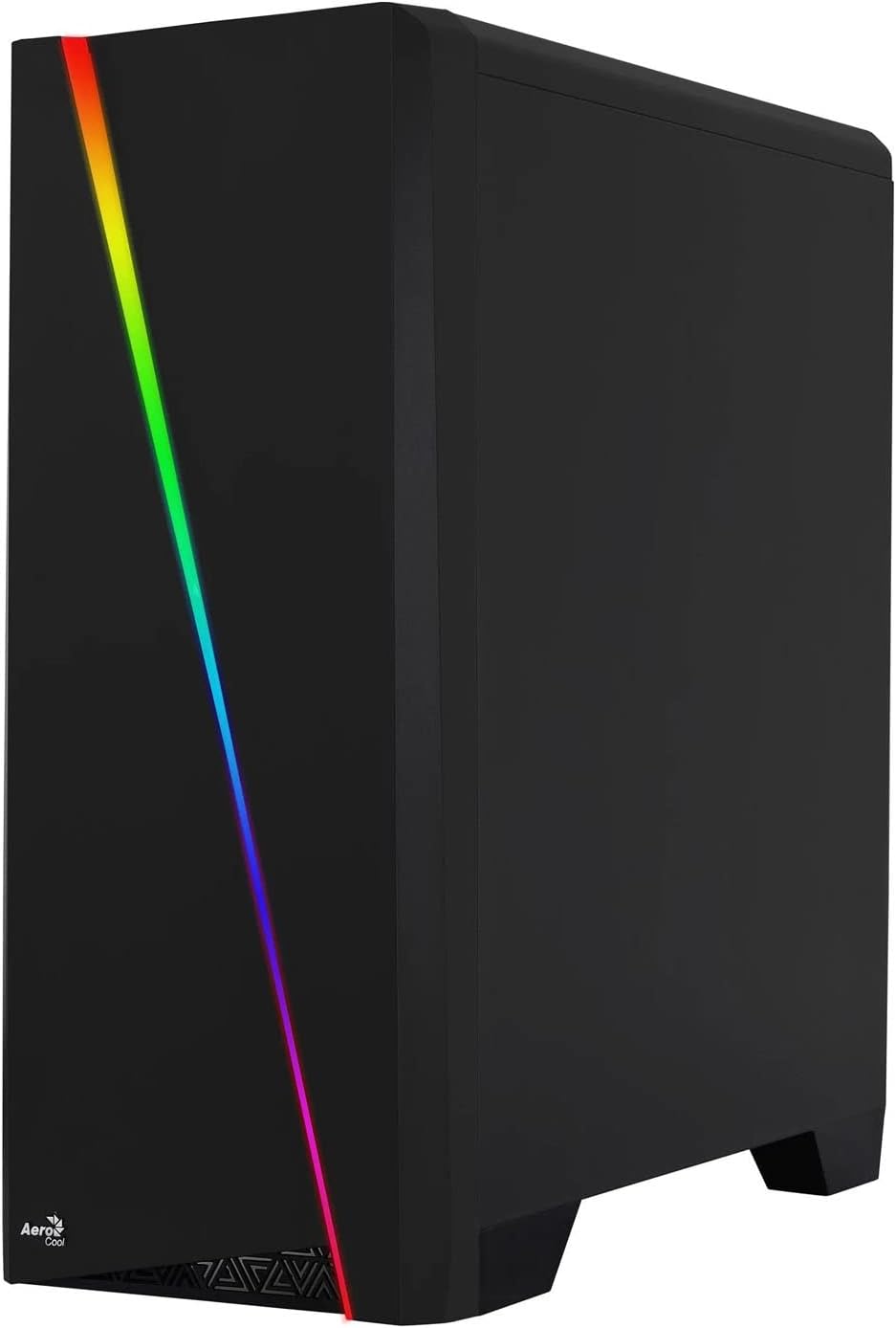

Figure 2: Left image shows the side panel attached, right image shows the side panel removed for access.
4.2 Cài đặt bo mạch chủ
The Aerocool Cylon case supports ATX motherboards.
- Install the I/O shield that came with your motherboard into the opening at the rear of the case.
- Ensure motherboard standoffs are correctly aligned with your motherboard's screw holes. Install any missing standoffs from the accessory box.
- Cẩn thận đặt bo mạch chủ lên các trụ đỡ, căn chỉnh các lỗ vít.
- Cố định bo mạch chủ bằng các ốc vít phù hợp có trong hộp phụ kiện.
4.3 Drive Installation (2.5" / 3.5")
The case provides bays for 2.5-inch and 3.5-inch drives.
- Locate the drive bays within the case. Refer to the case diagram for specific locations.
- For 3.5-inch HDDs, slide the drive into the designated tray or bay and secure it with screws.
- For 2.5-inch SSDs, mount the drive onto the designated bracket or tray and secure it with screws.
4.4 Lắp đặt Bộ cấp nguồn (PSU)
The PSU is typically mounted at the bottom rear of the case.
- Trượt bộ nguồn vào ngăn chứa được chỉ định từ phía sau thùng máy.
- Align the PSU's screw holes with those on the case.
- Cố định bộ nguồn bằng các ốc vít được cung cấp.
4.5 Lắp đặt card mở rộng (GPU)
Install your graphics card or other expansion cards into the PCIe slots.
- Remove the necessary PCI-E slot covers from the rear of the case corresponding to your expansion card's size.
- Carefully insert the expansion card into the appropriate PCI-E slot on the motherboard until it clicks into place.
- Secure the expansion card with screws.

Hình 3: Phía sau view of the PC case, showing the expansion slots and I/O area.
4.6 Fan / Liquid Cooling Radiator Installation
The Aerocool Cylon case supports various cooling configurations.
- Ở phía sau: 1 x 120mm fan (pre-installed or optional).
- Đứng đầu: Supports 2 x 120mm fans or 1 x 240mm radiator.
- Đáy: Hỗ trợ 2 quạt 120mm.
- Mount fans or radiators to their respective positions using the appropriate screws.
- Connect fan power cables to the motherboard or a fan controller.

Figure 4: An interior shot of the case, illustrating potential fan and liquid cooling radiator placements.
4.7 Quản lý cáp
Effective cable management improves airflow and aesthetics.
- Route cables through the cutouts and behind the motherboard tray.
- Use cable ties (included in the accessory box) to bundle and secure cables.
4.8 Kết nối các cổng I/O mặt trước
Connect the front panel cables to the corresponding headers on your motherboard.
- USB 3.0: Kết nối cáp USB 3.0 vào đầu cắm USB 3.0 trên bo mạch chủ.
- USB 2.0: Connect the USB 2.0 cables (x2) to the motherboard's USB 2.0 headers.
- Âm thanh HD: Kết nối cáp âm thanh HD vào đầu cắm âm thanh trên bo mạch chủ.
- Nguồn/Khởi động lại/Đèn LED: Connect the small individual cables (Power SW, Reset SW, HDD LED, Power LED) to the motherboard's front panel headers according to your motherboard manual.
5. Vận hành vỏ máy tính
Once all components are installed and connected, reattach the side panels and power on your system.
- Bật nguồn: Nhấn nút nguồn nằm ở bảng I/O phía trên của vỏ máy.
- Điều khiển ánh sáng RGB: The front panel RGB LED illumination can be controlled via a dedicated button on the top I/O panel or through compatible motherboard software, depending on your setup. Refer to your motherboard manual for software control options.
6. Bảo trì
Bảo trì thường xuyên giúp đảm bảo hiệu suất tối ưu và tuổi thọ của vỏ máy tính và các linh kiện.
- Vệ sinh bộ lọc bụi: The case features dust filters (e.g., on the top and bottom). Regularly remove and clean these filters to prevent dust buildup and maintain good airflow. Use compressed air or a soft brush.
- Vệ sinh chung: Sử dụng một mềm, damp cloth to wipe down the exterior of the case. Avoid abrasive cleaners or solvents. For the transparent side panel, use a microfiber cloth to prevent scratches.
KHAI THÁC. Xử lý sự cố
Nếu bạn gặp sự cố, hãy cân nhắc các bước khắc phục sự cố phổ biến sau:
- Không có điện: Ensure the PSU is properly connected to the wall outlet and the power switch on the PSU is in the 'ON' position. Verify all power cables to the motherboard and components are securely seated.
- Quạt không quay: Check that all fan cables are correctly connected to the motherboard or fan controller. Ensure the system is receiving power.
- Đèn RGB không hoạt động: Confirm RGB cables are properly connected. If using motherboard software, ensure it is installed and configured correctly.
- Kết nối lỏng lẻo: Recheck all internal connections (power, data, front panel I/O) to ensure they are firmly seated.
8. Thông số kỹ thuật
| Tính năng | Đặc điểm kỹ thuật |
|---|---|
| Tên mẫu | ACCM-PV10012.11 |
| Loại trường hợp | Tháp Midi |
| Khả năng tương thích của bo mạch chủ | ATX |
| Kích thước (DxRxC) | 16.26 x 7.8 x 18.07 inch |
| Trọng lượng sản phẩm | 8.36 pound |
| Vật liệu | Acrylic |
| Cổng USB 3.0 | 1 |
| Cổng USB 2.0 | 2 |
| Phương pháp làm mát | Không khí |
| Fan Size (Rear) | 120 milimét |
| Chiếu sáng RGB | Front Panel LED Strip |
9. Thông tin bảo hành
The Aerocool Cylon RGB Midi-Tower PC Case is covered by a manufacturer's warranty. Please refer to the warranty card included with your product or visit the official AeroCool webtrang web cung cấp các điều khoản và điều kiện bảo hành chi tiết, bao gồm thời hạn bảo hành và thủ tục yêu cầu bồi thường.
10. Hỗ trợ
For further assistance, technical support, or to download the latest drivers and software, please visit the official AeroCool webđịa điểm:
Webđịa điểm: www.aerocool.io
You may also contact AeroCool customer service through the contact information provided on their webđịa điểm.


