1. Kirish
Thank you for choosing the LG 34 Inch UltraWide WQHD Curved Monitor. This manual provides essential information for the safe and efficient use of your new monitor. Please read it thoroughly before operating the device and keep it for future reference.
Paket tarkibi
- LG 34 Inch UltraWide Curved Monitor
- Monitor stend (taglik va bo'yin)
- Quvvat kabeli
- HDMI kabeli
- DisplayPort kabeli
- USB-C kabeli
- Foydalanuvchi uchun qo'llanma va kafolat kartasi
2. Asosiy xususiyatlar
- 34-inch WQHD UltraWide Curved Display: Expansive 21:9 screen (3440 x 1440) for enhanced productivity and immersive viewing.
- HDR Display with 99% sRGB: Delivers vibrant, natural colors and distinct image layers, supporting HDR brightness performance.
- 120Hz yuqori yangilanish tezligi: Ensures fluid scrolling and dynamic content for a comfortable visual experience.
- 5ms (GTG) Response Time: Provides quick pixel response for smooth motion.
- LG Switch for Multitasking & Eye Care: Enables quick split-screen functionality, customizable layouts, and Reader Mode to reduce eye strain.
- Sozlanishi stend: Supports height, tilt, and swivel adjustments for optimal viewburchaklar.
- O'rnatilgan dinamiklar: Qulaylik uchun o'rnatilgan audio.
- Bir nechta ulanish imkoniyatlari: Includes DisplayPort and HDMI inputs.
3. Sozlash
3.1 Stendni yig'ish
Carefully remove the monitor and stand components from the packaging. Follow the instructions below to attach the stand to the monitor.
- Chizmalarning oldini olish uchun monitorni yuzini pastga qaratib yumshoq va toza yuzaga qo'ying.
- Stend bo'ynini monitorning orqa paneliga mahkamlang. Uning joyiga mahkam o'rnashganligiga ishonch hosil qiling.
- Attach the stand base to the bottom of the stand neck. Tighten the screw(s) firmly to secure the base.
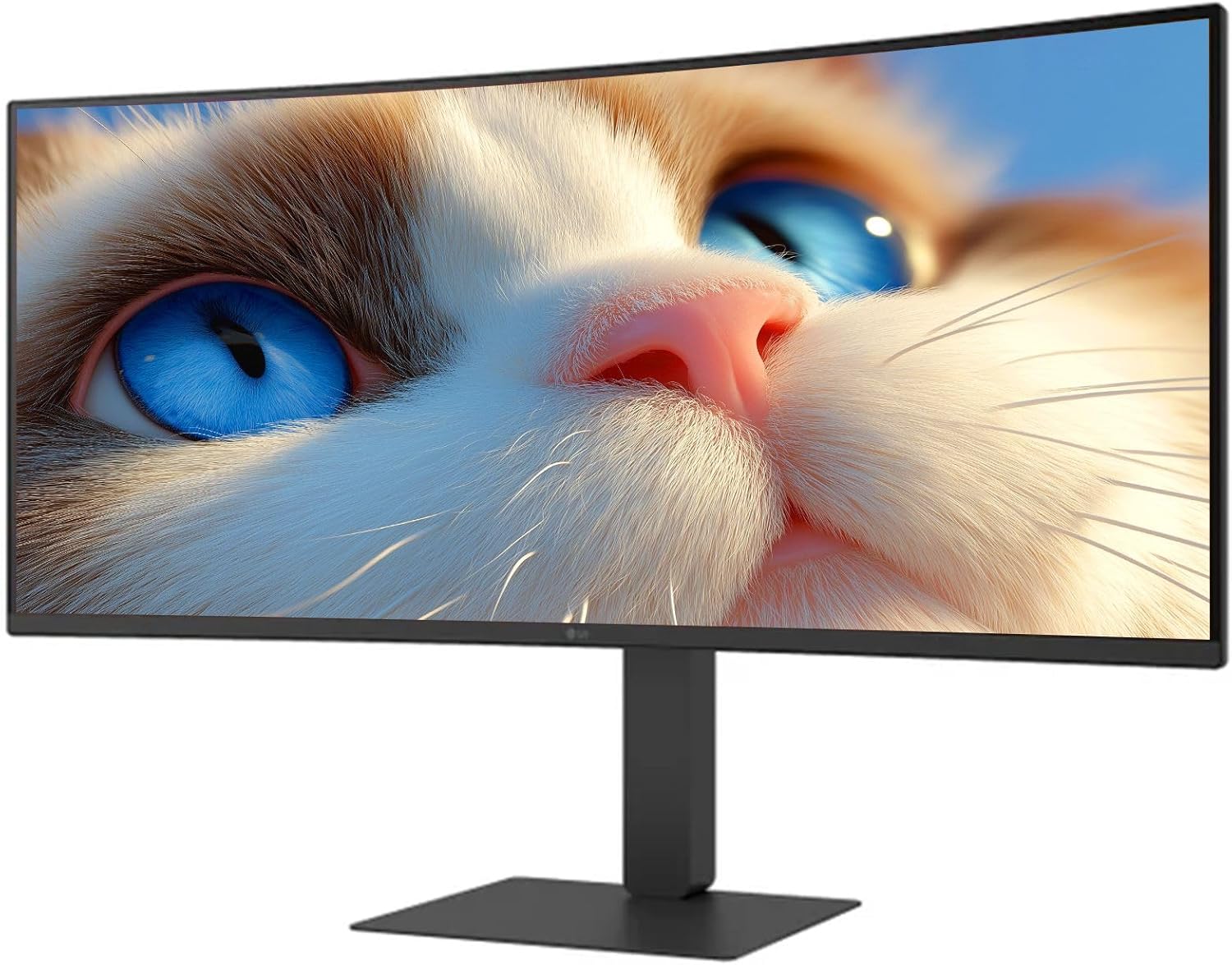
1-rasm: Old view of the LG 34 Inch UltraWide Curved Monitor with stand.

2-rasm: yon view of the LG 34 Inch UltraWide Curved Monitor with stand.
3.2 Monitorni ulash
Tegishli kabellar yordamida monitorni kompyuteringizga yoki boshqa qurilmalarga ulang.
- Quvvat kabelini monitorning quvvat manbaiga, so'ngra quvvat manbaiga ulang.
- For video input, connect either an HDMI cable or a DisplayPort cable from your computer's graphics card to the corresponding port on the monitor.
- If your computer supports USB-C, you can use the provided USB-C cable for video, audio, and data transfer.

3-rasm: orqa view of the monitor showing available ports for connectivity.
4. Monitorni ishlatish
4.1 Quvvatni yoqish/o‘chirish
Press the power button, usually located on the bottom center of the monitor, to turn the monitor on or off. The power indicator light will illuminate when the monitor is on.
4.2 Ekrandagi displey (OSD) menyusi
OSD menyusi sizga turli xil monitor sozlamalarini sozlash imkonini beradi. Menyuda harakatlanish uchun joystik tugmasidan (odatda pastki markazda joylashgan) foydalaning.
- Rasm rejimi: Select from various preset modes (e.g., Custom, Reader, HDR Effect) or customize settings like brightness, contrast, and sharpness.
- Kirish: Manually select the input source (HDMI, DisplayPort, USB-C).
- Umumiy: Access settings for language, OSD transparency, and power-saving options.
4.3 Stendni sozlash
The monitor stand offers ergonomic adjustments for your comfort:
- Balandlikni sozlash: Gently push or pull the monitor up or down to your desired height.
- Nishabni sozlash: Hold both sides of the monitor and tilt it forwards or backwards.
- Burilishni sozlash: Monitorni uning asosida chapga yoki o'ngga aylantiring.
5. Xizmat ko'rsatish
5.1 Monitorni tozalash
Monitoringizning uzoq umr ko'rishi va optimal ishlashini ta'minlash uchun quyidagi tozalash qoidalariga rioya qiling:
- Tozalashdan oldin har doim monitorni elektr rozetkasidan uzing.
- Bir oz yumshoq, tuklarsiz matodan foydalaning dampsuv yoki ixtisoslashtirilgan ekran tozalagich bilan yakunlanadi.
- Tozalash vositasini to'g'ridan-to'g'ri ekranga sepmang.
- Abraziv tozalagichlar, erituvchilar yoki ammiak asosidagi mahsulotlardan foydalanishdan saqlaning.
6. Muammolarni bartaraf qilish; nosozliklarni TUZATISH
Agar siz monitor bilan bog'liq muammolarga duch kelsangiz, quyidagi umumiy echimlarga murojaat qiling:
- Quvvat yo'q: Quvvat kabeli monitorga ham, rozetkaga ham mahkam ulanganligiga ishonch hosil qiling. Elektr rozetkasi ishlayotganligini tekshiring.
- Signal yo'q: Verify that the video cable (HDMI, DisplayPort, or USB-C) is correctly connected to both the monitor and your computer. Ensure the correct input source is selected in the OSD menu.
- Miltillovchi ekran: Check the video cable connection. Try adjusting the refresh rate in your computer's display settings.
- Tasvirning buzilishi: Reset the monitor to factory settings via the OSD menu. Ensure your computer's display resolution matches the monitor's native resolution (3440 x 1440).
- O'rnatilgan karnaylardan ovoz yo'q: Check the volume settings on both the monitor and your computer. Ensure the audio output is correctly routed to the monitor.
If the problem persists after trying these steps, please contact LG customer support.
7. Texnik shartlar
| Xususiyat | Spetsifikatsiya |
|---|---|
| Brend | LG |
| Model raqami | 195174134092 |
| Ekran o'lchami | 34 dyuym |
| Maksimal aniqlik | WQHD (3440 x 1440) |
| Yangilanish tezligi | 120Hz |
| Javob vaqti | 5 ms (GTG) |
| Aspekt nisbati | 21:9 |
| Ranglar gamuti | sRGB 99% |
| HDR qo'llab-quvvatlash | HDR10 |
| Viewburchak | 178 degrees (R/L), 178 degrees (U/D) |
| Displey konnektorlari | 1 x HDMI, 1 x DisplayPort |
| Eye Relief Features | Low blue light, Flicker-free, Anti-glare, Reader Mode |
| O'rnatilgan dinamiklar | Ha |
| Mahsulot o'lchamlari (stend bilan) | 8.7"D x 32.1"W x 19.2"Y |
| Mahsulot og'irligi (stend bilan) | 16.8 funt |
8. Kafolat va qo'llab-quvvatlash
Your LG 34 Inch UltraWide Curved Monitor comes with a standard manufacturer's warranty. Please refer to the warranty card included in your package for detailed terms and conditions.
For technical support, service, or further inquiries, please visit the official LG website or contact their customer service hotline. Keep your purchase receipt and product serial number (located on the back of the monitor) handy when contacting support.