Kirish
This manual provides detailed instructions for the setup, operation, maintenance, and troubleshooting of your AOC E2261FWH 21.5-inch monitor. Please read this manual thoroughly before using your monitor to ensure proper installation and optimal performance.
The AOC E2261FWH monitor features a 21.5-inch display with a narrow screen border, a 50,000,000:1 Dynamic Contrast Ratio, and Clear Vision technology for enhanced image quality. It is designed for energy efficiency with LED backlighting.
1. Sozlash
1.1 Paketni ochish
Carefully remove all components from the packaging. Ensure all items listed in the packing list are present. Retain the packaging materials for future transport or storage.
1.2 Stendni yig'ish
- Chizmalarning oldini olish uchun monitorni yuzini pastga qaratib yumshoq va toza yuzaga qo'ying.
- Stend asosini tayanch bo'yniga ulang, uni taqdim etilgan vint bilan mahkamlang.
- Align the assembled stand with the mounting slot on the back of the monitor and gently push until it clicks into place.
1.3 Ulanish kabellari
Kabellarni ulashdan oldin, monitor va kompyuteringiz o'chirilganligiga ishonch hosil qiling.
- Quvvat kabeli: Quvvat kabelining bir uchini monitorning quvvat manbaiga, ikkinchi uchini esa tuproqli rozetkaga ulang.
- HDMI kabeli: For digital video and audio, connect an HDMI cable from your computer's HDMI output to the monitor's HDMI input.
- VGA kabeli: For analog video, connect a VGA cable from your computer's VGA output to the monitor's VGA input.

1-rasm: Old view of the AOC E2261FWH monitor, showing the display and stand.
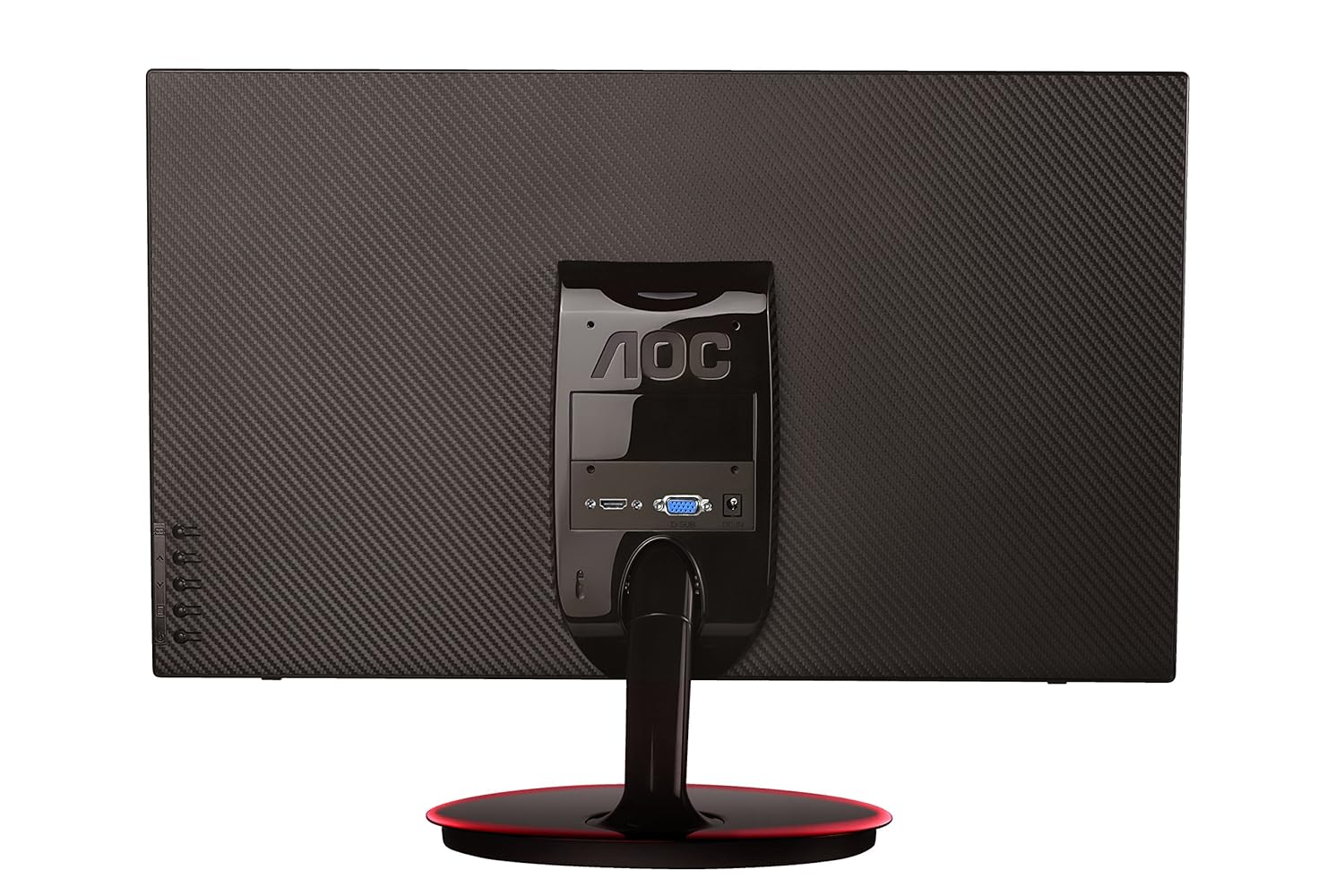
2-rasm: orqa view of the AOC E2261FWH monitor, highlighting the power, HDMI, and VGA input ports.
1.4 Dastlabki yoqish
After connecting all necessary cables, power on your computer, then press the power button on the monitor. The monitor should automatically detect the input signal. If not, you may need to manually select the input source using the OSD menu.
2. Monitorni ishlatish
2.1 Quvvatni yoqish/o‘chirish
Press the power button located on the monitor's bezel to turn the monitor on or off. The power indicator light will illuminate when the monitor is on.
2.2 Ekrandagi displey (OSD) menyusi
The OSD menu allows you to adjust various monitor settings. Use the control buttons (usually located on the bottom right or rear of the monitor) to navigate the menu.
- Menyu tugmasi: OSD menyusini ochadi.
- O'q tugmalari: Menyu parametrlari bo'ylab harakatlaning.
- Enter/Select Button: Tanlovni tasdiqlaydi yoki pastki menyuga kiradi.
- Chiqish tugmasi: Joriy menyu yoki OSD dan chiqadi.
2.3 Sozlamalarni sozlash
Umumiy sozlanishi sozlamalarga quyidagilar kiradi:
- Yorqinlik/kontrast: Umumiy yorqinlikni va yorug'lik va qorong'i joylar orasidagi farqni sozlang.
- Rang sozlamalari: Rang harorati, gamma va individual RGB darajalarini o'zgartiring.
- Kirish tanlash: Manually switch between HDMI and VGA input sources.
- Aniq ko'rish: Enable or disable Clear Vision technology to enhance image clarity for standard definition content.
- Rasm rejimi: Select from preset display modes (e.g., Standard, Text, Internet, Game, Movie, Sports).
3. Xizmat ko'rsatish
3.1 Monitorni tozalash
- Tozalashdan oldin har doim monitorni o'chiring va quvvat simini ajratib oling.
- Yumshoq, tuklarsiz matodan engil foydalaning dampsuv yoki yumshoq, abraziv bo'lmagan ekran tozalagich bilan qoplangan.
- Tozalash vositasini to'g'ridan-to'g'ri ekranga sepmang. Avval matoga qo'llang.
- Benzol, tiner, ammiak asosidagi tozalagichlar yoki abraziv materiallardan foydalanmang, chunki ular ekranga yokiasing.
3.2 Umumiy parvarish
- Monitorni to'g'ridan-to'g'ri quyosh nurlari ostida yoki issiqlik manbalari yaqinida qo'ymang.
- Monitor atrofida yetarli shamollatishni ta'minlang.
- Monitor yoki uning kabellariga og'ir narsalarni qo'ymang.
- Monitorni ortiqcha chang va namlikdan saqlang.
4. Muammolarni bartaraf qilish; nosozliklarni TUZATISH
Agar siz monitor bilan bog'liq muammolarga duch kelsangiz, quyidagi umumiy muammolar va echimlarga murojaat qiling:
| Muammo | Mumkin sabab | Yechim |
|---|---|---|
| Quvvat yo'q | Quvvat kabeli ulanmagan; Elektr rozetkasi nosoz; Monitor o'chirilgan. | Check power cable connections; Try a different outlet; Press the monitor's power button. |
| Signal yo'q | Video kabel ulanmagan; Noto'g'ri tanlangan kirish manbai; Kompyuter yoqilmagan. | Ensure video cable (HDMI/VGA) is securely connected; Select the correct input source via OSD; Power on your computer. |
| Image is Blurry/Distorted | Noto'g'ri rezolyutsiya; Bo'shashgan video kabeli; Monitor sozlamalari. | Set your computer's display resolution to 1920 x 1080; Reconnect the video cable; Adjust OSD settings like phase, clock, brightness, and contrast. |
| Colors are Incorrect | Color settings in OSD; Faulty video cable. | Adjust color settings in the OSD menu; Try a different video cable. |
If the problem persists after trying these solutions, please contact AOC customer support.
5. Texnik shartlar
| Xususiyat | Tafsilot |
|---|---|
| Brend | AOC |
| Model | E2261FWH |
| Ekran o'lchami | 21.5 dyuym |
| Ekran ravshanligi | 1920 x 1080 |
| Aspekt nisbati | 16:9 |
| Javob vaqti | 5 millisekund |
| Dinamik kontrast nisbati | 50,000,000: 1 (odatiy) |
| Kirish portlari | 1 x HDMI, 1 x VGA |
| Frequency Range (H) | 30-83 KHz |
| Frequency Range (V) | 55-76 Gts |
| Quvvat iste'moli | 22 vatt (odatiy) |
| Element og'irligi | 3.51 kg (taxminan) |
6. Kafolat va qo'llab-quvvatlash
6.1 Kafolat haqida ma'lumot
AOC monitors are covered by a limited warranty. For specific warranty terms and conditions applicable to your region, please refer to the warranty card included with your product or visit the official AOC websayt. Kafolat da'volari uchun xarid kvitansiyasini xaridni tasdiqlovchi hujjat sifatida saqlang.
6.2 Mijozlarni qo‘llab-quvvatlash
For technical assistance, product inquiries, or service requests, please contact AOC customer support. You can typically find contact information (phone numbers, email, or support portals) on the official AOC websaytida yoki monitoringiz bilan birga taqdim etilgan hujjatlarda.
AOC Official Websayt: www.aoc.com


