تعارف
This manual provides comprehensive instructions for setting up, operating, and maintaining your BEEPRT BY-480BT Bluetooth Shipping Label Printer. Designed for efficiency and ease of use, this thermal label printer is compatible with various e-commerce platforms and operating systems, making it an ideal solution for shipping packages and managing labels for small businesses.
باکس میں کیا ہے۔
Upon unboxing your BEEPRT BY-480BT printer, please ensure all the following components are present:
- BEEPRT BY-480BT تھرمل لیبل پرنٹر
- USB کیبل
- پاور اڈاپٹر
- لیبل ہولڈر
- کوئیک اسٹارٹ گائیڈ / یوزر مینوئل
- Sample Thermal Labels
- USB-A to USB-C Adapter (for Mac users)
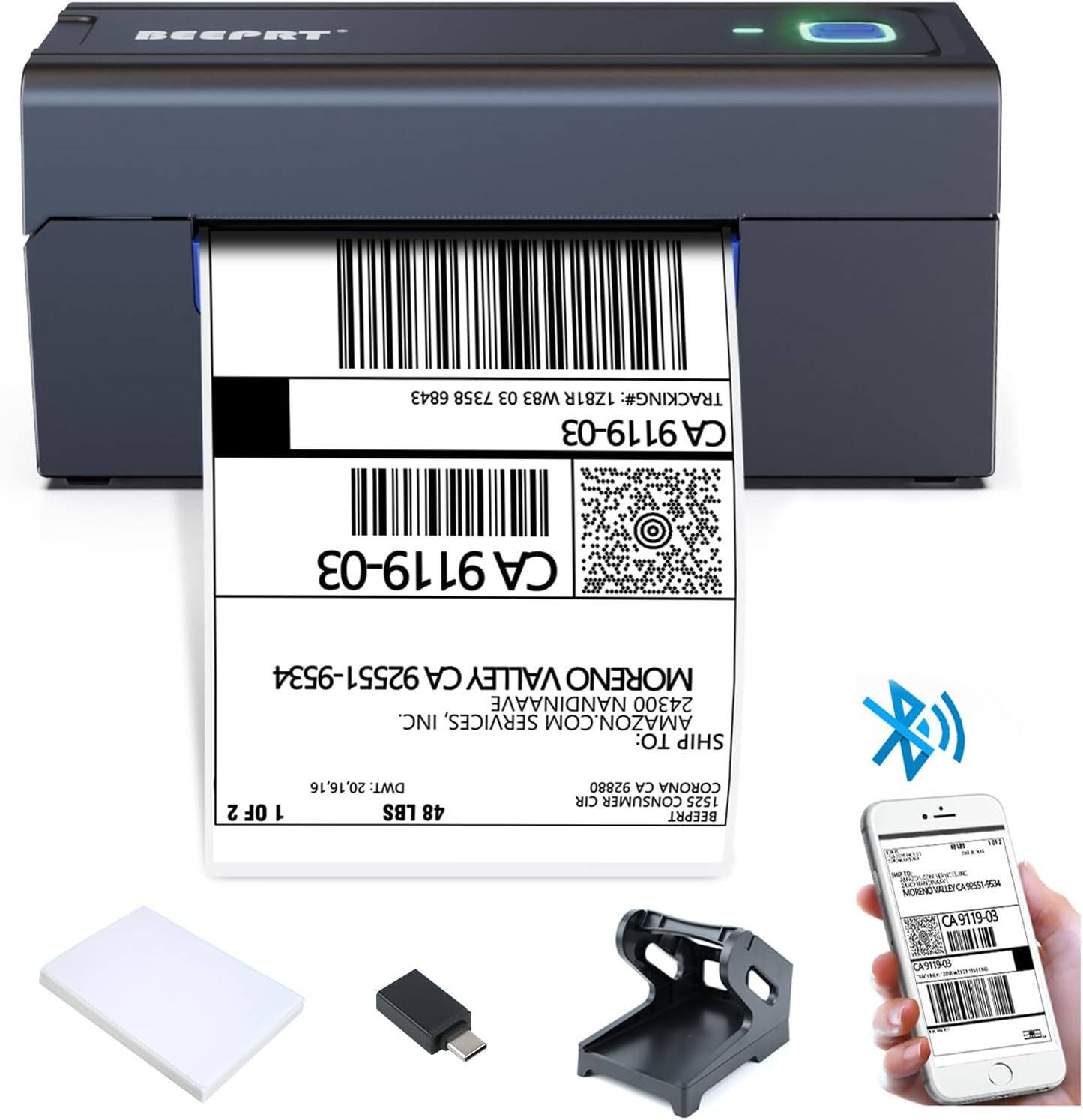
The BEEPRT BY-480BT printer shown with its essential accessories, including the label holder, USB cable, and sampلیبلز.

ایک مکمل اوورview of all items included in the BEEPRT BY-480BT printer package, neatly arranged.
سیٹ اپ گائیڈ
1. لیبل لوڈ ہو رہا ہے۔
The BEEPRT BY-480BT printer supports various thermal label sizes, from 1.57" to 4.3" wide. Ensure you are using direct thermal labels, as this printer does not require ink.
- Open the printer lid by pressing the release latches on the sides.
- Place the thermal labels into the label compartment. Ensure the print side (usually the smoother, brighter side) is facing upwards.
- Adjust the movable guides to fit the width of your labels snugly, without creasinجی انہیں.
- Close the printer lid securely. The printer will automatically detect the label size and calibrate.

Properly loading thermal labels into the BEEPRT BY-480BT printer for optimal printing.
This video demonstrates the process of loading labels into the BEEPRT BY-480BT printer, showing how the paper feeds and aligns automatically.
2. پرنٹر کو جوڑنا
Your BEEPRT BY-480BT printer offers multiple connectivity options:
USB Connection (Windows, Mac OS, Chrome OS)
- فراہم کردہ USB کیبل کا استعمال کرتے ہوئے پرنٹر کو اپنے کمپیوٹر سے جوڑیں۔
- Turn on the printer using the power switch located at the back.
- Install the printer driver from the included USB drive or download it from the official BEEPRT webسائٹ
- ڈرائیور کی تنصیب کو مکمل کرنے کے لیے اسکرین پر دی گئی ہدایات پر عمل کریں۔

The printer connected to a laptop via USB, highlighting its broad operating system compatibility.
This video provides a step-by-step guide on how to set up the BEEPRT BY-480BT printer for Chromebook via USB connection, including extension installation.
This video demonstrates the installation process for the BEEPRT printer driver on Mac OS, guiding users through the necessary steps for successful setup.
Bluetooth Connection (Windows, iOS, Android)
For wireless printing, ensure your device has Bluetooth enabled.
- Turn on the printer. The Bluetooth indicator light should be blinking or solid blue.
- On your device (smartphone or PC), go to Bluetooth settings and search for available devices.
- Select "BY-480BT" or a similar name from the list. You may be prompted to enter a PIN (usually "0000").
- For iOS/Android, download the "Shipping Printer Pro" app from your app store. This app is required for printing via Bluetooth on mobile devices.
- For Windows, after pairing, you may need to check the COM port settings in Printer Properties to ensure it matches the Bluetooth port.

The printer connected wirelessly to both a laptop and a smartphone, demonstrating Bluetooth printing capabilities.
This video illustrates how to connect the BEEPRT BY-480BT printer via Bluetooth on a Windows computer, including pairing and port configuration.
یہ ویڈیو ایک جنرل اوور فراہم کرتا ہے۔view of the BEEPRT Bluetooth label printer, showcasing its features and ease of use for various label printing needs.
آپریٹنگ ہدایات
پرنٹنگ لیبل
Once your printer is connected and labels are loaded, you can begin printing:
- Open the document or label file you wish to print (e.g., PDF, image).
- اپنی درخواست کے مینو سے "پرنٹ" کو منتخب کریں۔
- Choose "BEEPRT BY-480BT" as your printer.
- In the print settings, ensure the paper size is set to match your labels (e.g., 4x6 inches). For optimal quality, select "Actual Size" or "100% Scale" to prevent scaling issues.
- Adjust print density and speed if necessary (higher density for darker prints, lower speed for better quality).
- Click "Print". The label will feed out automatically.

Examples of different label sizes and types compatible with the BEEPRT BY-480BT printer, showcasing اس کی استعداد۔
This video demonstrates the printer in action, showing how it feeds and prints labels quickly and efficiently.
دیکھ بھال
Regular maintenance ensures optimal performance and extends the lifespan of your printer:
- پرنٹ ہیڈ کی صفائی: Use an alcohol wipe or a specialized print head cleaning pen to gently wipe the print head surface. Do this regularly to prevent residue buildup and ensure clear prints.
- Cleaning the Rollers: Periodically clean the rubber rollers with a damp, lint-free cloth to remove dust or adhesive residue that might affect paper feeding.
- دھول ہٹانا: Keep the printer free from dust and debris. Use compressed air to clean hard-to-reach areas.
- مناسب ذخیرہ: When not in use, store the printer in a clean, dry environment away from direct sunlight and extreme temperatures.
خرابی کا سراغ لگانا
یہاں عام مسائل کے حل ہیں جن کا آپ کو سامنا ہو سکتا ہے:
| مسئلہ | ممکنہ وجہ | حل |
|---|---|---|
| پرنٹر جواب نہیں دے رہا ہے۔ | Power off, loose cable, driver issue, Bluetooth not connected. | Ensure printer is on and connected. Reinstall driver. Re-pair Bluetooth. |
| Blank labels / Faint prints | Labels loaded incorrectly, low print density, dirty print head. | Reload labels with print side up. Increase print density in settings. Clean print head. |
| کاغذ کا جام | Misaligned labels, foreign object. | Open lid, remove jammed labels carefully. Ensure guides are properly set. |
| لیبلز صحیح طریقے سے کھانا نہیں کھا رہے ہیں۔ | Labels not thermal, misaligned guides, dirty rollers. | Use direct thermal labels. Adjust guides. Clean rollers. |
| Bluetooth connection issues on Mac/iPhone | Incorrect app usage, security settings. | Ensure "Shipping Printer Pro" app is used for mobile. Check System Preferences > Security & Privacy for driver installation. |
For more detailed troubleshooting, refer to the official user manual PDF available on the product page or contact BEEPRT support.
وضاحتیں
| فیچر | تفصیل |
|---|---|
| برانڈ | beeprt |
| ماڈل کا نام | BY-480BT |
| کنیکٹوٹی ٹیکنالوجی | یو ایس بی، بلوٹوتھ |
| پرنٹنگ ٹیکنالوجی | تھرمل |
| پرنٹ میڈیا | لیبلز |
| زیادہ سے زیادہ ان پٹ شیٹ کی گنجائش | 72 |
| ہم آہنگ آلات | Smartphones, PC |
| شیٹ کا سائز | 4x6 inches (supports 1.57" - 4.3" wide) |
| زیادہ سے زیادہ سیاہ اور سفید پرنٹ ریزولوشن | 203 ڈی پی آئی |
| شے کا وزن | 4 پاؤنڈز |
| مصنوعات کے طول و عرض | 6 x 9 x 6.5 انچ |
| شامل اجزاء | پرنٹر، USB کیبل |
وارنٹی اور سپورٹ
The BEEPRT BY-480BT printer comes with a limited warranty. For specific warranty terms and conditions, please refer to the documentation included with your product or contact the manufacturer directly.
کسٹمر سپورٹ
If you encounter any issues or have questions not covered in this manual, please reach out to BEEPRT customer support. You can often find support contact information on the manufacturer's official website or through the seller's contact details on the platform where you purchased the product.
- مینوفیکچرر: بی ای پی آر ٹی
- بیچنے والا: BEEPRT-US
- یوزر مینوئل (پی ڈی ایف): پی ڈی ایف مینوئل ڈاؤن لوڈ کریں۔


