1. Вступ
This manual provides essential information for the safe and efficient use of your AOC U34V5C/BK 34-inch WQHD LED Monitor. Please read this manual thoroughly before operating the device and retain it for future reference. The AOC U34V5C/BK is designed to deliver a high-quality visual experience with its 3440 x 1440 WQHD resolution and 21:9 aspect ratio, suitable for various applications from professional work to entertainment.
2. Інформація про безпеку
Дотримуйтесь наступних запобіжних заходів, щоб запобігти пошкодженню монітора та забезпечити особисту безпеку:
- Не піддавайте монітор впливу дощу або вологи, щоб уникнути небезпеки пожежі чи ураження електричним струмом.
- Не відкривайте монітор casing. Усередині немає деталей, які може обслуговувати користувач. Звертайтеся до кваліфікованого сервісного персоналу з усіх питань щодо обслуговування.
- Розмістіть монітор на стійкій, рівній поверхні, щоб запобігти його падінню.
- Забезпечте належну вентиляцію навколо монітора. Не блокуйте вентиляційні отвори.
- Використовуйте лише шнур живлення та адаптер, що постачаються з монітором.
- Від’єднуйте монітор від розетки під час грози або якщо він не використовується протягом тривалого часу.
3. Вміст упаковки
Перевірте наявність усіх елементів в упаковці:
- AOC U34V5C/BK Monitor
- Підставка для монітора (основа та шия)
- Кабель живлення
- Кабель HDMI
- Кабель DisplayPort
- Кабель USB-C
- Посібник користувача (цей документ)
4. Продукт закінчивсяview
The AOC U34V5C/BK monitor features a 34-inch VA panel with WQHD resolution, USB-C connectivity with 65W Power Delivery, and a 100Hz refresh rate with AMD FreeSync support.
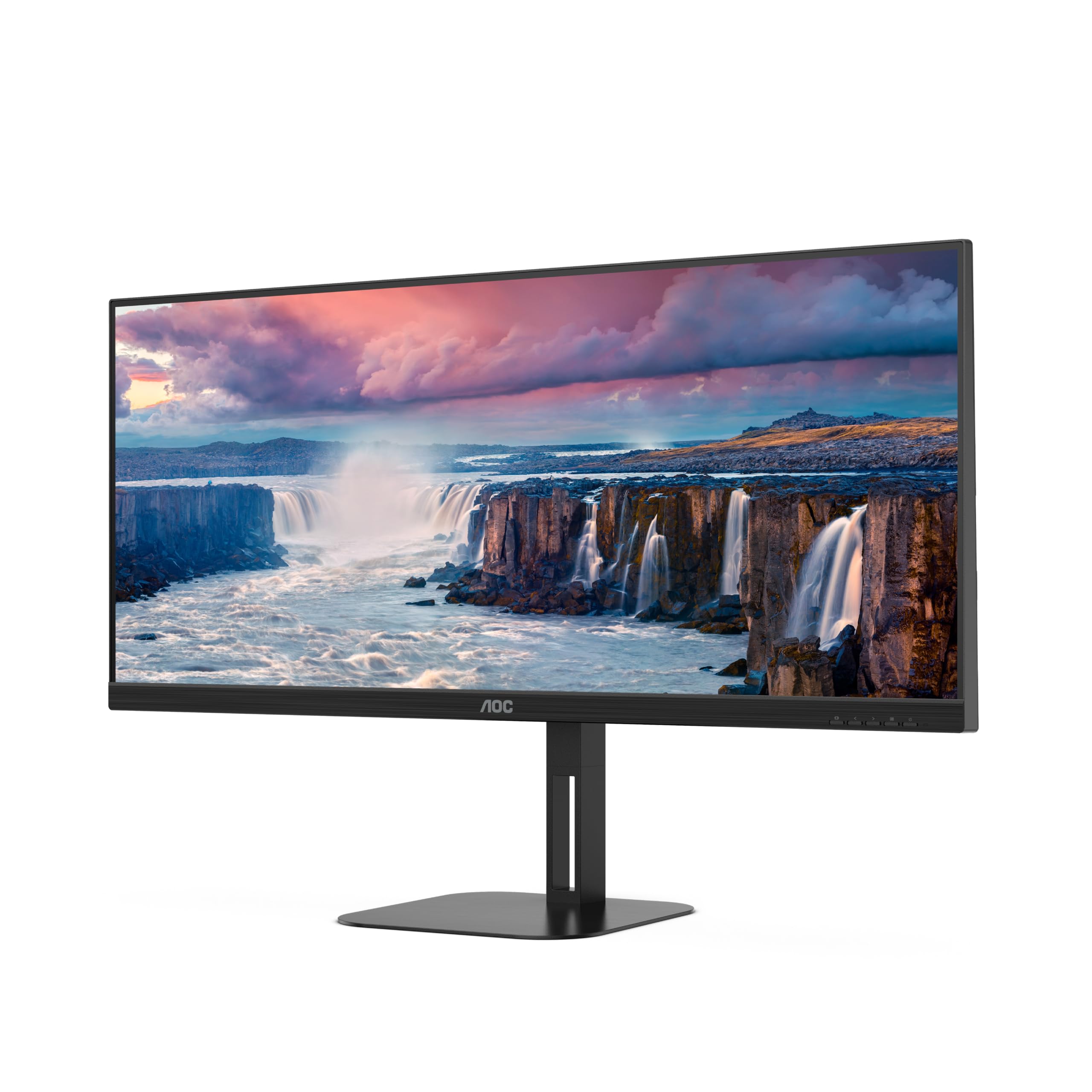
Малюнок 4.1: Спереду view of the AOC U34V5C/BK monitor highlighting its 34-inch VA panel, USB-C port with 65W Power Delivery, 100Hz refresh rate, and AMD FreeSync technology.
4.1 Monitor Components
Familiarize yourself with the various parts of your monitor:
- Передня панель: Display screen, OSD control buttons (usually located on the bottom right bezel).
- Задня панель: Power input, video input ports (HDMI, DisplayPort, USB-C), USB hub ports, security lock slot.
- стенд: Provides stable support and allows for height, tilt, and swivel adjustments.

Малюнок 4.2: Задня частина view of the AOC U34V5C/BK monitor, showing the VESA mount compatibility and the stand attachment point.

Малюнок 4.3: Нижня частина view of the AOC U34V5C/BK monitor, detailing the power input, DisplayPort, HDMI, USB-C, and USB-A hub ports.
5. Налаштування
5.1 Збірка підставки
- Обережно покладіть монітор екраном донизу на м’яку чисту тканину, щоб запобігти подряпинам.
- Прикріпіть шийку підставки до задньої панелі монітора до клацання або закріпіть її гвинтами (якщо є).
- Attach the stand base to the stand neck and tighten the captive screw at the bottom of the base.
- Carefully lift the monitor and place it on a stable desk.
5.2 Підключення монітора
Перед будь-якими підключеннями переконайтеся, що комп'ютер і монітор вимкнені.
- Підключення живлення: Підключіть кабель живлення до входу живлення монітора, а потім до заземленої електричної розетки.
- Підключення відео: Виберіть один із наведених нижче варіантів.
- HDMI: Підключіть один кінець кабелю HDMI до виходу HDMI комп'ютера, а інший кінець – до входу HDMI на моніторі.
- DisplayPort: Підключіть один кінець кабелю DisplayPort до виходу DisplayPort комп’ютера, а інший кінець – до входу DisplayPort на моніторі.
- USB-C: Connect one end of the USB-C cable to your computer's USB-C port (which supports video output) and the other end to the USB-C input on the monitor. This connection can also provide power delivery and USB data transfer.
- Підключення USB-концентратора (додатково): If using the monitor's USB hub, connect a USB upstream cable (USB-C to USB-A or USB-C to USB-C, depending on your computer) from your computer to the monitor's USB upstream port. This enables the monitor's USB-A ports for peripherals.
6. Експлуатація монітора
6.1 Увімкнення/вимкнення живлення
Press the power button, usually located on the bottom right bezel, to turn the monitor on or off. The power indicator light will illuminate when the monitor is on.
6.2 Екранне меню (OSD)
The OSD menu allows you to adjust various monitor settings. Use the control buttons (joystick or individual buttons) on the monitor's bezel to navigate the menu.
- Press the Menu button (or push the joystick) to open the OSD menu.
- Use the navigation buttons (or joystick) to move through the menu options.
- Press the Select button (or push the joystick) to enter a sub-menu or confirm a selection.
- Use the Exit button (or move the joystick left) to go back to the previous menu or exit the OSD.
6.3 Загальні налаштування екранного меню
- Яскравість: Налаштуйте яскравість, контрастність та гаму.
- Налаштування зображення: Fine-tune image quality, sharpness, and pixel clock.
- Налаштування кольору: Виберіть колірну температуру, режим sRGB або налаштування кольору, визначені користувачем.
- Підсилення зображення: Покращення окремих областей екрана.
- Налаштування екранного меню: Налаштуйте мову, положення та прозорість екранного меню.
- Налаштування гри: Enable/disable FreeSync, adjust overdrive, and game modes.
- Додатково: Select input source, reset settings, view інформації.
7. Технічне обслуговування
7.1 Очищення монітора
- Завжди вимикайте монітор перед чищенням.
- Злегка протріть м’якою тканиною без ворсу dampводою або м’яким, неабразивним засобом для чищення екранів.
- Do not use alcohol, ammonia, or abrasive cleaners, as they may damage the screen or casing.
- Wipe the screen gently. Do not apply excessive pressure.
7.2 Загальний догляд
- Уникайте розміщення важких предметів на моніторі або його кабелях.
- Тримайте монітор подалі від прямих сонячних променів, джерел тепла та екстремальних температур.
- Do not expose the monitor to strong vibrations or impacts.
8. Вирішення проблем
Якщо у вас виникли проблеми з монітором, зверніться до наступних поширених проблем та способів їх вирішення:
| проблема | Можлива причина | Рішення |
|---|---|---|
| На екрані немає зображення | Monitor not powered on; Incorrect input source; Loose video cable | Press power button; Select correct input via OSD; Reconnect video cable securely |
| Зображення занадто темне/яскраве | Неправильні налаштування яскравості/контрастності | Adjust Brightness and Contrast in OSD menu |
| Мерехтливе зображення | Incorrect refresh rate; Faulty cable | Set refresh rate to 100Hz in display settings; Try a different video cable |
| Не працюють порти USB | USB upstream cable not connected | Connect the USB-C upstream cable from the monitor to your computer |
If the problem persists after trying these solutions, contact AOC customer support.
9. Технічні характеристики
Below are the technical specifications for the AOC U34V5C/BK monitor:

Figure 9.1: Product Information Sheet for AOC U34V5C/BK, detailing energy efficiency and technical parameters.
| Параметр | Значення |
|---|---|
| Бренд | AOC |
| Модель | U34V5C/BK |
| Розмір екрана | 34 дюймів (86.4 см) |
| роздільна здатність | 3440 x 1440 WQHD |
| Співвідношення сторін | 21:9 |
| Час відгуку | 4 мілісекунд |
| Частота оновлення | 100 Hz (default 60 Hz) |
| Панельна техніка | VA Panel, LED LCD |
| Viewкут нахилу | 178 градусів (горизонтально/вертикально) |
| Апаратний інтерфейс | DisplayPort, HDMI, USB-C |
| Загальна кількість портів USB | 4 (USB-концентратор) |
| Живлення (USB-C) | 65 Вт |
| томtage | 5 Volts (Internal Power Supply) |
| Розміри продукту | 50 х 25 х 40 см; 7 кг |
| Клас енергоефективності (SDR) | G |
| Споживана потужність (SDR) | 34.0 Вт |
| Клас енергоефективності (HDR) | G |
| Споживання енергії (HDR) | 35.0 Вт |
| Живлення в режимі очікування | 0.5 Вт |
| Minimum guaranteed software/firmware updates | 8 років |
| Minimum guaranteed spare parts availability | 7 років |
| Мінімальна гарантована підтримка продукту | 8 років |
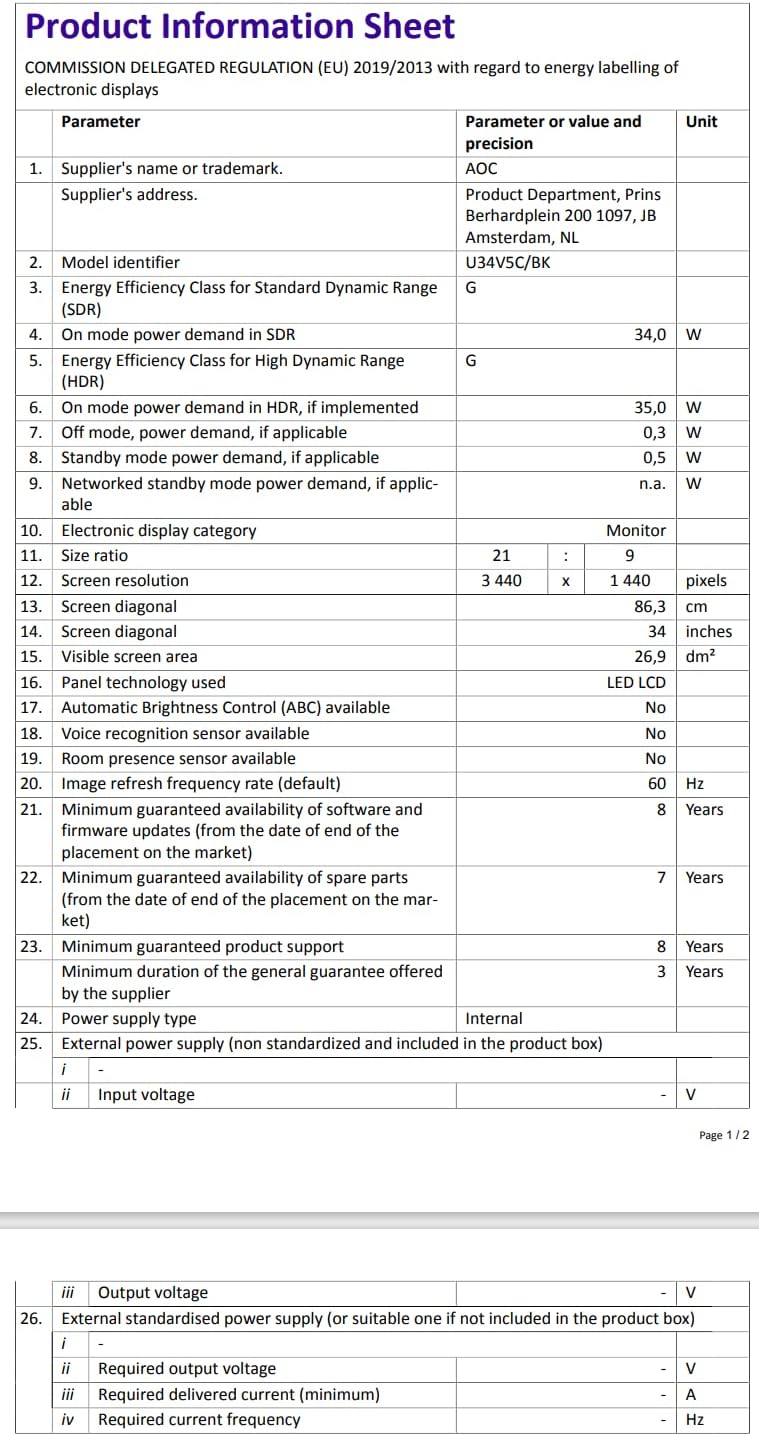
Figure 9.2: Energy Label for AOC U34V5C/BK. For more details, visit the База даних EPREL.
10. Гарантія та підтримка
The AOC U34V5C/BK monitor comes with a minimum guaranteed general warranty of 3 роки надається постачальником.
For technical support, warranty claims, or service inquiries, please visit the official AOC website or contact your local AOC customer service center. Ensure you have your monitor's model number (U34V5C/BK) and serial number ready when contacting support.