

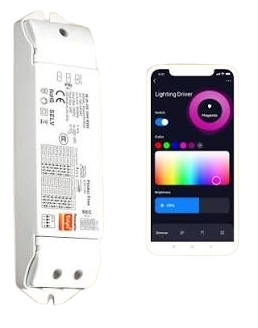
tuya Smart Dimmable Driver
Overview
This setup guides you through adding and removing a wireless Matter Wi‑Fi LED driver, creating a home profile, and managing home members using the app.
Quick Setup
- Add Device (Pairing): Enter pairing mode on the LED driver by pressing the knob (or PUSH switch) six times, or by pressing the reset button. Confirm pairing mode when the pairing indicator light begins blinking.
- In the app, select Add Driver (or tap the LED Driver icon).
- Choose Select Wi‑Fi and enter your Wi‑Fi network name and password.
- Tap Next, wait for completion, then tap Done.
- Remove Device (Delete from Profile): Tap the device icon on your dashboard → tap the options menu (…) → select Remove Device → choose Remove and clear Data → tap Confirm.
- Create a Home Profile: Go to Me → Home Management → Create a home → enter home name and location, assign room types, then Save and Done.
- Manage Home Members: Under Home Management, choose your home → Add Member and share via invitation code; invited users open the app → Me → Home Management → Join a home and enter the received invitation code.
Wireless Matter Wi-Fi Setup
Add Device
To enter pairing mode on the LED driver, press the knob (or PUSH switch) six times, or press the reset button. The device’s pairing indicator light will begin blinking to confirm it has successfully entered pairing mode.
Steps to pair
- Select Add Driver (or click the LED Driver icon in the app).
- Choose Select Wi-Fi and enter your Wi-Fi network name and password.
- Tap Next and wait for the process to complete, then tap Done.


Remove the Device
To delete a device and clear its associated settings from your profile:
- Tap the device icon on your dashboard.
- Tap the options menu icon (…) in the upper corner.
- Select Remove Device.
- Choose Remove and clear Data, then select Confirm.


Create a Home Profile
Set up a virtual home environment to organize your smart devices by room:
- Navigate to the Me tab on the bottom menu.
- Select Home Management.
- Tap Create a home.
- Fill in your home’s name and location, assign the types of rooms present, then tap Save and select Done.

Managing Home Members
Inviting Users to Your Home
- Go to the Me tab and select Home Management.
- Choose your created home from the list.
- Tap Add Member.
- Select your preferred sharing method (e.g., sending an invitation code via message or email).

Accepting an Invitation (Invited User)
- Open the app, go to the Me tab, and select Home Management.
- Tap Join a home.
- Enter the received invitation code and tap the enter button (→) to join.

Troubleshooting
- Device not entering pairing mode: Ensure pairing mode is triggered by pressing the knob (or PUSH switch) six times or pressing the reset button. Pairing mode is confirmed when the pairing indicator light begins blinking.
- Need to clear device settings: If you must start over, remove the device from your profile by selecting Remove Device and then choosing Remove and clear Data before confirming.
- Invited user can’t join: Confirm the invited user is using Join a home and entering the correct invitation code received via the selected sharing method (message or email).
Documents / Resources
 | Smart Dimmable Driver |
References
- User Manualmanual.tools
Published: August 18, 2026