giriiş
The Linksys 5G AX1800 Mobile Hotspot is a portable device designed to provide high-speed 5G and WiFi 6 connectivity for multiple devices. With its ultra-thin design and long battery capacity, it allows you to stay connected on the go. This manual provides essential information for the proper setup, operation, maintenance, and troubleshooting of your mobile hotspot.
Temel özellikler şunlardır:
- Portable 5G supersonic speed and bandwidth.
- WiFi 6 speeds up to 1.8 Gbps (AX1800).
- Supports connection for 15+ devices simultaneously.
- Ultra-thin and lightweight design for maximum convenience.
- Uzun süreli kullanım için uzun ömürlü pil.
- Powered by leading-edge 5G technology by Qualcomm.
Şekil 1: Ön view of the Linksys 5G AX1800 Mobile Hotspot, showing LED indicators for battery, 5G/LTE, and Wi-Fi status.
Kurmak
1. SIM Kartı Takın
The Linksys 5G AX1800 Mobile Hotspot requires a Nano-SIM card for 5G/LTE connectivity. Ensure the device is powered off before inserting the SIM card.
- Locate the SIM card slot cover on the side of the device.
- Kapağı yavaşça açın.
- Insert the Nano-SIM card into the slot with the gold contacts facing down and the notched corner aligned correctly.
- SIM kart yuvası kapağını sıkıca kapatın.

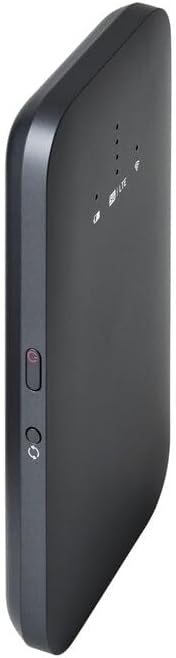
Şekil 2: Yan view of the mobile hotspot, highlighting the SIM card slot cover.
2. Cihazı Şarj Edin
Before first use, fully charge the mobile hotspot. Use the provided charging cable and a compatible USB power adapter.
- Connect one end of the USB cable to the charging port on the device.
- Connect the other end to a USB power adapter or a computer's USB port.
- The battery indicator LED will show charging status. Allow several hours for a full charge.

Şekil 3: Alt view of the mobile hotspot, showing the USB-C charging port.
3. Güç Açma/Kapatma
To power on the device, press and hold the power button located on the side until the LED indicators light up. To power off, press and hold the power button again until the indicators turn off.

Şekil 4: Yan view of the mobile hotspot, indicating the location of the power button.
Kullanım Talimatları
1. Cihazları Wi-Fi'ye Bağlama
Once powered on, the mobile hotspot will broadcast a Wi-Fi network. You can connect up to 15+ devices simultaneously.
- Cihazınızda (akıllı telefon, dizüstü bilgisayar, tablet) Wi-Fi ayarlarını açın.
- Arama mevcut Wi-Fi ağları.
- Select the network name (SSID) of your Linksys Mobile Hotspot. The default SSID and password are usually found on a sticker inside the device or on its packaging.
- İstendiğinde Wi-Fi şifresini girin.
- Cihazınız artık mobil erişim noktası üzerinden internete bağlanmış olmalıdır.
2. LED Göstergelerini Anlamak
The LED indicators on the front of the device provide important status information:
- Pil Göstergesi: Pil seviyesini ve şarj durumunu gösterir.
- 5G/LTE Indicator: Indicates the mobile network connection status (e.g., solid blue for 5G, solid green for LTE, blinking for searching).
- Wi-Fi Göstergesi: Shows if the Wi-Fi network is active and broadcasting.
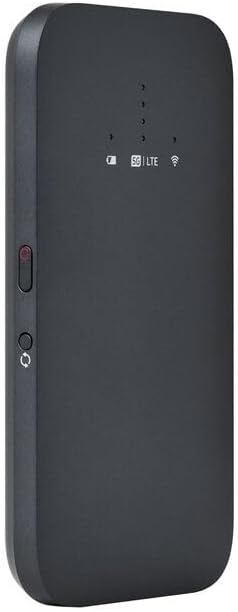
Şekil 5: Açısal ön view of the mobile hotspot, clearly showing the LED indicators for battery, 5G/LTE, and Wi-Fi.
3. Erişim Web Yönetim Arayüzü
For advanced settings, such as changing the Wi-Fi name or password, managing connected devices, or checking data usage, you can access the device's web yönetim arayüzü.
- Ensure your device is connected to the mobile hotspot's Wi-Fi network.
- Bir tane aç web browser (e.g., Chrome, Firefox, Safari).
- Enter the default IP address for the hotspot (usually
192.168.1.1or192.168.0.1, refer to the device's documentation or sticker for the exact address) into the address bar and press Enter. - Log in using the default username and password (also found on the device sticker or documentation). It is highly recommended to change the default password for security.
Bakım
1. Pil Bakımı
- Cihazı aşırı sıcaklıklara maruz bırakmaktan kaçının.
- Cihazı uzun süre tamamen boşalmış halde bırakmayın.
- Yalnızca orijinal veya onaylı uyumlu şarj aksesuarlarını kullanın.
2. Temizlik
Wipe the device with a soft, dry, lint-free cloth. Do not use liquid cleaners or aerosols directly on the device.
3. Ürün Yazılımı Güncellemeleri
Düzenli aralıklarla aygıt yazılımı güncellemelerini kontrol edin. web management interface. Keeping the firmware updated ensures optimal performance and security.
Sorun giderme
İnternet Bağlantısı Yok
- SIM kartın doğru şekilde takıldığından ve bir veri planıyla etkinleştirildiğinden emin olun.
- Check the 5G/LTE indicator on the device. If it's blinking or off, the device may be searching for a network or have no signal.
- Restart the mobile hotspot and your connected device.
- Verify that your data plan has not been exhausted.
Yavaş Wi-Fi Hızı
- Move closer to the mobile hotspot to improve signal strength.
- Reduce the number of connected devices or data-intensive activities.
- Bulunduğunuz bölgedeki ağ yoğunluğunu kontrol edin.
Device Not Connecting to Hotspot
- Ensure the Wi-Fi indicator on the hotspot is active.
- Wi-Fi şifresini tekrar kontrol edin.
- Restart both the hotspot and the device you are trying to connect.
Fabrika Ayarlarına Sıfırlama
If issues persist, you may perform a factory reset. This will revert all settings to their default values, including Wi-Fi name and password. Refer to the device's specific instructions for the reset procedure, usually involving a small reset button.
Özellikler
| Özellik | Detay |
|---|---|
| Marka | Bağlantılar |
| Model Adı | FGHSAX1800 |
| Ürün Model Numarası | FGHSAX1800-AH |
| Bağlantı Teknolojisi | 5G |
| Wi-Fi standart | WiFi 6 (AX1800) |
| Veri Aktarım Hızı | Saniyede 1.8 Gigabit'e kadar |
| Frekans Bant Sınıfı | Çift Bant |
| Anten Tipi | Dahili |
| Özel Özellikler | Erişim Noktası Modu |
| Dahil Bileşenler | SIM KART YUVASI |
| Cilttage | 12 Volt |
| Paket Boyutları | 14x7.5x1.55 cm |
| Ürün Ağırlığı | 185 gr |
Garanti ve Destek
For warranty information and technical support, please refer to the warranty card included with your product or visit the official Linksys support website. You can typically find FAQs, driver downloads, and contact information for customer service there.
Linksys Official Support: https://www.linksys.com/support


