giriiş
This manual provides instructions for setting up, operating, and maintaining your Mercury MW3030R Dual Band Wireless Router. Please read this manual carefully before use to ensure proper installation and optimal performance.
Güvenlik Bilgileri
- Cihazı suya veya aşırı neme maruz bırakmayın.
- Cihazı kendiniz sökmeye veya onarmaya çalışmayın.
- Yalnızca cihazla birlikte verilen güç adaptörünü kullanın.
- Aşırı ısınmayı önlemek için yönlendirici çevresinde yeterli havalandırma olduğundan emin olun.
Paket İçeriği
Paketinizin aşağıdaki öğeleri içerdiğini doğrulayın:
- Mercury MW3030R Wireless Router
- Güç Adaptörü
- Ethernet kablosu
- Hızlı Kurulum Kılavuzu (bu kılavuz detaylı bir rehber niteliğindedir)
Ürün Bittiview
Familiarize yourself with the router's components and indicators.
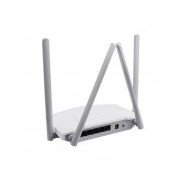
Şekil 1: Arka view of the Mercury MW3030R router. This image displays the four external antennas, the WAN port (typically blue), multiple LAN ports (typically yellow), and the power input jack. The reset button and WPS button are also usually located on the rear panel.
Şekil 2: Yukarıdan aşağıya view of the Mercury MW3030R router with its antennas folded. This perspective highlights the router's sleek, white casing and its overall compact form factor, suitable for various placements.
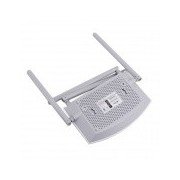
Şekil 3: Alt view of the Mercury MW3030R router. This image shows the ventilation holes designed for heat dissipation and the product label, which typically contains important information such as the default Wi-Fi name (SSID), password, and web management address.
LED Göstergeleri:
- Güç LED'i: Yönlendiricinin güç durumunu gösterir.
- İnternet LED'i: İnternet bağlantısının durumunu gösterir.
- Kablosuz Ağ LED'i: Kablosuz aktiviteyi gösterir.
- LAN LED'leri: Indicate connection status for each LAN port.
Kurmak
1. Donanım Bağlantısı
- Güç Açık: Connect the power adapter to the router's power port and plug it into a wall outlet. Wait for the Power LED to become stable.
- İnternete (WAN) bağlanın: Connect one end of an Ethernet cable to your modem's LAN port and the other end to the router's WAN port (usually distinctively colored, e.g., blue).
- Cihazları Bağlayın (Yerel Ağ): For wired connections, connect your computer or other devices to the router's LAN ports (usually yellow) using Ethernet cables.
- Antenler: Adjust the four antennas for optimal signal coverage.
2. İlk Yapılandırma (Web Arayüz)
- Yönlendiriciye bağlanın: Connect your computer to the router either via an Ethernet cable to a LAN port or wirelessly using the default Wi-Fi SSID and password printed on the router's label (refer to Figure 3).
- Erişim Web Tarayıcı: Bir tane aç web browser (e.g., Chrome, Firefox) and type the default access address (e.g., http://192.168.1.1 or http://tplinkwifi.net) ifadesini adres çubuğuna yazın ve Enter tuşuna basın.
- Giriş yapmak: Varsayılan kullanıcı adı ve şifreyi girin (genellikle yönetici (her ikisi için de veya yönlendiricinin etiketinde belirtildiği gibi).
- Hızlı Kurulumu Çalıştır: Follow the on-screen instructions of the Quick Setup Wizard to configure your internet connection type (e.g., PPPoE, Dynamic IP, Static IP) and wireless settings (SSID, password).
- Varsayılan Şifreyi Değiştir: Güvenlik açısından, yönlendiricinin varsayılan giriş şifresini değiştirmeniz şiddetle tavsiye edilir. web yönetim arayüzü.
Kullanım Talimatları
Wi-Fi'ye bağlanma
- On your wireless device (smartphone, laptop), search for available Wi-Fi networks.
- Select your router's Wi-Fi network name (SSID) that you configured during setup.
- Enter the Wi-Fi password you set.
- Cihazınız artık internete bağlı olmalı.
Çift Bant Çalışması
The MW3030R supports both 2.4GHz and 5.0GHz wireless bands. The 2.4GHz band offers wider coverage, while the 5.0GHz band provides faster speeds with less interference over shorter distances. You can connect your devices to either band based on your needs.
Misafir Ağı
Yönlendiriciye erişin web interface to enable and configure a separate guest network. This allows guests to access the internet without accessing your main network resources.
Bakım
- Donanım Yazılımı Güncellemeleri: Üreticinin talimatlarını düzenli olarak kontrol edin. webÜrün yazılımı güncellemeleri için site. Ürün yazılımını güncellemek performansı artırabilir, yeni özellikler ekleyebilir ve güvenlik açıklarını giderebilir.
- Yönlendiriciyi yeniden başlatma: If you experience network issues, try restarting the router by unplugging the power adapter, waiting 10 seconds, and then plugging it back in.
- Temizlik: Keep the router clean and free from dust. Use a soft, dry cloth. Do not use liquid cleaners.
- Atama: Yönlendiriciyi, parazite neden olabilecek engellerden ve cihazlardan (örneğin, mikrodalga fırınlar, kablosuz telefonlar) uzakta, merkezi bir yere yerleştirin.
Sorun giderme
İnternet Erişimi Yok
- Check if the Internet LED on the router is lit or blinking correctly.
- Modeminizden gelen Ethernet kablosunun yönlendiricinin WAN portuna güvenli bir şekilde bağlı olduğundan emin olun.
- Modeminizi ve yönlendiricinizi yeniden başlatın.
- Yönlendiricinizdeki internet bağlantı ayarlarınızı doğrulayın. web arayüz.
Slow Wireless Speed
- Ensure your device is connected to the 5.0GHz band if it supports it, for faster speeds.
- Move closer to the router or adjust antenna positions.
- Diğer elektronik cihazlardan kaynaklanan paraziti kontrol edin.
- Reduce the number of devices connected to the network or bandwidth-intensive activities.
Yönlendiriciye Erişilemiyor Web Arayüz
- Cihazınızın yönlendiriciye (kablolu veya kablosuz) bağlı olduğundan emin olun.
- Tarayıcıya yazdığınız IP adresinin doğru olduğundan emin olun (örneğin, http://192.168.1.1).
- Tarayıcınızın önbelleğini temizlemeyi veya farklı bir tarayıcı kullanmayı deneyin.
- If you forgot the login password, you may need to perform a factory reset (Warning: This will erase all your settings).
Özellikler
| Özellik | Tanım |
|---|---|
| Örnek | MW3030R |
| Kablosuz Standartları | IEEE 802.11ac/n/g/b/a |
| Sıklık | 2.4GHz ve 5.0GHz (Çift Bant) |
| Kablosuz Hız | Up to 600Mbps (combined) |
| Antenler | 4 Harici Anten |
| Arayüzler | 1x WAN Port, Multiple LAN Ports (typically 3 or 4) |
| Güç Kaynağı | External Power Adapter (provided) |
Garanti ve Destek
The Mercury MW3030R router comes with a standard manufacturer's warranty. For detailed warranty information, technical support, or service inquiries, please refer to the official Mercury webSiteyi ziyaret edin veya müşteri hizmetleriyle iletişime geçin. Garanti talepleriniz için satın alma fişinizi saklayın.


