1. Giriş
This manual provides instructions for the installation, operation, maintenance, and troubleshooting of the TP-Link TL-WDR4300 N750 Wireless Dual Band Gigabit Router. The TL-WDR4300 is designed to provide high-speed wireless connectivity across both 2.4 GHz and 5 GHz bands, offering a combined bandwidth of up to 750 Mbps. It features Gigabit Ethernet ports and USB 2.0 ports for versatile network capabilities.
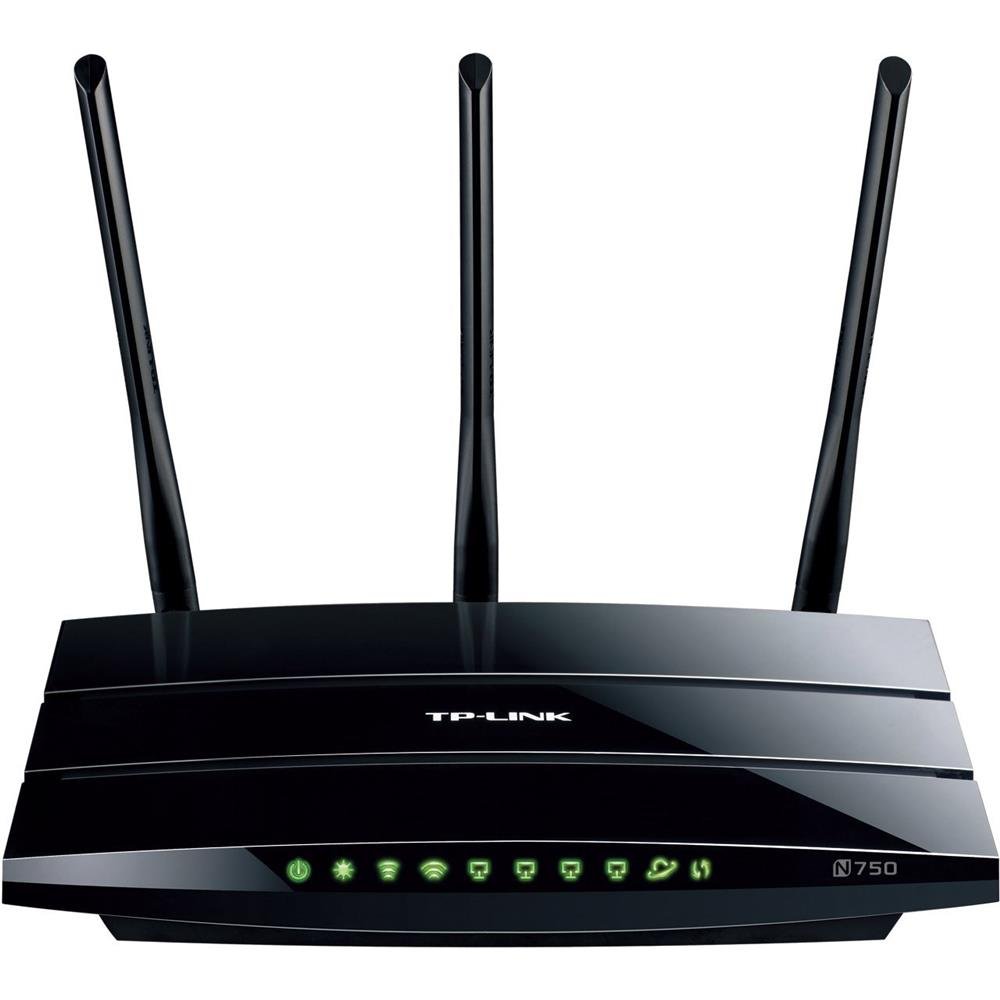
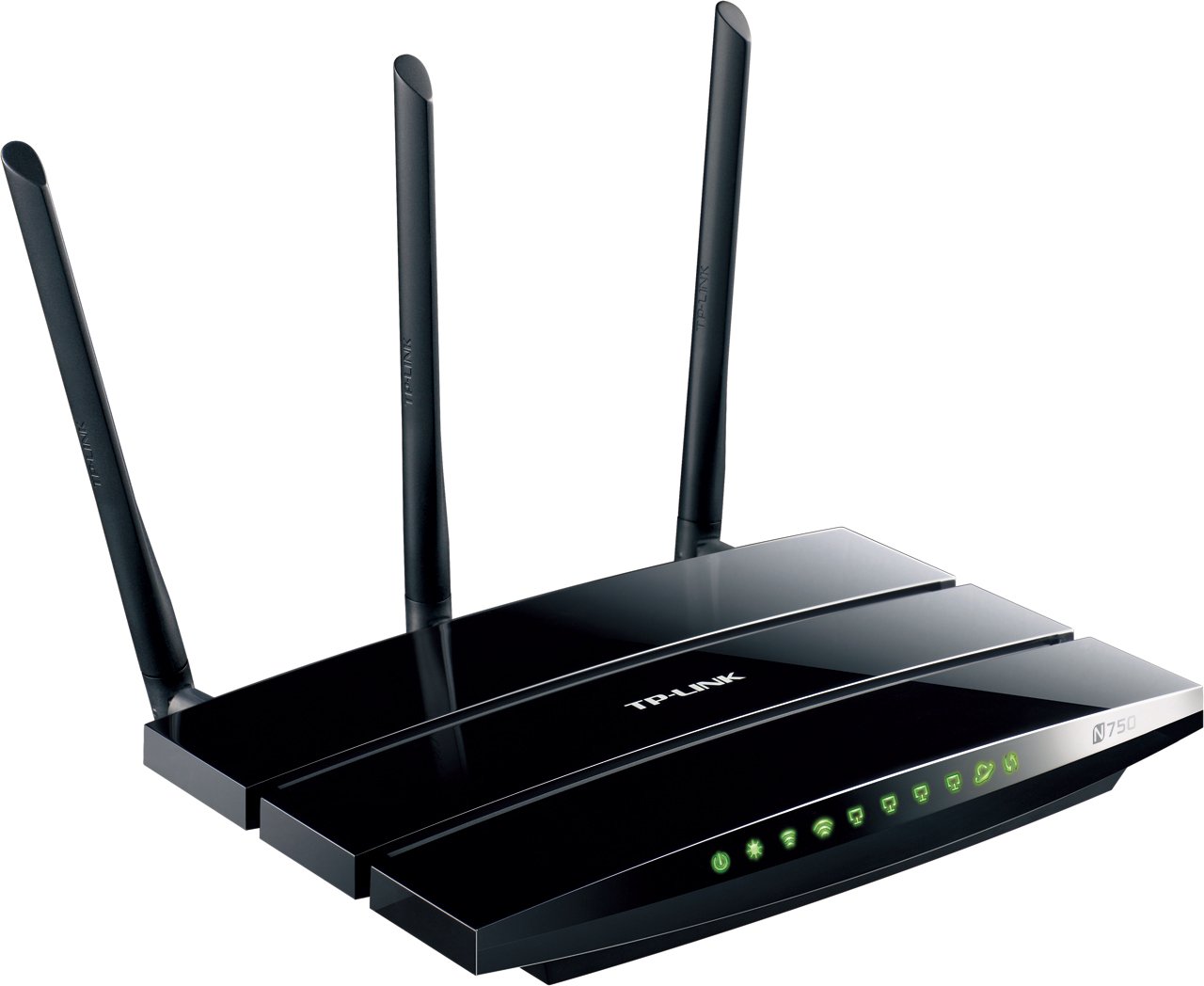
Şekil 1: TP-Link TL-WDR4300 N750 Wireless Dual Band Gigabit Router. This image shows the top-down view of the black router with three detachable antennas and front-facing LED indicators.
2. Kurulum
2.1 Paket İçeriği
- TP-Link TL-WDR4300 Router
- Güç Adaptörü
- Ethernet kablosu
- Hızlı Kurulum Kılavuzu
- Kaynak CD'si
2.2 Fiziksel Bağlantı
- Kapat: Modeminizin ve yönlendiricinizin (varsa) elektrik bağlantısını kesin.
- Antenleri Bağlayın: Screw the three detachable antennas onto the corresponding connectors on the rear panel of the router.
- Modemi Bağlayın: Connect an Ethernet cable from your modem's Ethernet port to the blue WAN port on the TL-WDR4300 router.
- Cihazları Bağlayın: Connect your computer or other wired devices to any of the four yellow LAN ports using Ethernet cables.
- Güç Açık: Connect the power adapter to the router's power jack and plug it into a power outlet. Power on your modem, then the router. Wait for the LED indicators to stabilize.
Şekil 2: Rear panel connections. This image displays the rear of the router, showing the power input, WAN port (blue), four LAN ports (yellow), two USB 2.0 ports, and the three antenna connectors.
2.3 İlk Yapılandırma (Web Arayüz)
- Erişim Yönlendiricisi: Bir tane aç web browser on a connected computer. In the address bar, type http://tplinkwifi.net or http://192.168.0.1 (veya http://192.168.1.1) ve Enter'a basın.
- Giriş yapmak: Enter the default username and password, which are typically yönetici for both. If prompted, change the default password for security.
- Hızlı Kurulumu Çalıştır: Follow the on-screen instructions of the Quick Setup Wizard to configure your internet connection type and basic wireless settings.
2.4 Kablosuz Ağ Kurulumu
The TL-WDR4300 operates on two frequency bands:
- 2.4 GHz Bant: Provides wider coverage and is suitable for general internet use.
- 5 GHz Bant: Offers higher speeds and less interference, ideal for online gaming and HD video streaming.
During the Quick Setup, you will set up separate SSIDs (network names) and passwords for each band. Ensure you use strong, unique passwords for both.
2.5 WPS (Wi-Fi Korumalı Kurulum)
To quickly connect WPS-compatible devices without entering a password:
- Press the WPS button on the router (usually located on the rear or side panel).
- Within two minutes, press the WPS button on your client device.
- The device will automatically connect to the wireless network.
2.6 Misafir Ağı
The Guest Network feature provides secure Wi-Fi access for guests without sharing your main network's password or resources. This can be configured via the router's web interface under the "Guest Network" settings.
3. Operasyon
3.1 Dual Band Wireless Functionality
The TL-WDR4300 operates simultaneously on both 2.4 GHz and 5 GHz wireless bands. This allows for flexible network management:
- Kullanın 2.4 GHz bant for devices that require wider range or are older, such as smartphones, tablets, and general web Tarama.
- Kullanın 5 GHz bant for bandwidth-intensive applications like HD video streaming, online gaming, and large file transfers, which benefit from higher speeds and reduced interference.
3.2 USB Sharing Ports
The router is equipped with two USB 2.0 ports, enabling various sharing functionalities:
- Yazıcı Paylaşımı: Connect a USB printer to the router to make it accessible to all connected devices on your network.
- File Paylaşım: Attach a USB storage device (flash drive or external hard drive) to share files and media across your local network or remotely via an FTP server.
- Medya Sunucusu: Configure the router as a media server to stream content from a connected USB storage device to compatible devices (e.g., smart TVs, media players) on your network.
3.3 Gigabit Ethernet Bağlantı Noktası
The TL-WDR4300 features one Gigabit WAN port and four Gigabit LAN ports. These ports provide high-speed wired connections, which are essential for:
- Connecting desktop computers, gaming consoles, and network-attached storage (NAS) devices.
- Ensuring optimal performance for latency-sensitive applications like online gaming and large data transfers.
3.4 IP Hizmet Kalitesi (QoS)
IP QoS allows you to manage and prioritize bandwidth for specific devices or applications. This ensures that critical applications receive sufficient bandwidth, preventing network congestion and maintaining performance for all users. Configuration is available in the router's web arayüz.
3.5 Ebeveyn Denetimleri
The Parental Controls feature enables you to restrict access to certain websites or limit internet usage times for specific devices on your network. This helps in managing internet access for children or employees. Settings are accessible through the router's web yönetim sayfası.
4. Bakım
4.1 Firmware Güncellemesi
Regularly check for and install firmware updates from the official TP-Link website. Firmware updates can improve performance, add new features, and address security vulnerabilities. Always follow the instructions provided with the firmware update carefully to avoid damaging the device.
- Download the latest firmware for your specific model (TL-WDR4300) from the TP-Link support webalan.
- Yönlendiriciye erişin web arayüz.
- "Sistem Araçları" veya "Ürün Yazılımı Güncellemesi" bölümüne gidin.
- İndirilen ürün yazılımını yükleyin file and follow the prompts. Do not power off the router during the upgrade process.
4.2 Fabrika Ayarlarına Sıfırlama
A factory reset restores the router to its default settings. This can be useful for troubleshooting persistent issues or when reconfiguring the router. There are two methods:
- Donanım Sıfırlama: With the router powered on, press and hold the Reset button (usually a small pinhole button on the rear panel) for approximately 10 seconds until the system LED flashes rapidly. Release the button and wait for the router to restart.
- Yazılım Sıfırlama: Yönlendiriciye giriş yapın. web interface, navigate to "System Tools" > "Factory Defaults," and click "Restore."
Note: Performing a factory reset will erase all custom configurations, including Wi-Fi settings and passwords.
4.3 Fiziksel Temizlik
Uygun havalandırmayı sağlamak ve aşırı ısınmayı önlemek için yönlendiriciyi temiz ve tozdan uzak tutun. Dış yüzeyini silmek için yumuşak ve kuru bir bez kullanın. Sıvı temizleyiciler veya aşındırıcı malzemeler kullanmayın.
5. Sorun Giderme
5.1 İnternet Erişimi Yok
- Bağlantıları Kontrol Edin: Ensure all Ethernet cables are securely connected, especially the one from your modem to the router's WAN port.
- Modem Durumu: Modeminizin düzgün çalıştığını ve aktif bir internet bağlantısına sahip olduğunu doğrulayın.
- Yönlendirici LED'leri: Yönlendiricinizdeki WAN LED'ini kontrol edin. Kapalıysa veya kırmızıysa, internet servis sağlayıcınızdan veya modeminizden gelen internet bağlantısında bir sorun olabilir.
- Yeniden Başlatma: Modeminizi ve yönlendiricinizi yeniden başlatın (fişini çekin, 30 saniye bekleyin, önce modemi, sonra yönlendiriciyi tekrar takın).
- MAC Adresini Klonla: Bazı internet servis sağlayıcıları MAC adresi klonlamayı gerektirir. Yönlendiricinin ayarlarına erişin. web interface and check WAN settings for this option.
5.2 Yavaş Kablosuz Hız
- Bant Seçimi: Ensure devices requiring high speed are connected to the 5 GHz network.
- Parazit yapmak: Move the router away from devices that emit radio frequency interference (e.g., cordless phones, microwaves, Bluetooth devices).
- Kanal Optimizasyonu: In the router's wireless settings, try changing the wireless channel for both 2.4 GHz and 5 GHz bands to a less congested one.
- Yönlendirici Yerleşimi: Position the router in a central location, away from obstructions, and elevate it if possible.
- Yazılım: Yönlendiricinizin yazılımının güncel olduğundan emin olun.
5.3 Wi-Fi'ye Bağlanılamıyor
- Şifreyi kontrol edin: Verify that you are entering the correct Wi-Fi password (WPA/WPA2-PSK key).
- SSID Yayını: Ensure the SSID (network name) is being broadcast. If hidden, manually enter the SSID.
- WPS: Try connecting using the WPS button if your device supports it.
- Güvenlik Türü Confirm that your device supports the security type configured on the router (e.g., WPA2-PSK).
- Fabrika ayarları: If all else fails, perform a factory reset and reconfigure the router.
6. Özellikler
| Özellik | Detay |
|---|---|
| Marka | TP-Link |
| Örnek | TL-WDR4300 |
| Kablosuz Standartları | IEEE 802.11a / b / g / n |
| Sıklık | 2.4 GHz ve 5 GHz (Çift Bant) |
| Veri Aktarım Hızı | Up to 750 Mbps (300 Mbps at 2.4 GHz, 450 Mbps at 5 GHz) |
| Ethernet Bağlantı Noktaları | 1 adet Gigabit WAN, 4 adet Gigabit LAN |
| USB Bağlantı Noktaları | 2x USB 2.0 Bağlantı Noktası |
| Antenler | 3x Detachable Dual Band Antennas |
| Boyutlar (U x G x Y) | 24.3x16.06x3.25 cm |
| Ürün Ağırlığı | 213 gr |
| Cilttage | 12 Volt (DC) |
7. Garanti ve Destek
7.1 Garanti Bilgileri
TP-Link products are covered by a limited warranty. The specific terms and duration of the warranty may vary by region and product. Please refer to the warranty card included with your product or visit the official TP-Link webSatın aldığınız ürünle ilgili detaylı garanti bilgileri için lütfen bu siteyi ziyaret edin.
7.2 Teknik Destek
For technical assistance, product registration, or to download the latest drivers and firmware, please visit the official TP-Link support webalan:
You may also find answers to common questions and troubleshooting tips in the FAQ section of the support webalan.