
 20260320.27
Multi-Function Smart Presence Sensor R3
User Manual
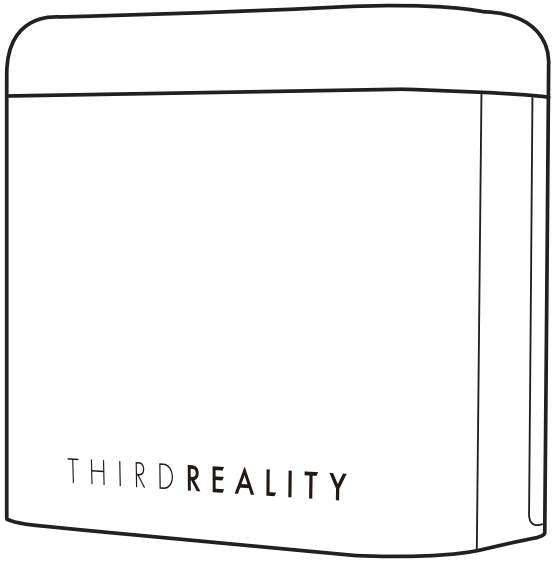 Applicable to version 1.00.27 and above
Product Description
The Multi-Function Smart Presence Sensor R3 integrates a 60 GHz mmWave human presence sensor, an RGB night light, an illuminance (lux) sensor, and a TVOC air quality sensor. The device is designed for indoor use in smart home and commercial environments, supporting presence detection, environmental data reporting, and automation-based control. It is powered via USB-C, providing a stable power supply for continuous operation.
Specifications
| Model | 3RPL01084Z |
| Radar Frequency | 62025~63815.3MHz |
| Wireless Protocol | Zigbee 3.0 & BLE |
| Power Supply | DC5V / 500mA |
| Detection Level | 6 levels adjustable (1-6m) |
| Placement | Desktop |
Button Functions
| Button | Function | Procedure |
| Level | View Sensitivity Level | Short press once |
| Change Sensitivity Level | Press again while the indicator light is on to change the sensitivity level. | |
| Reset | Factory Reset | Press and hold for more than 5 seconds until the night light stays red, and then release. |
LED Status
● Basic LED Operation Status
| LED Status | Description |
| Flashing in red. | Factory Reset |
| Yellow light breathing | Pairing |
| Warm white light breathing | Pairing success |
| The yellow light activated once, and the weak blue light illuminated for 3 seconds. | Delete from hub |
● Sensitivity Level
| Level | LED Status |
| 1m | Faint Green |
| 2m | Bright Green |
| 3m | Faint Blue |
| 4m | Bright Blue |
| 5m | Faint Red |
| 6m | Bright Red |
● TVOC Measurement & LED Status
1. Before Network Configuration
Before the device is successfully added to the network, the night light and presence sensor operate via offline behaviors:
When presence is detected, the night light will turn on automati-cally, and the light color reflects the current TVOC measurement value, indicating air quality.
When no presence is detected, the night light will remain off.
| TV0C Measurement Vбlue | LED Status | Air Quality |
| 0ppb≤TV0C≤2000ppb | Bright Green | Good |
| 2000ppb<TV0C≤4000ppb | Bright Yellow | Ventilate |
| 4000ppb<TV0C≤6000ppb | Bright 0range | Warning |
| TV0C>6000ppb | Red light flashing continuously | Danger |
Note: When the sensitivity level light is active, triggering the Presence Sensor will only activate the indicator light after the gear light effect ends.
2. After Network Configuration
After the device is successfully configured and connected to the network, the following behavior applies:
When the TVOC level exceeds 6000 ppb, regardless of the LED’s state, the red LED will keep flashing continuously. When the TVOC level is 6000 ppb or below, the red LED will stop flashing, and the lighting behavior will be set as the default color or controlled through the configured smart home automation system.
Note:
After the network configuration successfully, detected and unde-tected state does not trigger the light ON/OFF. You can control the light’s ON/OFF state via automation. When displaying the light corresponding to the sensitivity level, the light will be interrupted if you perform an on/off operation from the smart home platform or app.
Setup
- Use a USB-C-A data cable to power on the device.
- Press and hold the Reset button for more than 5 seconds until the red light stays on. Release the button, and the device will enter pairing mode. The sensitivity level defaults to 3, with a faint blue light
Note: If the device is not successfully paired within 3 minutes, it will automatically exit pairing mode. To enter pairing mode again, repeat Step 2 to reset the device: press and hold the Down button for more than 5 seconds until the indicator turns red, then release. The device will reset and re-enter pairing mode. - Follow the instructions on the corresponding platform to add the device.
Placement Recommendations
For optimal detection performance, please observe the following guidelines:
- Avoid installing the device behind metal objects or thick walls, as these may affect radar performance.
- Keep the sensor away from strong electromagnetic interference sources.
- Ensure the detection area is not obstructed by large furniture or objects.
- When installing multiple radar sensors, avoid positioning their detection surfaces directly facing each other.
Pairing with 3R-Installer App
Device: Smart Bridge MZ1
App: 3R-Installer App

Pairing steps:
- Open the 3R-Installer App. Ensure your bridge is already set up within your smart home system.
- Press and hold the down button for more than 5 seconds until the red light stays on. Release the button, and the device will enter pairing mode.
- The sensor will pair with the bridge, and a new device will appear in your smart home app.
- After the pairing is successful, tap “Complete”, then go back to the main interface.
- Tap the ” Multi-Function Smart Presence Sensor R3″ icon on the device page, and you can see the details. Follow the instructions to control the Multi-Function Smart Presence Sensor R3.
Supported Devices:
- Motion Sensor
- Illuminance (lux) Detection
- RGB Night Light

Pairing with Amazon Echo
Compatible Device: Echo V4, Echo Plus V1 & V2, Echo Studio, Echo Show 10 Gen2 & Gen3
App: Amazon Alexa App

Pairing steps:
- Make sure the app and the firmware of your Echo devices have been updated to the latest version.
- Press and hold the down button for more than 5 seconds until the red light stays on. Release the button, and the device will enter pairing mode.
- Start adding devices by saying “Alexa, discover my devices”, or open the Alexa App, go to the device page, tap “+” on the top right, choose “Add Device”, then click “Other” by sliding down, tap “DISCOVER DEVICES”, the sensor will be paired to Alexa within seconds.
- After the pairing is successful, you can control the sensor by voice and App.
Supported Devices:
- Motion Sensor (supports routines)
- RGB Night Light (supports Routines)


Pairing with SmartThings
Compatible Devices: SmartThings Hub 2015 & 2018, Aeotec
App: SmartThings App

Pairing steps:
- Before pairing, check for updates to make sure the SmartThings Hub firmware is up to date.
- Add SmartThings drivers for Third Reality Multi-Function Smart Presence Sensor R3
● Open this link in your PC browser. Log in to your SmartThings account. https://bestow-regional.api.smartthings.com/invite/adMKr50EXzj9
● Click “Enroll” –“Available Drivers” — “Install” to install the device driver.
- Press and hold the down button for more than 5 seconds until the red light stays on. Release the button, and the device will enter pairing mode.
- Open your SmartThings App, tap “+” in the upper right corner to “Add device,” and then tap “Scan nearby”.
- The sensor will be added to your SmartThings hub in a few sec-onds.
- Create routines to control connected devices.
Supported Devices:
- Motion Sensor (supports routines)
- Illuminance (lux) Sensor (support Routines)
- RGB Night Light (supports Routines)


Pairing with Home Assistant
Device: Zigbee dongle

Zigbee Home Automation
- Press and hold the down button for more than 5 seconds until the red light stays on. Release the button, and the device will enter pairing mode.
- In Zigbee Home Automation, go to the “Configuration” page, click “integration”. Then click the “Devices” on the Zigbee item, the click “Add Devices”.
- After the pairing is successful, it will be shown as “Third Reality, Inc 3RPL01084Z” on the page.
- Back to the “Devices & Services” page, click the device list under the “Hub Smart Home Controller” button, and then you can find the Multi-Function Smart Presence Sensor R3 added before. Click to enter the control interface to operate the Multi-Function Smart Presence Sensor R3.
- You can add “Automated Actions” and check device status on the “Device” page.
Supported Devices:
- Motion Sensor (supports routines)
- Illuminance (lux) sensor (support Routines)
- RGB Night Light (supports Routines)
- TVOC Air Quality Sensor (supports routines)
Manual Script Addition Guide:
- Install the Samba Share add-on in Home Assistant: Open the Home Assistant homepage, click “Settings” → “Add-ons” → “Samba share” → “ADD-ON STORE” → search “Samba share” click “START”. Click “Samba
If you cannot find the Samba share, please click the Personal Information page to check if advanced settings are enabled. - Open the folder and enter the IP address of the Home Assistant. You need to enter your account and password(Account password in Samba share configuration).
- Afterwards, enter the “config” file and create a new file to store the script.
Please download the relevant scripts (.py format) from GitHub: https://github.com/thirdreality/homeassistant/tree/main/ZHA(quirks%20v2) - Enter the “configuration.yaml” file, add the following two lines of code, and the path will be the location where you store the plug script.
enable_quirks: true
custom_quirks_path:/config/zha_quirks/
● Restart Home Assistant to apply the configuration changes.
● After each script is released, it needs to be reloaded


Zigbee2MQTT
- Press and hold the down button for more than 5 seconds until the red light stays on. Release the button, and the device will enter pairing mode.
- Permit joining to start Zigbee pairing in Zigbee2MQTT.
- After the pairing is successful, it will be shown as “Third Reality, Inc 3RPL01084Z” on the page.
- Back to the “Devices & Services” page, click the device list under the “Hub Smart Home Controller” button, and then you can find the Multi-Function Smart Presence Sensor R3 added before. Click to enter the control interface to operate the Multi-Function Smart Presence Sensor R3.
- You can add “Automated Actions” and check device status on the “Device” page.
Supported Devices:
- Motion Sensor (supports routines)
- Illuminance (lux) sensor (support Routines)
- RGB Night Light (supports Routines)
- TVOC Air Quality Sensor (support Routines)

Pairing with Homey
Device: Zigbee dongle

Pairing steps:
- Install the Third Reality App in your Homey App.
- Press and hold the down button for more than 5 seconds until the red light stays on. Release the button, and the device will enter pairing mode.
- Tap “+” in the Devices, tap → “New Device” → “Third Reality” → “Multi-Function Smart Presence Sensor R3” → “Connect” and follow the instructions to add the device.
- After the pairing is successful, you can see details and create routines on the “Device” page.
Supported Devices:
- Motion Sensor (supports routines)
- Illuminance (lux) sensor (support Routines)
- RGB Night Light (supports Routines)
Troubleshooting
- Detection range or sensitivity is not suitable.
Adjust the detection level with the button and change the installation angle. - The light turns on at night before pairing, but not after pairing.
Before pairing, the device uses built-in local automation. After pairing, set automation in the platform/app.
FCC Regulatory Conformance
This device complies with Part 15 of the FCC rules. Operation is subject to the following two conditions: (1) this device may not cause harmful interference, and (2) this device must accept any interference received, including interference that may cause undesired operation.
Changes or modifications not expressly approved by the party responsible for compliance could void the user’s authority to operate the equipment.
NOTE: This equipment has been tested and found to comply with the limits for a Class B digital device, pursuant to part 15 of the FCC Rules. These limits are designed to provide reasonable protection against harmful interference in a residential installation.
This equipment generates, uses, and can radiate radio frequency energy and, if not installed and used in accordance with the instructions, may cause harmful interference to radio communications. However, there is no guarantee that interference will not occur in a particular installation. If this equipment does cause harmful interference to radio or television reception, which can be determined by turning the equipment off and on, the user is encouraged to try to correct the interference by one or more of the following measures:
- Reorient or relocate the receiving antenna.
- Increase the separation between the equipment and the receiver.
- Connect the equipment to an outlet on a circuit different from that to which the receiver is connected.
- Consult the dealer or an experienced radio/TV technician for help with an important announcement.
RF Exposure
This equipment complies with FCC radiation exposure limits set forth for an uncontrolled environment.
This equipment should be installed and operated with minimum dis-tance 20cm between the radiator and your body.
This transmitter must not be co-located or operating in conjunction with any other antenna or transmitter.
Limited Warranty
For the limited warranty, please visit https://thirdreality.com/faq-help-center/
For customer support, please contact us at info@3reality.com or visit www.thirdreality.com
For questions on other platforms, visit the corresponding platform’s application/support platform.
Documents / Resources
 | R3 Multi Function Smart Presence Sensor |
References
- User Manualmanual.tools