1. บทนำ
Thank you for choosing the KTC H25T7-3 24.5 Inch 240Hz FHD Gaming Monitor. This manual provides essential information for setting up, operating, and maintaining your monitor. Please read it thoroughly before use to ensure optimal performance and safety.
ข้อมูลด้านความปลอดภัย
- อย่าวางจอภาพไว้ในที่ที่มีฝนหรือความชื้น เพื่อป้องกันไฟไหม้หรือไฟฟ้าช็อต
- อย่าเปิดจอภาพcasinก. ไม่มีชิ้นส่วนใดที่ผู้ใช้สามารถซ่อมบำรุงเองได้ภายใน แนะนำให้ช่างผู้ชำนาญการซ่อมบำรุงเป็นผู้รับผิดชอบ
- วางจอภาพบนพื้นผิวที่มั่นคงและเรียบเพื่อป้องกันไม่ให้ตก
- ตรวจสอบให้แน่ใจว่ามีการระบายอากาศที่เหมาะสมรอบๆ จอภาพเพื่อป้องกันความร้อนสูงเกินไป
- Use only the power adapter and cables provided by KTC.
2. อะไรอยู่ในกล่อง
Verify that all the following items are present in your package:
- KTC H25T7-3 24.5" FHD 240Hz Monitor (x1)
- ขาตั้งจอภาพ (1 ชิ้น)
- คู่มือเริ่มต้นใช้งานฉบับย่อ (QSG) (x1)
- สาย DisplayPort (DP) (x1)
- อะแดปเตอร์ไฟ (x1)
- สายไฟ (x1)
3. สินค้าหมดview
The KTC H25T7-3 is a 24.5-inch Full HD (1920x1080) gaming monitor featuring a Fast IPS panel, 240Hz refresh rate, and 1ms MPRT response time for smooth visuals. It supports HDR400 and Adaptive-Sync technology to enhance your viewประสบการณ์การเล่นเกมและการเล่นเกม
คุณสมบัติหลัก
- 24.5" FHD Fast IPS Panel: Delivers crisp 1080p resolution with wide 178° viewมุมการเอียง
- อัตราการรีเฟรช 240Hz และ MPRT 1ms: Ensures ultra-smooth motion and minimal ghosting.
- เทคโนโลยีอะแดปทีฟซิงค์: Synchronizes the monitor's refresh rate with your GPU for tear-free gameplay.
- รองรับ HDR400: Provides enhanced contrast and color depth for a more immersive visual experience.
- ขาตั้งตามหลักสรีรศาสตร์: Offers tilt, pivot, and height adjustments for personalized viewความสะดวกสบาย
- คุณสมบัติการดูแลดวงตา: Low blue light and flicker-free technology reduce eye strain during extended use.
- ตัวเลือกการเชื่อมต่อที่หลากหลาย: Includes 2x HDMI 2.0, 1x DisplayPort 1.4, and 1x USB 2.0.

รูปที่ 3.1: เกินview of KTC H25T7-3 monitor features including Fast IPS, 240Hz, HDR400, and adjustable stand.
4. การตั้งค่า
4.1 การประกอบขาตั้ง
- ถอดส่วนประกอบของจอภาพและขาตั้งออกจากบรรจุภัณฑ์อย่างระมัดระวัง
- ยึดฐานขาตั้งเข้ากับคอขาตั้งโดยใช้สกรูที่ให้มา
- จัดวางขาตั้งที่ประกอบเสร็จแล้วให้ตรงกับช่องสำหรับติดตั้งที่ด้านหลังของจอภาพ และยึดให้แน่นสนิท

รูปที่ 4.1 : ด้านหน้า view of the KTC H25T7-3 monitor with its stand assembled.
4.2 การติดตั้งบนผนังแบบ VESA (ตัวเลือกเสริม)
The monitor supports a 100x100mm VESA mount. To wall mount the monitor:
- ถอดขาตั้งออกจากจอภาพหากติดตั้งอยู่แล้ว
- Attach your VESA-compatible wall mount bracket to the four screw holes on the back of the monitor. Ensure the screws are appropriate for the VESA standard and do not overtighten.
- Follow the instructions provided with your VESA mount for secure installation.

รูปที่ 4.2: ด้านหลัง view of the KTC H25T7-3 monitor, highlighting the input ports and VESA mounting area.
4.3 สายเชื่อมต่อ
Connect the necessary cables to the corresponding ports on the monitor and your computer/device:
- พลัง: Connect the power adapter to the monitor's DC input and then plug the power cord into a power outlet.
- ดิสเพลย์พอร์ต (DP): For optimal performance (240Hz, Adaptive-Sync), connect the provided DisplayPort cable from your graphics card to the monitor's DP 1.4 port.
- ช่องต่อ HDMI: Alternatively, connect an HDMI cable from your device to one of the monitor's HDMI 2.0 ports.
- ยูเอสบี: The USB 2.0 port can be used for firmware upgrades or connecting peripherals.
5. คู่มือการใช้งาน
5.1 เปิด/ปิดเครื่อง
กดปุ่มเปิด/ปิด (โดยปกติจะอยู่ด้านหลังหรือด้านล่างของจอภาพ) เพื่อเปิดหรือปิดจอภาพ ไฟแสดงสถานะจะสว่างขึ้นเมื่อจอภาพเปิดอยู่
5.2 การนำทางเมนู OSD
The On-Screen Display (OSD) menu is controlled by a joystick button, typically located on the back of the monitor. Use the joystick to navigate through the menu options and adjust settings.
- กดเข้า: เข้าสู่/ยืนยันการเลือก
- ขึ้นลง: นำทางผ่านตัวเลือกเมนู
- ซ้าย/ขวา: ปรับค่าต่างๆ หรือสลับไปมาระหว่างเมนูย่อย
5.3 การปรับการตั้งค่าการแสดงผล
Access the OSD menu to configure various display settings:
- ความสว่าง/คอนทราสต์: ปรับระดับความสว่างและความคมชัดโดยรวม
- การตั้งค่าสี: ปรับแต่งอุณหภูมิสี แกมมา และค่า RGB แต่ละค่าอย่างละเอียด
- โหมดภาพ: Select from preset modes (e.g., Standard, Game, Movie, sRGB) or customize your own.
- อัตราการรีเฟรช: Ensure your graphics card output is set to 240Hz for optimal performance.
- Adaptive-Sync: Enable this feature in the OSD menu and your graphics card control panel to eliminate screen tearing.
- เอชดีอาร์: Activate HDR400 for compatible content to experience enhanced dynamic range.
- แสงสีฟ้าต่ำ: Adjust the blue light filter to reduce eye strain.

Figure 5.1: Visual representation of the 240Hz refresh rate for smooth motion.
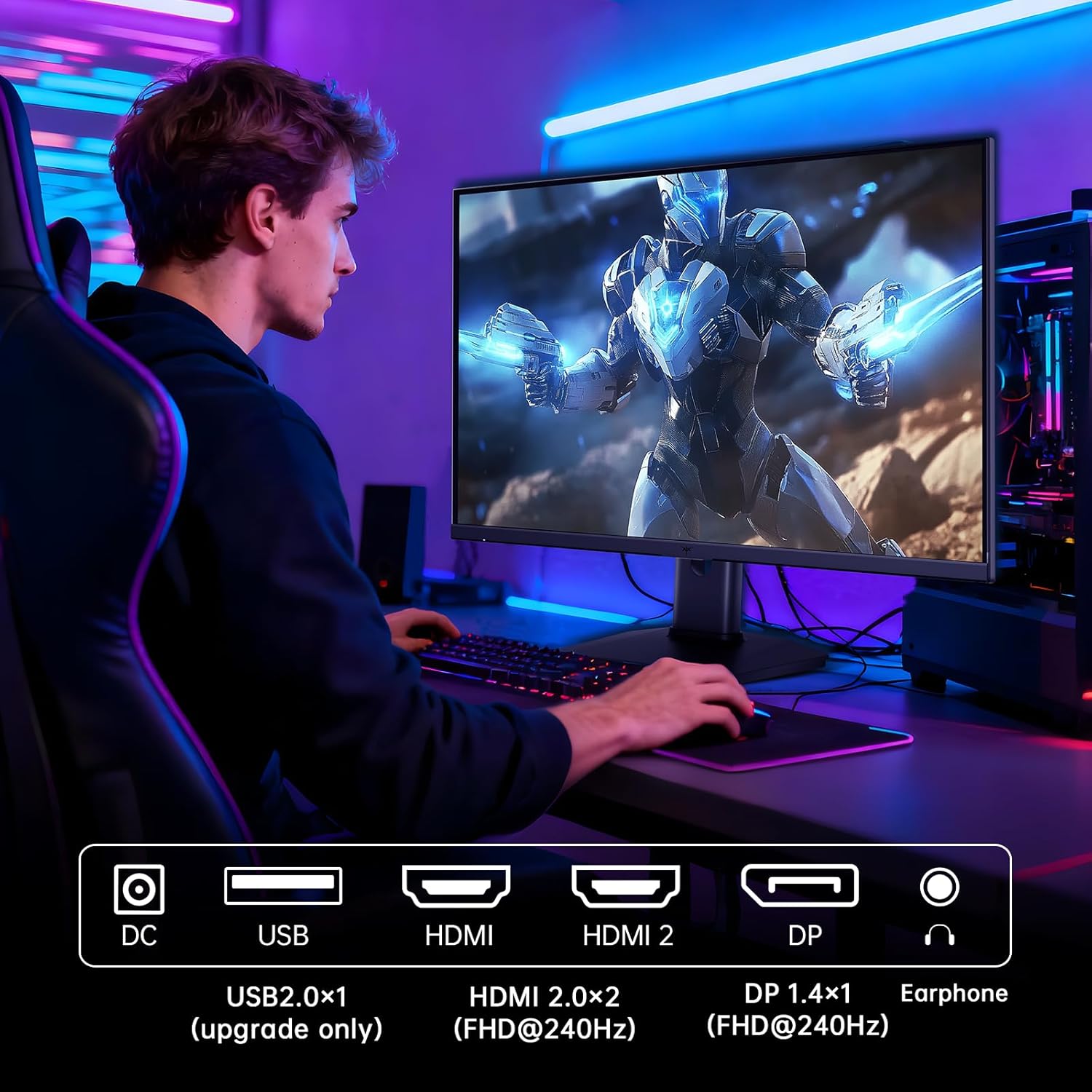
Figure 5.2: Comparison showing the effect of Adaptive-Sync on reducing stuttering and screen tearing.

Figure 5.3: Illustration of HDR400 technology delivering clear details in dark areas compared to HDR10.

Figure 5.4: Diagram illustrating hardware blue light reduction technology to filter harmful blue light bands.
5.4 การปรับตามหลักสรีรศาสตร์
ขาตั้งจอภาพสามารถปรับได้หลากหลายเพื่อเพิ่มประสิทธิภาพของคุณ viewตำแหน่งที่กำลังทำ :
- เอียง: ปรับมุมหน้าจอไปข้างหน้าหรือข้างหลัง (-5° ถึง 20°)
- หมุน: หมุนหน้าจอ 90° เพื่อเข้าสู่โหมดแนวตั้ง
- การปรับความสูง: Raise or lower the screen by up to 110mm.
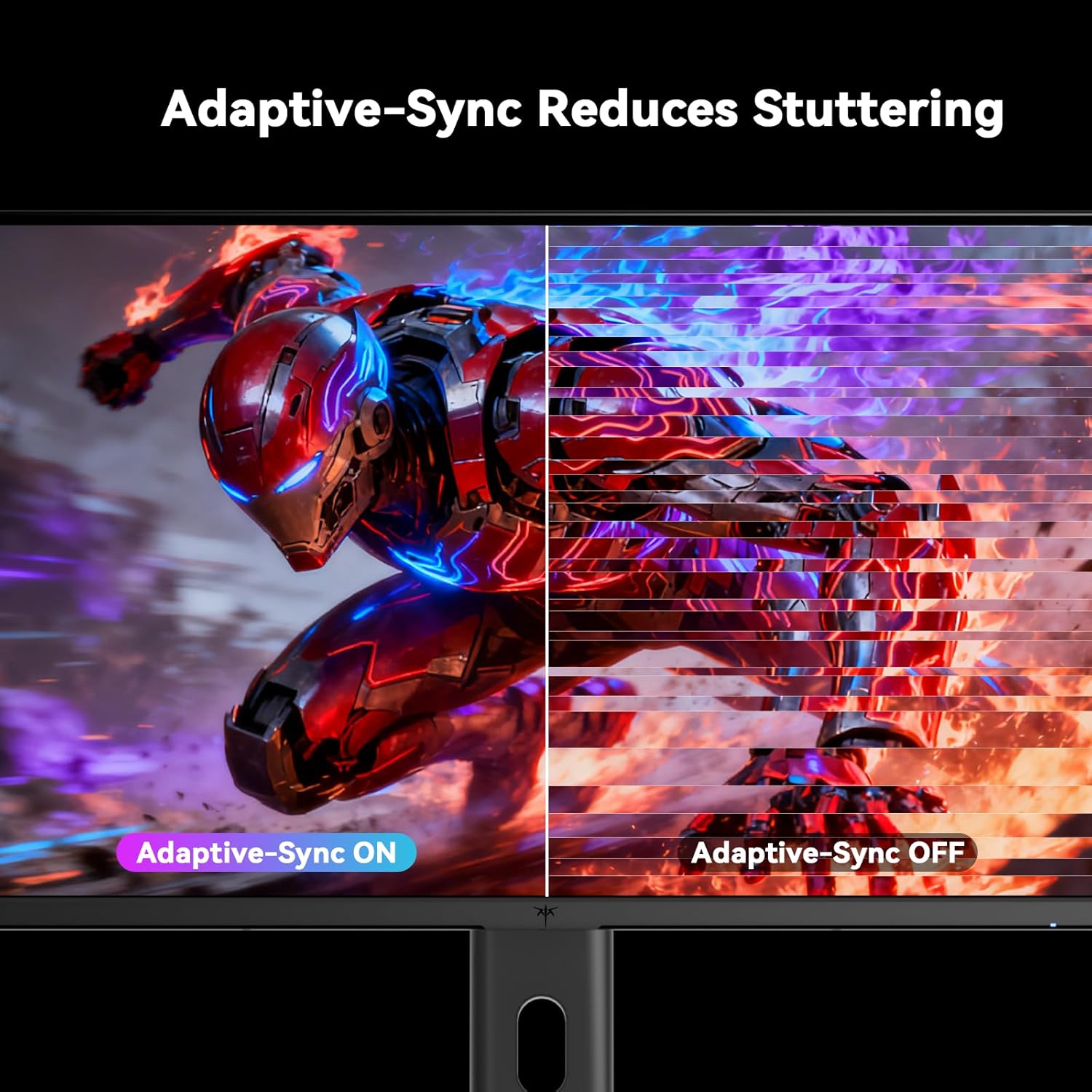
Figure 5.5: Diagram showing the tilt, pivot, and height adjustment capabilities of the monitor stand.
5.5 วิดีโอผลิตภัณฑ์อย่างเป็นทางการ
Video 5.1: An official product video from KTC-Official showcasing the 24.5 Inch FHD 240Hz Gaming Monitor, demonstrating its features and performance.
6. การบำรุงรักษา
6.1 การทำความสะอาดจอภาพ
เพื่อทำความสะอาดหน้าจอมอนิเตอร์และคasing:
- ควรถอดปลั๊กจอภาพออกจากเต้ารับไฟฟ้าทุกครั้งก่อนทำความสะอาด
- ใช้ผ้านุ่มไม่เป็นขุยค่อยๆ งampเคลือบด้วยน้ำหรือน้ำยาทำความสะอาดหน้าจอที่ไม่กัดกร่อน
- ห้ามฉีดน้ำยาทำความสะอาดลงบนหน้าจอโดยตรง
- หลีกเลี่ยงการใช้เบนซีน ทินเนอร์ น้ำยาทำความสะอาดที่มีส่วนผสมของแอมโมเนีย หรือวัสดุที่มีฤทธิ์กัดกร่อน
6.2 การดูแลทั่วไป
- Keep the monitor away from direct sunlight, excessive heat, or cold.
- หลีกเลี่ยงการวางวัตถุหนักบนจอภาพหรือสายเคเบิล
- อย่าปิดกั้นช่องระบายอากาศบนจอภาพ
7 การแก้ไขปัญหา
หากคุณพบปัญหาเกี่ยวกับจอภาพของคุณ โปรดดูปัญหาทั่วไปและวิธีแก้ไขต่อไปนี้:
| ปัญหา | สาเหตุที่เป็นไปได้ | สารละลาย |
|---|---|---|
| ไม่มีไฟฟ้า | สายไฟไม่ได้เชื่อมต่อ เต้ารับไฟฟ้าไม่ทำงาน | ตรวจสอบให้แน่ใจว่าสายไฟเสียบแน่นดีแล้ว ทดสอบปลั๊กไฟด้วยอุปกรณ์อื่น |
| ไม่มีสัญญาณ | Video cable not connected; Incorrect input source selected; Computer/device not powered on | Check video cable connections. Select the correct input source via the OSD menu. Ensure your computer/device is on. |
| หน้าจอกระพริบ | Incorrect refresh rate; Cable issue; Adaptive-Sync not enabled | Set refresh rate to 240Hz. Try a different video cable. Enable Adaptive-Sync in OSD and GPU settings. |
| Image distortion/poor quality | Incorrect resolution; Graphics driver issue; Monitor settings | Set resolution to 1920x1080. Update graphics drivers. Adjust OSD settings (brightness, contrast, color). |
7.1 รีเซ็ตเป็นค่าโรงงาน
If problems persist, you may perform a factory reset through the OSD menu. This will revert all monitor settings to their default values.
8. ข้อมูลจำเพาะ
Detailed technical specifications for the KTC H25T7-3 monitor:
| คุณสมบัติ | ข้อมูลจำเพาะ |
|---|---|
| หมายเลขรุ่น | H25T7-3 |
| ขนาดหน้าจอ | 24.5 นิ้ว |
| ประเภทแผง | เกือบ IPS |
| ปณิธาน | ความละเอียด Full HD 1080p (1920 x 1080 พิกเซล) |
| อัตราส่วนภาพ | 16:9 น. |
| อัตราการรีเฟรช | 240เฮิรตซ์ |
| เวลาตอบสนอง | 1 มิลลิวินาที (MPRT) |
| การซิงค์แบบปรับตัว | ใช่ |
| รองรับ HDR | HDR400 |
| ช่วงสี | 114% sRGB |
| อัตราส่วนคอนทราสต์ | 1000:1 น. |
| สีที่แสดง | 16.7 ล้าน |
| ความสว่าง | 350 ซีดี/ตรม. |
| Viewอิงแองเกิล | 178° (สูง/วี) |
| การเชื่อมต่อ | 2x HDMI 2.0, 1x DisplayPort 1.4, 1x USB 2.0 |
| ความเข้ากันได้ของเมาท์ VESA | 100x100มม. |
| การปรับตามหลักสรีรศาสตร์ | Tilt, Pivot, Height |
| ขนาดสินค้า (รวมขาตั้ง) | 7.6 x 21.97 x 18.23 นิ้ว |
| น้ำหนักสินค้า (รวมขาตั้ง) | 11.58 ปอนด์ |
| เล่มที่tage | 12 โวลต์ (กระแสตรง) |
9. การรับประกันและการสนับสนุน
9.1 ข้อมูลการรับประกัน
KTC monitors are designed and manufactured to the highest quality standards. For specific warranty terms and conditions, please refer to the warranty card included with your product or visit the official KTC webไซต์ โปรดเก็บใบเสร็จรับเงินไว้เป็นหลักฐานการซื้อสำหรับการเรียกร้องการรับประกัน
9.2 การสนับสนุนลูกค้า
If you have any questions, require technical assistance, or experience issues not covered in this manual, please contact KTC customer support. Contact details can typically be found on the official KTC webไซต์หรือในคู่มือเริ่มต้นฉบับย่อ


