การแนะนำ
Thank you for choosing the AZDOME PG17 Pro Mirror Dash Cam. This manual provides essential information for setting up, operating, and maintaining your device. Please read it thoroughly before use to ensure optimal performance and safety.
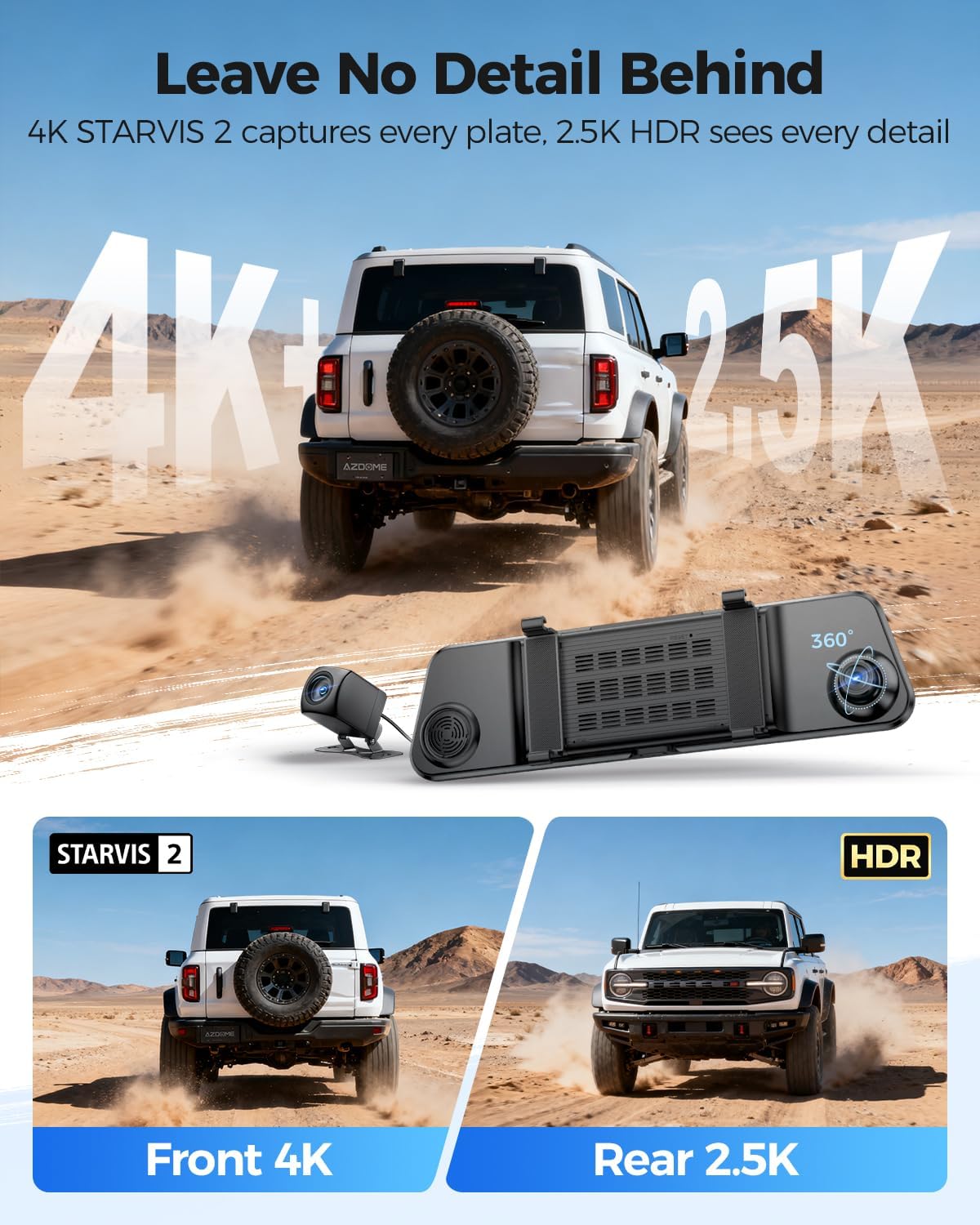
Image: The AZDOME PG17 Pro Mirror Dash Cam, showcasing its sleek design and integrated front camera, with the separate rear camera visible.
มีอะไรอยู่ในกล่อง
ตรวจสอบว่ารายการทั้งหมดที่ระบุไว้ด้านล่างนี้รวมอยู่ในแพ็คเกจของคุณ:
- AZDOME PG17 Pro 4K Mirror Dash Cam ×1
- 2.5K Rear Camera ×1
- GPS Receiver ×1
- 128GB Memory Card ×1
- Type-C Power Cable ×1
- 20ft Rear Cam Cable ×1
- Car Wire Trim Tool ×1
- Straps ×4
- Cable Clips ×5

Image: A visual representation of all items included in the AZDOME PG17 Pro Mirror Dash Cam package.
การติดตั้งและการตั้งค่า
1. Installing the Mirror Dash Cam
Secure the main dash cam unit over your existing rearview ติดกระจกโดยใช้สายรัดยางที่ให้มา ตรวจสอบให้แน่ใจว่าติดแน่นและไม่กีดขวางการมองเห็นของคุณ view.

Image: A close-up of the dash cam being secured onto a vehicle's rearview mirror using the elastic straps.
2. การเชื่อมต่อสายไฟ
Connect the Type-C power cable to the dash cam and route it along the windshield trim down to your vehicle's 12V power outlet (cigarette lighter socket). Use the trim tool to tuck the cable neatly for a clean installation.
Video: Demonstrates the step-by-step installation process of the PG17 Pro Dash Cam, including securing the mirror unit and routing the power cable.
3. การติดตั้งกล้องมองหลัง
Connect the 2.5K rear camera to the main unit using the provided 20ft rear cam cable. Route this cable from the main unit, along the headliner and side pillars, to the rear of your vehicle. Mount the rear camera above your license plate frame for optimal rear view. Connect the red trigger wire from the rear camera cable to the positive wire of your vehicle's reversing light for automatic reverse assist functionality.

Image: A diagram illustrating how to connect the rear camera and the car charger to the main dash cam unit.
4. Installing the GPS Receiver
Plug the GPS receiver into the designated port on the dash cam. Mount the GPS module on your dashboard or windshield where it has a clear view of the sky for accurate signal reception. This enables GPS tracking and speed display.

Image: A visual demonstrating the built-in GPS logger, which tracks speed, location, and driving routes.
5. การใส่การ์ดหน่วยความจำ
Insert the provided 128GB MicroSD card into the MicroSD card slot on the top of the dash cam. Ensure it clicks into place. The dash cam requires a high-speed memory card (U3 V30 A2 recommended) for optimal recording performance. Format the memory card before first use via the dash cam settings.
คำแนะนำการใช้งาน
1. เปิด/ปิดเครื่อง
กล้องติดรถยนต์จะเปิดและเริ่มบันทึกโดยอัตโนมัติเมื่อสตาร์ทรถ และจะปิดโดยอัตโนมัติเมื่อดับเครื่องยนต์
2. อินเทอร์เฟซหน้าจอสัมผัส
The 12-inch IPS touchscreen allows for easy navigation through menus and settings. Swipe left or right on the screen to switch between front camera view,กล้องหลัง view, or a split-screen display showing both simultaneously.

Image: The dash cam display showing simultaneous 4K front and 2.5K rear camera views, highlighting clarity.
3. การควบคุมด้วยเสียง
Operate the dash cam hands-free using voice commands. Supported commands include: "Record Video", "Take Photo", "Turn on Audio", "Turn off Audio", "Show Front Camera", "Show Rear Camera", "Turn on WiFi", "Turn off WiFi", "Lock Video".

Image: A driver demonstrating the smart voice control feature to activate various dash cam functions without taking hands off the wheel.
4. ADAS (ระบบช่วยเหลือผู้ขับขี่ขั้นสูง)
The ADAS feature provides real-time warnings for enhanced driving safety. This includes Lane Departure Warning, Forward Collision Warning, and Front Vehicle Start Alerts.

Image: A visual representation of the Advanced Driver Assistance System (ADAS) providing real-time collision warnings to the driver.
5. Parking Monitor (Hardwire Required)
For 24/7 parking surveillance, the dash cam requires a hardwire kit (sold separately). This enables Collision Detection and Time-Lapse Recording modes when the vehicle is parked.

Image: The 24H Parking Monitor feature, illustrating collision detection and time-lapse recording for vehicle security.
6 การเชื่อมต่อ WiFi และการใช้งานแอปพลิเคชัน
Connect your dash cam to the AZDOME app via 5.8GHz WiFi for seamless video management, live preview, and settings adjustments. Download the AZDOME app from your smartphone's app store. The default WiFi password is 12345678.
Video: A demonstration of connecting the PG17 Pro to a smartphone via WiFi and using the AZDOME app.
Video: A guide on navigating and adjusting settings within the AZDOME app for the PG17 Pro.
การซ่อมบำรุง
1. การจัดการการ์ดหน่วยความจำ
Regularly format your MicroSD card (at least once a month) to prevent data corruption and ensure continuous recording. The dash cam features loop recording, automatically overwriting the oldest files when the card is full, but periodic manual formatting is recommended.

Image: Illustrates the loop recording function, which automatically overwrites old files, and the emergency lock feature for critical footage.
2. การทำความสะอาดอุปกรณ์
Use a soft, dry cloth to clean the dash cam's screen and lens. Avoid using abrasive cleaners or solvents that could damage the device. Ensure the lenses are clean for clear video capture.
การแก้ไขปัญหา
If you encounter any issues with your AZDOME PG17 Pro, please refer to the following common solutions:
- กล้องติดรถยนต์ไม่เปิดใช้งาน: Ensure the power cable is securely connected to both the dash cam and the vehicle's 12V power outlet. Check if the vehicle's ignition is on.
- ปัญหาการบันทึก: Format the MicroSD card through the dash cam settings. Ensure the card is a high-speed (U3 V30 A2) card.
- วิดีโอไม่ชัดเจน: Clean the front and rear camera lenses with a microfiber cloth. Adjust the camera angles for optimal view.
- การสูญเสียสัญญาณ GPS: ตรวจสอบให้แน่ใจว่าโมดูล GPS มีการเชื่อมต่อที่ชัดเจน view ของท้องฟ้าและเชื่อมต่ออย่างปลอดภัย
- ปัญหาการเชื่อมต่อ WiFi: Verify that WiFi is enabled on the dash cam and your smartphone. Re-enter the WiFi password (default: 12345678).
- การควบคุมด้วยเสียงไม่ตอบสนอง: Speak clearly and ensure the vehicle's audio is not excessively loud.
หากต้องการความช่วยเหลือเพิ่มเติม โปรดติดต่อฝ่ายบริการลูกค้าของ AZDOME
ข้อมูลจำเพาะ
| คุณสมบัติ | รายละเอียด |
|---|---|
| ชื่อรุ่น | PG17 Pro ADAS F1.0 |
| ขนาดสินค้า | 1.5 x 12 x 3 นิ้ว |
| น้ำหนักสินค้า | 2.53 ปอนด์ |
| ความละเอียดในการจับภาพวิดีโอ | Front: 3840 × 2160 (4K), Rear: 2560 × 1440 (2.5K) |
| คุณสมบัติพิเศษ | STARVIS 2 IMX678, Advanced Driver Assistance System (ADAS), 5.8GHz WiFi, GPS, Voice Control, Dual HDR, Reverse Assist |
| ประเภทการติดตั้ง | หลังview ติดกระจก |
| ที่ดินของ View | 170 องศา |
| เทคโนโลยีการเชื่อมต่อ | USB, Wireless (5.8GHz WiFi) |
| แบตเตอรี่ | ต้องใช้แบตเตอรี่ลิเธียมเมทัล 1 ก้อน |
| สี | สีดำ |
การรับประกันและการสนับสนุน
The AZDOME PG17 Pro Mirror Dash Cam comes with 18 months of professional support. For any technical assistance, warranty claims, or product inquiries, please contact our customer service team.
อีเมลฝ่ายบริการลูกค้า: service@azdomevip.com

Image: AZDOME customer support representative ready to assist with product inquiries.