1. บทนำ
This manual provides instructions for the Belkin Everyday Keyboard Case with Cradle, designed to enhance the functionality and protection of your iPad 10th Generation 10.9". This accessory integrates a backlit Bluetooth keyboard, a multi-gesture trackpad, and a protective case with magnetic Apple Pencil storage, transforming your iPad into a versatile workstation.
2. สินค้าหมดview
คุณสมบัติหลัก
- คีย์บอร์ดบลูทูธมีไฟแบ็คไลท์: Enhances productivity in low-light conditions.
- การควบคุมด้วยท่าทางหลายแบบ: Large, click-anywhere trackpad supports gestures for scrolling, navigating, and zooming.
- ที่เก็บ Apple Pencil แบบแม่เหล็ก: Integrated design ensures secure storage without obstructing the iPad's magnetic charging area.
- คีย์มัลติมีเดีย: Dedicated keys for quick access to common functions.
- เคสป้องกัน: Premium faux leather exterior and soft anti-slip interior protect your device.
เนื้อหาแพ็คเกจ
- 1 x Belkin Everyday Keyboard Case with Cradle for iPad 10th Generation 10.9"
- 1 x USB-C Charging Cable (for keyboard)
3. การตั้งค่า
3.1 Check iPad Compatibility
Ensure your iPad is compatible with this keyboard case. This product is designed for the iPad 10th Generation 10.9".

Image: Compatible iPad models. This case is specifically for iPad 10th Gen (A2696/A2757).
To find your iPad model number:
- ตัวเลือกที่ 1: Look on the back of your iPad for the model number.
- ตัวเลือกที่ 2: Open Settings > General > About. Tap the part number to reveal the model number.
3.2 การเชื่อมต่อ iPad
The case features a magnetic snap-on attachment for easy and secure installation of your iPad.
- Align your iPad with the protective cradle portion of the case.
- The iPad will magnetically snap into place, securing it within the case.

Image: Magnetic snap-on attachment for the iPad.
3.3 การจับคู่บลูทูธ
The keyboard connects to your iPad via Bluetooth. It needs to be paired independently.
- Ensure the keyboard is charged (see section 3.4).
- Turn on the keyboard (if applicable, usually by opening the case or a dedicated power button).
- บน iPad ของคุณไปที่ การตั้งค่า > บลูทูธ.
- Look for "Belkin Keyboard" or a similar name in the list of available devices and tap to connect.
- ปฏิบัติตามคำแนะนำบนหน้าจอเพื่อดำเนินการจับคู่ให้เสร็จสมบูรณ์
3.4 การชาร์จคีย์บอร์ด
The keyboard has an internal rechargeable battery and must be charged separately from your iPad.
- ค้นหาพอร์ตชาร์จ USB-C บนแป้นพิมพ์
- Connect the provided USB-C cable to the keyboard and a compatible USB power adapter (not included).
- ไฟแสดงสถานะการชาร์จจะแสดงสถานะการชาร์จ

Image: The keyboard features a 450mAh battery for long-lasting power.
4. คู่มือการใช้งาน
4.1 การใช้งานแป้นพิมพ์
The keyboard provides a tactile typing experience with several useful features.
- ปุ่มเรืองแสง: Press the dedicated backlight key (often represented by a sun icon) to cycle through brightness levels or turn the backlight off to conserve battery.
- คีย์มัลติมีเดีย: Use the dedicated function keys for quick access to media playback controls, volume adjustment, and other system functions.

Image: Backlit Bluetooth Keyboard and Multimedia Keys in use.
4.2 การใช้งานแทร็กแพด
The large, click-anywhere trackpad supports multi-gesture controls for intuitive navigation on your iPad.
- การเลื่อน: ใช้สองนิ้วเพื่อเลื่อนขึ้นหรือลง
- การนำทาง: Swipe with three fingers to switch between open applications.
- ซูม: Pinch with two fingers to zoom in or out on content.
- การคลิก: Press down on any part of the trackpad for a click action.

Image: Multi-Gesture Controls on Touchpad.
4.3 Stand Functionality
The integrated cradle and kickstand allow for adjustable viewมุมการเอียง
- Open the case and position the iPad in the cradle.
- Adjust the kickstand at the back of the keyboard portion to achieve your desired viewมุมอิง
4.4 Apple Pencil Storage
The case is designed with compatibility for Apple Pencil storage.
- Place your Apple Pencil on the designated magnetic strip on the side of the iPad.
- The case ensures the Apple Pencil remains securely attached and accessible.
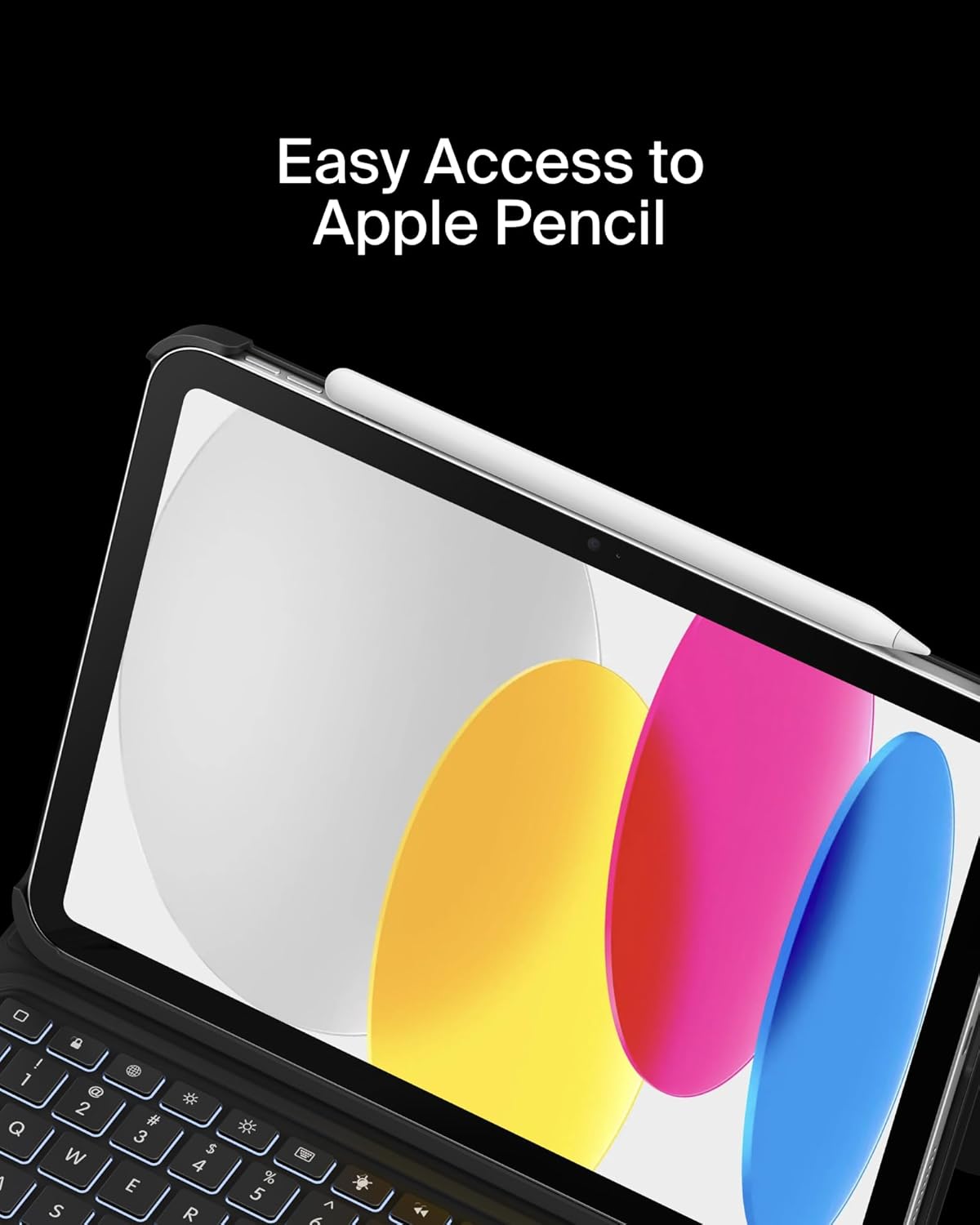
Image: Easy Access to Apple Pencil.
5. การบำรุงรักษา
5.1 การทำความสะอาด
To maintain the appearance and functionality of your keyboard case:
- เช็ดภายนอกด้วยผ้านุ่มๆamp ผ้า. หลีกเลี่ยงสารเคมีที่รุนแรง
- For the keyboard keys and trackpad, use a soft, dry cloth or a gentle brush to remove dust and debris.
5.2 การดูแลแบตเตอรี่
คีย์บอร์ดนี้มาพร้อมแบตเตอรี่ลิเธียมขนาด 450 mAh
- ชาร์จแป้นพิมพ์ให้เต็มก่อนใช้งานครั้งแรก
- ควรชาร์จคีย์บอร์ดเมื่อไฟแสดงสถานะแบตเตอรี่แสดงว่าพลังงานเหลือน้อย
- เพื่ออายุการใช้งานแบตเตอรี่ที่ดีที่สุด ควรหลีกเลี่ยงการระบายแบตเตอรี่จนหมดบ่อยครั้ง
- If not in use for an extended period, charge the keyboard every few months to prevent deep discharge.
6 การแก้ไขปัญหา
6.1 แป้นพิมพ์ไม่ตอบสนอง
- ตรวจสอบแบตเตอรี่: ตรวจสอบให้แน่ใจว่าแป้นพิมพ์มีประจุไฟเพียงพอ
- จับคู่บลูทูธใหม่: Go to iPad Settings > Bluetooth, forget the device, and re-pair the keyboard.
- รีสตาร์ทอุปกรณ์: รีสตาร์ททั้ง iPad และคีย์บอร์ดของคุณ
6.2 แทร็กแพดใช้งานไม่ได้
- ตรวจสอบการเชื่อมต่อบลูทูธ: ตรวจสอบให้แน่ใจว่าได้เชื่อมต่อแป้นพิมพ์ผ่านบลูทูธเรียบร้อยแล้ว
- ทำความสะอาดแทร็กแพด: ตรวจสอบให้แน่ใจว่าพื้นผิวของแทร็กแพดสะอาดและปราศจากสิ่งกีดขวาง
- iPad Settings: Verify trackpad settings in iPadOS are enabled and configured as desired.
6.3 ไฟแบ็คไลท์ไม่ทำงาน
- ตรวจสอบแบตเตอรี่: Backlight consumes power; ensure the keyboard has enough charge.
- การปรับความสว่าง: Use the dedicated backlight key to increase brightness.
7. ข้อมูลจำเพาะ
| ยี่ห้อ | เบลคิน |
| หมายเลขรุ่น | BBZ001tt-V3 |
| อุปกรณ์ที่รองรับ | iPad 10th Generation 10.9" |
| เทคโนโลยีการเชื่อมต่อ | บลูทูธ |
| คำอธิบายแป้นพิมพ์ | มัลติมีเดีย |
| คุณสมบัติพิเศษ | Apple Pencil Storage, Backlit, Multimedia Keys, Trackpad |
| สี | สีดำ |
| รองรับสีแบ็คไลท์ของคีย์บอร์ด | สีเดียว |
| สไตล์ | Case w/ Cradle |
| วัสดุ | Faux Leather (Exterior), Soft Non-Slip Material (Interior) |
| น้ำหนักสินค้า | 1.6 ปอนด์ |
| ขนาดสินค้า (กxยxส) | 10.9 x 7.7 x 0.9 นิ้ว |
| แหล่งพลังงาน | ใช้พลังงานจากแบตเตอรี่ |
| แบตเตอรี่ | 450mAh lithium battery (standby time: 365 days) |

Image: Slim, Portable Design with approximate dimensions and weight.
8. การรับประกันและการสนับสนุน
8.1 การรับประกันแบบจำกัด
This Belkin Everyday Keyboard Case with Cradle comes with a รับประกันจำกัด 2 ปีการรับประกันนี้ครอบคลุมถึงข้อบกพร่องในวัสดุและฝีมือการผลิตภายใต้การใช้งานปกติ

Image: Belkin Product Protection - 2 Year Coverage.
8.2 การสนับสนุนลูกค้า
For technical assistance, warranty claims, or further information, please visit the official Belkin support webเว็บไซต์หรือติดต่อฝ่ายบริการลูกค้าของพวกเขา
การสนับสนุนของเบลคิน: www.belkin.com/support/


