1. บทนำ
ยินดีต้อนรับสู่แบล็คview Tab60WiFi user manual. This guide provides essential information for setting up, operating, and maintaining your new 10-inch Android 14 tablet. Please read this manual thoroughly to ensure proper usage and to maximize your device's potential.

สีดำview Tab60WiFi, a 10.1-inch tablet running on the latest Android 14 operating system.
2. อะไรอยู่ในกล่อง
เมื่อคุณเปิดกล่องสีดำของคุณview Tab60WiFi package, you should find the following items:
- สีดำview Tab60WiFi Tablet
- อะแดปเตอร์ 10W
- สาย USB-C
- คู่มือการใช้งาน

ภาพประกอบของคนผิวดำview Tab60WiFi tablet and its included accessories.
3. สินค้าหมดview
สีดำview Tab60WiFi features a sleek and lightweight metal body, designed for portability and comfort.

The tablet is available in stylish colors and weighs approximately 520.5g.
4. การตั้งค่าเริ่มต้น
4.1 การชาร์จแท็บเล็ต
Before first use, fully charge your tablet using the provided 10W power adapter and USB-C cable. Connect the USB-C cable to the tablet's Type-C port and the adapter to a power outlet.
4.2 เปิด/ปิดเครื่อง
- การเปิดเครื่อง: Press and hold the power button until the Blackview โลโก้ปรากฏขึ้น
- วิธีปิดเครื่อง: Press and hold the power button, then select 'Power Off' from the options.
- ในการรีสตาร์ท: กดปุ่มเปิด/ปิดค้างไว้ จากนั้นเลือก 'รีสตาร์ท' จากตัวเลือกต่างๆ
5. คู่มือการใช้งาน
5.1 คุณสมบัติของ Android 14
สีดำของคุณview Tab60WiFi runs on Doke OS_P 4.0, based on Android 14, offering enhanced performance, privacy, and security features.

Key Android 14 features include split screen, privacy protection, parental controls, and three-finger screenshot functionality.
5.2 PC Mode 2.0
The tablet supports PC Mode 2.0, allowing for a desktop-like experience ideal for productivity tasks such as using office applications like Excel. This mode enhances multitasking and workflow efficiency.
This video demonstrates how to activate and use the PC Mode feature on a Blackview tablet, showcasing its desktop-like interface and multitasking capabilities.
5.3 ฟังก์ชันการแบ่งหน้าจอ
Utilize Split View 2.0 to enhance productivity by running two applications side-by-side on a single screen. This is useful for multitasking, such as watching a video while chatting with friends or comparing documents.

The Split View 2.0 feature allows for efficient multitasking by displaying two apps simultaneously.
5.4 Workspace App
The Workspace app helps you separate your work and personal environments, ensuring business data security and maintaining clear boundaries between professional and private use.

The Workspace app provides distinct environments for personal and work-related activities.
5.5 WPS Office Suite
The tablet comes with the WPS Office suite pre-installed, allowing you to start working on documents, spreadsheets, and presentations immediately without additional setup.

WPS Office is pre-installed for immediate productivity.
5.6 Atomized Memory 2.0
Atomized Memory 2.0 intelligently allocates RAM, improving performance and freeing up 5-9% of idle memory from other processes and background applications.

Atomized Memory 2.0 optimizes RAM for smoother performance.
5.7 คุณสมบัติความเป็นส่วนตัว
Android 14-based Doke OS 4.0 enhances privacy settings, allowing you to manage data sharing and access permissions seamlessly. Features include automatic clipboard history deletion after a specified time to protect sensitive information.

Manage app permissions and clipboard history for enhanced privacy.
5.8 โหมดการแสดงผล
The tablet offers various display modes to suit your needs:
- โหมดการอ่าน: Optimizes the screen for comfortable reading.
- Eye Protection Mode (Night Mode): Reduces blue light to protect your eyes, especially in low light.
- โหมดมืด: Changes the interface to a darker theme, reducing eye strain and saving battery.

Different display modes for various usage scenarios.
6. จอแสดงผลและมัลติมีเดีย
6.1 คุณภาพการแสดงผล
The 10.1-inch Incell IPS display (1280x800 resolution) delivers vibrant colors and wide viewing angles. With Widevine L1 certification, you can enjoy 1080P high-quality streaming from services like Netflix, Amazon Prime Video, and Disney+.

The 10.1-inch Incell IPS display offers a 1280x800 HD resolution with a 16:10 aspect ratio and 300 nits brightness.

Widevine L1 certification enables high-definition streaming from popular platforms.
6.2 ประสบการณ์เสียง
Enjoy stereo sound quality with the dual smart box speakers. The tablet also includes a 3.5mm headphone jack for private listening.

The tablet features dual smart BOX stereo speakers for an immersive audio experience.

Dual box speakers and a 3.5mm headphone jack provide versatile audio options.
7. กล้องถ่ายรูป
สีดำview Tab60WiFi is equipped with an 8MP rear camera and a 5MP front camera, allowing you to capture photos and videos of your important moments.

Capture life's beautiful moments with the 8MP rear and 5MP front cameras.

รายละเอียด view of the tablet's 8MP rear camera with flashlight and 5MP front camera.
8. ประสิทธิภาพและการจัดเก็บ
The tablet features a powerful Octa-core Allwinner A523 CPU with Mali-G57 GPU, ensuring smooth performance for videos and games. It comes with 12GB RAM (4GB physical + 8GB virtual) and 128GB internal storage, expandable up to 1TB with an SD card.
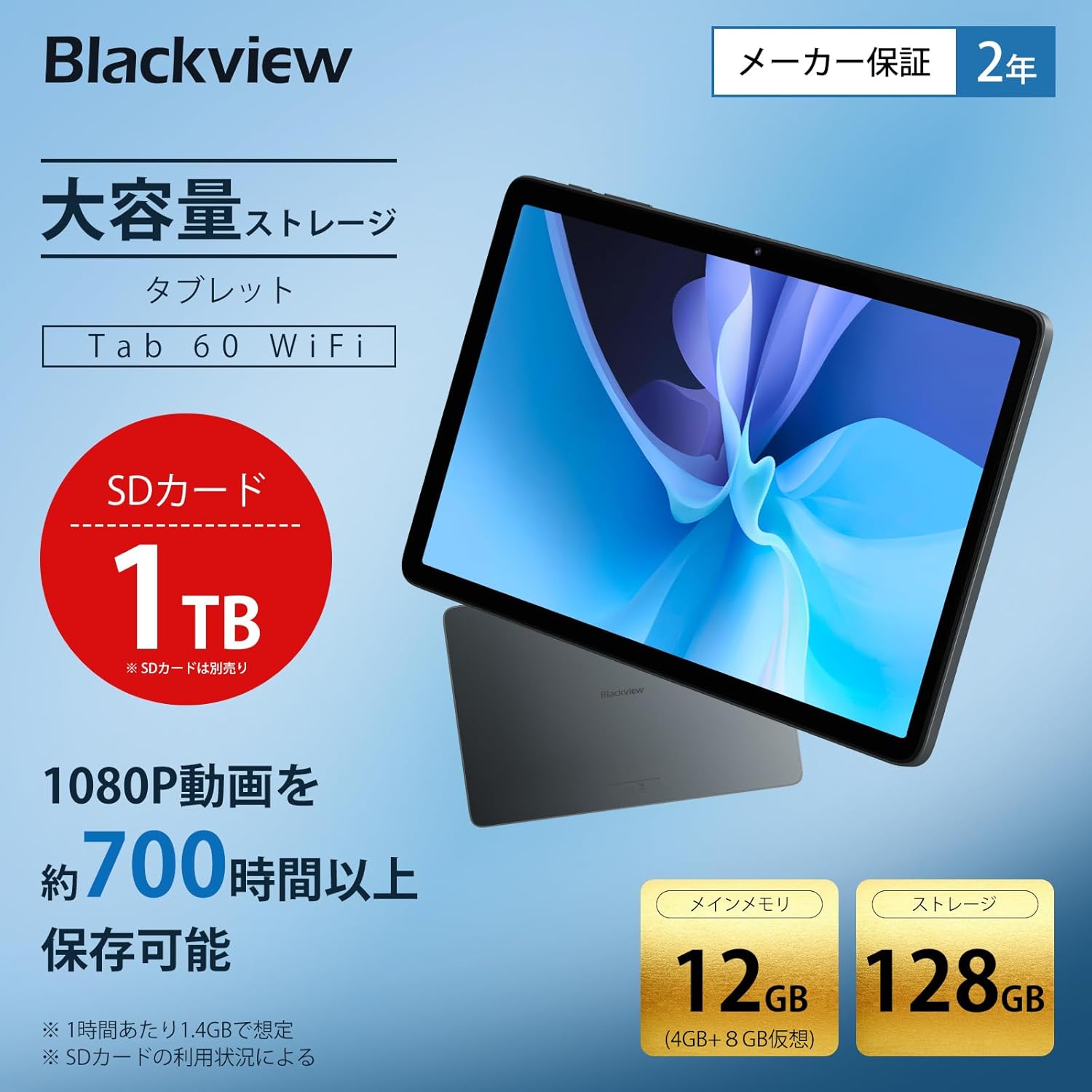
The tablet offers 12GB RAM (4GB + 8GB virtual) and 128GB storage, expandable up to 1TB with an SD card.

Generous RAM and storage capacity for all your needs.

Powered by an Octa-core Allwinner A523 processor for smooth operation.
9. การเชื่อมต่อ
The Tab60WiFi supports the latest Wi-Fi 6 standard for ultra-high-speed communication, along with Bluetooth 5.2 for seamless peripheral connections. It also features wireless projection for sharing your screen during meetings or classes.

Enjoy high-speed connectivity with Wi-Fi 6 and Bluetooth 5.2.

Wirelessly cast your screen to a larger display for shared viewการไอเอ็นจี
10. อายุการใช้งานแบตเตอรี่
The tablet is equipped with a 5100mAh large-capacity battery, providing long hours of continuous use. It supports 10W fast charging to quickly replenish power.

The 5100mAh battery supports 10W fast charging via Type-C.

Extended battery life for gaming, video playback, web browsing, and standby.
11. การบำรุงรักษา
11.1 การดูแลทั่วไป
- ควรหลีกเลี่ยงการวางแท็บเล็ตไว้ในที่ที่มีอุณหภูมิสูงหรือต่ำเกินไป แสงแดดโดยตรง หรือความชื้นสูง
- อย่าทำแท็บเล็ตตกหรือกระแทกอย่างแรง
- เก็บแท็บเล็ตให้ห่างจากน้ำและของเหลวอื่นๆ
11.2 การทำความสะอาด
- ใช้ผ้านุ่มที่ไม่เป็นขุยในการทำความสะอาดหน้าจอและตัวเครื่องแท็บเล็ต
- อย่าใช้สารเคมีรุนแรงหรือน้ำยาทำความสะอาดที่มีฤทธิ์กัดกร่อน
12 การแก้ไขปัญหา
แท็บเล็ต 12.1 ไม่เปิด
- ตรวจสอบให้แน่ใจว่าแบตเตอรี่ชาร์จเต็มแล้ว เสียบที่ชาร์จและรอสักครู่ก่อนลองเปิดเครื่อง
- กดปุ่มเปิด/ปิดค้างไว้อย่างน้อย 10-15 วินาทีเพื่อบังคับให้รีสตาร์ท
12.2 หน้าจอไม่ตอบสนอง
- รีสตาร์ทแท็บเล็ต
- หากปัญหายังคงอยู่ ให้ทำการรีเซ็ตเป็นค่าเริ่มต้นจากโรงงาน (หมายเหตุ: การดำเนินการนี้จะลบข้อมูลทั้งหมด)
12.3 ปัญหาการเชื่อมต่อ Wi-Fi
- โปรดตรวจสอบให้แน่ใจว่าได้เปิดใช้งาน Wi-Fi ในการตั้งค่าแล้ว
- รีสตาร์ทเราเตอร์ Wi-Fi ของคุณ
- ลืมเครือข่ายและเชื่อมต่อใหม่อีกครั้ง
12.4 แอปพลิเคชันหยุดทำงาน/ค้าง
- ล้างแคชและข้อมูลของแอปใน การตั้งค่า > แอป
- อัปเดตแอปให้เป็นเวอร์ชั่นล่าสุด
- ถอนการติดตั้งและติดตั้งแอปใหม่อีกครั้ง
13. ข้อมูลจำเพาะ
| คุณสมบัติ | ข้อมูลจำเพาะ |
|---|---|
| ยี่ห้อ | สีดำview |
| ชื่อรุ่น | Tab60WiFi |
| ระบบปฏิบัติการ | Doke OS_P 4.0 (Android 14 based) |
| ขนาดหน้าจอ | 10.1 นิ้ว |
| ความละเอียดการแสดงผล | 1280x800 pixels (Incell IPS) |
| แบรนด์ CPU | ออลวินเนอร์ |
| ความเร็วซีพียู | 2 กิกะเฮิรตซ์ |
| จีพียู | มะลิ-G57 |
| แรม | 12GB (4GB หน่วยความจำจริง + 8GB หน่วยความจำเสมือน) |
| ความจุของหน่วยความจำ | 128GB (expandable up to 1TB) |
| ความละเอียดกล้องหลัง | 8 MP |
| ความละเอียดของกล้องหน้า | 5 MP |
| ความจุของแบตเตอรี่ | 5100mAh |
| การเชื่อมต่อ | Wi-Fi 6, บลูทูธ 5.2 |
| น้ำหนัก | 950 g (package weight) / 520.5 g (device weight) |
| ขนาด | 32.7 x 20 x 4 cm (package dimensions) |
14. การรับประกันและการสนับสนุน
สีดำของคุณview Tab60WiFi tablet comes with a 2-year quality guarantee. Blackview is committed to providing excellent products and customer service.
14.1 การติดต่อฝ่ายสนับสนุนลูกค้า
If you encounter any issues or have questions, please contact Blackview customer support. Our support team is available 24 hours online.
- ผ่านทางอเมซอน: Navigate to the product page, click on the seller's name below the "Add to Cart" button, then click "Ask a Question" in the top right.
- อีเมล: You can also contact us via email. The link is available on your Amazon account under "Order History" > "Problem with Order" > "Contact Seller".

สีดำview offers a 24-month warranty and 24-hour online customer support.


