
1. บทนำ
This manual provides instructions for the 8Bitdo Ultimate Bluetooth Controller. This wireless gamepad features Hall Sensor Joysticks, a multifunctional charging dock, and a travel case. It is compatible with Nintendo Switch, Steam Deck, and Windows 10, offering versatile connectivity options including Bluetooth, 2.4G wireless, and USB-C wired connections.
2. เนื้อหาบรรจุภัณฑ์
ตรวจสอบให้แน่ใจว่ามีรายการทั้งหมดอยู่ในบรรจุภัณฑ์:
- ตัวควบคุมบลูทูธ 8Bitdo Ultimate
- แท่นชาร์จ
- อะแดปเตอร์ไร้สาย 2.4G
- สาย USB-C
- กระเป๋าเดินทาง
3. สินค้าหมดview และส่วนประกอบ
Familiarize yourself with the controller's layout and features.

ภาพ: ด้านหน้า view of the 8Bitdo Ultimate Bluetooth Controller, showing the D-pad, ABXY buttons, Hall Effect joysticks, and central function buttons.

ภาพ: ด้านหลัง view of the 8Bitdo Ultimate Bluetooth Controller, highlighting the two Pro back paddle buttons and the mode switching button.

Image: The charging dock for the 8Bitdo Ultimate Bluetooth Controller, shown with the 2.4G wireless adapter removed from its storage slot.
- Hall Effect Sensing Joysticks: Provide enhanced precision and durability.
- ปุ่มแพดเดิลหลังแบบ Pro 2 ปุ่ม: Customizable buttons located on the rear of the controller.
- โปรที่กำหนดเองfile ปุ่มสวิตช์: Allows switching between stored controller profiles.
- 2-way Mode Switching Button: Toggles between Bluetooth and 2.4G wireless modes.
- Player Indicators: LEDs indicating player number.
- พอร์ต USB-C: สำหรับการชาร์จและการเชื่อมต่อแบบมีสาย
- Multifunctional Charging Dock: Provides stable charging and automatically switches the controller ON/OFF when docked/undocked.
4. การตั้งค่า
4.1 การชาร์จคอนโทรลเลอร์
สามารถชาร์จคอนโทรลเลอร์ได้โดยใช้แท่นชาร์จที่ให้มาหรือโดยตรงผ่านสาย USB-C
- การใช้แท่นชาร์จ: Place the controller onto the charging dock. The controller will automatically begin charging. The player indicators will show charging status.
- การใช้สาย USB-C: Connect the USB-C cable to the controller's USB-C port and to a power source (e.g., computer, USB wall adapter).
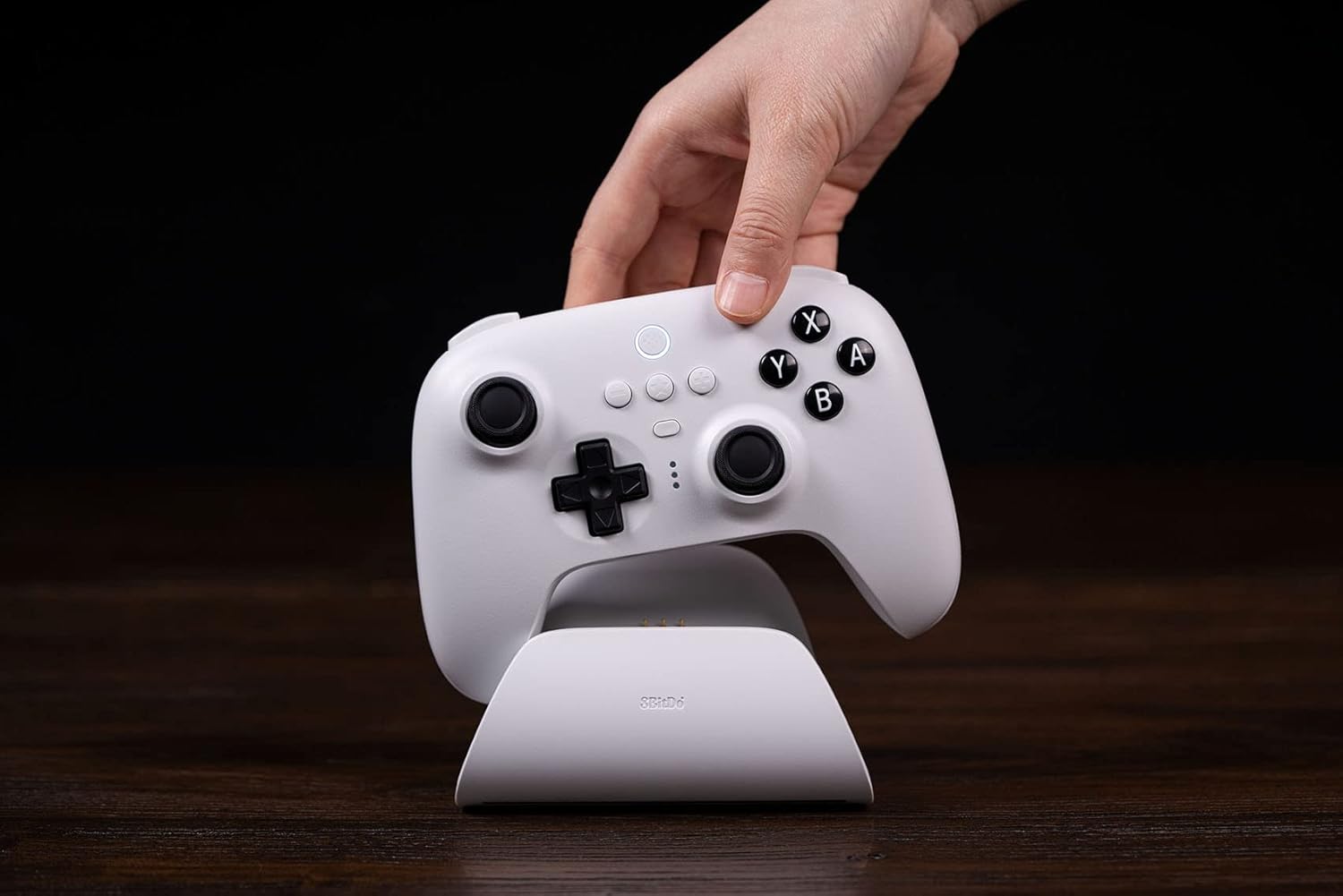
Image: A hand gently placing the white 8Bitdo Ultimate Bluetooth Controller onto its matching white charging dock, which rests on a wooden surface.
4.2 การเชื่อมต่อกับอุปกรณ์
The controller supports Bluetooth, 2.4G wireless, and USB-C wired connections.
- นินเทนโดสวิตช์:
- Ensure your Switch firmware is version 3.0.0 or above.
- บลูทูธ: Set the controller's mode switch to Bluetooth. On your Switch, go to System Settings > Controllers and Sensors > Disconnect Controllers, then Pair New Controllers. Hold the pairing button on the controller until the player indicators flash.
- 2.4G Adapter: Insert the 2.4G adapter into a USB port on the Switch dock. Set the controller's mode switch to 2.4G. The controller should connect automatically.
- ดาดฟ้าไอน้ำ:
- Update your Steam Deck to the latest version.
- Connect the controller to your Steam Deck in Xinput mode to play. This can be done via Bluetooth, 2.4G adapter, or USB-C cable.

Image: A white 8Bitdo Ultimate Bluetooth Controller being held by hands, connected to a Steam Deck displaying a game. A black 8Bitdo controller is also visible in the foreground.
- วินโดวส์ 10:
- 2.4G Adapter: Insert the 2.4G adapter into an available USB port on your Windows 10 PC. Set the controller's mode switch to 2.4G. The controller should connect automatically.
- สาย USB-C: Connect the controller directly to your PC using the USB-C cable for a wired connection.

Image: A person's hands holding the white 8Bitdo Ultimate Bluetooth Controller while playing a game on a black laptop. The charging dock is visible in the background.
5. คู่มือการใช้งาน
5.1 การสลับโหมด
Use the 2-way mode switching button on the back of the controller to select between Bluetooth and 2.4G wireless modes, depending on your device and preferred connection method.

Image: A close-up triptych showing details of the 8Bitdo Ultimate Controller: Custom Profile Switching button, three LED player indicators, and the 2-way Mode Switching button (Bluetooth/2.4G).
5.2 Ultimate Software
The 8Bitdo Ultimate Software is available for PC and mobile devices (Android/iOS). This software allows for advanced customization:
- การทำแผนที่ปุ่ม: Reassign button functions.
- การรองรับมาโคร: Create and assign complex button sequences.
- การปรับความไว: Fine-tune joystick and trigger sensitivity.
- โปรfile การจัดการ: ประหยัดค่าใช้จ่ายได้สูงสุดถึง 3 รายการสำหรับโปรแกรมแบบกำหนดเองfiles to the controller and switch between them using the Custom Profile Switch Button.
ดาวน์โหลดซอฟต์แวร์เวอร์ชั่นสมบูรณ์ได้จากเว็บไซต์ทางการของ 8Bitdo webเว็บไซต์.
5.3 Multifunctional Charging Dock
The charging dock provides a stable connection and convenience. The controller will automatically switch ON when undocked and OFF when docked, conserving battery life.

Image: A hand lifting a black 8Bitdo Ultimate Controller from its matching charging dock, illustrating the automatic power on/off feature.
5.4 คุณสมบัติเพิ่มเติม
- การสั่นสะเทือนดังก้อง: ให้การตอบสนองทางสัมผัสระหว่างการเล่นเกม
- การควบคุมการเคลื่อนไหว: Supported for compatible games (primarily on Switch).
6. การบำรุงรักษา
6.1 การทำความสะอาด
Wipe the controller and charging dock with a soft, dry cloth. Avoid using harsh chemicals or abrasive materials that could damage the surfaces.
6.2 พื้นที่จัดเก็บ
When not in use, store the controller in its included travel case to protect it from dust, scratches, and impacts. Store in a cool, dry place away from direct sunlight.
6.3 การดูแลแบตเตอรี่
The controller contains a rechargeable Lithium Polymer battery. To prolong battery life:
- หลีกเลี่ยงการปล่อยแบตเตอรี่จนหมดบ่อยครั้ง
- ควรชาร์จตัวควบคุมเป็นประจำ แม้ว่าจะไม่ได้ใช้งานตลอดเวลาก็ตาม
- อย่าให้ตัวควบคุมสัมผัสกับอุณหภูมิที่สูงหรือต่ำเกินไป
7 การแก้ไขปัญหา
If you encounter issues with your 8Bitdo Ultimate Bluetooth Controller, refer to the following common solutions:
- ตัวควบคุมไม่เชื่อมต่อ:
- Ensure the controller's mode switch is set correctly for your device (Bluetooth or 2.4G).
- Verify the 2.4G adapter is securely plugged into the device.
- สำหรับบลูทูธ โปรดตรวจสอบให้แน่ใจว่าอุปกรณ์ของคุณเปิดใช้งานบลูทูธแล้ว และตัวควบคุมอยู่ในโหมดจับคู่
- Check for and install any available firmware updates for the controller from the official 8Bitdo webเว็บไซต์.
- Ultimate Software Issues:
- ถ้าโปรfiles are not saving or features are not working, ensure the software is the latest version.
- Some users report difficulties with saving profiles to the controller's memory; ensure the controller is connected properly during the sync process.
- Joystick Snapback or Drift:
- While Hall Effect joysticks reduce drift, some snapback may occur. This can often be mitigated by configuring manual deadzone settings within your game or system settings.
- Buttons Feel Loose:
- If face buttons feel loose, ensure they are not obstructed. If the issue persists and affects functionality, contact customer support.
8. ข้อมูลจำเพาะ
| แบบอย่าง | สุดยอดคอนโทรลเลอร์ Bluetooth |
| ความเข้ากันได้ | Nintendo Switch (3.0.0+), Steam Deck (latest version), Windows 10 |
| การเชื่อมต่อ | บลูทูธ 5.0, ไร้สาย 2.4G, USB-C แบบมีสาย |
| คุณสมบัติพิเศษ | Hall Effect Sensing Joysticks, 2 Pro Back Paddle Buttons, Custom Profile Switch Button, 2-way Mode Switching Button, Player Indicators, Rumble Vibration, Motion Controls |
| ประเภทแบตเตอรี่ | ลิเธียมโพลิเมอร์ (รวมอยู่ด้วย) |
| อายุการใช้งานแบตเตอรี่ | ประมาณ 22 ชั่วโมง |
| ขนาด | 10.98 x 6.93 x 5.31 นิ้ว (บรรจุภัณฑ์) |
| น้ำหนัก | 1.54 ปอนด์ |
| ผู้ผลิต | 8 บิต |
บันทึก: Switch compatibility does not support HD rumble or amiibo scanning.
9. การรับประกันและการสนับสนุน
For detailed warranty information and technical support, please visit the official 8Bitdo webงาน. NS website provides resources such as FAQs, firmware updates, and contact information for customer service.
เป็นทางการ Webเว็บไซต์: www.8bitdo.com


