1. บทนำ
This manual provides detailed instructions for the setup, operation, and maintenance of your KTC 32-Inch 2K QHD IPS Monitor, model H32T13. Please read this manual thoroughly before using the monitor to ensure proper functionality and to prevent damage.
The KTC H32T13 monitor features a 32-inch IPS panel with 2K QHD (2560x1440) resolution, a 100Hz refresh rate, and support for FreeSync/G-Sync technologies. It is designed for both office productivity and gaming, offering vibrant colors, wide viewing angles, and eye-care features.
2. อะไรอยู่ในกล่อง
ตรวจสอบว่ามีส่วนประกอบทั้งหมดอยู่ในแพ็คเกจ:
- KTC 32-Inch 2K QHD IPS Monitor (H32T13)
- ขาตั้งจอมอนิเตอร์ (ฐานและคอ)
- สาย HDMI
- สายไฟ
- อะแดปเตอร์แปลงไฟ
- ไขควง
- คู่มือการใช้งาน (เอกสารนี้)

Image: Contents of the KTC H32T13 monitor package.
3. สินค้าหมดview
The KTC H32T13 monitor is designed for a superior visual experience. Key features include:
- 32-inch QHD (2560x1440) IPS Panel: Delivers crisp, detailed images with accurate colors and wide viewมุมการเอียง
- อัตราการรีเฟรช 100Hz: Provides smoother motion for gaming and fast-paced content.
- ความเข้ากันได้กับ FreeSync/G-Sync: Reduces screen tearing and stuttering for a fluid gaming experience.
- รองรับ HDR: Enhances contrast and color for more realistic visuals.
- เทคโนโลยีการดูแลดวงตา: Features Flicker-Free and Low Blue Light modes to reduce eye strain during prolonged use.
- การเชื่อมต่อที่หลากหลาย: Equipped with multiple HDMI 2.0 and DisplayPort 1.4 inputs.
- การออกแบบตามหลักสรีรศาสตร์: Offers tilt adjustment and VESA mount compatibility for flexible positioning.
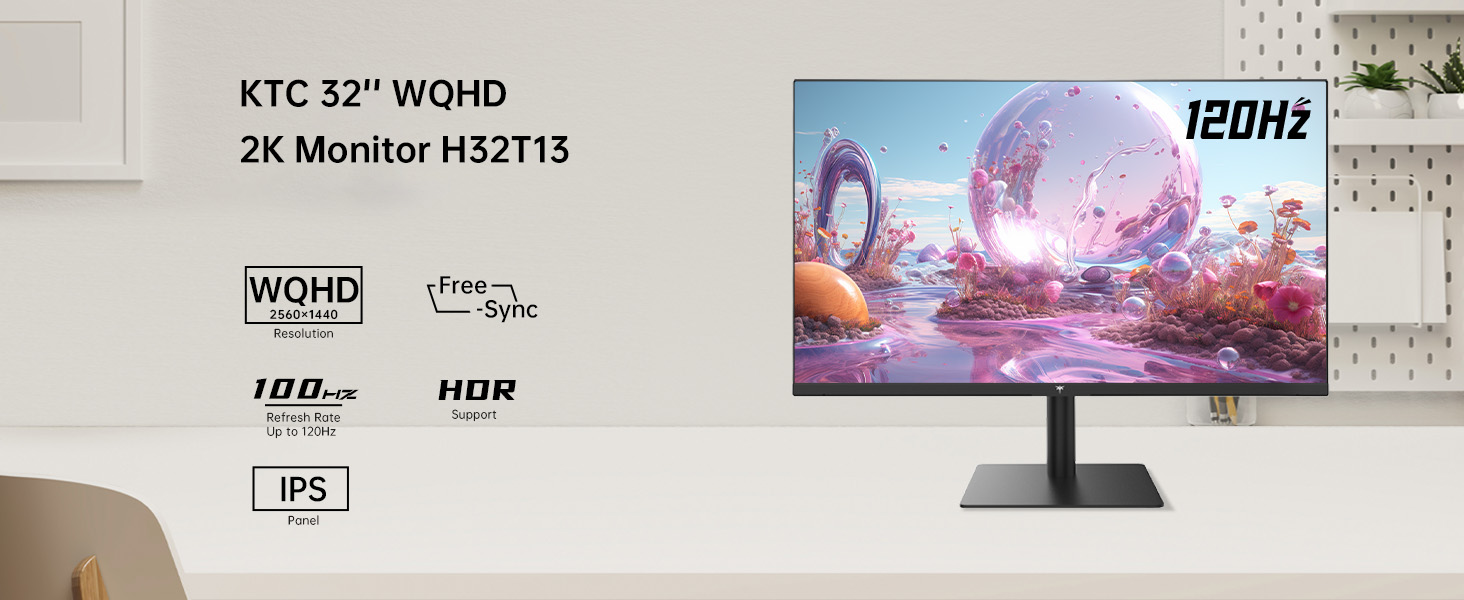
Image: KTC H32T13 monitor showcasing its key display technologies.

Image: The 32-inch screen size of the KTC H32T13 monitor.
4. การตั้งค่า
4.1 การประกอบขาตั้ง
- ถอดส่วนประกอบของจอภาพและขาตั้งออกจากบรรจุภัณฑ์อย่างระมัดระวัง
- Attach the stand neck to the monitor panel using the provided screws and screwdriver.
- ยึดฐานขาตั้งเข้ากับคอขาตั้ง
- วางจอภาพที่ประกอบแล้วไว้บนพื้นผิวที่มั่นคงและเรียบ
4.2 การติดตั้งแบบ VESA (ตัวเลือกเสริม)
The monitor supports VESA 100mm x 100mm mounting. If you wish to use a VESA-compatible arm or wall mount (not included), remove the stand and attach the VESA mount according to its instructions.

ภาพ: ด้านหลัง view of the monitor with VESA 100x100mm mounting points.
4.3 การเชื่อมต่อกับคอมพิวเตอร์
- ตรวจสอบให้แน่ใจว่าทั้งจอภาพและคอมพิวเตอร์ของคุณปิดอยู่
- เชื่อมต่อปลายด้านหนึ่งของสาย HDMI ที่ให้มาเข้ากับพอร์ต HDMI บนการ์ดกราฟิกของคอมพิวเตอร์ของคุณ
- Connect the other end of the HDMI cable to one of the HDMI 2.0 ports on the monitor. Alternatively, use a DisplayPort cable to connect to a DP 1.4 port for higher refresh rates and FreeSync/G-Sync functionality.
- Connect the power adapter to the monitor's DC input and then plug the power cord into a power outlet.
- เปิดเครื่องคอมพิวเตอร์ของคุณ จากนั้นเปิดจอภาพ

Image: Monitor connectivity ports (DC, HDMI 1, HDMI 2, DP 1).
5. คู่มือการใช้งาน
5.1 เปิด/ปิดเครื่อง
กดปุ่มเปิด/ปิดที่อยู่บนจอภาพเพื่อเปิดหรือปิดเครื่อง ไฟแสดงสถานะจะสว่างขึ้นเมื่อจอภาพเปิดอยู่
5.2 การเลือกแหล่งที่มาของอินพุต
Use the OSD (On-Screen Display) menu buttons to navigate and select your desired input source (HDMI 1, HDMI 2, or DisplayPort).
5.3 Adjusting Display Settings (OSD Menu)
The OSD menu allows you to customize various display settings. Typically, buttons are located on the back or bottom of the monitor. Refer to the quick start guide for specific button functions.
- ความสว่าง/คอนทราสต์: ปรับอัตราส่วนความสว่างและความคมชัดโดยรวม
- การตั้งค่าสี: Modify color temperature, gamma, and individual RGB levels. The monitor supports 1.07 billion colors and 103% sRGB.
- โหมดภาพ: Select from preset modes optimized for different content (e.g., Standard, Game, Movie, Text).
- อัตราการรีเฟรช: The monitor supports up to 100Hz. Ensure your graphics card settings are configured to match.
- ฟรีซิงค์/จีซิงค์: Enable this feature in the OSD menu and your graphics card control panel for adaptive synchronization.
- โหมดการดูแลดวงตา: Activate Flicker-Free and Low Blue Light modes to reduce eye strain.
- เอชดีอาร์: Enable HDR for compatible content and devices.

Image: Monitor displaying enhanced colors and brightness with HDR enabled.

Image: Visual comparison of FreeSync/G-Sync enabled and disabled, demonstrating smoother gameplay.

Image: IPS panel advantages in brightness and color over VA panels.
5.4 การปรับตำแหน่งทางกายภาพ
ขาตั้งจอภาพสามารถปรับเอียงได้ตั้งแต่ -5° ถึง 15° เพื่อการใช้งานที่เหมาะสมที่สุด viewมุมอิง

Image: Monitor tilt adjustment range and eye care features.
วิดีโอ: จบแล้วview of the KTC 2K IPS Office Monitor, highlighting its features and suitability for office use. This video demonstrates the monitor's visual quality and design.
6. การบำรุงรักษา
6.1 การทำความสะอาดจอภาพ
- ปิดเครื่องจอภาพและถอดสายไฟออกทุกครั้งก่อนทำความสะอาด
- ใช้ผ้านุ่มไม่เป็นขุยค่อยๆ งampเคลือบด้วยน้ำหรือน้ำยาทำความสะอาดหน้าจอชนิดอ่อนที่ไม่กัดกร่อน
- เช็ดหน้าจอเบาๆ เพื่อกำจัดฝุ่นและรอยเปื้อน หลีกเลี่ยงการกดหน้าจอลงบนหน้าจอโดยตรง
- ห้ามใช้แอลกอฮอล์ น้ำยาทำความสะอาดที่มีส่วนผสมของแอมโมเนีย หรือวัสดุที่มีฤทธิ์กัดกร่อน เนื่องจากอาจทำให้พื้นผิวหน้าจอเสียหายได้
- ทำความสะอาดจอภาพคasinก. ด้วยผ้าแห้งนุ่มๆ
6.2 พื้นที่จัดเก็บ
If storing the monitor for an extended period, ensure it is powered off, unplugged, and stored in a cool, dry place away from direct sunlight and extreme temperatures. Use the original packaging if available for best protection.
7 การแก้ไขปัญหา
| ปัญหา | สาเหตุที่เป็นไปได้ | สารละลาย |
|---|---|---|
| ไม่มีภาพบนหน้าจอ | Monitor not powered on; Incorrect input source; Loose video cable; Computer in sleep mode. | Ensure power is connected and monitor is on. Select correct input source. Check video cable connections. Wake up computer. |
| ภาพเบลอหรือบิดเบี้ยว | Incorrect resolution; Faulty video cable; Graphics driver issues. | Set display resolution to 2560x1440. Try a different video cable. Update graphics drivers. |
| หน้าจอกระพริบหรือฉีกขาด | Refresh rate mismatch; FreeSync/G-Sync not enabled or incompatible. | Ensure refresh rate is set to 100Hz. Enable FreeSync/G-Sync in monitor OSD and graphics card settings. Use DisplayPort for FreeSync/G-Sync. |
| ไม่มีเสียงออกจากหูฟัง | Headphones not connected properly; Audio output not set to monitor. | Check headphone connection. Set monitor as default audio output in your computer's sound settings. |
| ปุ่มไม่ตอบสนอง | OSD lock enabled; Temporary software glitch. | Check if OSD lock is active (refer to quick start guide). Power cycle the monitor. |
8. ข้อมูลจำเพาะ
| คุณสมบัติ | รายละเอียด |
|---|---|
| หมายเลขรุ่น | H32T13 |
| ขนาดหน้าจอ | 32 นิ้ว |
| ประเภทแผง | ไอพีเอส |
| ปณิธาน | 2560 x 1440 (QHD จอไวด์สกรีน 1440p) |
| อัตราส่วนภาพ | 16:9 น. |
| อัตราการรีเฟรช | 100เฮิรตซ์ |
| ความสว่าง | 350 Candela (typ.) |
| ช่วงสี | 103% sRGB |
| ความลึกของสี | 1.07 พันล้านสี |
| รองรับ HDR | ใช่ |
| การซิงค์แบบปรับตัว | FreeSync/G-Sync Compatible |
| การเชื่อมต่อ | พอร์ต HDMI 2.0 จำนวน 2 พอร์ต, DisplayPort 1.4 จำนวน 1 พอร์ต |
| การปรับความเอียง | -5° ถึง 15° |
| แท่นยึด VESA | 100มม. x 100มม. |
| คุณสมบัติการดูแลดวงตา | Flicker-Free, Eye Protection Mode (Low Blue Light) |
| ขนาดสินค้า | 5.31 x 32.48 x 21.2 นิ้ว |
| น้ำหนักสินค้า | 18.81 ปอนด์ |
9. การรับประกันและการสนับสนุน
9.1 ข้อมูลการรับประกัน
KTC products are covered by a limited warranty. Please refer to the warranty card included in your product packaging or visit the official KTC webดูรายละเอียดข้อกำหนดและเงื่อนไขการรับประกันได้ที่เว็บไซต์ เก็บหลักฐานการซื้อไว้เพื่อใช้ในการเรียกร้องการรับประกัน
9.2 การสนับสนุนลูกค้า
For technical assistance, troubleshooting not covered in this manual, or warranty inquiries, please contact KTC customer support through the following channels:
- การสนับสนุนทางออนไลน์: Visit the KTC official webเว็บไซต์นี้รวบรวมคำถามที่พบบ่อย (FAQ) ดาวน์โหลดไดรเวอร์ และแบบฟอร์มติดต่อขอรับการสนับสนุน
- การสนับสนุนทางอีเมล์: Refer to your warranty card or the KTC webค้นหาที่อยู่อีเมลฝ่ายสนับสนุนที่เหมาะสมได้ที่เว็บไซต์นี้
- การสนับสนุนของ Amazon: If purchased via Amazon, you can contact the seller directly through your Amazon order history for assistance.
Image: Steps to contact KTC customer support via Amazon.


