1. ข้อมูลด้านความปลอดภัยที่สำคัญ
โปรดอ่านคำแนะนำด้านความปลอดภัยทั้งหมดอย่างละเอียดก่อนใช้งานเครื่องพิมพ์ฉลาก Makeid E1 การไม่ปฏิบัติตามคำแนะนำเหล่านี้อาจส่งผลให้ผลิตภัณฑ์เสียหายหรือเกิดอันตรายต่อบุคคลได้
- เครื่องพิมพ์ฉลากนี้ได้รับการออกแบบมาเพื่อใช้กับฉลาก Makeid อย่างเป็นทางการเท่านั้น การใช้ฉลากจากแบรนด์อื่นอาจทำให้เครื่องเสียหายและทำให้การรับประกันเป็นโมฆะ
- หลีกเลี่ยงการสัมผัสหัวพิมพ์ด้วยนิ้วมือ หากหัวพิมพ์สกปรก ให้เช็ดเบาๆ ด้วยผ้าเนื้อนุ่มที่ไม่เป็นขุย
- ห้ามใส่วัตถุแปลกปลอมเข้าไปในช่องใส่ฉลากหรือช่องเปิดอื่นๆ ของเครื่อง เพื่อป้องกันความเสียหาย
- อย่าวางเครื่องพิมพ์ฉลากไว้ในที่ที่มีแสงแดดส่องโดยตรง ฝน ความชื้นสูง หรือฝุ่นละอองมากเกินไป
- ควรวางอุปกรณ์ให้ห่างจากแหล่งความร้อน เช่น เครื่องทำความร้อน หรือแผงหน้าปัด/ท้ายรถ และหลีกเลี่ยงสภาพแวดล้อมที่มีอุณหภูมิสูงหรือต่ำมากเกินไป
- ช่วงอุณหภูมิการทำงานมาตรฐานของอุปกรณ์นี้คือ 5 ถึง 35 องศาเซลเซียส (41 ถึง 95 องศาฟาเรนไฮต์)
2. สินค้าหมดview
ทำความรู้จักกับส่วนประกอบต่างๆ ของเครื่องพิมพ์ฉลาก Makeid E1 ของคุณให้ดี

ภาพที่ 1: ด้านหน้า view ภาพประกอบของเครื่องพิมพ์ฉลาก Makeid E1 แสดงช่องใส่ฉลากและปุ่มควบคุม
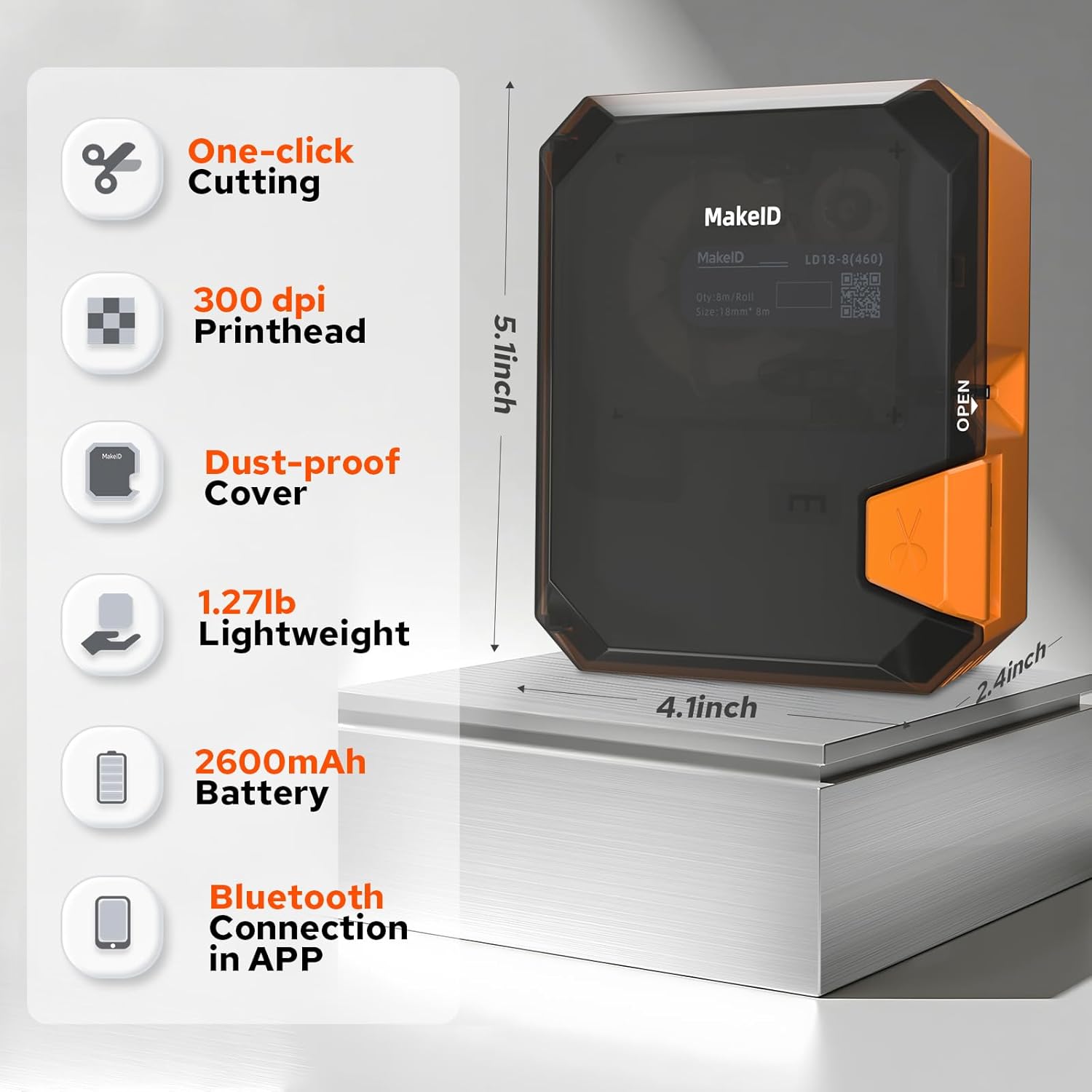
ภาพที่ 2: แผนภาพแสดงคุณสมบัติหลักและขนาดของเครื่องพิมพ์ฉลาก Makeid E1 คุณสมบัติประกอบด้วย การตัดด้วยคลิกเดียว หัวพิมพ์ 300 dpi ฝาครอบกันฝุ่น ดีไซน์น้ำหนักเบา (1.27 ปอนด์) แบตเตอรี่ 2600mAh และการเชื่อมต่อบลูทูธผ่านแอป ขนาดโดยประมาณคือ 5.1 นิ้ว (ความสูง) 4.1 นิ้ว (ความกว้าง) และ 2.4 นิ้ว (ความลึก)
3. การตั้งค่า
3.1 การชาร์จอุปกรณ์
เครื่องพิมพ์ฉลาก Makeid E1 มาพร้อมแบตเตอรี่ลิเธียมไอออนแบบชาร์จได้ (1000 mAh) ก่อนใช้งานครั้งแรก โปรดชาร์จอุปกรณ์ให้เต็มโดยใช้สาย USB ที่ให้มา
- เชื่อมต่อสาย USB เข้ากับพอร์ตชาร์จของเครื่องพิมพ์และอะแดปเตอร์แปลงไฟ USB มาตรฐาน (ไม่ได้รวมอยู่ในชุด) หรือพอร์ต USB ของคอมพิวเตอร์
- ไฟแสดงสถานะการชาร์จจะแสดงสถานะการชาร์จ โปรดตรวจสอบหน้าจอหรือไฟแสดงสถานะของอุปกรณ์เพื่อดูการแจ้งเตือนเมื่อชาร์จเต็มแล้ว
- แบตเตอรี่สามารถใช้งานได้มากกว่า 500 ครั้งหลังจากชาร์จเต็ม ทำให้ใช้งานได้ยาวนาน
3.2 การโหลดฉลาก
เพื่อให้ได้ประสิทธิภาพสูงสุด โปรดใช้ฉลากอย่างเป็นทางการของ Makeid
- หาช่องใส่ฉลากบนเครื่องพิมพ์
- เปิดฝาครอบช่อง
- ใส่ฉลากม้วนโดยให้ด้านที่พิมพ์หันไปในทิศทางที่ถูกต้อง ตามที่แสดงในแผนภาพภายในช่องใส่ฉลาก
- ดึงฉลากออกมาเล็กน้อยให้เลยหัวพิมพ์ไป
- ปิดฝาปิดช่องใส่ให้แน่น
เครื่องพิมพ์รองรับความกว้างของฉลาก 9 มม., 12 มม. และ 16 มม.
3.3 การเชื่อมต่อผ่านบลูทูธ (สำหรับการใช้งานแอปพลิเคชัน)
หากต้องการใช้งานฟีเจอร์ขั้นสูงและตัวเลือกการออกแบบต่างๆ ให้เชื่อมต่อเครื่องพิมพ์กับสมาร์ทโฟนผ่านแอป Makeid
- ดาวน์โหลดแอป Makeid อย่างเป็นทางการจาก App Store ของอุปกรณ์ของคุณ (ใช้งานได้กับ Android และ iOS)
- ตรวจสอบให้แน่ใจว่าได้เปิดใช้งาน Bluetooth บนสมาร์ทโฟนของคุณแล้ว
- เปิดใช้งานเครื่องพิมพ์ Makeid E1
- เปิดแอป Makeid แล้วทำตามคำแนะนำบนหน้าจอเพื่อค้นหาและเชื่อมต่อกับเครื่องพิมพ์ของคุณ
4. คู่มือการใช้งาน
Makeid E1 มีโหมดการทำงานหลักสองโหมด ได้แก่ การป้อนข้อมูลโดยตรงผ่านแป้นพิมพ์ QWERTY และการออกแบบขั้นสูงผ่านแอปพลิเคชันบนมือถือ
4.1 การใช้แป้นพิมพ์ QWERTY
แป้นพิมพ์ QWERTY ในตัวช่วยให้สร้างฉลากได้อย่างรวดเร็วและสะดวกสบายโดยไม่ต้องใช้สมาร์ทโฟน
- เปิดเครื่องอุปกรณ์
- ใช้แป้นพิมพ์ QWERTY เพื่อพิมพ์ข้อความที่คุณต้องการ หน้าจอ LCD ขนาด 3.4 นิ้วจะแสดงข้อความที่คุณป้อน
- ใช้ปุ่มเฉพาะสำหรับฟังก์ชันต่างๆ รวมถึงการสร้างต้นแบบ การวาดรูปสี่เหลี่ยม และคำแนะนำที่ชัดเจน อุปกรณ์นี้มีปุ่มมากกว่า 40 ปุ่มเพื่อความสะดวกในการใช้งาน
- สามารถเข้าถึงแบบอักษรและสัญลักษณ์ต่างๆ ได้โดยตรงจากอินเทอร์เฟซแป้นพิมพ์
- เครื่องพิมพ์รองรับการพิมพ์ข้อความได้สูงสุด 4 บรรทัด
- กดปุ่ม 'พิมพ์' เพื่อพิมพ์ฉลากของคุณ ใบมีดตัดแบบแมนนวลช่วยให้แยกฉลากได้อย่างแม่นยำ
4.2 การใช้งานแอปพลิเคชันบนมือถือ
แอป Makeid มีตัวเลือกการปรับแต่งที่หลากหลายและคุณสมบัติการพิมพ์ขั้นสูง

ภาพที่ 3: ภาพหน้าจอของอินเทอร์เฟซแอป Makeid ซึ่งแสดงให้เห็นถึงเทมเพลตที่หลากหลาย สติกเกอร์กว่า 200 แบบ ฟอนต์มากกว่า 40 แบบ และคุณสมบัติเพิ่มเติม เช่น ข้อความ บาร์โค้ด คิวอาร์โค้ด วันที่ รูปภาพ สติกเกอร์ รูปร่าง และตัวเลือกการสแกน
- หลังจากเชื่อมต่อเครื่องพิมพ์ผ่านบลูทูธ (ส่วนที่ 3.3) แล้ว ให้เปิดแอป Makeid
- การป้อนข้อความ: พิมพ์ข้อความของคุณลงในแอปโดยตรง
- การพิมพ์หลายบรรทัด: แอปนี้รองรับการพิมพ์ข้อความได้สูงสุด 4 บรรทัด
- เนื้อหาพิเศษ: สร้างไทม์สต็อปampสแกนภาพ, QR Code และบาร์โค้ดได้ด้วยการคลิกเพียงครั้งเดียว
- การปรับแต่ง: เข้าถึงคลังสื่อที่หลากหลาย รวมถึงกรอบรูป 16 แบบ สติกเกอร์และสัญลักษณ์กว่า 600 แบบ และแม่แบบมากกว่า 54 แบบ
- งาน DIY และรูปภาพ: รองรับการออกแบบด้วยตนเองและการอัปโหลดรูปภาพ/ไอคอนเพื่อปรับแต่งฉลากของคุณ
- การบันทึกเทมเพลต: บันทึกเทมเพลตฉลากที่ปรับแต่งได้สูงสุด 9 แบบ เพื่อใช้งานในอนาคต
- การพิมพ์แบทช์: สามารถพิมพ์ฉลากได้สูงสุด 9 ชุดในครั้งเดียว
- เมื่อออกแบบเสร็จแล้ว ให้แตะปุ่ม 'พิมพ์' ในแอปเพื่อส่งไปยังเครื่องพิมพ์
5. การบำรุงรักษา
5.1 การทำความสะอาดหัวพิมพ์
การทำความสะอาดหัวพิมพ์อย่างสม่ำเสมอจะช่วยให้ได้คุณภาพการพิมพ์ที่ดีที่สุดและยืดอายุการใช้งานของเครื่องพิมพ์
- โปรดตรวจสอบให้แน่ใจว่าได้ปิดเครื่องพิมพ์ก่อนทำการทำความสะอาด
- ค่อยๆ เปิดช่องใส่ฉลากเพื่อเข้าถึงหัวพิมพ์
- ใช้ผ้าเนื้อนุ่มที่ไม่เป็นขุยเช็ดเบาๆampเช็ดหัวพิมพ์ด้วยไอโซโพรพิลแอลกอฮอล์อย่างระมัดระวัง อย่าใช้วัสดุขัดถูหรือแรงมากเกินไป
- รอให้หัวพิมพ์แห้งสนิทก่อนปิดช่องและใช้งานต่อ
5.2 การดูแลแบตเตอรี่
เพื่อยืดอายุการใช้งานและประสิทธิภาพของแบตเตอรี่ให้สูงสุด:
- หลีกเลี่ยงการปล่อยแบตเตอรี่จนหมดบ่อยครั้ง
- ควรเก็บเครื่องพิมพ์ไว้ในที่แห้งและเย็นหากไม่ได้ใช้งานเป็นเวลานาน
- ควรชาร์จแบตเตอรี่เป็นระยะหากเก็บไว้นานเพื่อป้องกันการคายประจุจนหมด
6 การแก้ไขปัญหา
หากคุณพบปัญหาเกี่ยวกับเครื่องพิมพ์ฉลาก Makeid E1 โปรดดูปัญหาและวิธีแก้ไขทั่วไปต่อไปนี้
- ไม่มีไฟฟ้า: ตรวจสอบให้แน่ใจว่าอุปกรณ์ชาร์จไฟเต็มแล้ว เสียบอุปกรณ์เข้ากับแหล่งจ่ายไฟโดยใช้สาย USB
- คุณภาพการพิมพ์ไม่ดี: ตรวจสอบว่าหัวพิมพ์สะอาดหรือไม่ (ดูหัวข้อ 5.1) ตรวจสอบให้แน่ใจว่าคุณใช้ฉลาก Makeid อย่างเป็นทางการ ตรวจสอบว่าใส่ฉลากม้วนถูกต้องแล้ว
- ปัญหาการเชื่อมต่อบลูทูธ: ตรวจสอบให้แน่ใจว่าได้เปิดใช้งานบลูทูธบนสมาร์ทโฟนและเปิดเครื่องพิมพ์แล้ว รีสตาร์ททั้งเครื่องพิมพ์และสมาร์ทโฟน จากนั้นลองจับคู่ใหม่อีกครั้ง ตรวจสอบให้แน่ใจว่าแอป Makeid เป็นเวอร์ชันล่าสุด
- เลเบล แจม: ปิดเครื่องพิมพ์ เปิดช่องใส่ฉลาก และนำฉลากที่ติดขัดออกอย่างระมัดระวัง ตรวจสอบให้แน่ใจว่าม้วนฉลากอยู่ในตำแหน่งที่ถูกต้องและไม่มีรอยยับ
- เครื่องพิมพ์ไม่ตอบสนอง: ลองรีเซ็ตอุปกรณ์โดยการปิดแล้วเปิดใหม่อีกครั้ง หากปัญหายังคงอยู่ โปรดติดต่อฝ่ายบริการลูกค้า
7. ข้อมูลจำเพาะ
| คุณสมบัติ | ข้อมูลจำเพาะ |
|---|---|
| ยี่ห้อ | เมคอิด |
| ชื่อรุ่น | E1 |
| หมายเลขรุ่น | พี31เอส |
| เทคโนโลยีการพิมพ์ | เทอร์มอล |
| เทคโนโลยีการเชื่อมต่อ | บลูทูธ, ยูเอสบี |
| อุปกรณ์ที่รองรับ | สมาร์ทโฟน (Android, iOS) |
| ความละเอียดการพิมพ์สูงสุด (ขาวดำ) | 203 จุดต่อนิ้ว |
| ความละเอียดการพิมพ์สูงสุด (สี) | ความละเอียด 203 dpi (เอาต์พุตขาวดำ) |
| ความเร็วในการพิมพ์ขาวดำสูงสุด | 24 (หน่วยไม่ระบุ ทั่วไปสำหรับเครื่องพิมพ์ฉลาก) |
| ขนาดสื่อสูงสุด | 110 x 50 มม. |
| ความกว้างของฉลากที่รองรับ | 9 มม., 12 มม., 16 มม. |
| ความจุแผ่นสูงสุด | 100 |
| การพิมพ์สองหน้า | เลขที่ |
| จำนวนสำเนาสูงสุดต่อชุด | 9 |
| พลัง | 1000 mAh (แบตเตอรี่ลิเธียมไอออน) |
| ขนาดสินค้า | ขนาด 10D x 20W x 8H ซม. (โดยประมาณ) |
| คุณสมบัติพิเศษ | คีย์บอร์ดแบบพกพา QWERTY ควบคุมผ่านแอปพลิเคชัน |
| ส่วนประกอบที่รวมอยู่ | ฉลาก (โดยทั่วไปคือ 1 ม้วน) |
8. การรับประกันและการสนับสนุน
สำหรับข้อมูลการรับประกันและการสนับสนุนทางเทคนิค โปรดดูเอกสารที่แนบมากับสินค้าที่ซื้อ หรือเยี่ยมชมเว็บไซต์อย่างเป็นทางการของ Makeid webไซต์นี้ โปรดเก็บหลักฐานการซื้อไว้เพื่อใช้ยืนยันการรับประกัน
หากคุณต้องการความช่วยเหลือเพิ่มเติมหรือมีคำถามที่ไม่ได้กล่าวถึงในคู่มือนี้ โปรดติดต่อฝ่ายบริการลูกค้าของ Makeid


