การแนะนำ
The Logitech Signature M550 L Wireless Mouse is designed for enhanced comfort and productivity, especially for users with larger hands. It features an adaptive SmartWheel for precise or hyper-fast scrolling, SilentTouch technology for quiet clicks, and versatile connectivity options. This manual provides detailed instructions for setup, operation, and maintenance of your device.
เนื้อหาแพ็คเกจ
- Logitech Signature M550 L Wireless Mouse
- แบตเตอรี่ AA 1 ก้อน (ติดตั้งมาแล้วหรือมีให้ในชุด)
- Logi Bolt USB Receiver (may be stored inside the mouse battery compartment)
- เอกสารสำหรับผู้ใช้ (คู่มือนี้)
สินค้าเกินview
Familiarize yourself with the key components of your Logitech Signature M550 L mouse.

ภาพ: ด้านบนและด้านข้าง view of the Logitech Signature M550 L mouse, highlighting its features including the SmartWheel, silent clicking buttons, Bluetooth connectivity, ergonomic shape, and 24-month battery life.
- ปุ่มคลิกซ้าย/ขวา: Feature SilentTouch technology for reduced clicking noise.
- สมาร์ทวีล: Adaptive scroll wheel for line-by-line precision or super-fast free-spin scrolling.
- ไฟแสดงสถานะ LED: Shows battery status and connection mode.
- สวิตช์เปิด/ปิด: อยู่บริเวณด้านล่างของเมาส์
- ช่องใส่แบตเตอรี่: Houses the AA battery and Logi Bolt USB receiver.
- การออกแบบตามหลักสรีรศาสตร์: Contoured shape with soft thumb area and rubber side grips for comfort.
การตั้งค่า
1. ติดตั้งแบตเตอรี่
- เปิดฝาช่องใส่แบตเตอรี่ที่อยู่ด้านล่างของเมาส์
- ใส่แบตเตอรี่ AA ที่ให้มา ตรวจสอบให้แน่ใจว่าขั้วถูกต้อง (+/-)
- Close the battery compartment cover. The LED indicator on the mouse may flash briefly.
2. เชื่อมต่อกับอุปกรณ์ของคุณ
The Signature M550 L offers two connection methods: Logi Bolt USB Receiver or Bluetooth Low Energy.
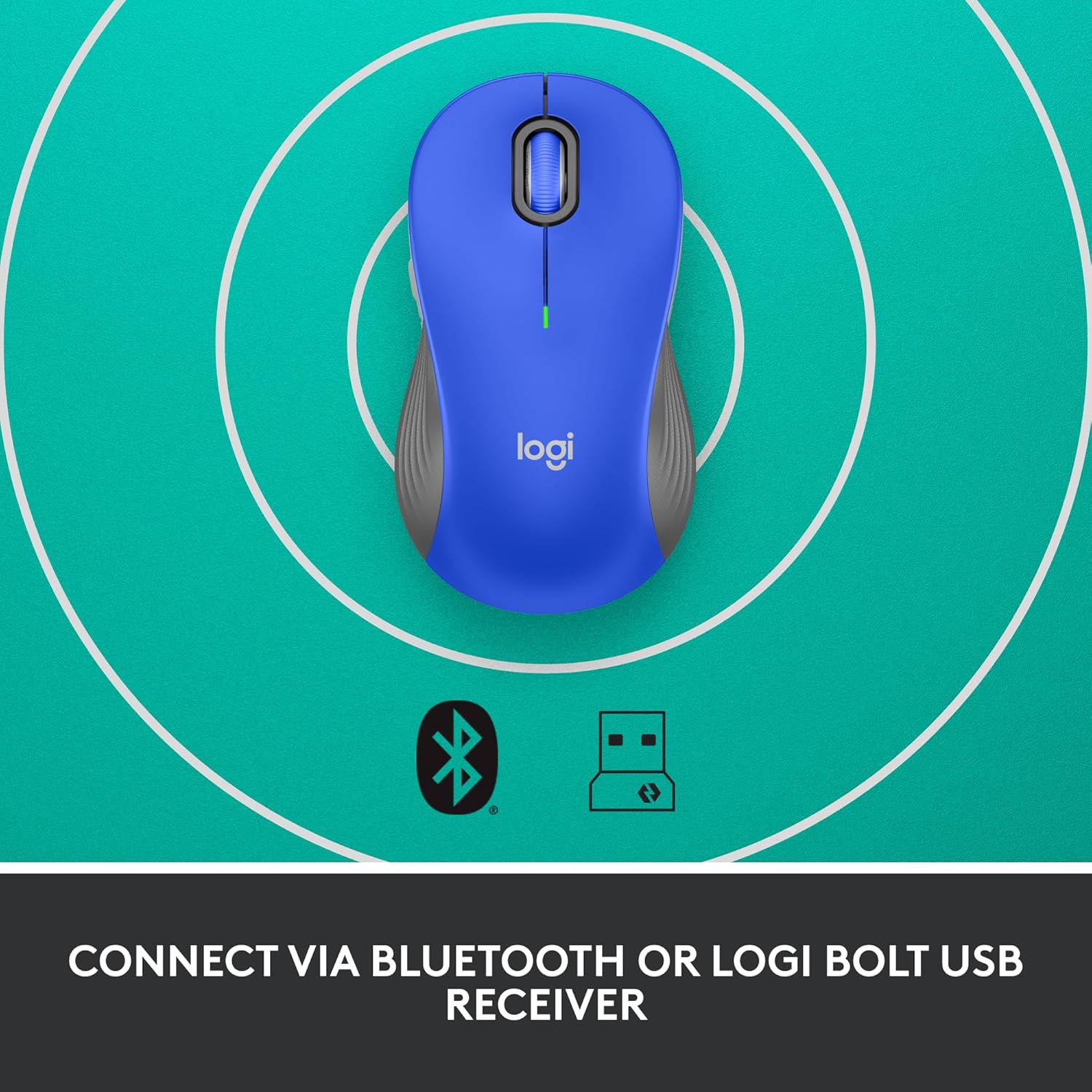
Image: The Logitech Signature M550 L mouse shown with icons representing Bluetooth and Logi Bolt USB receiver connectivity options.
ตัวเลือก A: ตัวรับสัญญาณ USB Logi Bolt
- Locate the Logi Bolt USB receiver, typically stored inside the mouse's battery compartment.
- เสียบตัวรับสัญญาณ USB Logi Bolt เข้ากับพอร์ต USB ที่ว่างอยู่บนคอมพิวเตอร์ของคุณ
- Turn on the mouse using the On/Off switch on the bottom. Your computer should automatically detect the mouse.
ตัวเลือก B: บลูทูธพลังงานต่ำ
- เปิดใช้งานเมาส์โดยใช้สวิตช์เปิด/ปิดที่ด้านล่าง
- Press and hold the Easy-Switch button (usually on the bottom or side, refer to product diagram if available) for 3 seconds until the LED indicator starts blinking rapidly. This indicates pairing mode.
- เปิดการตั้งค่าบลูทูธบนคอมพิวเตอร์หรืออุปกรณ์ของคุณ
- เลือก "Logitech M550 L" จากรายการอุปกรณ์ที่ใช้งานได้ และทำตามคำแนะนำบนหน้าจอเพื่อทำการจับคู่ให้เสร็จสมบูรณ์
เมาส์นี้สามารถใช้งานร่วมกับระบบปฏิบัติการ Windows, macOS, Linux, Chrome OS, iPadOS และ Android ได้
คำแนะนำการใช้งาน
การเลื่อนด้วยสมาร์ทวีล
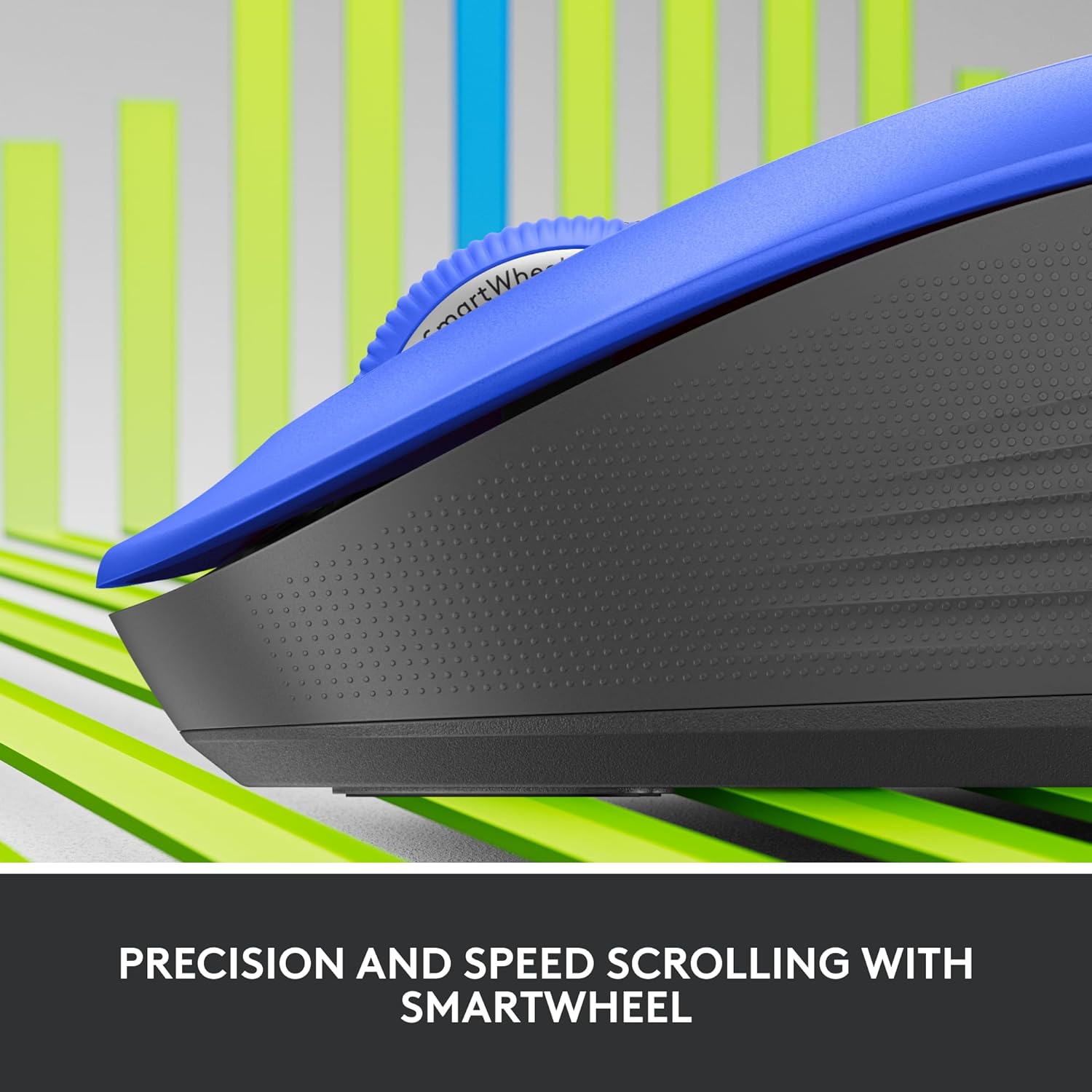
ภาพ: ภาพระยะใกล้ view of the Logitech SmartWheel, demonstrating its precision and speed scrolling capabilities.
SmartWheel จะสลับระหว่างสองโหมดโดยอัตโนมัติ:
- ความแม่นยำระดับบรรทัดต่อบรรทัด: Ideal for detailed work and navigating documents. Scroll slowly for precise control.
- Super-Fast Free-Spin: For quickly navigating long web pages or documents. Flick the wheel to activate.
คลิกแบบเงียบ

Image: A person using the Logitech Signature M550 L mouse at a desk, illustrating the benefit of 90% less clicking noise for a focused work environment.
The mouse features Logitech's SilentTouch technology, reducing click noise by over 90% compared to traditional mice. This allows for a quieter work environment without compromising click feel.
ความเข้ากันได้กับหลายอุปกรณ์
The Signature M550 L can be paired with multiple devices and switched between them using the Easy-Switch button. This feature is ideal for users who work across several computers or tablets.
การซ่อมบำรุง
การเปลี่ยนแบตเตอรี่
The mouse operates on a single AA battery, offering up to 24 months of battery life depending on usage. When the battery is low, the LED indicator will turn red. To replace:
- ปิดเมาส์
- เปิดฝาช่องใส่แบตเตอรี่ที่ด้านล่าง
- ถอดแบตเตอรี่ AA เก่าออก แล้วใส่แบตเตอรี่ใหม่เข้าไป โดยสังเกตขั้วให้ถูกต้อง
- Close the cover and turn the mouse back on.
การทำความสะอาด
ในการทำความสะอาดเมาส์ ให้ใช้ผ้านุ่มที่ไม่เป็นขุยเช็ดเบาๆampened with water or a mild cleaning solution. Avoid harsh chemicals or abrasive materials. Ensure no liquid enters the mouse's openings.
การแก้ไขปัญหา
- เมาส์ไม่ตอบสนอง:
- ตรวจสอบให้แน่ใจว่าเมาส์เปิดอยู่
- ตรวจสอบระดับแบตเตอรี่และเปลี่ยนหากจำเป็น
- หากใช้ตัวรับสัญญาณ Logi Bolt ให้ลองเสียบเข้ากับพอร์ต USB อื่นหรือคอมพิวเตอร์เครื่องอื่นเพื่อตรวจสอบว่าไม่มีปัญหาเกี่ยวกับพอร์ตหรือไม่
- หากใช้บลูทูธ โปรดตรวจสอบให้แน่ใจว่าอุปกรณ์ของคุณเปิดใช้งานบลูทูธแล้ว และจับคู่เมาส์อย่างถูกต้อง ลองจับคู่เมาส์อีกครั้ง
- Move the mouse closer to the receiver or Bluetooth-enabled device to ensure it's within range.
- การเคลื่อนไหวของเคอร์เซอร์ที่ไม่แน่นอน:
- ทำความสะอาดเซ็นเซอร์ออปติคอลที่ด้านล่างของเมาส์
- ตรวจสอบให้แน่ใจว่าคุณใช้เมาส์บนพื้นผิวที่เหมาะสม หลีกเลี่ยงพื้นผิวที่สะท้อนแสงหรือโปร่งใส
- Connectivity issues after system update:
- รีสตาร์ทเครื่องคอมพิวเตอร์ของคุณ
- Check for updated drivers for your mouse or Bluetooth adapter.
ข้อมูลจำเพาะ
| ยี่ห้อ | โลจิเทค |
| หมายเลขรุ่น | 910-006794 |
| เทคโนโลยีการเชื่อมต่อ | บลูทูธพลังงานต่ำ, ตัวรับสัญญาณ USB Logi Bolt |
| การตรวจจับการเคลื่อนไหว | ออฟติคอล |
| คุณสมบัติพิเศษ | Lightweight, Portable, Silent Clicks (SilentTouch), SmartWheel, Wireless |
| ประเภทแบตเตอรี่ | แบตเตอรี่ขนาด AA 1 ก้อน |
| อายุการใช้งานแบตเตอรี่ | สูงสุด 24 เดือน (อาจแตกต่างกันขึ้นอยู่กับการใช้งาน) |
| ความเข้ากันได้ของระบบปฏิบัติการ | Windows, macOS, Linux, Chrome OS, iPadOS, หุ่นยนต์ |
| น้ำหนักสินค้า | 3.92 ออนซ์ |
| สี | สีน้ำเงิน (สำหรับรุ่นนี้) |
ข้อมูลการรับประกัน
Logitech products are manufactured to high quality standards and are covered by a limited hardware warranty. For specific warranty terms and conditions applicable to your region and product, please refer to the official Logitech webเว็บไซต์หรือบัตรรับประกันที่รวมอยู่ในการซื้อของคุณ
สนับสนุน
For further assistance, technical support, or to download the latest software and drivers for your Logitech Signature M550 L Wireless Mouse, please visit the official Logitech support webเว็บไซต์:
คุณสามารถค้นหาคำถามที่พบบ่อยและฟอรัมชุมชนได้ในเว็บไซต์ฝ่ายสนับสนุน


