การแนะนำ
This manual provides detailed instructions for the proper setup, operation, and maintenance of your MARVO H8618 Wired Headset. Please read this manual thoroughly before using the product to ensure optimal performance and longevity.

ภาพ: มุมด้านหน้า view of the MARVO H8618 Wired Headset with its microphone extended. The headset is black with RGB lighting accents on the earcups.
เนื้อหาแพ็คเกจ
The MARVO H8618 Wired Headset package typically includes:
- 1 x MARVO H8618 Wired Headset
การตั้งค่า
Follow these steps to set up your MARVO H8618 Wired Headset:
- เชื่อมต่อชุดหูฟัง: Locate an available USB 2.0 port on your computer or gaming console. Insert the USB connector of the MARVO H8618 headset firmly into the USB port.
- การติดตั้งไดร์เวอร์ (อัตโนมัติ): The headset is designed for plug-and-play functionality. Your operating system should automatically detect the device and install the necessary drivers. This process may take a few moments.
- Audio Settings Configuration:
- หน้าต่าง: ไปที่ การตั้งค่าเสียง (right-click the speaker icon in the taskbar) and ensure "MARVO H8618" is selected as the default output and input device.
- MacOS: ไปที่ ค่ากำหนดของระบบ > เสียง and select "MARVO H8618" for both output and input.
- คอนโซลเกม: Refer to your console's system settings for audio input/output device selection.
- ปรับความพอดี: Place the headset over your ears and adjust the headband for a comfortable and secure fit. The earcups are designed to cover your ears completely for optimal sound isolation.
- ตำแหน่งไมโครโฟน: Adjust the flexible microphone boom to a position near your mouth for clear voice capture.

ภาพ: ด้านหน้า view of the MARVO H8618 Wired Headset, showing the earcups and headband.
คำแนะนำการใช้งาน
Once connected, your MARVO H8618 headset is ready for use. Here are key operational aspects:
- การเล่นเสียง: The headset will automatically play audio from your connected device once selected as the default output.
- การใช้งานไมโครโฟน: The integrated microphone is active when the headset is connected and selected as the input device. Ensure it is positioned correctly for clear communication.
- การควบคุมแบบสัมผัส: The headset features a touch control method. Specific functions (e.g., volume adjustment, microphone mute) may be integrated into the earcups or inline controls on the cable. Refer to the device's physical controls for exact functionality.
- แสงไฟ RGB: The earcups feature RGB lighting. This lighting is typically powered via the USB connection and operates automatically.

ภาพ: มุมเอียง view of the MARVO H8618 headset, highlighting the microphone and earcup design.
การซ่อมบำรุง
การบำรุงรักษาอย่างถูกวิธีจะช่วยให้หูฟังของคุณใช้งานได้ยาวนานและมีประสิทธิภาพสูงสุด:
- การทำความสะอาด: ใช้ผ้าแห้งนุ่มเช็ดทำความสะอาดที่ครอบหูและแถบคาดศีรษะ สำหรับคราบสกปรกที่ติดแน่น ให้ใช้ผ้าชุบน้ำหมาดๆ เช็ดทำความสะอาดamp สามารถใช้ผ้าได้ แต่ต้องแน่ใจว่าไม่มีความชื้นเข้าไปในตะแกรงลำโพงหรือไมโครโฟน ห้ามใช้สารเคมีรุนแรงหรือน้ำยาทำความสะอาดที่มีฤทธิ์กัดกร่อน
- การดูแลสายเคเบิล: The headset features a tangle-free cable. Avoid sharp bends, twists, or excessive pulling on the cable to prevent internal damage. Always grasp the connector, not the cable, when plugging or unplugging.
- พื้นที่จัดเก็บ: เมื่อไม่ใช้งาน ควรเก็บหูฟังไว้ในที่สะอาดและแห้ง หลีกเลี่ยงแสงแดดโดยตรงและอุณหภูมิที่สูงหรือต่ำเกินไป หลีกเลี่ยงการวางของหนักทับหูฟัง
- การดูแลไมโครโฟน: Handle the microphone boom gently. Avoid forcing it into extreme positions.
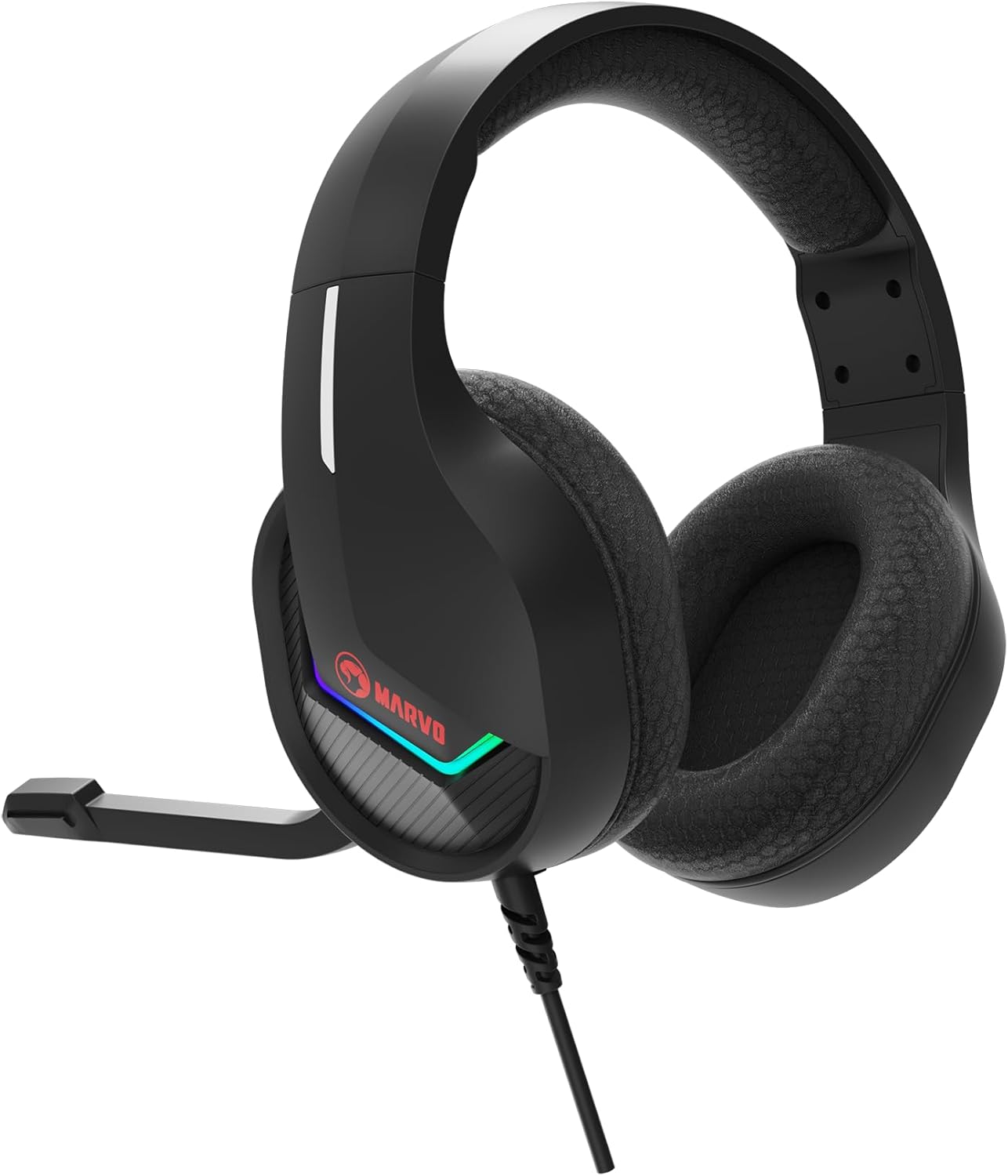
ภาพ: ด้านข้าง view of the MARVO H8618 headset, showing the earcup and headband.
การแก้ไขปัญหา
If you encounter issues with your MARVO H8618 headset, refer to the following common solutions:
- ไม่มีเสียง:
- ตรวจสอบให้แน่ใจว่าเสียบขั้วต่อ USB เข้ากับพอร์ตจนสุดแล้ว
- Verify that "MARVO H8618" is selected as the default audio output device in your operating system's sound settings.
- Check the volume levels on your computer/console and any inline volume controls on the headset cable (if present).
- Test the headset on a different USB port or another device to rule out port issues.
- ไมโครโฟนไม่ทำงาน:
- Ensure "MARVO H8618" is selected as the default input (microphone) device in your operating system's sound settings.
- Check if the microphone is muted via any physical controls on the headset or within your software (e.g., communication app settings).
- Confirm the microphone boom is positioned correctly and not obstructed.
- ทดสอบไมโครโฟนในแอปพลิเคชันหรืออุปกรณ์อื่น
- เสียงเพี้ยน:
- Lower the volume on your device or headset.
- ตรวจสอบให้แน่ใจว่าแหล่งเสียงไม่ผิดเพี้ยน
- ลองเชื่อมต่อกับพอร์ต USB อื่น
ข้อมูลจำเพาะ
Key technical specifications for the MARVO H8618 Wired Headset:
| คุณสมบัติ | ข้อมูลจำเพาะ |
|---|---|
| เทคโนโลยีการเชื่อมต่อ | ต่อสาย (USB 2.0) |
| ขนาดลำโพง | 50มม. |
| ความต้านทานของชุดหูฟัง | 32 โอห์ม± 15% |
| ช่วงความถี่ | 20Hz - 20KHz |
| อิมพีแดนซ์ของไมโครโฟน | 2.2 พันΩ |
| ฟอร์มแฟกเตอร์ | ครอบหู |
| คุณสมบัติพิเศษ | รวมไมโครโฟน |
| วิธีการควบคุม | สัมผัส |
| คุณสมบัติสายเคเบิล | ยุ่งเหยิงฟรี |
| น้ำหนักสินค้า | 0.92 กิโลกรัม (2.02 ปอนด์) |
| ขนาดแพ็คเกจ | 10.31 x 9.21 x 4.33 นิ้ว |
การรับประกันและการสนับสนุน
For warranty information or technical support, please refer to the documentation provided with your purchase or visit the official MARVO webไซต์นี้ โปรดเก็บหลักฐานการซื้อไว้เพื่อใช้ยืนยันการรับประกัน


