Brother MFC-L8390CDW Multifunction Color LED Printer User Manual
รุ่น: MFC-L8390CDW
1. บทนำ
The Brother MFC-L8390CDW is a high-performance multifunction color LED printer designed for efficient printing, scanning, copying, and faxing. This device offers fast print speeds, advanced duplex capabilities, and versatile connectivity options to meet various office and home office needs.
- ความเร็วในการพิมพ์สูงสุด 30 หน้าต่อนาที (ppm)
- Duplex printing at up to 12 sides per minute.
- Single-pass duplex scanning up to 56 frames per minute.
- Features a 3.5-inch color touchscreen for intuitive control.
- Connectivity includes Gigabit Ethernet, 5GHz WiFi, and USB.
- Equipped with 512 MB of internal memory.
2. การตั้งค่า
Follow these steps to set up your Brother MFC-L8390CDW printer.
2.1 การแกะกล่องและการวางตำแหน่งเริ่มต้น
Carefully remove the printer from its packaging. Place the printer on a stable, level surface with adequate space for ventilation and access to power and network connections.
2.2 Installing Toner Cartridges and Drum Unit
The printer requires the installation of toner cartridges and a drum unit. Refer to the quick setup guide for detailed instructions on how to correctly install these components.
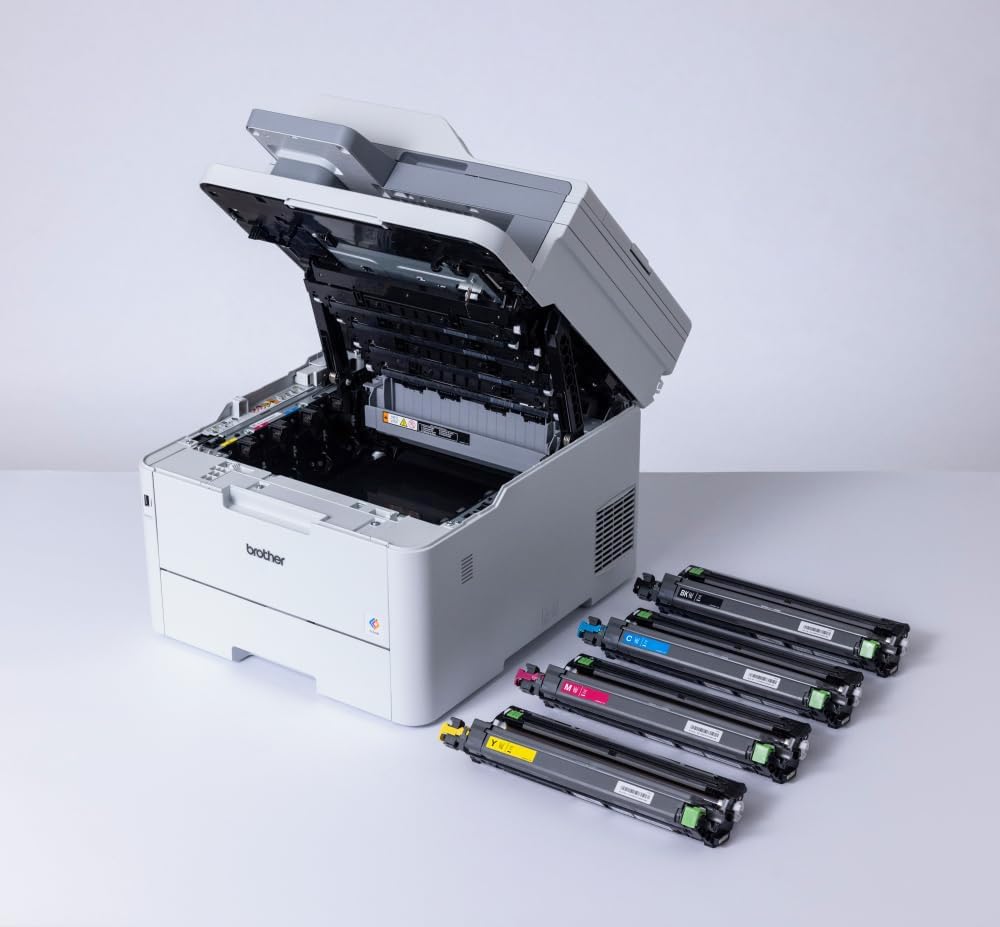
Image: The printer with its top cover open, showing the toner and drum area. Separate toner cartridges are displayed, ready for installation.
2.3 กำลังโหลดกระดาษ
Open the paper tray and adjust the paper guides to fit your paper size. Load the paper stack into the tray, ensuring it is flat and below the maximum fill line.
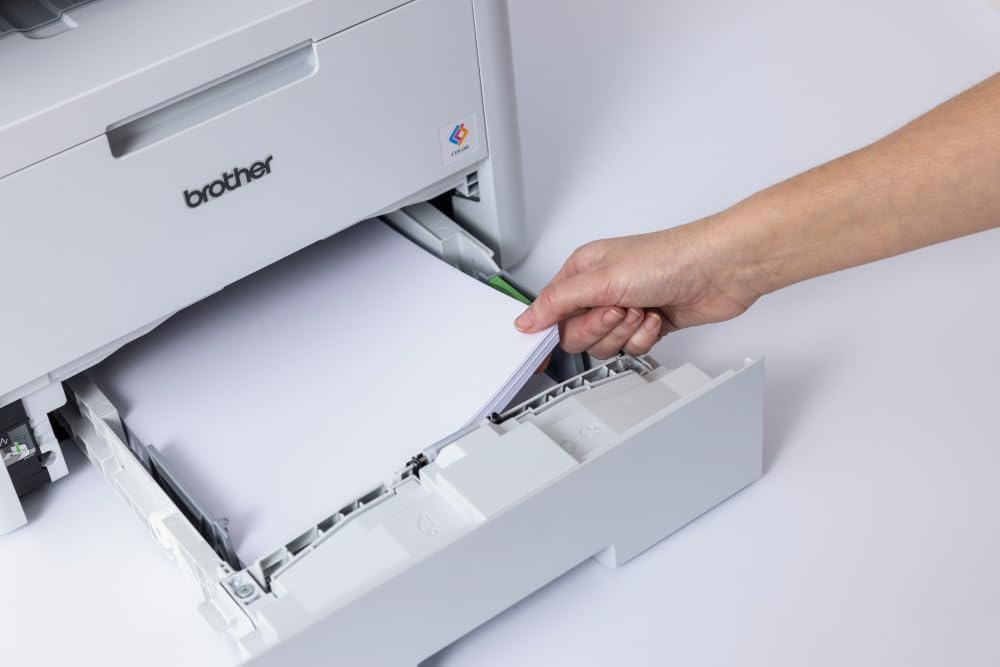
Image: A hand loading paper into the printer's paper tray.
2.4 Connecting to Power and Network
Connect the power cord to the printer and then to a power outlet. For network connectivity, you can use an Ethernet cable for a wired connection or configure the 5GHz WiFi connection through the printer's control panel. Alternatively, connect directly via USB to a computer.
3. คู่มือการใช้งาน
This section provides guidance on using the various functions of your multifunction printer.
3.1 Using the Touchscreen Control Panel
The 3.5-inch color touchscreen allows you to navigate menus, select functions, and adjust settings. Tap icons to access different features like Print, Scan, Copy, and Fax.

Image: A hand operating the printer's touchscreen control panel.
3.2 การพิมพ์เอกสาร
To print, ensure the printer is connected to your device. Select the print option from your application and choose the Brother MFC-L8390CDW. You can configure settings such as color/monochrome, single-sided/duplex, and paper type. The printer supports various media, including A4, Legal, and Labels, with a maximum media size of A3.

Image: The printer in operation, with a document being printed.
3.3 การสแกนเอกสาร
Place your document on the scanner glass or in the automatic document feeder (ADF) for single-pass duplex scanning. Use the touchscreen to select the 'Scan' function and choose your desired destination (e.g., computer, email, network folder).

Image: A hand placing a document on the scanner glass.
3.4 การคัดลอกเอกสาร
Place the document on the scanner glass or in the ADF. Select 'Copy' from the touchscreen, adjust settings like number of copies, color/monochrome, and duplex options, then press Start.
4. การบำรุงรักษา
การบำรุงรักษาอย่างสม่ำเสมอจะช่วยให้เครื่องพิมพ์ของคุณทำงานได้อย่างมีประสิทธิภาพสูงสุดและมีอายุการใช้งานยาวนานขึ้น
4.1 Replacing Toner Cartridges and Drum Unit
When a toner cartridge or the drum unit reaches the end of its life, the printer will display a notification. Follow the instructions on the touchscreen or in the detailed user guide to replace these consumables. Always use genuine Brother replacement parts.
4.2 การทำความสะอาดเครื่องพิมพ์
Periodically clean the exterior of the printer with a soft, lint-free cloth. For internal cleaning, refer to the comprehensive user manual for specific instructions on cleaning the scanner glass, corona wire, and other components.
5 การแก้ไขปัญหา
หากคุณพบปัญหาเกี่ยวกับเครื่องพิมพ์ โปรดลองทำตามขั้นตอนการแก้ไขปัญหาทั่วไปต่อไปนี้:
- ไม่มีไฟฟ้า: ตรวจสอบให้แน่ใจว่าสายไฟเชื่อมต่อกับเครื่องพิมพ์และเต้ารับไฟฟ้าที่ใช้งานได้แน่นหนาแล้ว
- กระดาษติด: Follow the on-screen instructions to clear any paper jams. Open all access covers to locate and gently remove jammed paper.
- ปัญหาคุณภาพการพิมพ์: Check toner levels and drum unit life. Perform a print quality test from the printer's menu and clean the print head if necessary.
- ปัญหาการเชื่อมต่อเครือข่าย: Verify network cable connections or Wi-Fi settings. Restart your router and the printer.
- ข้อความแสดงข้อผิดพลาด: Consult the detailed user manual or Brother's support website for specific error code explanations and solutions.
For more complex issues, contact Brother customer support or visit their official webไซต์สำหรับคำแนะนำการแก้ไขปัญหาโดยละเอียดและคำถามที่พบบ่อย
6. ข้อมูลจำเพาะ
| คุณสมบัติ | ข้อมูลจำเพาะ |
|---|---|
| ขนาดสินค้า (ลxกxส) | 46.2D x 40.1W x 41H ซม. |
| ประเภทตัวควบคุม | หน้าจอสัมผัส |
| ขนาดสื่อสูงสุด | A3 (for scanning), A4/Legal (for printing) |
| ส่วนประกอบที่รวมอยู่ | Machine, toner, drum, transfer belt, toner receptacle, power cord, quick setup guide, warranty card. (PC interface cable not included) |
| การสนับสนุนสื่อสิ่งพิมพ์ | Labels, Standard Paper (up to 163g/m²) |
| ประเภทสแกนเนอร์ | ป้อนกระดาษ |
| ความจุแผ่นอินพุตสูงสุด | 530 แผ่น |
| ความเร็วในการคัดลอกสูงสุด (ขาวดำ) | 30 หน้าต่อนาที |
| อุปกรณ์ที่รองรับ | สมาร์ทโฟน คอมพิวเตอร์ |
| ความละเอียดการพิมพ์สูงสุด (สี/ขาวดำ) | 600 x 600 จุดต่อนิ้ว |
| ความลึกของสี | 24 บีพีพี |
| การพิมพ์สองด้าน | ใช่ |
| จำนวนสำเนาสูงสุดต่อการพิมพ์หนึ่งครั้ง | 99 |
| วัดtage | 50 วัตต์ |
| เทคโนโลยีการเชื่อมต่อ | Ethernet, USB, 5GHz WiFi |
| เทคโนโลยีการพิมพ์ | เลเซอร์ |
| คุณสมบัติพิเศษ | พร้อมเครือข่าย |
| เอาท์พุตเครื่องพิมพ์ | สี |
| ความเร็วในการพิมพ์สูงสุด (สี) | 30 หน้าต่อนาที |
| ความเร็วในการพิมพ์ขาวดำสูงสุด | 30 หน้าต่อนาที |
| น้ำหนักสินค้า | 21.9 กิโลกรัม |
| หน่วยความจำภายใน | 512MB |
7. การรับประกันและการสนับสนุน
Your Brother MFC-L8390CDW printer comes with a warranty. Please refer to the warranty card included in the packaging for details on coverage and terms. For technical support, driver downloads, and additional resources, visit the official Brother support webเว็บไซต์.
การสนับสนุนทางออนไลน์: www.brother.com


