1. บทนำ
Thank you for choosing the Delton Ergonomic Vertical Rechargeable Wireless Mouse S12. This manual provides detailed instructions for setting up, operating, and maintaining your new mouse. Designed for comfort and efficiency, this vertical mouse promotes a more natural hand and wrist posture, reducing strain during extended computer use.
Please read this manual thoroughly before use to ensure optimal performance and longevity of your device.
2. เนื้อหาบรรจุภัณฑ์
ตรวจสอบว่ามีรายการทั้งหมดอยู่ในแพ็คเกจของคุณ:
- Delton Ergonomic Vertical Wireless Mouse
- USB Dongle (2.4GHz receiver)
- สายชาร์จ USB
- คู่มือการใช้งาน (เอกสารนี้)
3. สินค้าหมดview
The Delton S12 mouse features an ergonomic vertical design, six programmable buttons, and adjustable DPI settings for precise control. It connects wirelessly via a 2.4GHz USB dongle and is powered by a rechargeable battery.

Image: The Delton S12 Ergonomic Vertical Wireless Mouse, shown with its accompanying USB dongle.
3.1 การออกแบบตามหลักสรีรศาสตร์
The vertical orientation of the mouse is designed to align your hand and wrist in a natural handshake position, which can help reduce muscle strain and discomfort often associated with traditional mice.

Image: A hand comfortably gripping the Delton vertical mouse, demonstrating the natural, ergonomic wrist position it promotes.
3.2 การเชื่อมต่อแบบไร้สาย
The mouse connects wirelessly to your device via a 2.4GHz USB dongle, offering a stable connection up to 30 feet (10 meters). This provides flexibility and reduces cable clutter.

Image: The Delton vertical mouse wirelessly connected to a laptop, with the USB dongle inserted into the laptop's port.
แบตเตอรี่ชาร์จ 3.3
Equipped with a built-in rechargeable Lithium-Ion battery, the mouse offers up to 30 days of daily use and 12 months of standby time on a single charge. It can also be used while charging.

Image: The Delton vertical mouse being charged via a USB cable, illustrating its rechargeable feature.
3.4 Six Buttons Functionality
The mouse features six responsive buttons for enhanced productivity:
- คลิกซ้าย
- คลิกขวา
- Scroll Wheel (with click function)
- ปุ่มสวิตช์ DPI
- ปุ่มเดินหน้า
- ปุ่มย้อนกลับ

Image: A detailed diagram highlighting the location and function of the six buttons on the Delton vertical mouse.
3.5 Customizable DPI Levels
Adjust the mouse sensitivity with three DPI settings: 800, 1200, and 2400. An indicator light changes color to show the current DPI level.
- สีฟ้า: 800 จุดต่อนิ้ว
- สีแดง: 1200 จุดต่อนิ้ว
- สีเขียว: 2400 จุดต่อนิ้ว
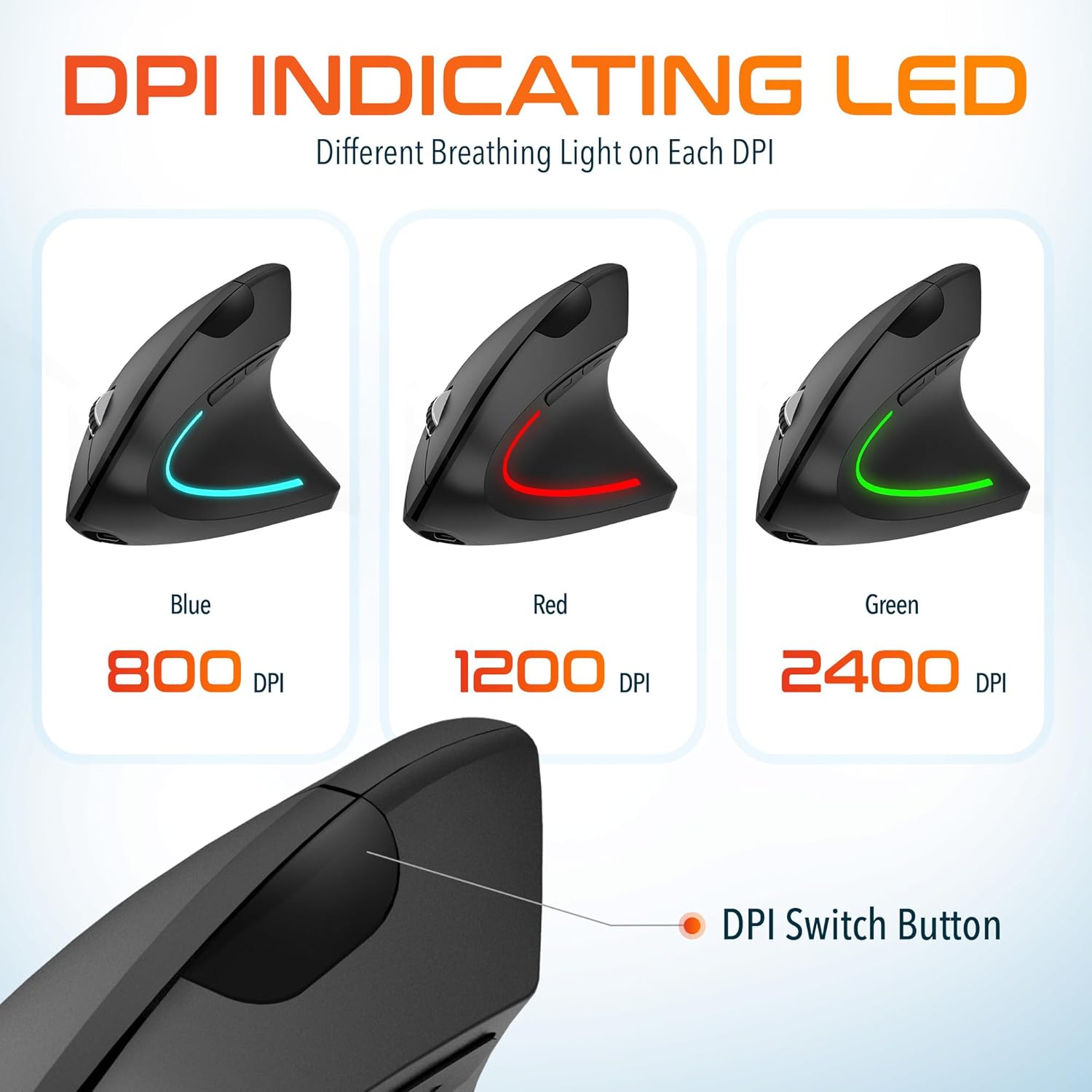
Image: The Delton vertical mouse displaying its LED indicator in blue (800 DPI), red (1200 DPI), and green (2400 DPI) to show current sensitivity settings.
4. คำแนะนำในการตั้งค่า
4.1 การชาร์จเมาส์
- เสียบสายชาร์จ USB ที่ให้มาเข้ากับพอร์ตชาร์จที่ด้านหน้าของเมาส์
- Plug the other end of the USB cable into a USB power source (e.g., computer USB port, wall adapter, power bank).
- The LED indicator will illuminate during charging and turn off when fully charged. A full charge typically takes approximately 1 hour.
4.2 Connecting the USB Dongle
- Locate the USB dongle, usually stored in a compartment on the underside of the mouse.
- Insert the USB dongle into an available USB port on your computer (PC, Laptop, Mac, Chromebook).
- The system will automatically detect and install the necessary drivers. This process may take a few moments.
4.3 การเปิด/ปิดเครื่อง
Locate the power switch on the underside of the mouse. Slide the switch to the 'ON' position to power on the mouse. Slide it to 'OFF' when not in use to conserve battery life.
5. คู่มือการใช้งาน
5.1 การปรับ DPI
To change the mouse sensitivity (DPI), press the DPI switch button located on the top of the mouse, behind the scroll wheel. Each press cycles through the available DPI settings (800, 1200, 2400), indicated by the changing color of the LED light.
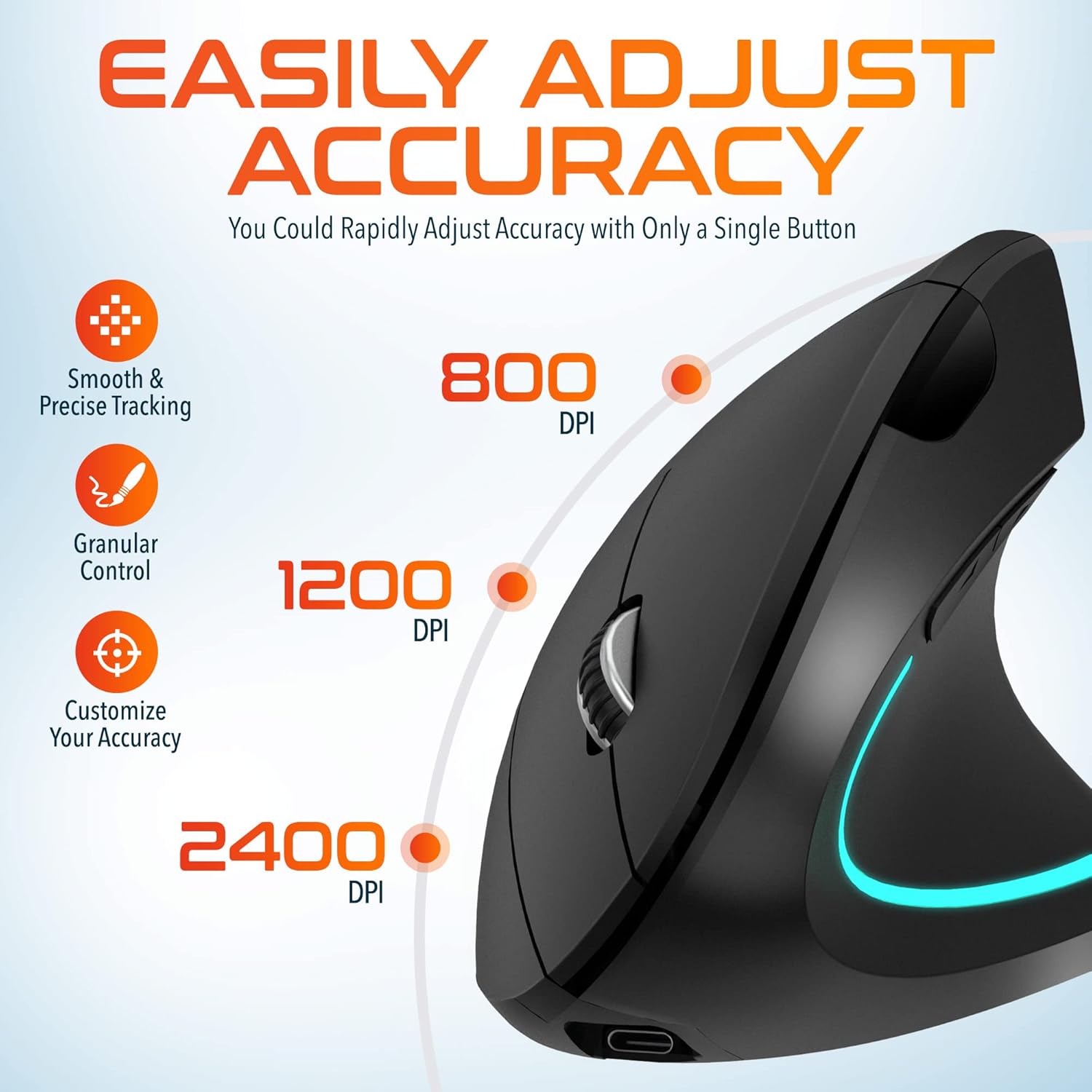
Image: A visual representation of the three adjustable DPI settings (800, 1200, 2400) and their corresponding cursor precision levels.
5.2 ฟังก์ชันปุ่ม
- คลิกซ้าย: ฟังก์ชั่นคลิกหลักมาตรฐาน
- คลิกขวา: ฟังก์ชั่นคลิกรองมาตรฐาน
- ล้อเลื่อน: เลื่อนขึ้นหรือลงผ่านเอกสารและ web หน้าต่างๆ การกดล้อเลื่อนของเมาส์จะทำหน้าที่เหมือนการคลิกกลาง
- ปุ่มไปข้างหน้า: นำทางไปข้างหน้าใน web เบราว์เซอร์หรือ file นักสำรวจ
- ปุ่มย้อนกลับ: นำทางย้อนกลับใน web เบราว์เซอร์หรือ file นักสำรวจ

ภาพ: ภาพระยะใกล้ view of the mouse's scroll wheel and the conveniently placed forward and backward shortcut keys.
6. การบำรุงรักษา
- การทำความสะอาด: ใช้ผ้าแห้งนุ่มๆ เช็ดทำความสะอาดเมาส์ สำหรับคราบสกปรกฝังแน่น ให้ใช้ผ้าชุบน้ำหมาดๆ เช็ดเบาๆampชุบผ้าด้วยน้ำ หลีกเลี่ยงการใช้สารเคมีรุนแรงหรือวัสดุที่มีฤทธิ์กัดกร่อน
- พื้นที่จัดเก็บ: เมื่อไม่ได้ใช้งานเป็นเวลานาน ควรเก็บเมาส์ไว้ในที่แห้งและเย็น ตรวจสอบให้แน่ใจว่าสวิตช์เปิดปิดอยู่ในตำแหน่ง 'ปิด' เพื่อยืดอายุการใช้งานแบตเตอรี่
- การดูแลแบตเตอรี่ ควรหลีกเลี่ยงการปล่อยให้แบตเตอรี่หมดเกลี้ยงบ่อยๆ ชาร์จเมาส์เป็นประจำเพื่อรักษาอายุการใช้งานของแบตเตอรี่
7 การแก้ไขปัญหา
| ปัญหา | สาเหตุที่เป็นไปได้ | สารละลาย |
|---|---|---|
| เมาส์ไม่ตอบสนอง | Low battery; USB dongle not connected; Mouse not powered on; Driver issue | Charge the mouse; Ensure dongle is securely plugged in; Turn on the mouse; Try a different USB port; Restart computer |
| การเชื่อมต่อเป็นระยะ | Interference; Dongle too far from mouse; Low battery | Move mouse closer to dongle; Remove obstacles; Charge the mouse; Avoid using near other 2.4GHz devices |
| DPI ไม่เปลี่ยนแปลง | DPI button not pressed correctly; Mouse unresponsive | Press the DPI button firmly; Check battery and connection |
| เคอร์เซอร์เมาส์เคลื่อนที่ผิดปกติ | Dirty optical sensor; Uneven surface | Clean the optical sensor with a soft cloth; Use on a clean, flat mouse pad or surface |
8. ข้อมูลจำเพาะ
| คุณสมบัติ | รายละเอียด |
|---|---|
| หมายเลขรุ่น | S12 |
| การเชื่อมต่อ | 2.4GHz ไร้สาย (USB Dongle) |
| ระดับ DPI | 800 / 1200 / 2400 |
| ปุ่ม | 6 (ซ้าย, ขวา, ล้อเลื่อน, DPI, ไปข้างหน้า, ถอยหลัง) |
| ประเภทแบตเตอรี่ | แบตเตอรี่ลิเธียมไอออนแบบชาร์จได้ (มีมาให้ในชุด) |
| ช่วงสาย | สูงถึง 30 ฟุต (10 เมตร) |
| ขนาดสินค้า | 5 x 2.6 x 3.25 นิ้ว |
| น้ำหนักสินค้า | 4.9 ออนซ์ |
| ความเข้ากันได้ | PC, Laptop, Mac, Chromebook (Windows, macOS, iOS) |
9. การรับประกันและการสนับสนุน
Delton products are designed for reliability and performance. For warranty information or technical support, please refer to the contact details provided with your purchase or visit the official Delton webไซต์ โปรดเก็บใบเสร็จรับเงินไว้เป็นหลักฐานการซื้อสำหรับการเรียกร้องการรับประกัน


