1. บทนำ
This manual provides detailed instructions for the installation, configuration, and operation of your MoesGo WiFi Smart Wall Light Switch. This device allows you to control your lighting remotely via a smartphone application, voice commands, or directly through its touch panel. It supports multi-control functionality and integrates with popular smart home platforms.
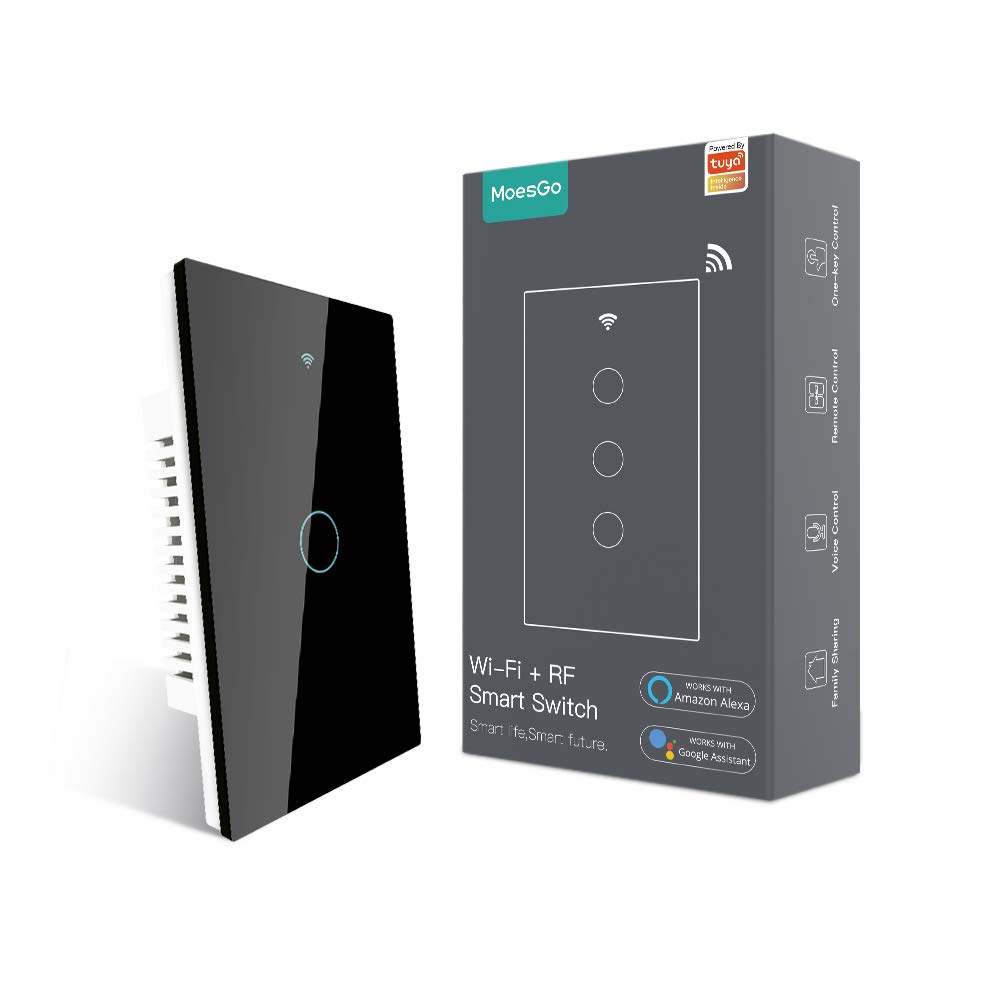
Image 1.1: MoesGo WiFi Smart Wall Light Switch and its retail packaging.
2. Safety Information and Important Considerations
Before proceeding with installation, please read and understand the following safety guidelines. Improper installation can lead to electrical shock or damage to the device and your electrical system.
- ต้องการลวดเป็นกลาง: This smart switch requires a neutral wire for operation. Verify that your electrical box has a neutral wire (typically white) before purchasing หรือพยายามติดตั้ง
- เฉพาะ Wi-Fi 2.4GHz: The switch operates exclusively on a 2.4GHz Wi-Fi network. It is not compatible with 5GHz Wi-Fi networks. Ensure your router supports 2.4GHz and that your device is connected to this frequency during pairing.
- การตัดการเชื่อมต่อไฟฟ้า: Always turn off power at the circuit breaker before installing, removing, or servicing the switch. Failure to do so can result in serious injury or death.
- การติดตั้งโดยมืออาชีพ: หากคุณไม่คุ้นเคยกับการเดินสายไฟฟ้า โปรดปรึกษาช่างไฟฟ้าที่มีคุณสมบัติเหมาะสม
- ไม่ใช่สวิตช์หรี่ไฟ: This device is an ON/OFF switch and does not support dimming functionality.
- ไม่เหมาะสำหรับระบบสายไฟแบบ 3 ทางทั่วไป: This switch uses a multi-control association via the app for 3-way functionality, not traditional 3-way wiring.

Image 2.1: Visual summary of critical installation requirements and limitations.
3. ข้อมูลจำเพาะ
| คุณสมบัติ | รายละเอียด |
|---|---|
| ยี่ห้อ | โมเอสโก |
| หมายเลขรุ่น | AUB088K9T82Z |
| ขนาดสินค้า | 4.7 x 2.9 x 1.5 นิ้ว |
| น้ำหนัก | 7.83 ออนซ์ |
| โหมดการทำงาน | เปิด-ปิด-เปิด |
| คะแนนปัจจุบัน | 10 Amps |
| ปฏิบัติการฉบับที่tage | 240 โวลต์ |
| ประเภทการติดต่อ | เปิดปกติ |
| ประเภทขั้วต่อ | ไร้สาย (Wi-Fi 2.4GHz) |
| เทอร์มินัล | สกรู |
| ประเภทวงจร | 3-way (via app multi-control) |
| ประเภทตัวกระตุ้น | สมาร์ททัช |
4. คู่มือการติดตั้ง
4.1 รายการตรวจสอบก่อนการติดตั้ง
- Confirm presence of a neutral wire in your electrical box.
- ตรวจสอบให้แน่ใจว่าเครือข่าย Wi-Fi ของคุณเป็น 2.4GHz
- ปิดเบรกเกอร์ก่อนเริ่มต้นใช้งาน
- เตรียมอุปกรณ์ที่จำเป็น: ไขควง, คีมปอกสายไฟ, วอลลุ่มtagอีผู้ทดสอบ
4.2 คำแนะนำในการเดินสายไฟ
- ปิดเครื่อง: ค้นหาเบรกเกอร์ที่ควบคุมสวิตช์ไฟที่คุณต้องการเปลี่ยน แล้วปิดเบรกเกอร์นั้น ตรวจสอบให้แน่ใจว่าไฟดับแล้วโดยใช้เครื่องวัดแรงดันไฟฟ้าtagอีผู้ทดสอบ
- ถอดสวิตช์เก่าออก: ถอดแผ่นผนังเดิมออกอย่างระมัดระวัง แล้วคลายเกลียวสวิตช์เก่าออกจากกล่องไฟ ถอดสายไฟออก
- ระบุสายไฟ: Identify the Live (Load), Neutral, and Ground wires. The Live wire typically carries power from the breaker, the Neutral wire completes the circuit, and the Ground wire provides safety.
- เชื่อมต่อสวิตช์ใหม่: Connect the wires from your electrical box to the MoesGo Smart Switch according to the diagram below. Ensure all connections are secure.
- Connect the Live wire (L) from the electrical box to the 'L IN' terminal on the switch.
- Connect the Neutral wire (N) from the electrical box to the 'N IN' terminal on the switch.
- Connect the Load wire(s) (to the light fixture) to the 'L1 OUT', 'L2 OUT', 'L3 OUT', 'L4 OUT' terminals as appropriate for your switch gang configuration.
- Connect the Ground wire (if present) to the ground screw in the electrical box.
- สวิตช์ติดตั้ง: Gently push the wired switch into the electrical box, ensuring wires are not pinched. Screw the switch into place.
- ติดตั้งแผ่นผนัง: Attach the new glass wall plate.
- คืนค่าพลัง: Turn the power back ON at the circuit breaker. The switch indicator light should illuminate.

Image 4.1: Detailed wiring diagram for the MoesGo Smart Wall Light Switch.
5. App Pairing and Configuration
5.1 Download the Smart Life/Tuya App
ค้นหา "Smart Life" or "Tuya Smart" in your smartphone's app store (iOS or Android) and download the application. Register for an account or log in if you already have one.
5.2 Pairing the Switch
- เข้าสู่โหมดจับคู่: After restoring power, the Wi-Fi indicator on the switch should blink rapidly. If not, press and hold any button on the switch for 5-10 seconds until it blinks rapidly.
- เพิ่มอุปกรณ์ในแอป: Open the Smart Life/Tuya app. The app may automatically detect the new device. If not, tap the "+" icon in the top right corner, then select "Add Device" or "Auto Scan".
- Confirm Wi-Fi Network: Ensure your phone is connected to a 2.4GHz Wi-Fi network. Enter your Wi-Fi password when prompted.
- การจับคู่แบบสมบูรณ์: Follow the on-screen instructions in the app to complete the pairing process. Once successfully paired, you can rename the switch and assign it to a room.

Image 5.1: Simplified pairing process using the Smart Life app.
6. คู่มือการใช้งาน
6.1 การควบคุมแบบสัมผัสด้วยตนเอง
Simply touch the corresponding button on the glass panel to turn the connected light ON or OFF.
6.2 Remote Control via Smart Life/Tuya App
Once paired, you can control your lights from anywhere using the Smart Life/Tuya app on your smartphone. Open the app, select your switch, and tap the ON/OFF button.
6.3 การควบคุมด้วยเสียง (Alexa และ Google Home)
Integrate your MoesGo Smart Switch with Amazon Alexa or Google Home for hands-free voice control. Follow the instructions within the Alexa or Google Home app to link your Smart Life/Tuya account.
- สำหรับอเล็กซ่า: Say, "Alexa, turn on [Switch Name]" or "Alexa, turn off [Switch Name]".
- สำหรับหน้าแรกของ Google: Say, "Hey Google, turn on [Switch Name]" or "Hey Google, turn off [Switch Name]".

ภาพที่ 6.1: จบแล้วview of various control methods for the smart switch.
6.4 Multi-Control (3-Way) Association
The MoesGo Smart Switch supports multi-control functionality, allowing multiple switches to control a single light without traditional 3-way wiring. This is achieved through an association feature within the Smart Life/Tuya app.
- Ensure both smart switches are installed and paired to the app.
- In the app, select one of the switches.
- Navigate to its settings or options, and look for "Multi-Control Association."
- Follow the app's prompts to link the two switches to control the same light.

Image 6.2: App interface for setting up multi-control association.
6.5 การกำหนดตารางเวลาและตัวจับเวลา
Use the Smart Life/Tuya app to set schedules or countdown timers for your lights. This allows you to automate when lights turn ON or OFF, enhancing convenience and energy efficiency.
6.6 Relay Status and Backlight Settings
The app provides options to customize the switch's behavior:
- สถานะรีเลย์: Configure the switch to remember its last ON/OFF state after a power outage หรือตั้งค่าเริ่มต้นเป็นเปิดหรือปิด
- สวิตช์แบ็คไลท์: Turn the switch's backlight ON or OFF. This can be useful for bedrooms to avoid light disturbance during sleep.

Image 6.3: App settings for customizing relay status.

Image 6.4: App settings for controlling the switch backlight.
7 การแก้ไขปัญหา
If you encounter issues with your MoesGo Smart Wall Light Switch, refer to the following common problems and solutions:
- Switch Not Responding / No Power:
- Check the circuit breaker to ensure power is ON.
- Verify all wiring connections are secure and correct, especially the neutral wire.
- ตรวจสอบให้แน่ใจว่าหลอดไฟใช้งานได้
- ไม่สามารถจับคู่กับแอปได้:
- Confirm your Wi-Fi network is 2.4GHz. The switch does not support 5GHz.
- Ensure your smartphone is connected to the 2.4GHz Wi-Fi network during pairing.
- Make sure the switch is in rapid blinking pairing mode. If not, press and hold any button for 5-10 seconds.
- Move the switch closer to your Wi-Fi router if signal strength is weak.
- Temporarily disable mobile data on your phone during pairing.
- รีสตาร์ทเราเตอร์ Wi-Fi แล้วลองใหม่อีกครั้ง
- การควบคุมด้วยเสียงไม่ทำงาน:
- Ensure your Smart Life/Tuya account is correctly linked to Alexa or Google Home.
- Verify the switch name in the Smart Life/Tuya app matches the name used in voice commands.
- ตรวจสอบการเชื่อมต่ออินเตอร์เน็ตของคุณ
- Switch Turns ON/OFF Randomly:
- Check for any active schedules or automation rules in the Smart Life/Tuya app that might be causing this behavior.
- Ensure no other smart home devices or users are inadvertently controlling the switch.
- If the issue persists, consider resetting the switch and re-pairing it.
8. การบำรุงรักษา
To ensure optimal performance and longevity of your MoesGo Smart Wall Light Switch, follow these maintenance guidelines:
- การทำความสะอาด: Use a soft, dry cloth to clean the glass panel. Avoid abrasive cleaners, solvents, or excessive moisture, which can damage the surface or internal components.
- อัพเดตเฟิร์มแวร์: Periodically check the Smart Life/Tuya app for available firmware updates for your switch. Updates can improve performance, add features, and enhance security.
- สภาพแวดล้อม : Ensure the switch is installed in an indoor environment within recommended temperature and humidity ranges. Avoid exposure to direct sunlight, extreme temperatures, or high humidity.


