การแนะนำ
The Logitech Ergo M575 Wireless Trackball Mouse is designed for ergonomic comfort and precise control. This manual provides essential information for setting up, operating, maintaining, and troubleshooting your device to ensure optimal performance.
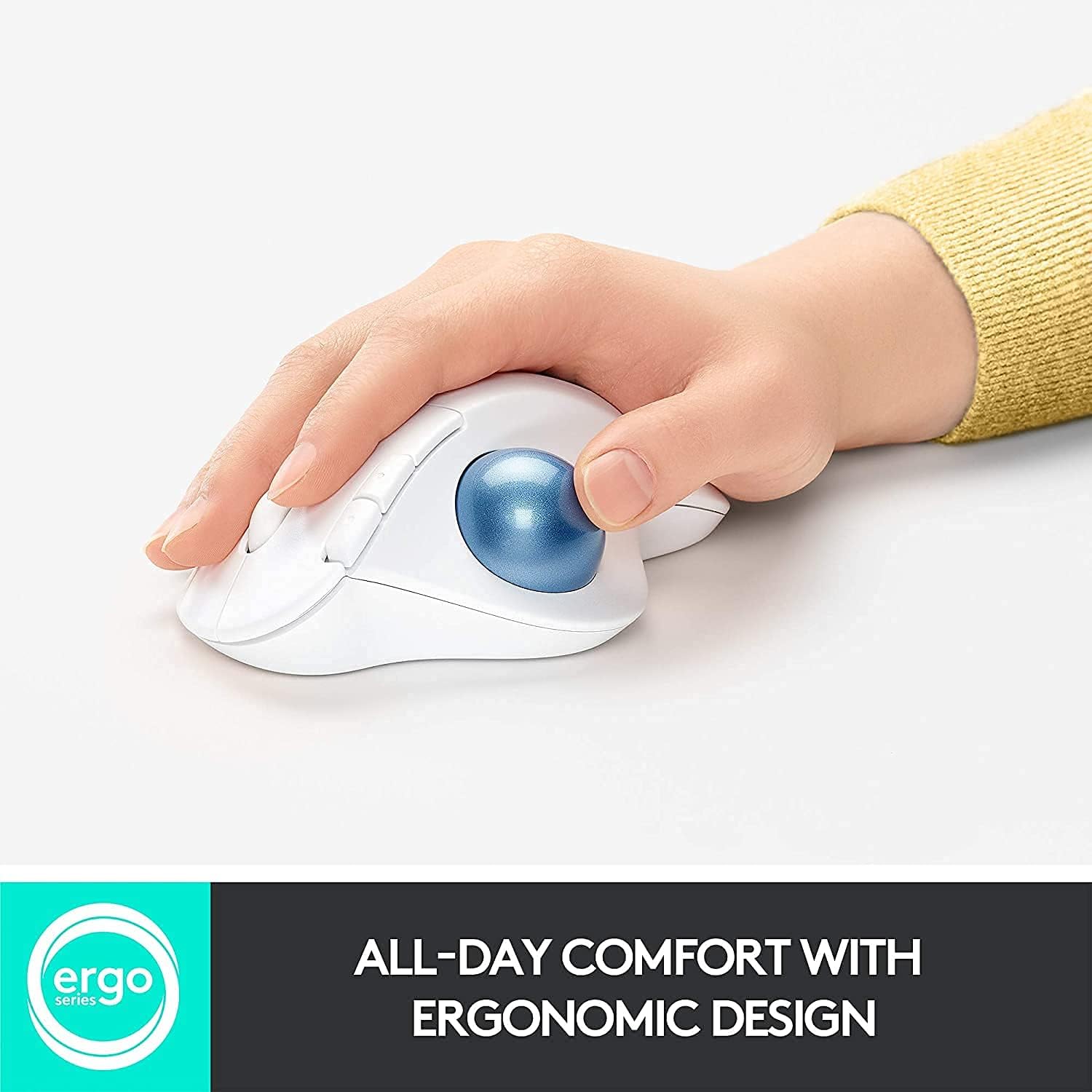
Image: The Logitech Ergo M575 mouse in white, demonstrating its ergonomic design with a hand comfortably resting on it.
คุณสมบัติหลัก
- การเชื่อมต่อไร้สาย: Connects via Bluetooth or the included USB receiver for versatile use.
- การออกแบบตามหลักสรีรศาสตร์: Shaped for comfortable hand and wrist positioning, reducing strain during extended use.
- Precision Trackball: Easy thumb control for smooth and accurate cursor movement.
- ปุ่มที่ปรับแต่งได้: Program buttons for specific functions using the Logitech Options+ software.
- ความเข้ากันได้ของระบบปฏิบัติการหลายตัว: Works seamlessly with Windows and Mac operating systems.
- อายุการใช้งานแบตเตอรี่ยาวนาน: Provides up to 24 months of use on a single AA battery.

Image: A diagram highlighting the key features of the Logitech Ergo M575, including back/forward buttons, precision scroll wheel, removable trackball, multi-OS compatibility, and battery life details.
มีอะไรอยู่ในกล่อง
- Logitech Ergo M575 Wireless Trackball Mouse
- ตัวรับสัญญาณ USB (Logi Bolt)
- แบตเตอรี่ AA 1 ก้อน (ติดตั้งไว้แล้ว)
- คู่มือเริ่มต้นใช้งานฉบับย่อ / เอกสารประกอบ
การตั้งค่า
การเชื่อมต่อเริ่มต้น
- เปิดเครื่อง: Locate the ON/OFF switch on the bottom of the mouse and slide it to the ON position.
- ใส่แบตเตอรี่: Ensure the AA battery is correctly inserted into the battery compartment. The USB receiver is typically stored inside this compartment.
- เลือกวิธีการเชื่อมต่อ:
- บลูทูธ: Press and hold the Easy-Switch button (usually on the bottom or top of the mouse, indicated by '1' or '2') until the LED light blinks rapidly. Then, open your device's Bluetooth settings and select "Logitech Ergo M575" to pair.
- ตัวรับสัญญาณ USB: Remove the USB receiver from the battery compartment and plug it into an available USB port on your computer. The mouse should connect automatically.
- ติดตั้งซอฟต์แวร์ (ทางเลือกแต่แนะนำ): Download and install the Logitech Options+ software from the official Logitech website to customize buttons, adjust pointer speed, and manage device connections.
วิดีโอ: จบแล้วview of the Logitech M575 mouse, demonstrating its features and connectivity options.
คำแนะนำการใช้งาน
การใช้พื้นฐาน
- การควบคุมเคอร์เซอร์: Use your thumb to roll the trackball to move the cursor on your screen.
- คลิกซ้าย: Press the left mouse button for primary selection and interaction.
- คลิกขวา: Press the right mouse button for secondary functions or context menus.
- ล้อเลื่อน: Roll the scroll wheel up or down for vertical scrolling. The scroll wheel can also be clicked for middle-click functionality.
- ปุ่มเดินหน้า/ถอยหลัง: Use the dedicated forward and back buttons (located near the left click button) for navigation in web เบราว์เซอร์หรือ file นักสำรวจ
Video: A demonstration of the Logitech M575 Wireless Trackball Mouse in use, highlighting its ergonomic design and thumb control.
การปรับแต่ง
The Logitech Options+ software allows you to personalize your mouse experience:
- การกำหนดปุ่ม: Reassign functions to the customizable buttons for application-specific shortcuts or general commands.
- ความเร็วตัวชี้: Adjust the trackball's pointer speed (DPI) to match your preference for precision or rapid movement.
- Scrolling Direction: Change the scrolling direction of the scroll wheel.
วิดีโอ: หนึ่งview of the Logitech Ergo M575 mouse, discussing its features and customization options through software.
การเชื่อมต่อ
The Ergo M575 offers flexible connectivity options:
- บลูทูธ: Connects to Bluetooth-enabled devices without needing a USB port.
- ตัวรับสัญญาณ Logi Bolt USB: Provides a secure, strong wireless connection, especially useful for devices without Bluetooth or for enhanced stability.
- สวิตช์ง่าย: Quickly switch between up to two paired devices (one Bluetooth, one USB receiver) by pressing the Easy-Switch button.
Video: A demonstration of the Logitech M575's compatibility with Mac and PC, highlighting its versatility.
แบตเตอรี่และการชาร์จ
The Logitech Ergo M575 is powered by a single AA battery.
- อายุการใช้งานแบตเตอรี่: Enjoy up to 24 months of battery life, depending on usage.
- ประเภทแบตเตอรี่: Uses 1 AA battery.
- สวิตช์ไฟ: Use the ON/OFF switch on the bottom of the mouse to conserve battery when not in use.
การซ่อมบำรุง
Regular maintenance ensures smooth operation and extends the life of your trackball mouse.
- Cleaning the Trackball: The trackball is removable for easy cleaning. Gently push the trackball from the bottom opening to pop it out. Clean the ball and the inside cavity with a soft, lint-free cloth.
- การทำความสะอาดทั่วไป: เช็ดพื้นผิวของเมาส์ด้วยผ้าเนื้อนุ่มและแห้งamp ผ้า. หลีกเลี่ยงสารเคมีที่รุนแรง

Image: The removable trackball feature of the Logitech Ergo M575, allowing for easy cleaning of the ball and its housing.
การแก้ไขปัญหา
- ห้ามขยับเคอร์เซอร์:
- ตรวจสอบให้แน่ใจว่าเมาส์เปิดอยู่
- ตรวจสอบระดับแบตเตอรี่และเปลี่ยนหากจำเป็น
- If using Bluetooth, ensure the mouse is paired and selected in your device's settings.
- หากใช้ตัวรับสัญญาณ USB โปรดตรวจสอบให้แน่ใจว่าเสียบเข้ากับพอร์ต USB ที่ใช้งานได้แน่นสนิทแล้ว ลองใช้พอร์ตอื่นดู
- ทำความสะอาดแทร็กบอลและช่องใส่แทร็กบอลตามที่อธิบายไว้ในส่วนการบำรุงรักษา
- การเชื่อมต่อไม่ต่อเนื่อง:
- Move the mouse closer to your computer.
- หลีกเลี่ยงการใช้เมาส์บนพื้นผิวโลหะซึ่งอาจรบกวนสัญญาณไร้สายได้
- ตรวจสอบให้แน่ใจว่าไม่มีอุปกรณ์ไร้สายอื่น ๆ ก่อให้เกิดสัญญาณรบกวน
- ปุ่มไม่ตอบสนอง:
- Check if the Logitech Options+ software is running and if button assignments are correct.
- Restart your computer and reconnect the mouse.
ข้อมูลจำเพาะ
| ยี่ห้อ | โลจิเทค |
| หมายเลขรุ่น | เออร์โก้ M575 |
| ขนาดสินค้า | 5.28 x 3.94 x 0.01 นิ้ว |
| น้ำหนักสินค้า | 8.8 ออนซ์ |
| เทคโนโลยีการเชื่อมต่อ | Bluetooth, USB (via Logi Bolt receiver) |
| เทคโนโลยีตรวจจับการเคลื่อนไหว | แทร็กบอล |
| แพลตฟอร์มที่เข้ากันได้ | วินโดวส์, แมค |
| อายุการใช้งานแบตเตอรี่ | นานถึง 24 เดือน |

Image: Detailed dimensions (length, width, height) and weight of the Logitech Ergo M575 mouse.
การรับประกันและการสนับสนุน
สำหรับข้อมูลการรับประกันและการสนับสนุนทางเทคนิค โปรดดูเอกสารที่มาพร้อมกับผลิตภัณฑ์ของคุณ หรือเยี่ยมชมเว็บไซต์ฝ่ายสนับสนุนอย่างเป็นทางการของ Logitech webเว็บไซต์.
- ผู้ผลิต: โลจิเทค
- สนับสนุน Webเว็บไซต์: www.logitech.com/support


